
Attendance report in Zoom
At a glance
Access and interpret attendance reports for your Zoom meetings, including participant access times, duration and attentiveness scores. Find out how to generate, view and export these reports, and understand the authentication settings that affect what information appears.
Zoom creates reports about participant attendance in Zoom sessions, which includes information about time and duration of access. Reports can be useful to take attendance as well as to identify the length of time students are logged into the online session. Reports can be accessed 15 mins after the Zoom meeting. You need to be the creator of the Zoom meeting to be able to see the report.
To access the Meeting participants report:
- Login to your Zoom account at https://monash.zoom.us
- Click on Reports in the left hand menu.
- Under the Usage Report tab, select Meeting and Webinar history.
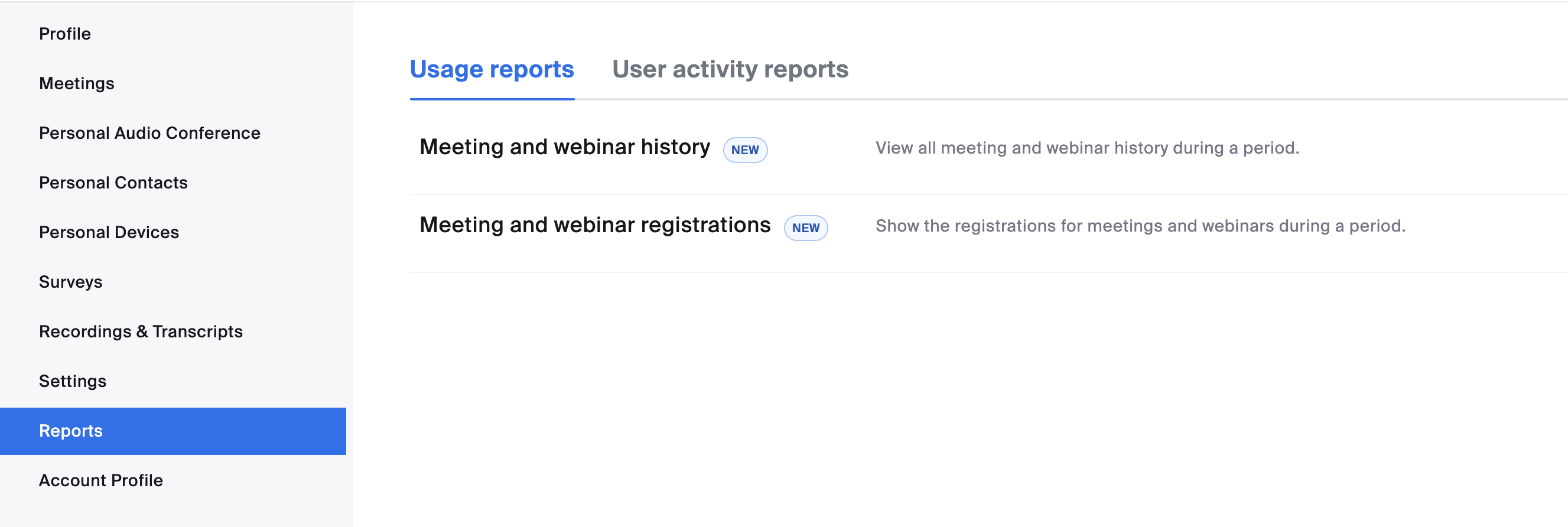
- Specify a time frame with the From and To fields, then click Search.

Note: Zoom will only generate reports up to a range of 1 month. If you need to view reports across a longer period of time, you may need to adjust the specified timeframe and search multiple times.
- You will see a list of Zoom meetings you created that occurred within the specified timeframe.
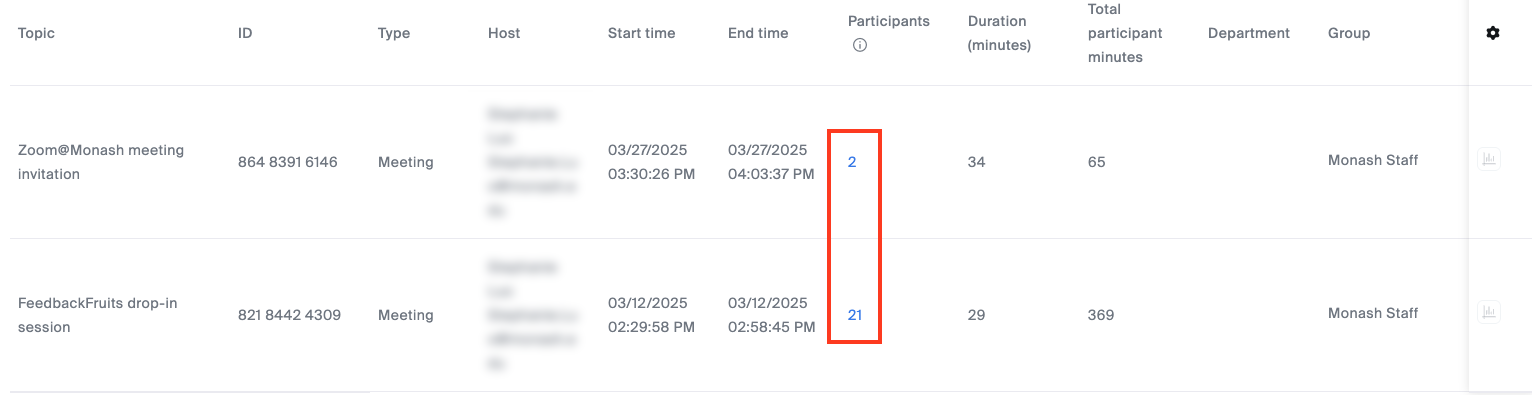
- For the meeting that you would like to view the meeting participants, click on the number in the participants column.
- You will see the list of participants who attended your Zoom meeting, including their user email, their join time, leave time, total minutes spent in the meeting, if they joined as a guest, if the meeting was recorded and if participants were in the waiting room. Multiple logins may indicate technical difficulties for the user.
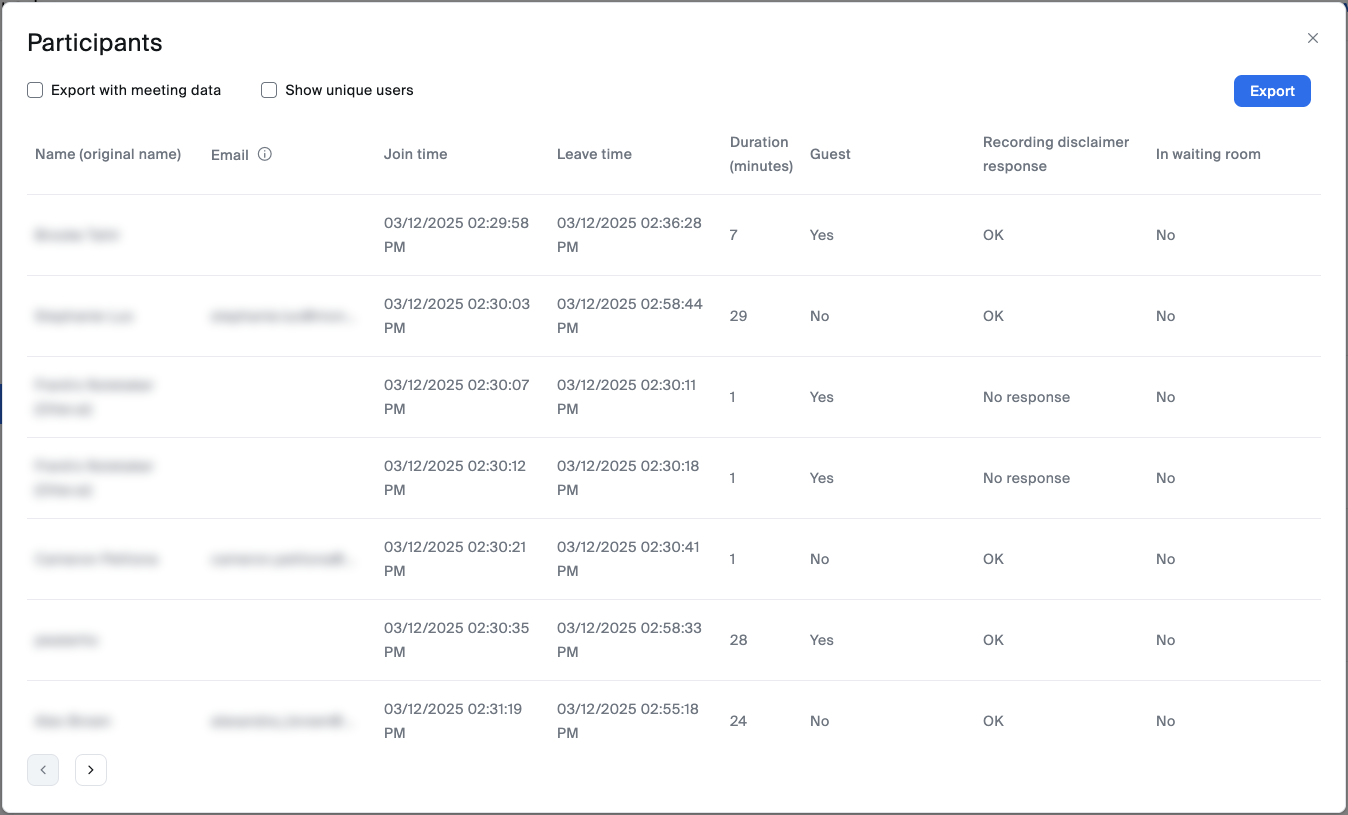
Note: If a participant joins the Zoom meeting without logging in to their Monash Zoom account, you will only see the name they chose when joining the meeting and not their email address. You can check Only Authenticated Users can join in the Zoom meeting settings via monash.zoom.us to force participants to sign in to access the Zoom session.
However, this is NOT recommended as it may make the Zoom meeting less accessible for students using different devices.
- Click Export to download a copy of the Meeting participants report to your computer.