
Regrade a Quiz
At a glance
Regrade a quiz after all student attempts are complete, whether adjusting scores for individual attempts, specific questions or all attempts at once. Understand the difference between partial and full regrades, and how to preview changes with a dry run before confirming results.
Jump to these sections:
You can regrade a quiz after attempts have been made to it, but it is strongly recommended that you do this after ALL attempts have been completed and NOT while other students are still attempting the quiz. For example, you may find that you need to do a regrade where you would like to increase or decrease a set score for a specific question or questions in a quiz already attempted by students.
- Click on the Results at the top of the quiz page.

Regrade individual of multiple student attempts
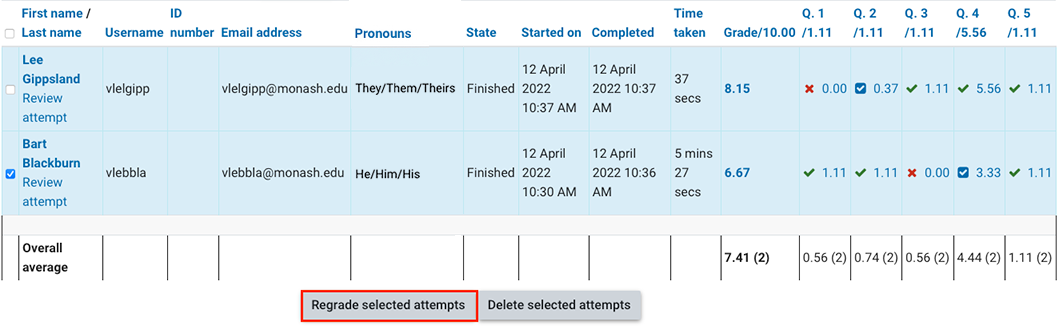
- On the Results page, select the check box beside the student's name.
- Click Regrade selected attempts.
- Click Save after making your changes.
Partial regrade
You can choose to regrade only selected questions.
- When you click Regrade, choose Selected questions.
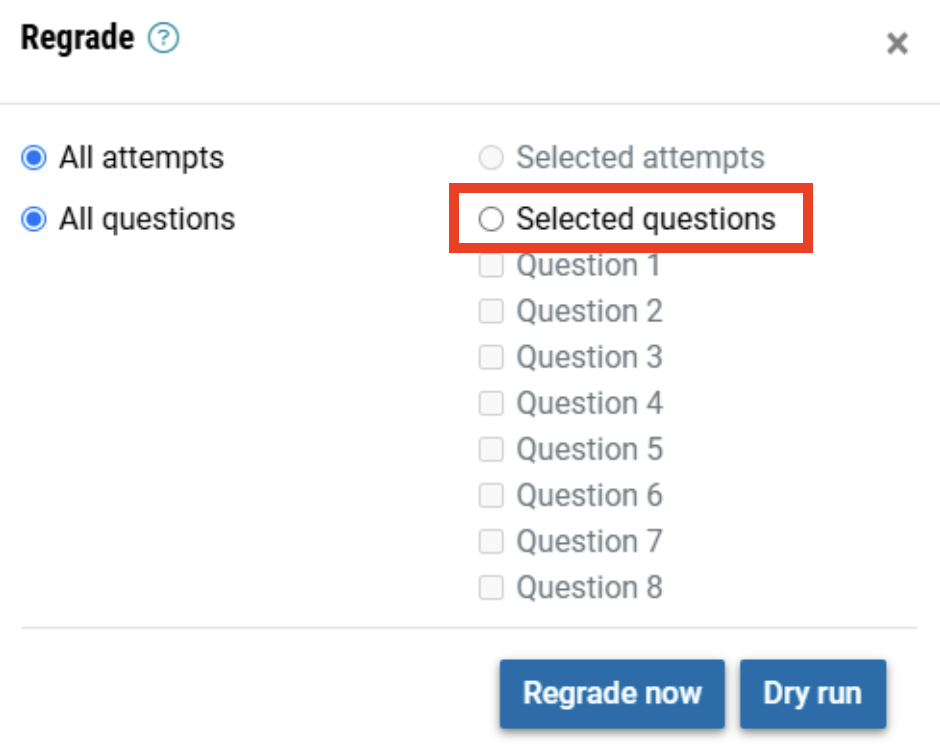
- Select the individual questions you would like to regrade.
- Click Regrade now.
Regrade all attempts
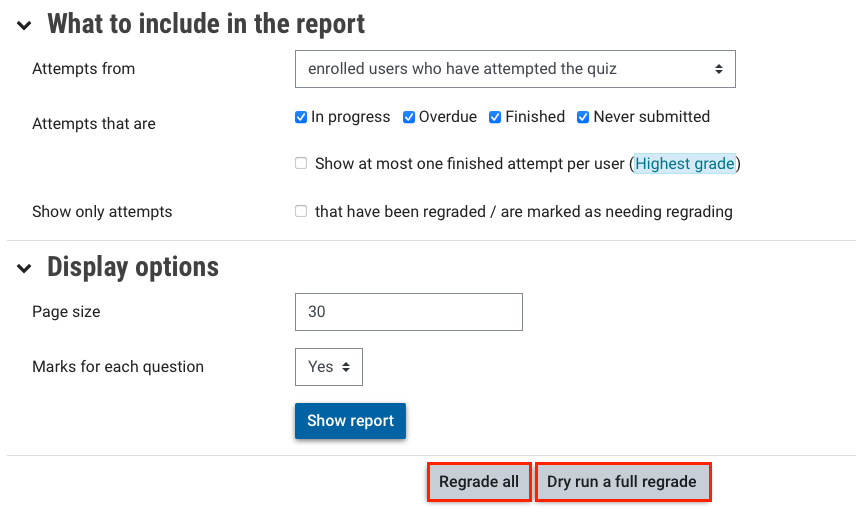
- On the Results page, preview a full regrade of all students by clicking Dry run a full regrade. This will display the new scores as a preview.
- To confirm the regrade, click Regrade all.
Note: There are no limits to the number of times you can regrade a quiz, but we recommend that you use the regrade option with caution especially for self-checking quizzes that provide automatic scores and immediate feedback to your students. You may need to advise the students if you are going to regrade the quiz scores.