
Exclude grades
At a glance
Exclude a grade from contributing to a student's final mark for an individual or multiple students, for example in cases of special consideration. Use the Single view tab to select a student or grade item, then apply and save the exclusion via Edit mode.
You can exclude grades for an assessment item from contributing to the final mark for an individual student or multiple students. This can be useful in the case of special consideration(Spec Con).
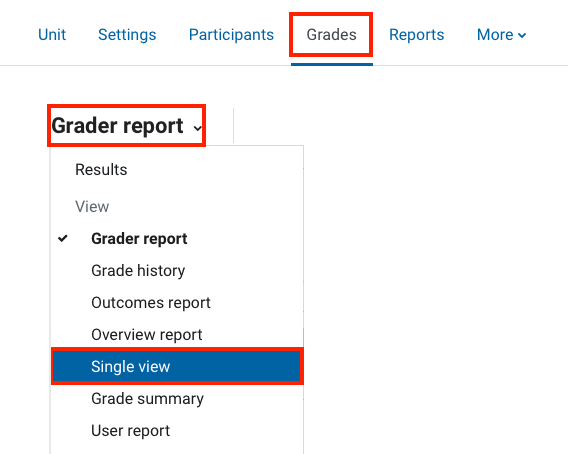
- Click on Grades in the top banner menu.
- Click Grader report and then select Single view from the drop-down list.
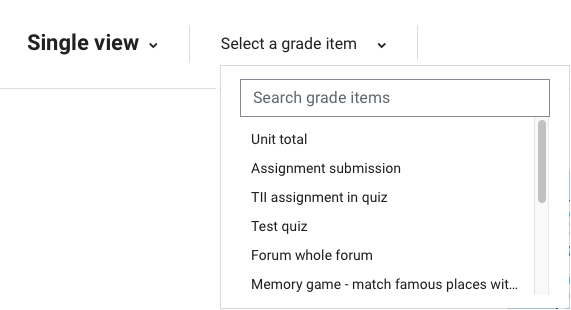
- Choose whether you would like to view all the grades by user or grade item.


- To override or exclude a grade, in the top right hand corner of the page switch Edit mode on (Blue).

- For the grade you would like to exclude, tick the checkbox in the Exclude column.

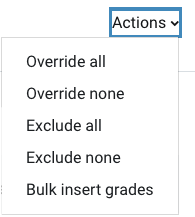
- To exclude all grades, click Actions and then select Exclude all. This will select all the checkboxes in the Exclude column. To deselect all checkboxes in the Exclude column, click Actions and then select Exclude none.
- When you have finished, click Save.
- You will receive confirmation that the grade(s) have been updated. Click Continue to navigate to the Single view report.
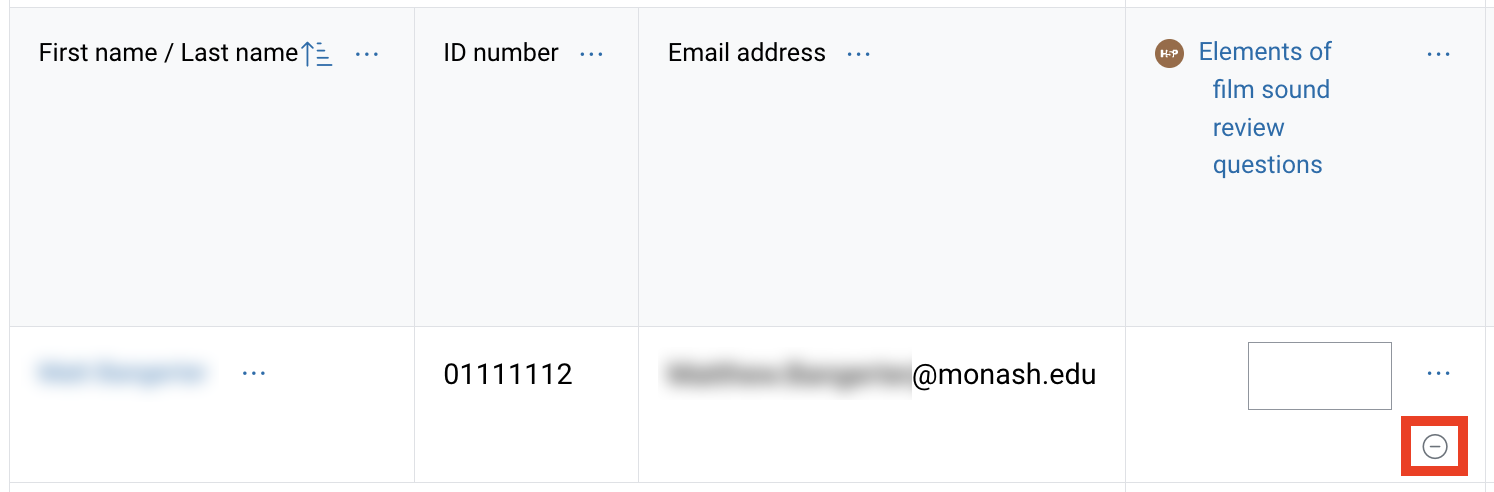
- In the Grader report, you will see that the assessment item for the chosen student has now been excluded, indicated by the minus symbol in circle.
Note: You can quickly switch between user and grade item single view with the Users/Grade items buttons in the top right hand corner.
Note: If you would like to exclude the lowest grade for all students, for example, you would like to drop the lowest 2 quiz grades out of 10 quizzes, you can configure this with Drop the lowest in the Gradebook Setup page. For more information see Set up Moodle Gradebook(Add categories).