
Configure FeedbackFruits settings
At a glance
Configure a FeedbackFruits activity to suit your assessment needs, including instructions, collaboration options, submissions, feedback criteria, allocations, reviews, reflections and grading. Use this page to set up peer feedback settings, decide how students will be grouped and reviewed, and determine how each step contributes to the final grade.
- Use the icons in the top right menu to (from left to right):

- View sync status: View when Moodle group were last synced and manually sync groups if needed.
- Fullscreen: View the activity in full screen.
- Edit: Edit the settings of the FeedbackFruits activity.
- View notifications: View updates and version release notes.
- Additional options (three dots): Create a template based on the FeedbackFruits activity settings, send a copy of the activity and manage your email notifications and preferences.
- When you’ve finished making changes, ensure you click Save in the top right corner of the screen to save your changes.
Note: Some settings cannot be changed when students have made progress with the activity including collaboration options and anonymity.
Expand the accordions to learn more about the configurable settings for each step
Instructions & Group collaboration options
View

- Fill in instructions for the activity for students. You can format and structure your text using markdown elements. For more information about essential Markdown elements you can use to format your instructions, see here. You can click on Add items to record an audio or video clip, or attach a file, if desired.
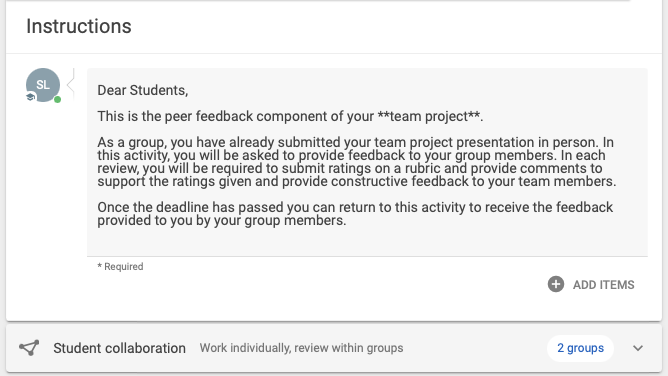
Note: You will not be able to publish/save the assignment if you leave the instructions field blank.
- In Student collaboration, specify whether students will hand in work individually or as a group, and review their peers individually or as groups. Click Change to change the collaboration options.
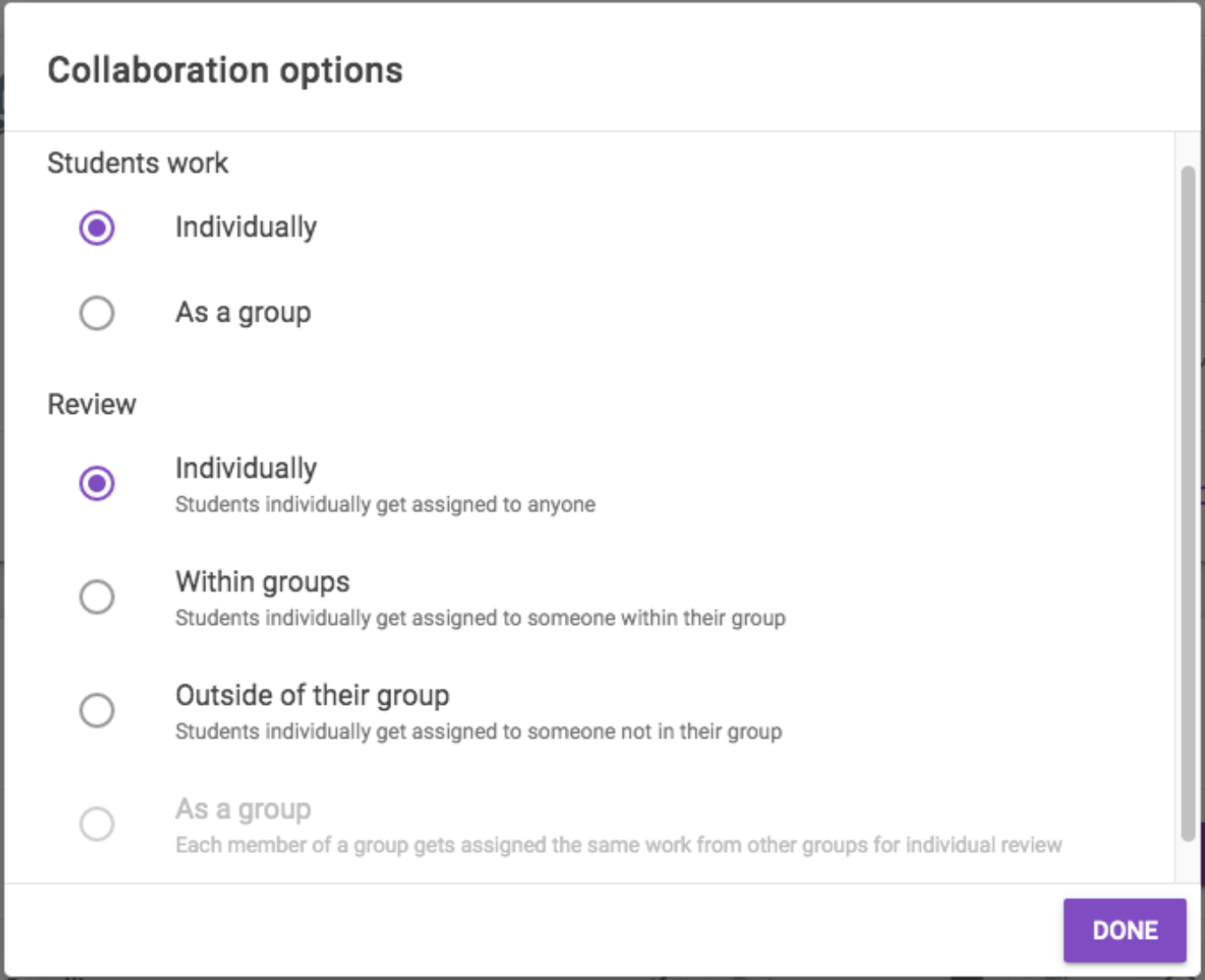
- Select from the Collaboration options below:
- Students work:
- Individually
- As a group
- Review:
- Individually: Students are individually assigned to anyone.
- Within groups: Students individually get assigned someone within their group.
- Outside of their group: Students individually get assigned to someone, not in their group.
- As a group: All members of a group get assigned the same work
The table below provides examples of scenarios for collaboration options
Students work individually Students work as a group Review individually
Students are individually assigned to anyone
All students work individually, for example an individual presentation, and you would like the students to review other students individually Students have collaborated on a project as a group, and need to review another group individually. Within groups
Students individually get assigned someone within their group
Students will individually review members of their group, for example, on collaboration skills and group participation. This is the most commonly used option for assessing teamwork and team performance within a group. This option is disabled when students work as a group is selected.
Outside of their group
Students individually get assigned to someone, not in their group.
Students will individually review members outside of their group. For example, groups have been sorted by presentation topic and students need to review someone with a different presentation topic. This option is disabled if students work as a group is selected.
As a group
All members of a group get assigned the same work
This option is disabled if students work ‘individually’ is selected.
Students have collaborated on a project as a group, and you would like the students to all review the same other group. Individually, same work per group member
Each member of a group gets assigned to review the same group. Reviews are made individually.
This option is disabled if students work ‘individually’ is selected.
Students will individually review another group. For example, groups have been sorted by presentation topic and students in one group need to review another group's presentation topic. - Students work:
- If you choose a collaboration option where students will work in groups, you will be prompted to choose which groups will participate. Your Moodle groupings will be automatically synced from your Moodle unit.
- Select all groups within a grouping using the checkbox.
- You can expand a grouping to view all groups within a grouping. You can further expand groups to view all students within a group.
- Select all groups within a grouping by selecting the checkbox next to the groupings name.
- Select specific groups within a grouping by unselecting the checkbox next to the groupings name and selecting the checkbox beside the group name.
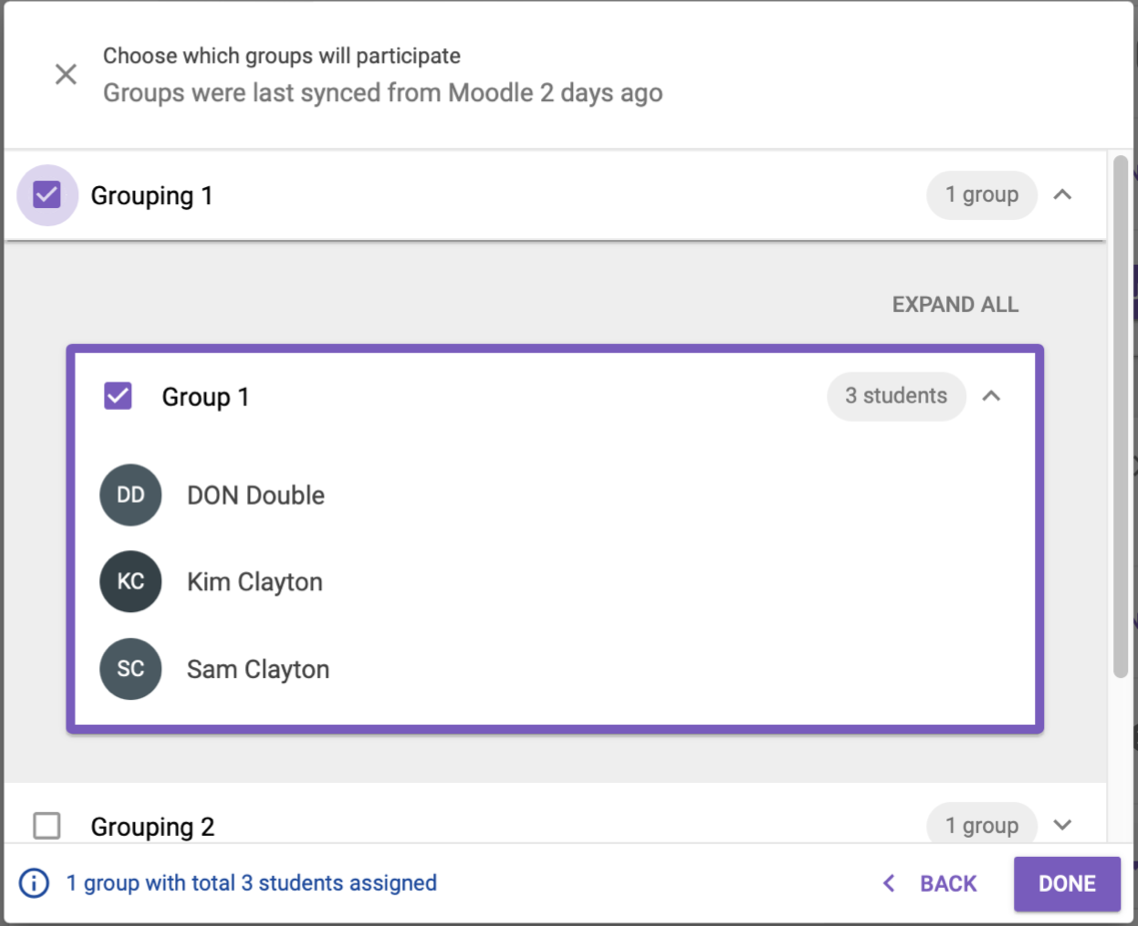
Note: If groups or groupings are displaying 0 students even though there are students in groups in Moodle, you will need to recreate the groups and ensure that the Group membership visibility setting is set to Visible so that FeedbackFruits integration can "view" students in groups.
- The bottom left corner will display the total number of students within your chosen groupings that will be assigned to the FeedbackFruits activity.
- When finished, click Done. If you wish to change assigned groups, click Configure groups.
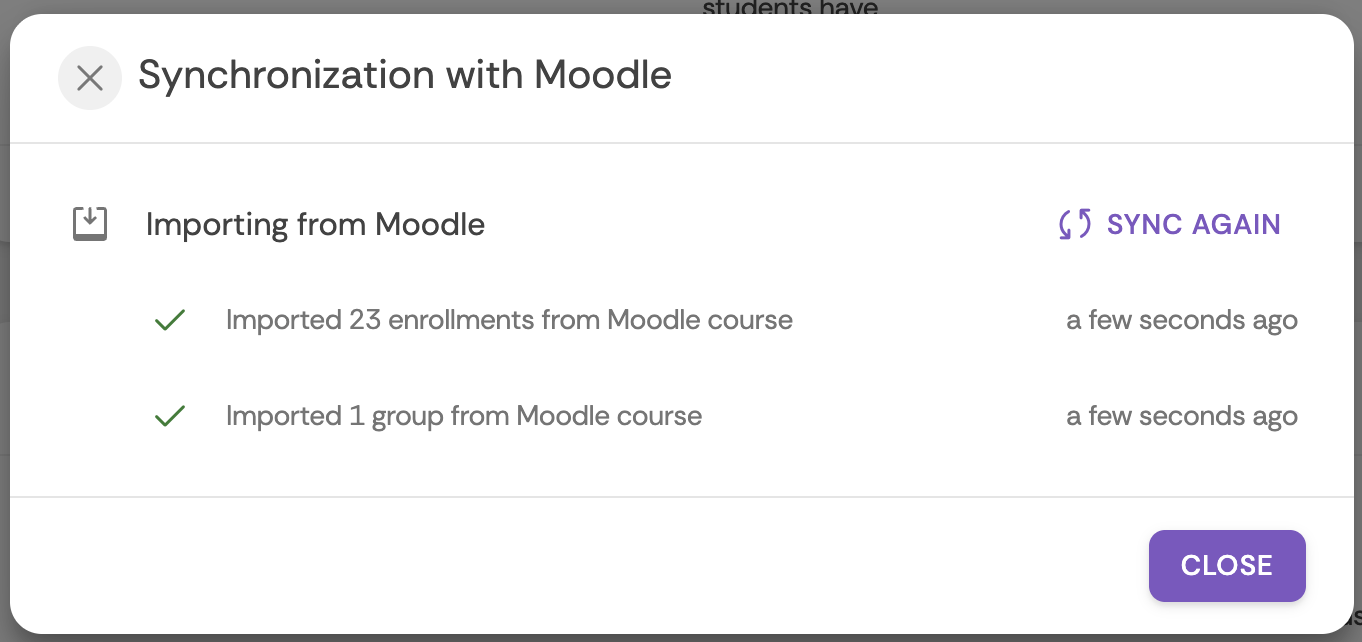
Manual Moodle group sync
- You can check when your FeedbackFruits activity was last synced with Moodle by clicking the sync icon in the top right hand corner.
- To manually sync your Moodle groups again, click Sync again.
Submission (applicable if your activity has a hand-in step)
View
In Submissions, specify the number and type of file you require students to submit. You can choose whether students are required to submit exactly, minimum or between a certain number of files. Students can also hand in more files than required.
Expand the accordions to learn more about each setting
-
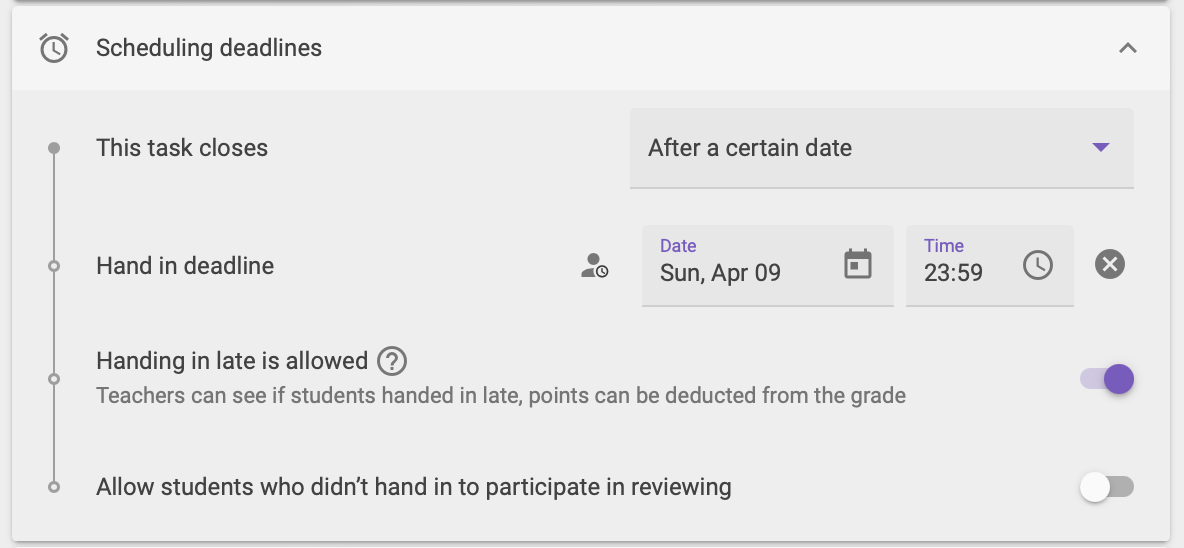
Set a deadline for students have upload their work by. When the deadline has passed, students will be assigned work of a peer or group to review. Once you set a deadline, additional options will appear:
- Allow late hand in: If you have set a deadline, you can allow students to hand in after the submission deadline has passed by switching the Allow late hand in button to ON (Purple). Enabling this option will still allow you to see if students have submitted before or after the deadline.
- Allow students who didn't hand in to participate in reviewing: This will allow students who have not handed in a submission to also be assigned peers to review.
Note: When no deadline is set, students are assigned work to review when at least 2 students have handed in their submissions. If you would like to run your FeedbackFruits activity as a 'live' feedback session, you can leave the deadline blank.
-
Check the boxes next to the file types you want to allow students to submit. For an overview of which formats are supported for each file type, click here.
Note: Embedded audio and video in documents and slideshows cannot be played in FeedbackFruits.
-
Submissions appear anonymously for peers to review. Teachers will be able to see the student's name attached to the submission.
Note: If students have included their name in their file, it will still be visible.
-
If you have specific hand-in instructions for your students for example required format, line spacing, file naming convention, you can enter instructions here.
Note
For written assessment tasks, the Automated Feedback module allows you to define writing criteria including structure, argumentation, clarity, citations, grammar and tone that you would like students' work to be checked against. Students will receive instant automated feedback, allowing them to improve their work and address common mistakes before final submission.
For more information, see Automated feedback.
Given reviews
View
In Given reviews, specify the feedback criteria that students will use as a guide give their peers feedback, set a deadline for when students should complete their reviews and select whether students will be able to read their received feedback instantly, or at a scheduled date.

In Feedback criteria, click Configure to specify the criteria that students will use to give peer feedback (using rubrics, scales and/or comments). You can choose to:
- Create new criteria
- Use institutional rubrics or rubrics from your library
- Copy from recent (reuse feedback criteria from a previous activity)
Expand the accordions below to learn more about the types of feedback you can configure
-
Rubrics allow you to provide detailed explanations for each level of the criterion, for example, what qualities an "excellent" or "poor" performance of a criteria look like.
You can also require students to add comments so they can provide additional reasoning to support their given rating.
Click the plus icons to learn more
- Modify the blank default rubric to suit your requirements:
- Criterion:
- Add criterion by clicking the +Add criterion button
- Delete criterion by clicking the X
- Reorder criterion by clicking the up or down arrows on the left of the criterion.
- Allow comments by clicking the Allow comments checkbox. Specify the minimum number of comments students are required to write by clicking the up and down arrows in the required field.
- Rubric levels:
- Add levels by clicking on the purple plus icon on the right of the screen or by clicking the three dots for an existing level and inserting a new level to the left or the right.
- Delete levels by clicking the three dots and selecting Delete level.
- Reorder levels clicking the three dots and selecting Move level left/right.
- Specify the number of points allocated to each level by clicking the up and down arrows in the points field.
- Descriptors: Click on each blank field to add a description per level for each criterion.
- Criterion:
- When finished, click Done.
- Modify the blank default rubric to suit your requirements:
-
The scale rating allows students to evaluate each other's work on a numerical scale. You can also allow students to add comments so they can provide a rating and additional reasoning to support their given rating.
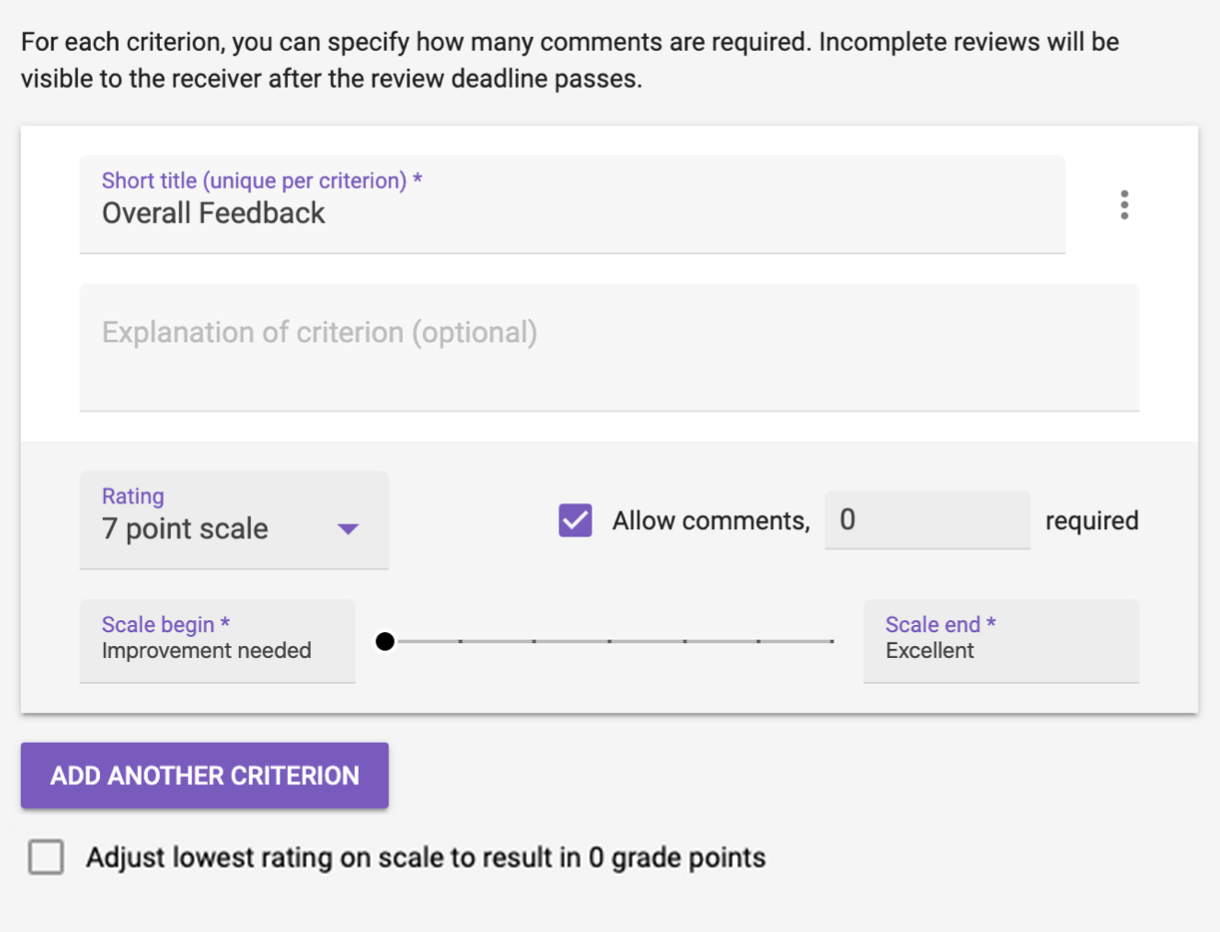
- Enter a title and an optional explanation of the criterion to provide a guide for students.
- From the Rating dropdown list, choose the type of rating you want to use. The 7 point scale is recommended by FeedbackFruits as it allows enough structure for students to give detailed feedback, while still allowing students to maintain oversight.
- If required, you can adjust the lowest rating on scale to 0 by selecting the Adjust lowest rating on scale to results in 0 grade points checkbox at the bottom of scale criteria.
- Customise the beginning and end of the scale by entering text into the Scale begin and Scale end fields. By default, these are set to “improvement needed” and “excellent” respectively.
Note: Only the beginning and end of the scale are named. When students move the slider, they will see numbers that indicate the grade.
- Tick the Allow comments checkbox to allow students to provide an additional supporting comment. You can specify the minimum number of comments students are required to write by entering a number in the required field.
- When you are finished, click Done.
-
Use comment criteria when you want students to give qualitative feedback only, without assigning a grade as a part of their feedback.
Note: Comments can also be required as a part of the rubric feedback.
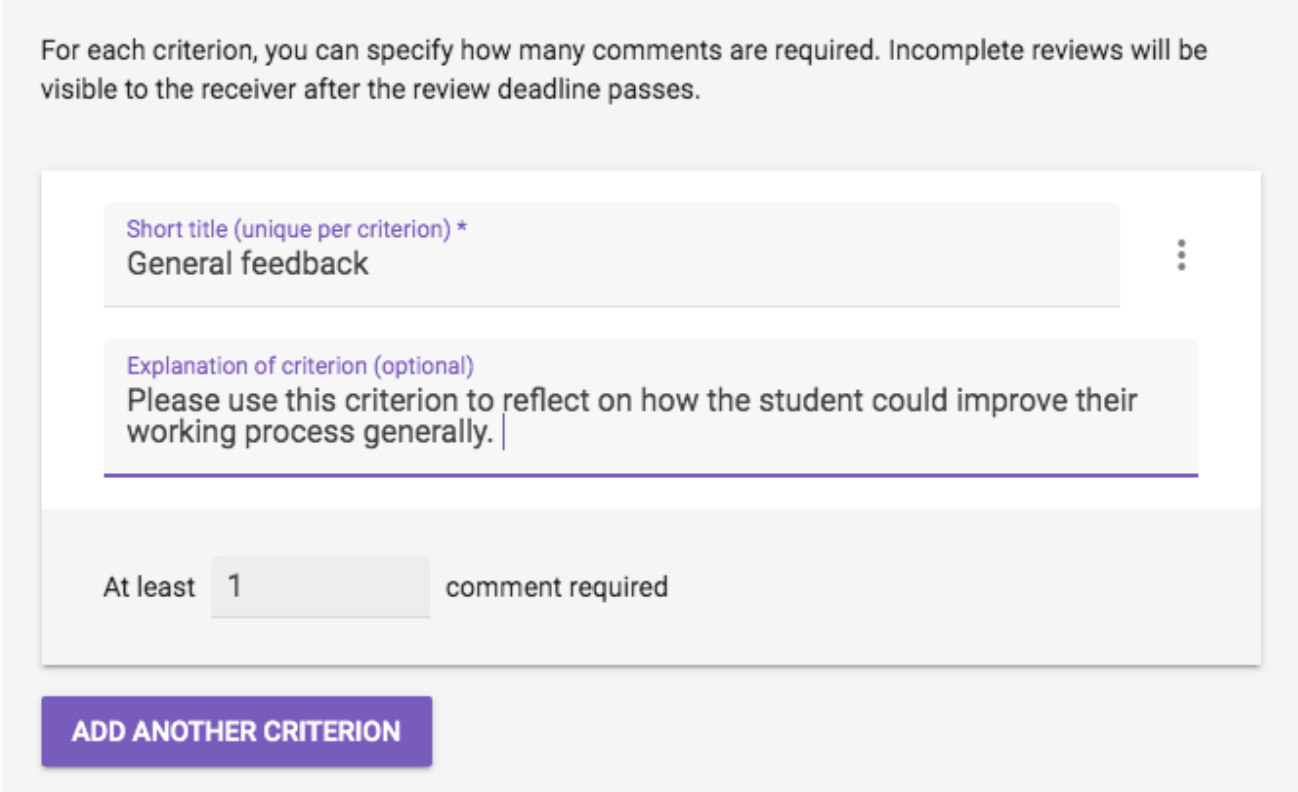
- Enter a title and an optional explanation of the criterion to provide a guide for students.
- Specify the minimum number of comments students are required to write.
- Click add another criterion to add another comment criterion.
- When you are finished, click Done.
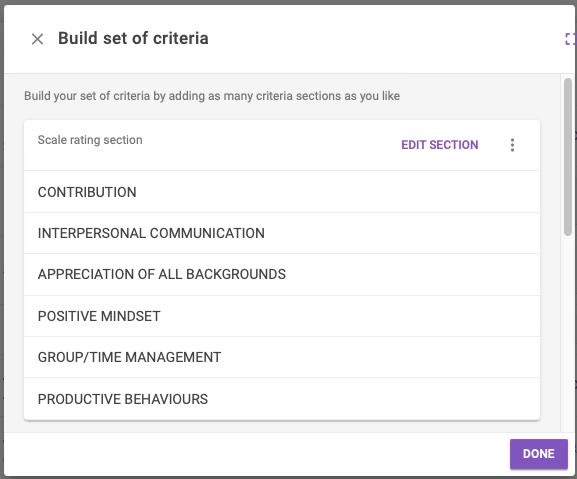
Once created, your feedback criteria will be displayed as a section. You can:
- Click Edit section to continue editing the feedback criteria within that section.
- Click on the three dots to delete feedback section or rearrange the order of sections.
- Continue to add additional Feedback criteria (Rubric, Scale rating or Comment criterion).
- Enable section headings. This will allow you to customise the title of the section.
Once you have finished adding feedback criteria, click Done.
Given reviews settings
Expand the accordion items below to learn more about each configurable setting for Given reviews.
-
Specify how many peer reviews a student is required to give to peers/group members/groups to complete this section of the activity. If you want all peers to review each other, select All.
Note: It is recommended that you set this to at least 3, as this provides students with a more diverse exposure to ideas and perspectives, compared to receiving just a single review.
-
You can toggle the switch to Enable(Purple) or Disabled(Grey) this setting. If enabled:
- Students review themselves based on the same criteria set.
- Self-assessment is visible side by side with their peer reviews for contrast.
- When working as a group, assessment is also on the performance of the group, and visible to all group members.
-
This feature flags outliers based on how students rated themselves and their peers so you can quickly identify and review students in teamwork assignments. You can toggle the switch to Enable(Purple) or Disabled(Grey) this setting.
Use the Detect outliers feature to:
- Further investigation: look at the student’s overview of received reviews ratings, compare it to the team average and their self assessment and browse through comments left by students before drawing any conclusions.
- Provide learning opportunities: If an indicator turns out to be accurate, you may wish to get in contact with the student to hear their side of the story and discuss how the situation occurred. Helping students understand the "why" unlocks a powerful learning experience to recalibrate their self perception and motivate them to set self-development goals.
Do not use the Detect outliers feature to:
- Draw conclusions: Outlier flags are simply indicators of patterns only, you should always investigate flagged outliers and read comments for context in order to exercise your own judgement. Don’t use labels for grading without investigating individual contexts.
Note
To enable this feature, the following conditions must be met:- Self-assessment is enabled
- Students work individually to review in groups
- Students review at least 4 peers or 'all' their peers
- Configure: Allocation method can not be ‘students choose who to review’
-
Set the time and date that students must complete their written peer feedback. Reviewers will not be able to view or edit their reviews after the deadline passes. You can leave the deadline blank to allow reviewers to view and/or edit their feedback indefinitely.
-
In Allocations, click Change to change the allocation method. Select your preferred method of allocation, then click Done to save your changes.
Note: You can manually assign allocations, if required. For more information, see Manual allocations.
The table below provides an explanation of allocation options
Allocation method Use case Limitations Automatically - One by one
Students will be assigned a review one by one, a peer will only be allocated when the student starts each subsequent review, and so on. This is the default and recommended method of allocation as it ensures the fairest distribution of reviews in case some students don’t participate in the activity. Students are not able to see all the peers they are allocated to review in advance. In situations where students having prior knowledge of their allocations is desirable, for example if students are required to review their peers for a group presentation, automatically - all at once may be more suitable. Automatically - All at once Students will be assigned all the reviews they'll have to complete at once. This option is only recommended when the required amount of reviews is set to All, as students will be able to see all the peers they're required to review at once, rather than having to complete the first review before continuing with the second.If students only complete 1 review, the others can no longer be assigned to someone else who does complete all the reviews.Manually Manually allocate someone for each student to review. If you do not assign a student someone to review, they will not be able to participate in the activity. A significant amount of manual work is required for this allocation. For more information, see Manual allocations. Students choose who to reviewOnce the review process has started, students will be able to select the student or group they want to review at the review step. If multiple reviews are required, students will select the allocations one after another. This allocation method cannot be enabled if:- if ‘students review as a group’ has been selected, as group members will have the same review allocation.
To learn more about how peers are automatically assigned, see FeedbackFruits: How are peers assigned?
-
Note: You will still be able to view the student's name. Reviewers will appear to their peers anonymously.
Recommended use case Enable reviewer anonymity Students are new to giving feedback to their peers. This provides a safe learning environment that lowers the threshold for giving honest and valuable feedback. Disable reviewer anonymity Students have grown familiar with giving feedback anonymously. This helps prepare them for life after studies, where feedback is expected to be given without the protection of anonymity. -
Choose when the students can see their feedback from the following options:
- Instantly: As soon as a student has posted their peer feedback, their peer will be able to read it.
- After release date: Once the deadline has passed, students will be able to read peer reviews.
- A certain date: Set a date other than the deadline when students will be able to read peer reviews.
- Never: You can view peer reviews but students will not be able to read the peer reviews they have received. You can manually publish feedback at any time.
-
You can toggle the switch to enable(Purple) or disable(Grey) the following settings.
Feedback tips for reviewing
Students will see a randomly selected tip from the following default tips while they write feedback:
- Be sure to make your feedback actionable (concrete suggestions for improvement)
- Remember to link it back to the main criteria of the assignment
- Try to balance your review; recognise both strong and weak points
- Remember to ask for clarification, or elaboration on points you don’t understand
- Try to ask questions that encourage reflection
- Remember to critique the writing, not the writer
- Before critiquing someone’s worldview or arguments, consider their statements in the most rational way possible, and interpret their strongest arguments
- If you think a worldview or opinion is wrong, try probing questions
- If you were receiving this feedback, would you find it helpful?
- Remember to keep the tone of your feedback motivational
- Try to use a tone of feedback that you’d also like to receive.
You can click the X beside the tip to delete a tip or click Add another tip to enter your own tips.
Review checklist
Checklist that will be shown to students before handing in to help improve quality. This checklist will be shown to a student at the bottom of their criteria, to help them reflect on how they formulated their feedback and if they would like to go back to edit some things.
Feedback coach (AI-powered feature) - beta
The Feedback Coach feature assists students in writing better reviews by providing real-time tips to help improve the quality of the feedback.
How it works:
- The feedback appears next to the feedback comment field as students write reviews
- It provides real-time suggestions for improvement tailored to the feedback criteria, language use, and content of the review.
- Your students have the option to disable this in their preferences even if you enable the feature
Instructions for giving feedback
Enter additional instructions for students to keep in mind while they give feedback.
Received reviews
View
In Received reviews, students read the feedback they received. You can also enable students to rate their reviewers' feedback which could motivate students to give better feedback and to improve.
In Scheduling deadlines, set an optional deadline for students to read their received reviews. Students can still view the feedback and their reflection after the deadline, however they will not receive any grades for Has read all received feedback if they read their recieved reviews after the deadline.
Once students have completed this step, you can publish student feedback for their peers to receive.
Note: If you do not set a deadline, students can write and/or edit their reflection indefinitely.
Grading
View
In Grading, adjust the weighting to determine how much each step of the feedbackfruits activity will contribute towards the final grade. You should configure grading before students begin the activity.
- Click Configure.
- You will see each step (Grading facet) of the feedbackfruits activity.
- Use the buttons in the Include column to include (Purple) or exclude(greyed out) a step from contributing to the final grade. Excluding a step is the equivalent of setting the weighting to 0.
- In the weight column, enter your desired weighting.
- Ensure that the total equals 100.
- Click Done.
Click the icons to learn more about grading facets
Note: Weightings you have allocated for Completed giving feedback, Has written the minimum number of review comments and Ratings received on work in total will appear as the sum total weighting for the Given reviews step. For example, Completed giving feedback(40%) and Ratings received on work in total(40%) will appear to students as the Given reviews being worth 80% of the mark.
Grading settings
Click on Settings to expand the Settings accordion. Click the toggle to switch the setting ON (Purple) or OFF (Grey). You can enable:
-
This setting functions as a threshold hurdle. Once enabled, set the score students must achieve to receive a pass grade by entering a required amount of points in order to get a passing grade.
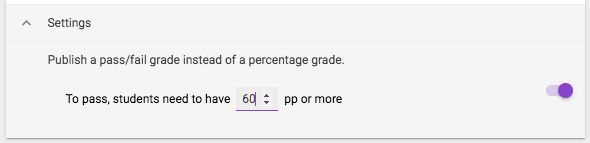
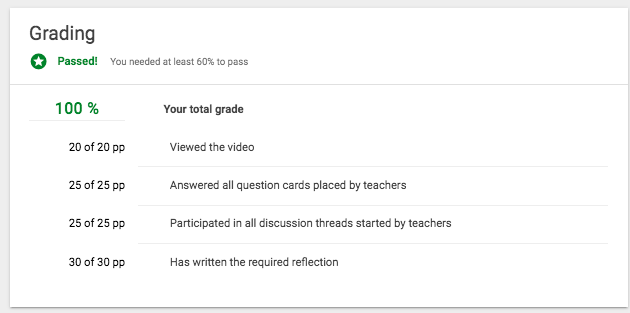
Before publishing the grades, the amount of points needed in order to pass the assignment will be visible. Once published, students will see whether they passed, along with the normal breakdown of their grade. You will be provided with an overview of the scores, along with a column showing whether the student passed or failed the assignment.
-
To enable this feature:
- Your must be using Group Member Evaluation activity (does not have a submission hand-in step)
- The Self-assessment setting must be enabled
- Collaboration options must be set to Work individually, review within groups
- Configure that students review at least 4 peers or 'all'
- Feedback criteria must include at least 1 rubric or scale criterion
- Allocation cannot be set to students choose who to review
This feature suggests automatic adjustments to students' grades within a group based on their contribution as rated by their peers after all students have completed the FeedbackFruits activity. There are two methods which can be used to individualise student grades:
- Group Contribution Factor: Grades are adjusted based on group participation.
- Group Skill Factor: Grades are adjusted based on performance.
The system will provide suggestions in regards to the adjustments that are to be made to the grades. You can apply suggested grade changes:
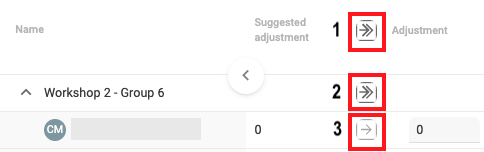
- For all students: Click on the arrow icon at the top of the table header, the suggestions can be applied for all students within the assignment.
- For all students in a subgroup: Click on the arrow icon that is connected to the subgroup-row.
- For an individual student: Click on the arrow icon on the student row.
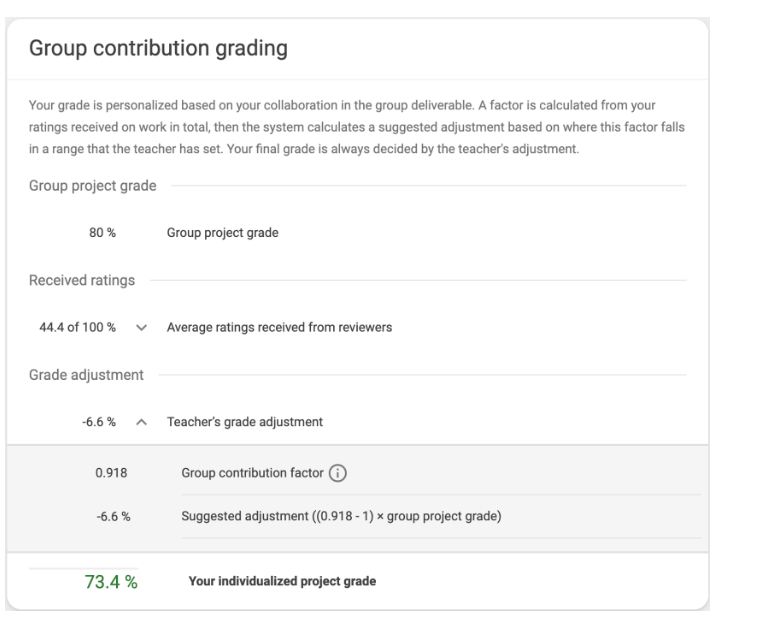
After students complete their feedback assignment, the Group Contribution Factor for every student is shown, based on the ratings by their peers, as well as the grade adjustments.
Student view of group contribution grading adjustment


Optional steps
You can add a range of optional modules to your FeedbackFruits activity, including:
- Reflections: Allows students to write a reflection on the activity.
- Feedback on feedback: Allows educators to provide feedback on students feedback using a seperate set of criteria (rubrics, scales and/or comments).
- Automated feedback: Allows students to receive immediate feedback on written documents based on a set of defined criteria. This module is only available if your FeedbackFruits activity has a submission step.
- Participation grading: Allows students to choose a contribution from their given reviews and assign a rating from between 1 to 10.
Expand the accordions below to learn how to set up and configure optional modules
Reflections
View
- Click + Add learning step below the grading section to add an optional reflection module.

- Click Add for Reflections.

- The Reflections module allows students to write a reflection on the activity and is added after Received reviews, meaning students complete this after they have read reviews.
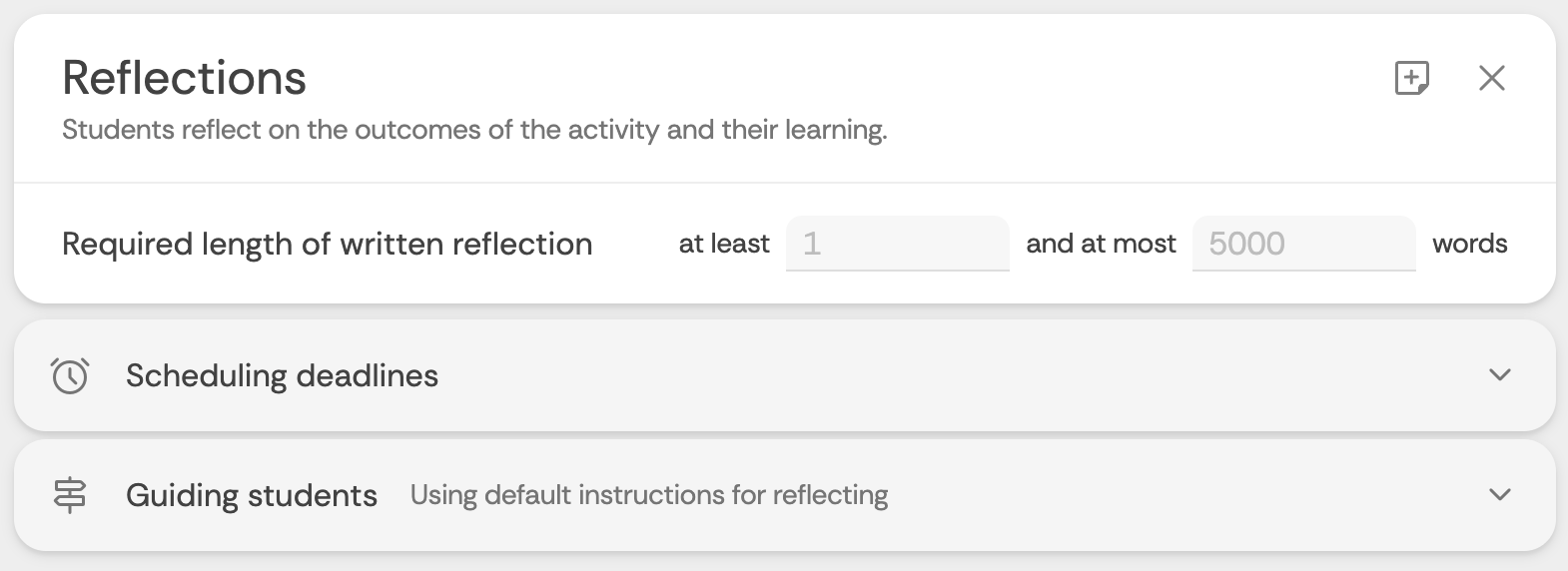
- Specify a minimum and maximum word count for the written reflection.
- In Scheduling deadlines, you can set an optional deadline.
- In Guiding students, you can:
- Enable the Reflection coach (beta): Students will received AI-powered real-time feedback to improve their reflections
- Enter optional instructions to guide students in writing their reflection. By default, some guiding principles are provided.
- Click Add items to attach an audio/video file or a file attachment.
Feedback on feedback
View
- Click + Add learning step below the grading section to add an optional reflection module.
- Click Add for Feedback-on-feedback.

- The Give feedback-on-feedback module will be added to the FeedbackFruits activity, after the Received reviews step.
- For Visibility, you can choose when the students can see their feedback from the following options:
- Immediately: As soon as a you have written feedback, the student will be able to read it.
- After a certain date: Set a date when students will be able to read your feedback.
- Never (release manually): Students will not be able to read the your feedback until you manually release it.
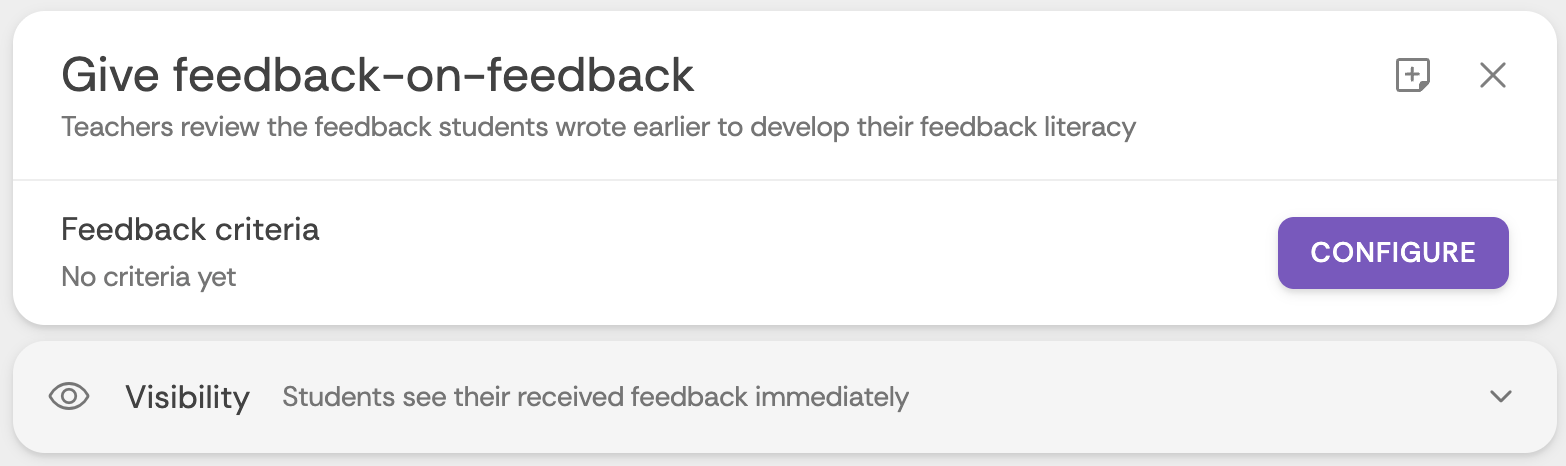
- For Feedback criteria, click Configure to specify the criteria you will use to give feedback on students feedback (using rubrics, scales and/or comments). You can choose to:
- Create new criteria
- Use rubrics from My library
Expand the accordions below to learn more about the types of feedback you can configure
-
Rubrics allow you to provide detailed explanations for each level of the criterion, for example, what qualities an "excellent" or "poor" performance of a criteria look like.
You can also require students to add comments so they can provide additional reasoning to support their given rating.
Click the plus icons to learn more
- Modify the blank default rubric to suit your requirements:
- Criterion:
- Add criterion by clicking the +Add criterion button
- Delete criterion by clicking the X
- Reorder criterion by clicking the up or down arrows on the left of the criterion.
- Allow comments by clicking the Allow comments checkbox. Specify the minimum number of comments students are required to write by clicking the up and down arrows in the required field.
- Rubric levels:
- Add levels by clicking on the purple plus icon on the right of the screen or by clicking the three dots for an existing level and inserting a new level to the left or the right.
- Delete levels by clicking the three dots and selecting Delete level.
- Reorder levels clicking the three dots and selecting Move level left/right.
- Specify the number of points allocated to each level by clicking the up and down arrows in the points field.
- Descriptors: Click on each blank field to add a description per level for each criterion.
- Criterion:
- When finished, click Done.
- Modify the blank default rubric to suit your requirements:
-
The scale rating allows students to evaluate each other's work on a numerical scale. You can also allow students to add comments so they can provide a rating and additional reasoning to support their given rating.
- Enter a title and an optional explanation of the criterion to provide a guide for students.
- From the Rating dropdown list, choose the type of rating you want to use. The 7 point scale is recommended by FeedbackFruits as it allows enough structure for students to give detailed feedback, while still allowing students to maintain oversight.
- If required, you can adjust the lowest rating on scale to 0 by selecting the Adjust lowest rating on scale to results in 0 grade points checkbox at the bottom of scale criteria.
- Customise the beginning and end of the scale by entering text into the Scale begin and Scale end fields. By default, these are set to “improvement needed” and “excellent” respectively.
Note: Only the beginning and end of the scale are named. When students move the slider, they will see numbers that indicate the grade.
- Tick the Allow comments checkbox to allow students to provide an additional supporting comment. You can specify the minimum number of comments students are required to write by entering a number in the required field.
- When you are finished, click Done.
-
Use comment criteria when you want students to give qualitative feedback only, without assigning a grade as a part of their feedback.
Note: Comments can also be required as a part of the rubric feedback.
- Enter a title and an optional explanation of the criterion to provide a guide for students.
- Specify the minimum number of comments students are required to write.
- Click add another criterion to add another comment criterion.
- When you are finished, click Done.
Automated feedback (applicable if your activity has a hand-in step)
View
- Click + Add learning step below the grading section to add an optional reflection module.
- Click Add for Automated feedback on writing.

- The Automated feedback module will be added to the FeedbackFruits activity, after the Submission step.
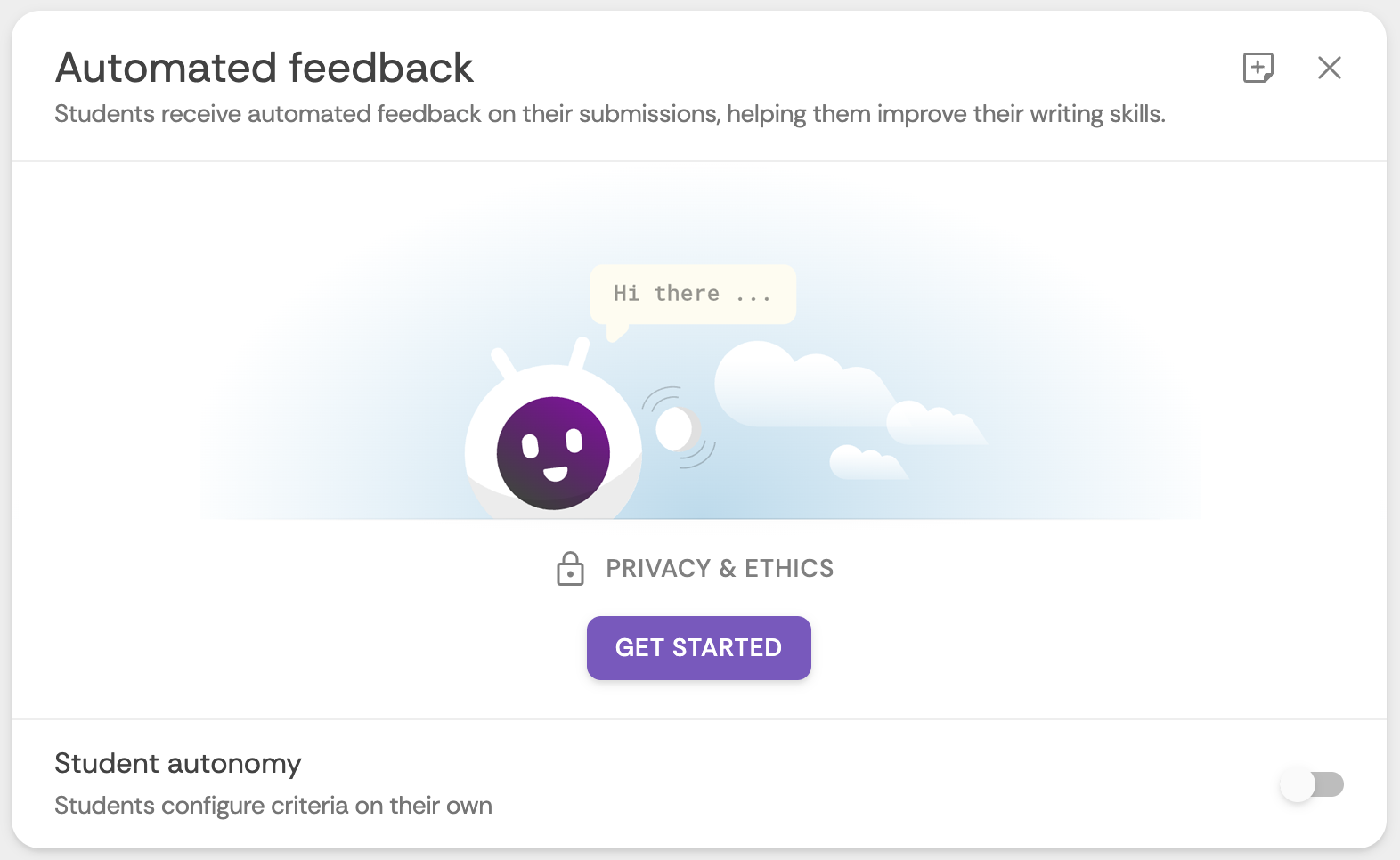
- Click Get stared to configure criteria,
OR
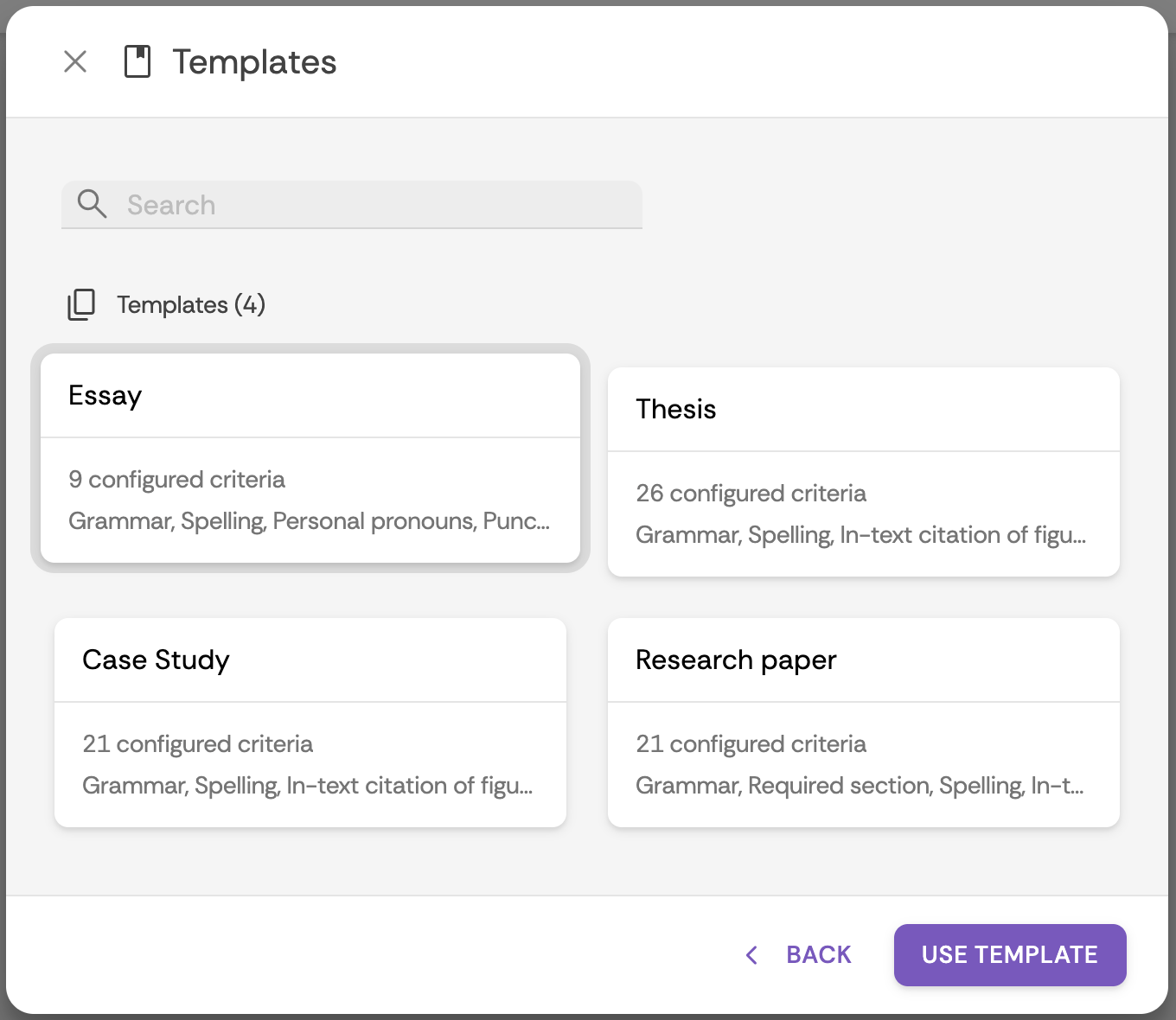
Enable the Student autonomy setting to allow students to configure their own criteria. - You can choose to configure your own set of criteria or use templates with pre-configured criteria. For more information, see choosing the right criteria.
- If using a template, select the desired template, then click Use template.
- Click Save in the top right corner to save your changes.
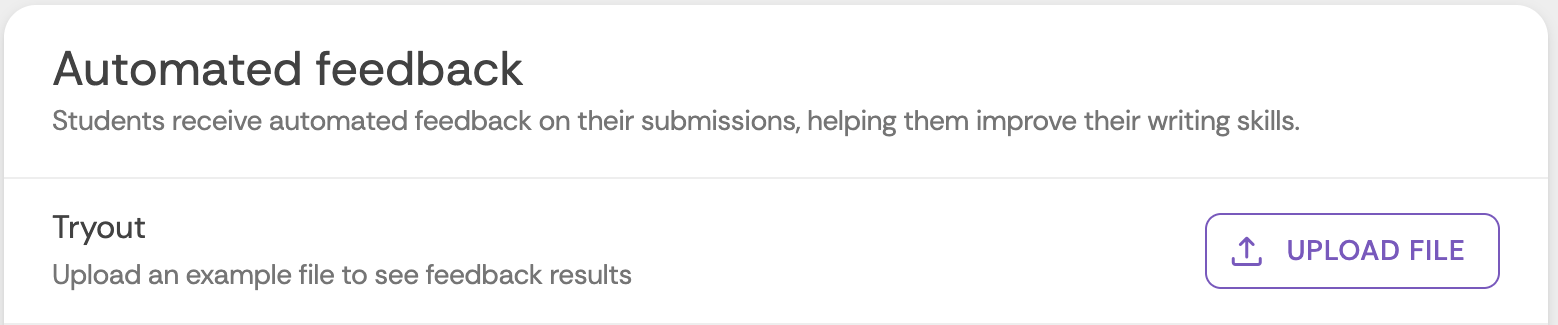
- You can try out the automated feedback module by uploading a file with the Upload file button.
- Once students begin to upload files to the FeedbackFruits activity, you will be able to see how their work has been assessed against the feedback criteria.
Participation grading
View
- Click + Add learning step below the grading section to add an optional reflection module.
- Click Add for Participation grading.

- The Participation Grading module allows students to choose a contribution from their given reviews and assign a rating from between 1 to 10. The module will be added after the Received reviews step, meaning students complete this after giving reviews.
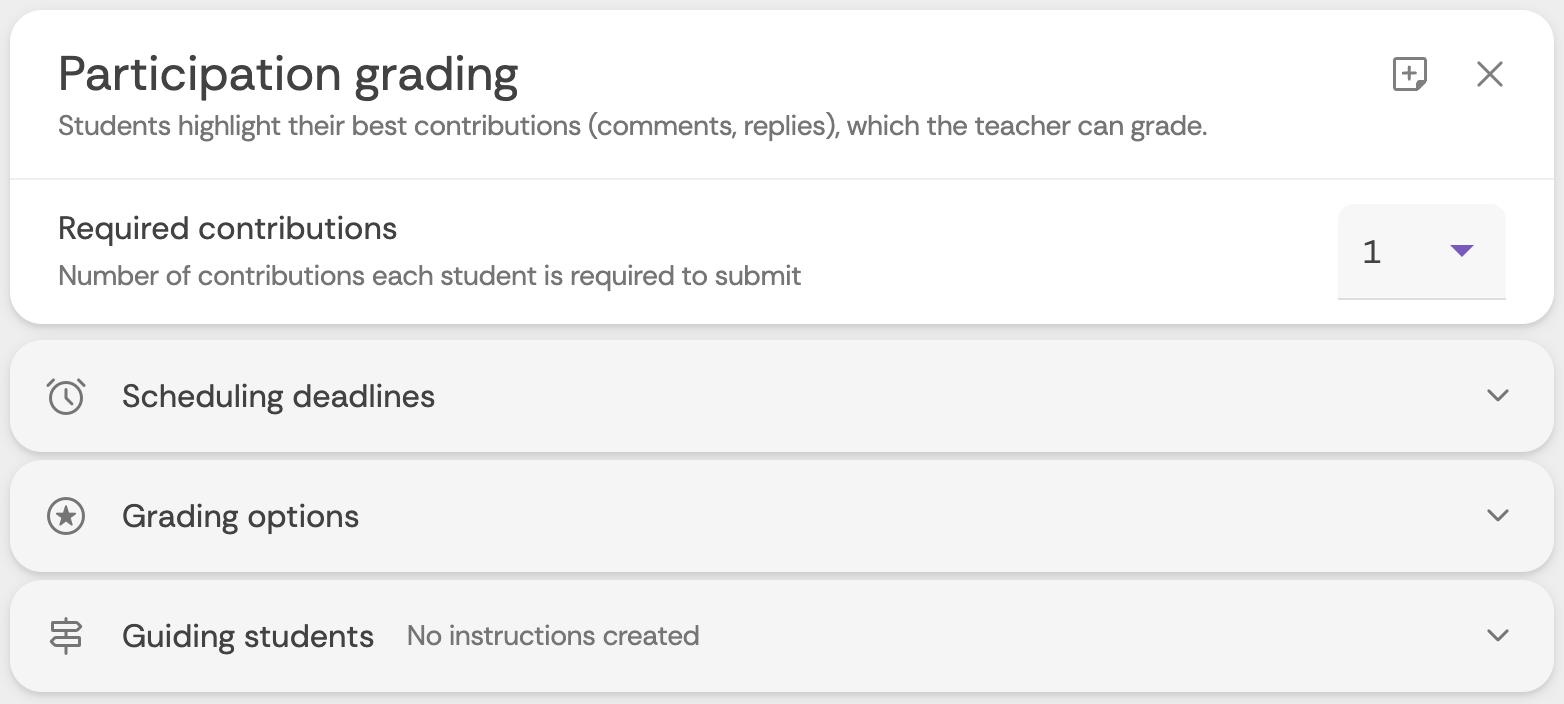
- In Required contributions, you can specify the number of contributions students are required to submit.
- In Scheduling deadlines, you can set an optional deadline.
- Grading options is set to a scale of 1 to 10.
- In Guiding students, you can provide optional written instructions.
NoteIt is recommended that you work with your Faculty educational designer to ensure that the feedbackFruits activity is set up to suit your purposes and aligns with other assessments, learning activities and the overall assessment regime of your unit. |