
Use Zoom breakout rooms
At a glance
Plan and run effective Zoom breakout room activities by preparing collaborative resources, assigning students to groups and giving clear instructions. Explore what to do before, during and after a breakout session, plus additional considerations for hybrid-concurrent teaching.
Jump to these sections:
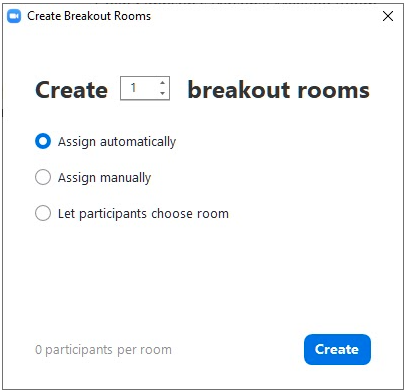
Breakout rooms are a great way to spark small group discussions and get students to work collaboratively. You can create up to 50 separate meeting rooms in one session. There are four different ways that the meeting host can assign students to breakout rooms.

| |||
| Randomly assign (Zoom automatically decides) | Manually assign (During the Zoom meeting) | Self-select breakout rooms (Participants can enter and leave breakout rooms by choice) |
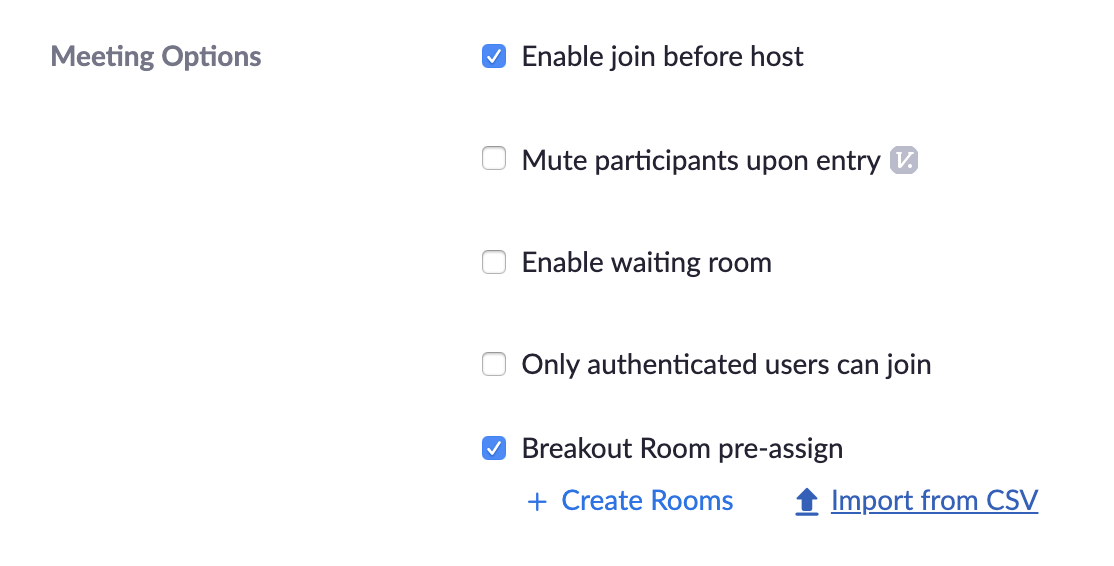
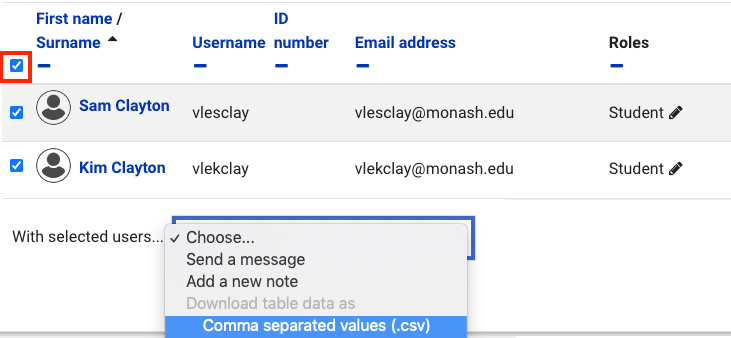
Pre-assign (Use a CSV file to assign groups before the meeting) |
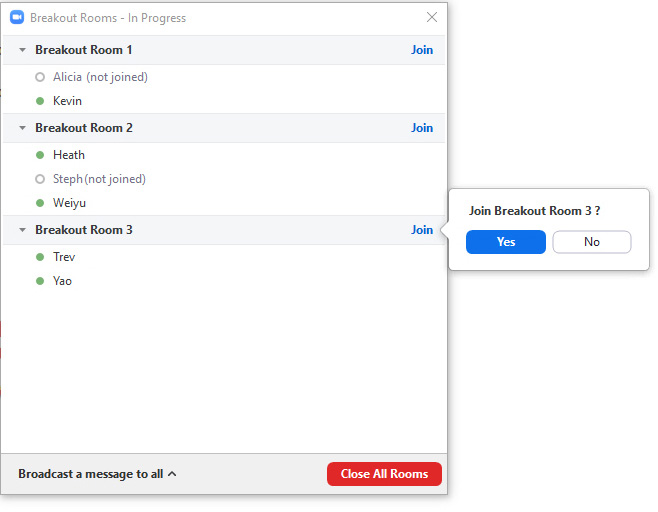
You can also join/leave any breakout room during the session, which can allow you to provide additional support to students in the various rooms.
Note: Only the meeting host (not co-hosts) can start breakout rooms. You must be signed into Zoom from your Monash account that you used to create the Zoom meeting to start breakout rooms.
Benefits of using breakout rooms
Zoom breakout rooms are great for student collaboration on synchronous activities. Breakout rooms allow students to work in small groups, such as working on a project together or engaging in small group discussions. In addition, using shared online resources (such as a Google doc or virtual whiteboard) makes group work highly visible, allowing you to highlight great examples of student work and students to learn from and with each other.
By allowing students to share their individual experience and expertise, you can create an authentic learning environment which replicates collaboration in professional or community settings.
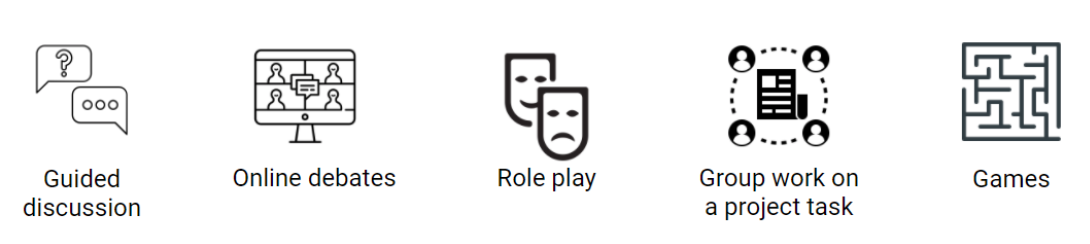
Effective use of Zoom breakout rooms
Zoom has several features that enable different forms of collaboration, including breakout rooms, screen sharing, polling, and virtual whiteboards. For example, you could:
- Promote small group discussions and activities in breakout rooms.
- Have students brainstorm discussions using a virtual whiteboard, either in small groups or as a whole class.
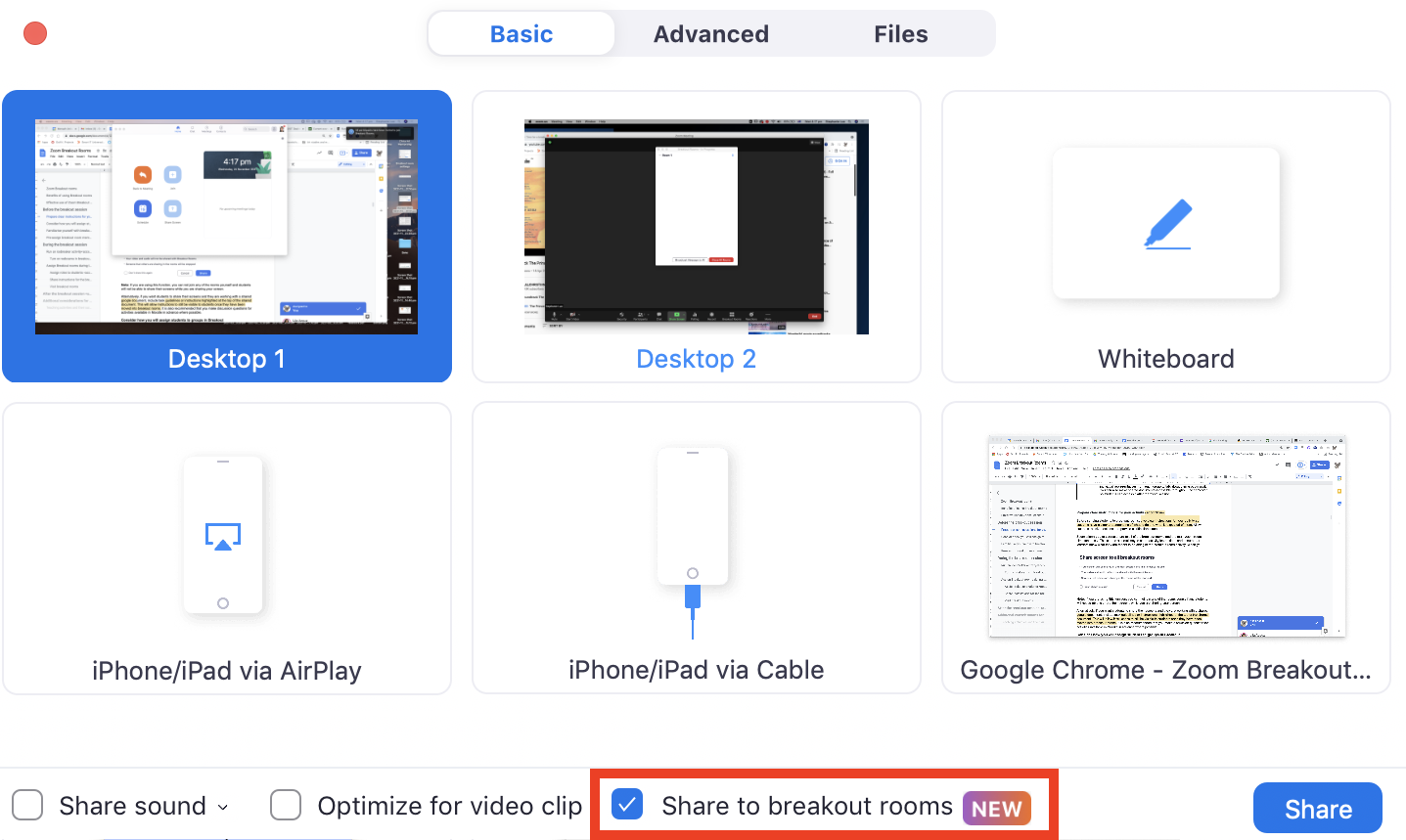
- Get students to collaborate on an activity in breakout rooms using a shared Google document. The shared document can form the basis for whole class discussion once you have returned to the main zoom meeting.
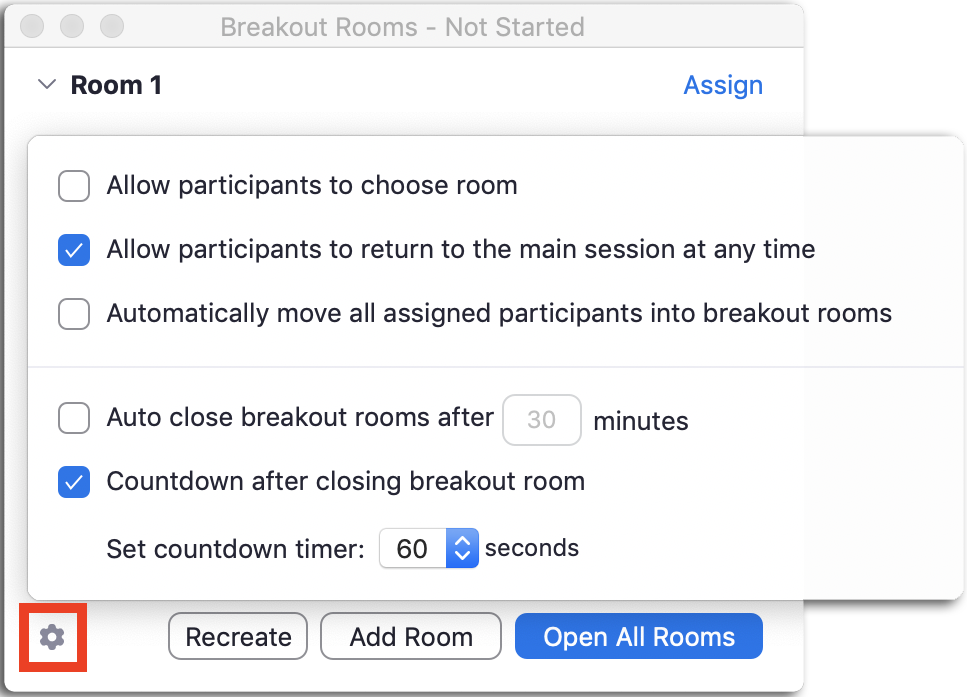
Click through the tabs below for suggestions for things you can do before, during and after your Zoom breakout session to make sure you and your students have the best experience of breakout rooms.
Post breakout activity sharing and debrief
After the breakout session, once students have returned to the main zoom meeting, ask them to report back on what they have discussed in their groups. If you have a very large group, you may prefer to call on groups at random. Give students permissions to unmute their microphones and encourage them to share their screen to present work they have completed as a group on the shared Google document or the virtual whiteboard.
You may also like to get feedback from students about how they found the breakout room activity and if the time allocated was sufficient to find the optimal length of time for activities.
Additional considerations in hybrid-concurrent teaching
Hybrid-concurrent teaching is a mixed mode of teaching where some students will be present with you in the room while others join remotely. There are additional considerations for using Breakout rooms when you have a mix of students in the physical classroom and students joining online. Additional guidance for using Zoom for hybrid-concurrent teaching can be found here.