Enable anonymous posting (Open Forum)
At a glance
Set up anonymous posting in an Open Forum activity so students can ask questions or share feedback without revealing their identity. Understand how anonymous posting and private replies work, how to enable them in the forum settings, and how to view the author of an anonymous post as a teacher.
Jump to these sections:
NoteAs the forum tab uses existing core Moodle functionality, only the regular Forum activity type is viewable in the Forums tab. Open forums will not appear in the forum tab. However, adding the Open forum type to the Forum tab has been requested as a future enhancement. |
Open forums have the additional functionality of anonymous posting. This guide provides information about anonymous posting and how to make private replies.
A great way to use anonymous posting is when you want students to ask questions around exam materials or around points they find confusing. This can help students feel more comfortable engaging and seeking help. However, if students are having discussions with each other, then it is best to avoid anonymous posting to get students to take ownership of their comments and to limit potential online bullying.
Anonymous posting hides the author's name (teacher and students) for posts in the forum.
Add an open forum
- In the top right hand corner of the page, switch Edit mode to ON(Blue).

- In the section where you would like to add a resource or activity, click +Add an activity or resource.
 Note: You can add new resources or activities above or below any existing activities or resources.
- Select your Open forum.
Enable anonymous posting
- Navigate to your Open forum and click Settings in the top menu.

- Under Post options, check the Allow anonymous posting check box.

Teachers can choose to reveal their identities in posts by checking the Reveal yourself in this post when creating or replying to a post. You can select this option for individual posts and remain anonymous in others.
View author of anonymous post
Students can not reveal their identities if anonymous posting is enabled. However, you can toggle between student identities being shown or hidden and reveal who has made a post and see posters. This will not affect students, who will still see other students as anonymous.
- In the top menu of your Open forum, select View posters.

NOTE: Academics can reveal who has made a post and see posters. This will not affect students, who will still see other students as anonymous.
Private replies
You have the ability to turn on private replies to your students in an Open Forum. This enables you to provide a student with individual private feedback to their post that others cannot see.
- Navigate to your Open forum and click Settings in the top menu.
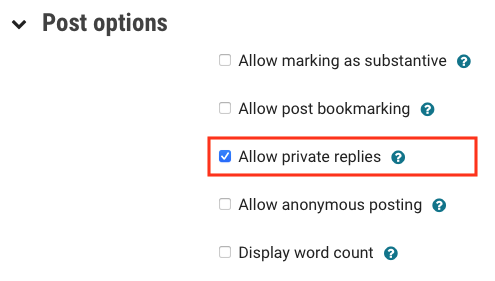
- Click on Post Options to expand the section.
- Select the Allow private replies check box.
- Click Save and display.