Embed video and audio in Moodle with Panopto
At a glance
Embed video and audio content directly into Moodle using Panopto, wherever a text editor is available. Explore how to choose an existing video, upload a new file, insert a Zoom cloud recording, and embed a video as an audio podcast.
Panopto allows you to easily upload and embed videos directly into Moodle anywhere a text editor function is available. For example, in your Moodle unit, you could use Panopto to embed:
- A welcome message and introduction to the unit
- Introductions to weekly learning content
- Videos illustrating technical information or complex procedures and concepts
- Student feedback
It is recommended that you use Panopto to embed videos instead of uploading video files in Moodle, as Panopto videos allow students to view videos without downloading video files, take notes, and have the benefit of comprehensive viewing analytics and statistics.
- Navigate to the location in Moodle where you would like to embed a video.
- In any text editor where embedding video is enabled, click on the Panopto icon.
Note: Depending on your editor and device, the Panopto icon might appear in a different position.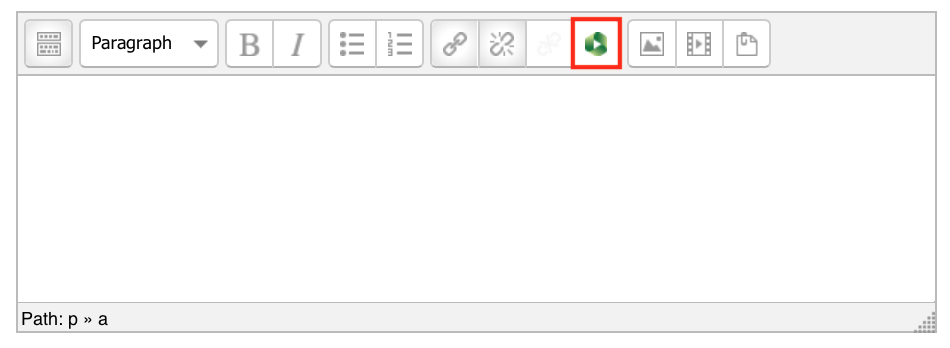
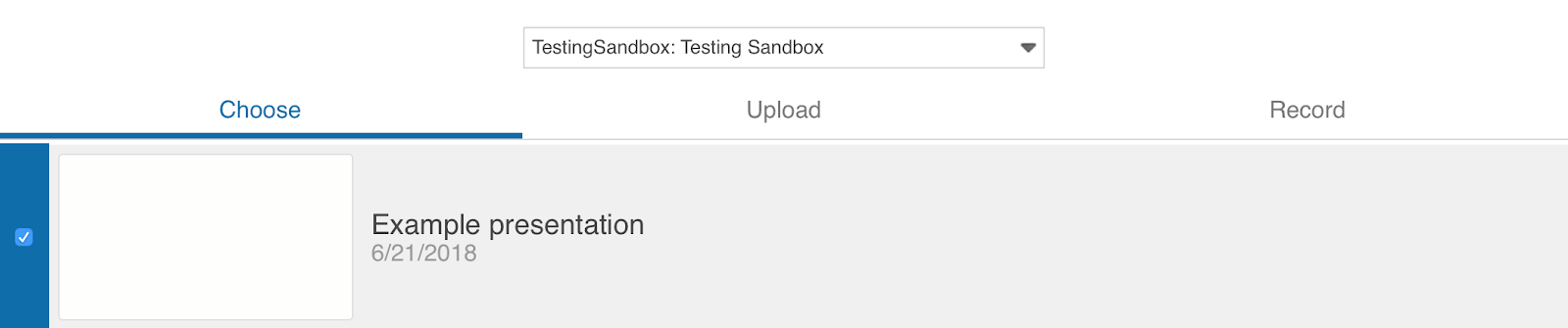
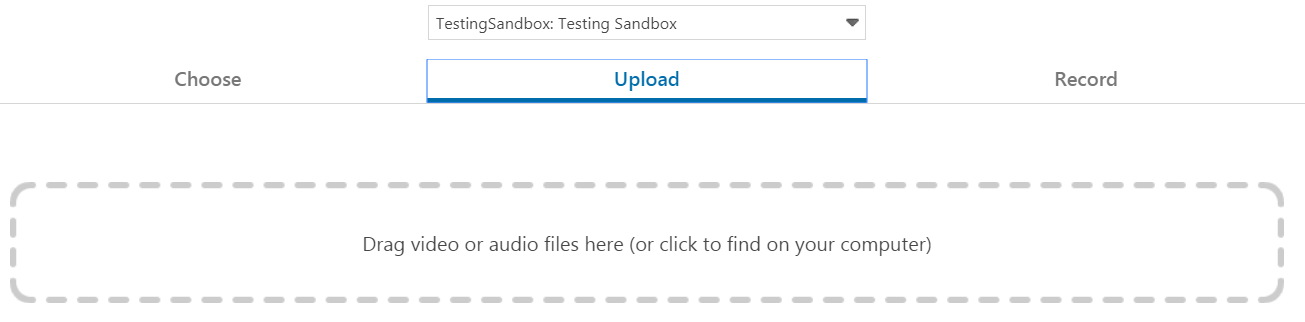
- An 'Insert from Panopto' window will appear, you can:
Embedded video view
Embedded Panopto videos in Moodle will have the all the same features as the full-screen Panopto viewer. Click on each icon to learn more about the different features available to students, including the table of contents, notes and discussion.
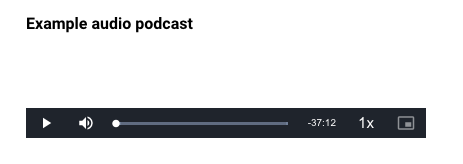
Embed audio podcast
You can also choose to embed Panopto videos as audio podcasts.
- Navigate to the Panopto video you would like to embed as an audio-only podcast.
- In the video settings, select Outputs from the left hand menu.
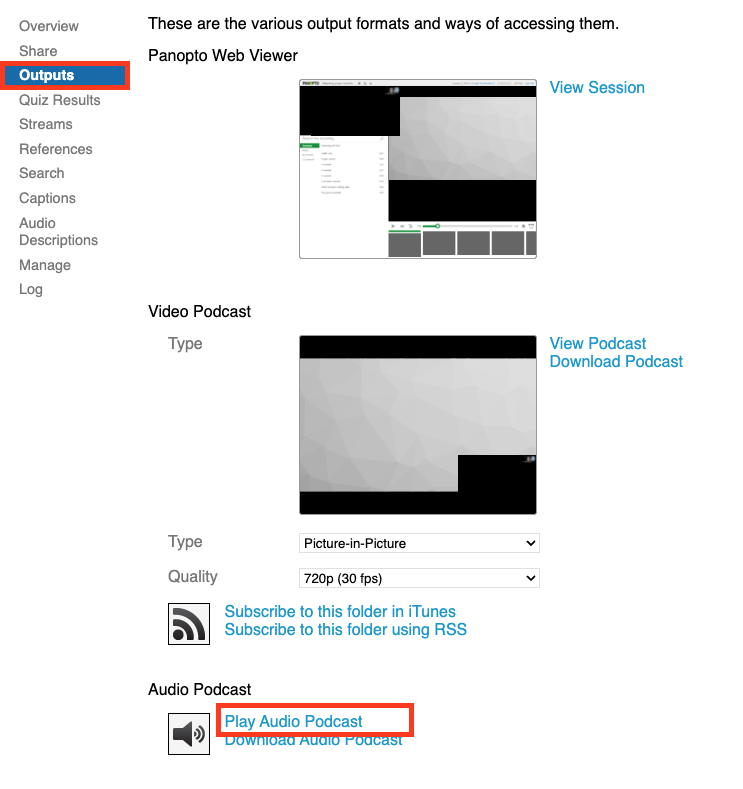
- Under Audio Podcast, right click on the Play Audio Podcast link and select “Copy link..”
- In Moodle, navigate to where you would like to embed the audio podcast.
- Ensure edit mode is turned on.
- In your text editor, select the insert media icon.
- Select the Audio tab.
- Paste the link into the Audio source URL.
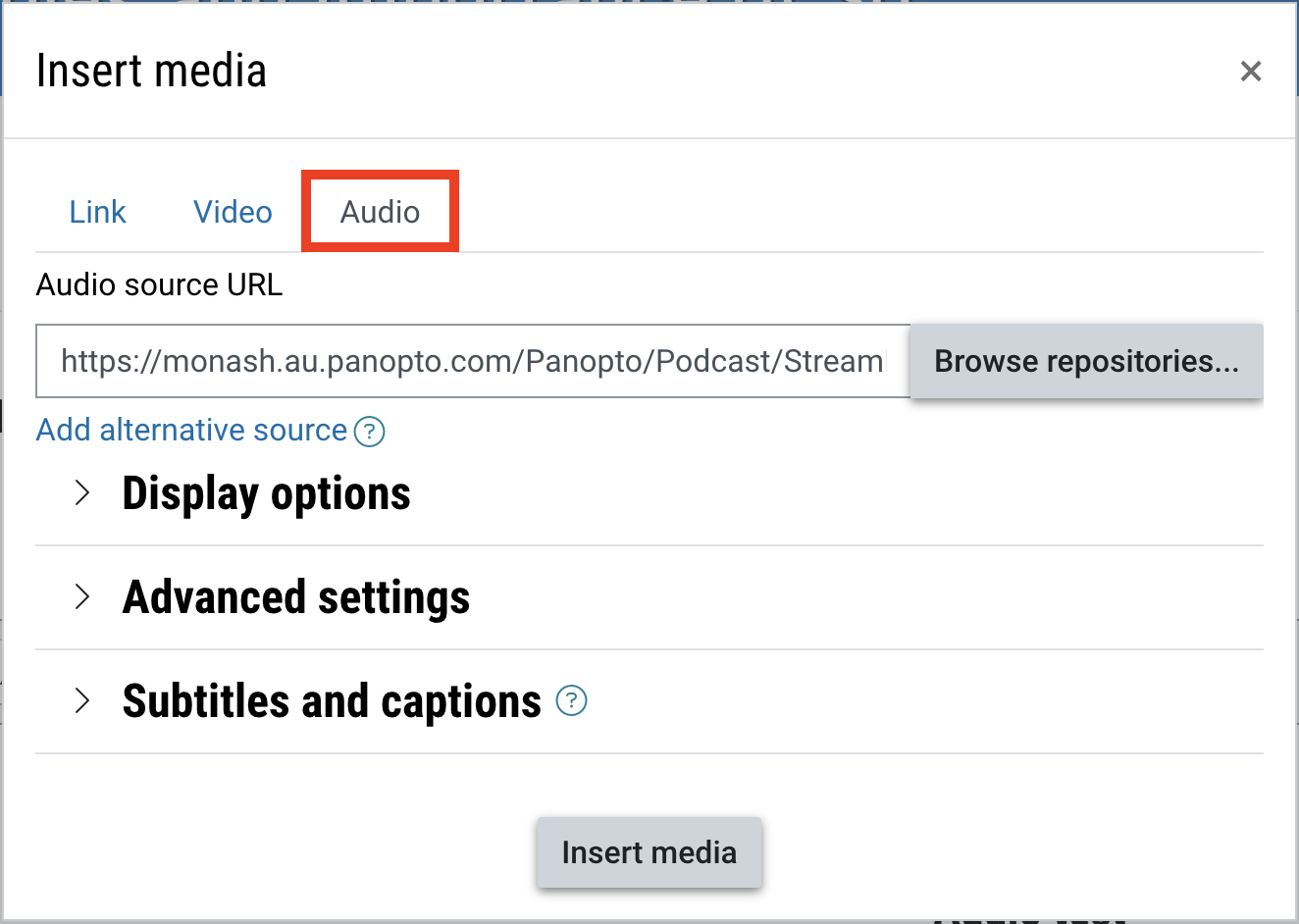
- Then click Insert media.
- Your Panopto will now be embedded in your Moodle unit as a podcast.