Simple direct grading (annotations and general comments)
When you create a Moodle assignment, you have the option to either provide feedback to the assignment using the grade feature (see image below) or you can attach a file (document, video or audio) with your feedback.
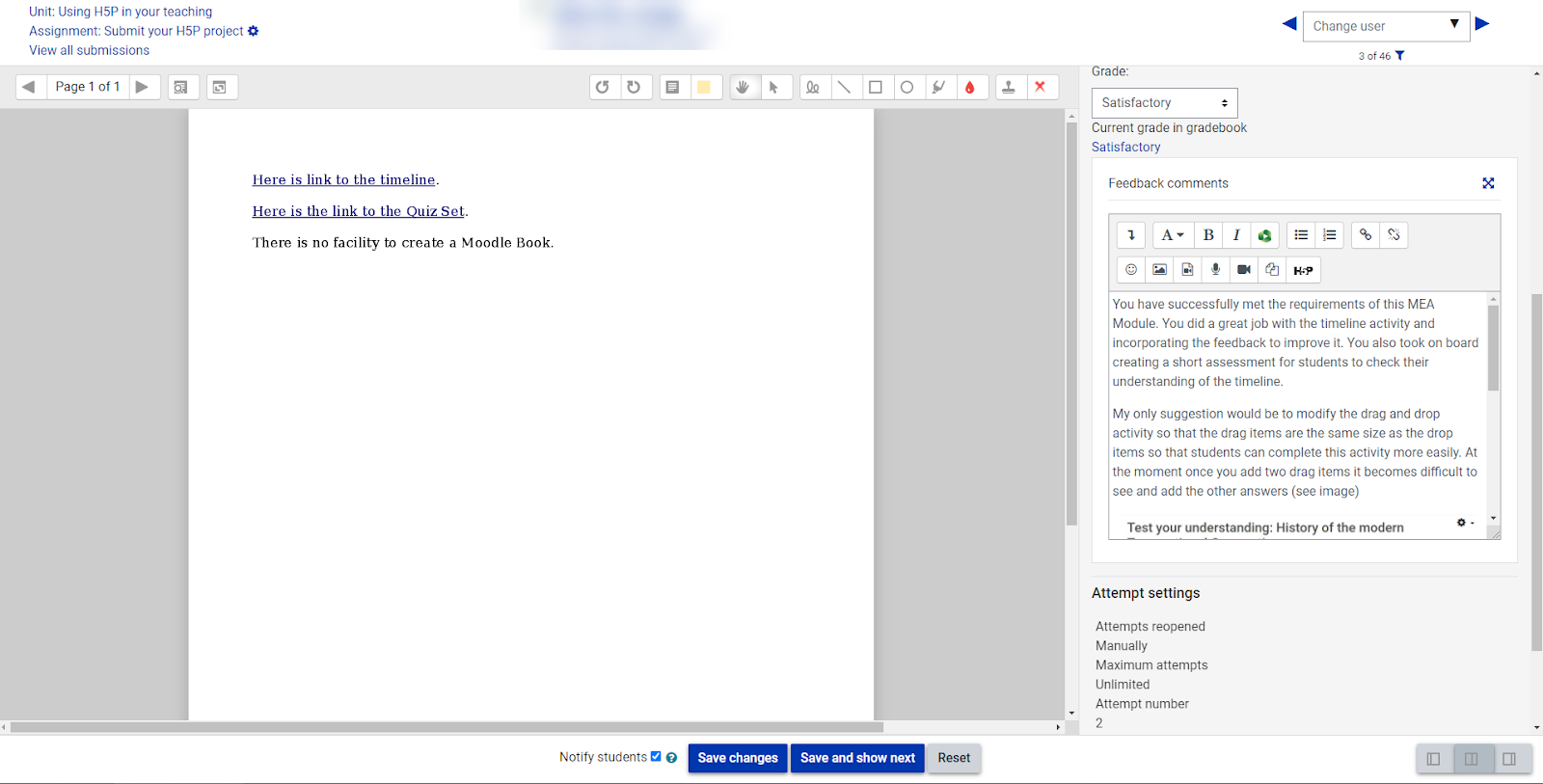
When you use the grade feature, you have the ability to add digital annotations to submitted PDFs where you can highlight and annotate the document to provide specific feedback using the annotation features seen on the top menu bar. Visit this guide for instructions on how to use this feature.
You can also provide written feedback for the overall assignment in the Feedback comments section. This section also allows you to create a video or audio feedback directly in the tool or attach a pre-recorded video via Panopto.
Marking guide
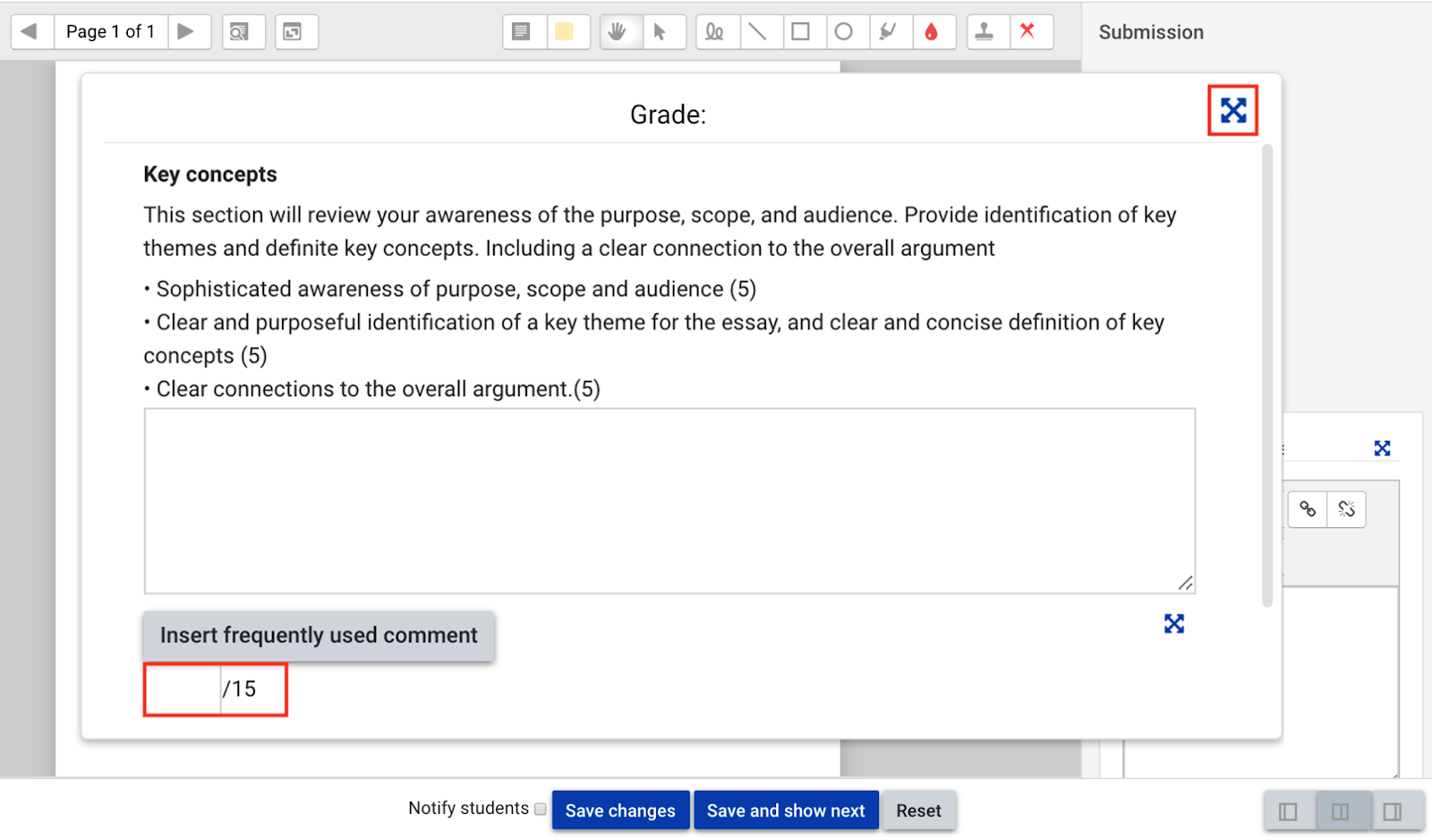
If you change the settings feature in a Moodle assignment into the Advanced grading with Marking guide, then you can unlock another set of features that allows you to make the task easier to interpret and less ambiguous and ensure greater consistency between different markers. Here you can provide descriptions for students and for markers and add criterion. You can also set up frequently used comments to make your feedback on certain criteria more consistent across markers. For more information on how to set this up, visit this guide.
Rubrics
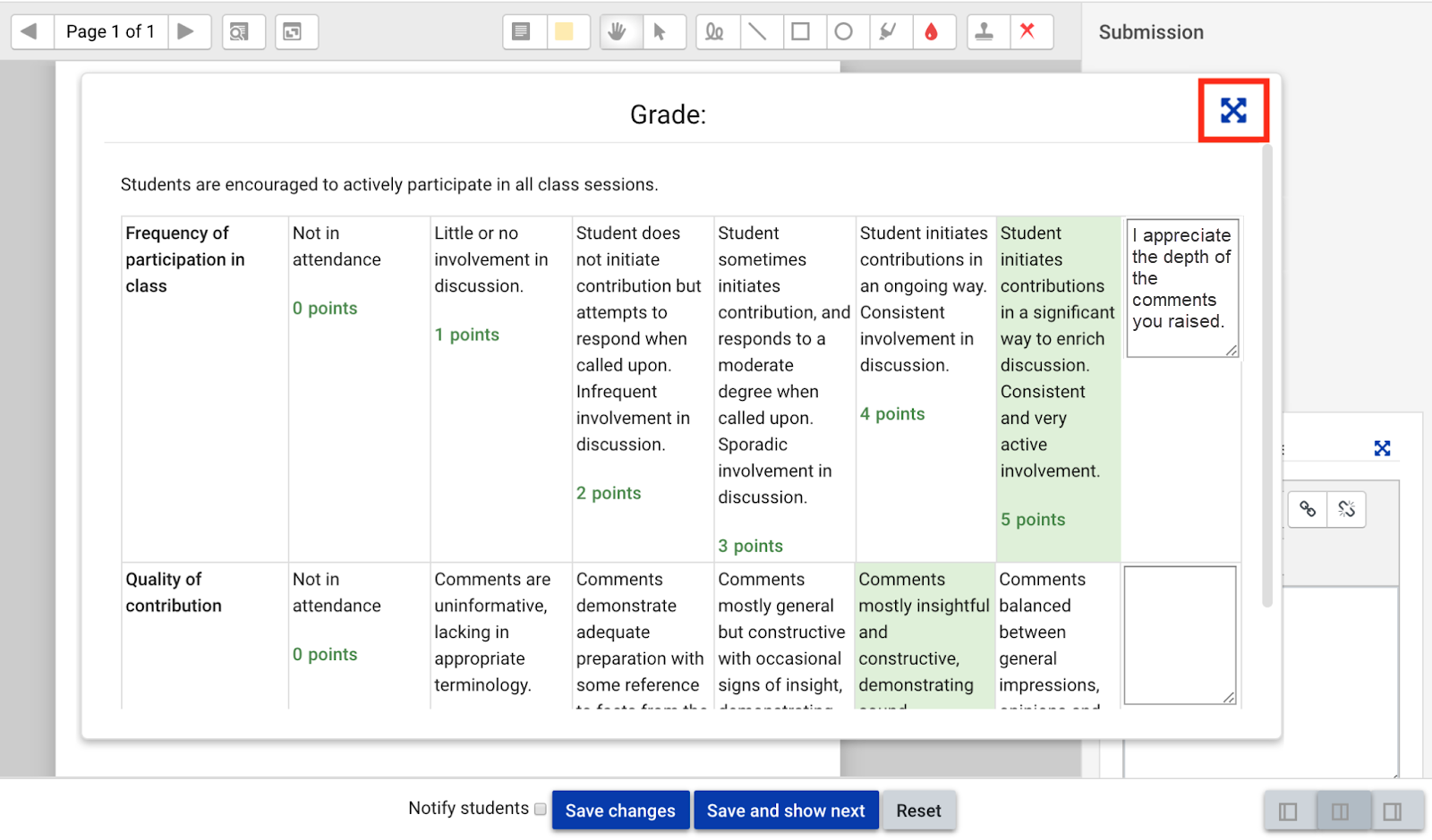
If you change the settings feature in a Moodle assignment into the Advanced grading with Rubrics then you can unlock another set of features that allows both students and markers to have transparency over the assignment criteria. Making the rubric available to students is a helpful way of having feedback available for their self-analysis and reflection prior to submitting an assignment.