
Questionnaire
At a glance
Explore how to create and configure a Moodle Questionnaire to gather detailed student information, using question types, branching paths and optional scoring. Find out how to add questions, set up conditional branching, enable feedback and view responses.
The questionnaire tool allows you to create granular and versatile surveys so that you can gather detailed information from students in your Moodle unit. There are more question types and options that are not available in the Moodle Feedback tool and you can include branching question paths, meaning students can have a differentiated delivery based on their earlier responses.
Questionnaires can be used to inform your teaching, as well as getting to know your students better both individually and as a cohort. By using scoring with student responses, questionnaires can also be used for formative feedback.
NoteAlthough you can set up questionnaires with optional formative feedback (based on student score), consider whether offering feedback is applicable for your questionnaire. If your main purpose is information gathering, then it may not be appropriate to offer feedback on responses. |
Create a questionnaire
- In the top right hand corner of the page, switch Edit mode to ON(Blue).

- In the section where you would like to add a resource or activity, click +Add an activity or resource.

Note: You can add new resources or activities above or below any existing activities or resources.
- Select Questionnaire.
- Enter a Name and an optional Description.
- Select the Response options you want to give the respondents:
- Type: Can students take the questionnaire once, or at regular intervals, or as many times as they want?
- Respondent Type: should those taking the survey be named or anonymous?
- Students can view: should students have the option to see summarised results, and if so, when?
- Save/Resume answers: if you leave mid-survey, can you resume?
- Allow branching questions: can different answers be used to show different subsequent questions?
- Auto numbering of pages
- Show progress bar
- Submission grade: is this activity graded?
- Select how your questionnaire will be created:
- Create new: build the questionnaire yourself.
- Copy existing: use a template.
- Use Public: select a public questionnaire.
- Click Save and Display.
Add questions
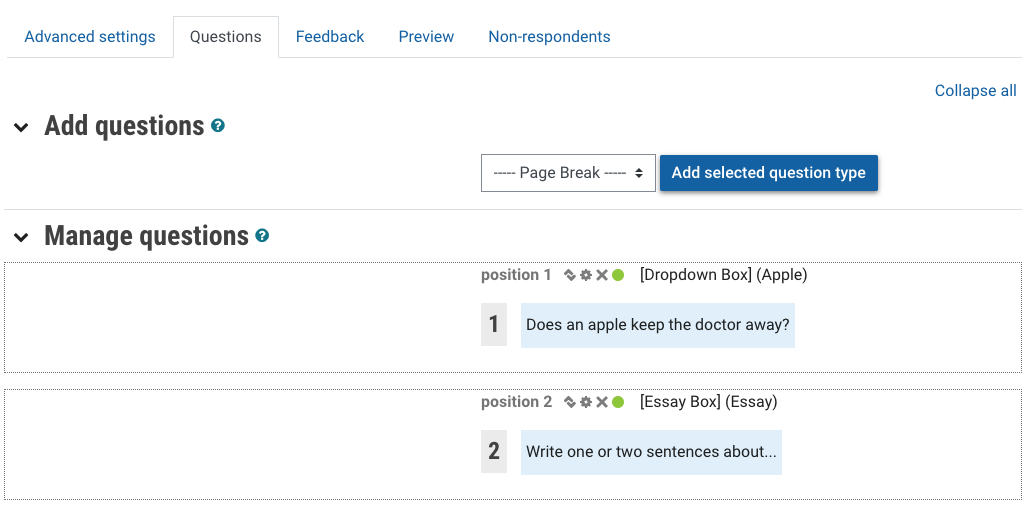
- Click the Questions tab.
- From the drop-down box, select the question type or formatting element that you would like to add:
- Page Break: All questions after the page break will be placed on a new page.
- Check boxes: Students check a box or multiple boxes from the options provided.
- Date: Allow students to enter a date
- Dropdown Box: Students select an option from a dropdown box
- Essay Box: Used for long text responses
- Label: Insert an informational label within your questionnaire
- Numeric: Students enter a numeric value. You can specify decimal places and other criteria
- Radio Buttons: Students select a single answer form a list of options
- Rate: Students rate items on a scale that you define.
- Text Box: For short format written answers.
- Yes/No: Students answer a yes/no question.
- Then click Add selected question type.
- Create your question. For each question, you can:
- Select whether a Response is required.
- For questions with pre-populated answers, each answer option in the answer box should be entered on a new line.
- If you need a question to be scored, you can enter your own scores for each answer in the format "score=answer". For example "1=once per week", means the option 'once per week' is worth 1 point.
- Click Save changes.
Conditional questions
If you have set Branching questions to Yes in the questionnaire setup, you can make whether students see later questions dependent on their answers to earlier questions. This allows you to present a differentiated experience to students depending on their responses.
- Navigate to the Settings tab.
- In Response options, set Allow branching questions to Yes.
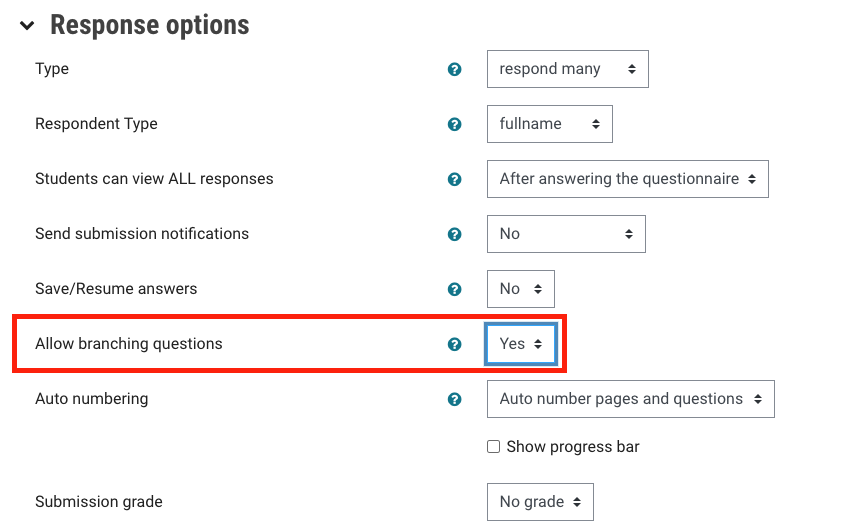
- Click Save and display.
- From the Questions tab, click the settings cog for the second and subsequent questions in your questionnaire. Under Dependencies you can select any earlier question as a Mandatory or Optional Parent question.
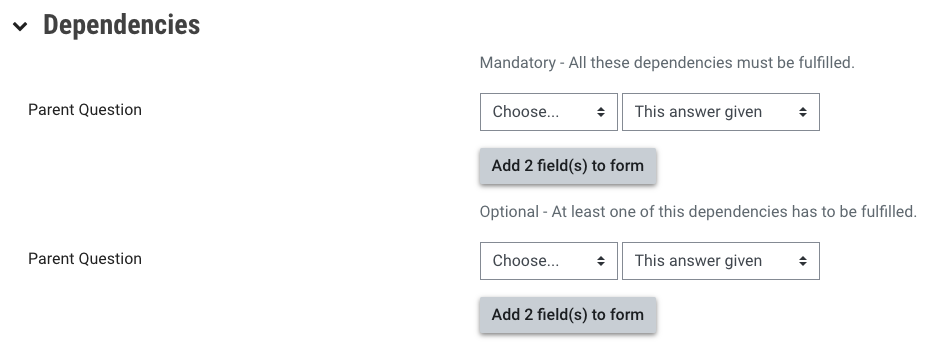
- Select the parent question and the response in the Choose dropdown box.
- Select whether This answer given or This answer not given should be the trigger to display this question.
- The child question will be displayed on a new page.
- Any subsequent questions with the same parent conditions will be displayed on the same page.
Feedback (optional)
Student feedback can be displayed to students based on their answers to the questions. Feedback can be for the whole survey, or based on specific survey sections. This feedback can be for their responses in general, or based on your assigned scoring of answers.
NoteTo enable feedback, the questionnaire must have at least one of the following question types:
|
View responses
- On the questionnaire main page, click the View All Responses button.

NOTE: This button only appears when there has been at least one response.
Additional settings
You can find additional settings under the Advanced Settings tab where you can:
- Add a name for your questionnaire, and a description.
- Add a thankyou message for students who have completed the questionnaire.
- Select an email address for all replied to be sent to (note that replies can always be viewed in Moodle)
- Change your Questionnaire type from Private to Public, or make it a Template.