Add a FeedbackFruits activity
At a glance
Set up a FeedbackFruits activity in your Moodle unit, from turning on editing and adding the activity to configuring completion conditions and assessment settings. Explore ways to create an activity from scratch, from a template or from a previous activity, and find guidance on editing activities and getting FeedbackFruits support.
- Before you can add resources or activities to your Moodle unit, you'll need to Turn editing on. Switch Edit mode ON(Blue) in the top right corner.

- In the topic where you want to add a resource or activity, click +Add an activity or resource.

- The Add an activity or resource pop-up window will appear. Select FeedbackFruits.

- Give your FeedbackFruits activity a name. It is strongly recommended that you include the due date and time in the title so it displays for students on the Assessment tab.
- You do not need to click the Select content button. In the show more options, you can leave the Tool URL and other options blank as the FeedbackFruits tool has already been selected.
- In Completion conditions, you can enable a reminder which will allow the FeedbackFruits activity to display in the timeline and task tracker for students. Click Add requirements and ensure that the checkbox is selected for Set reminder in Timeline.
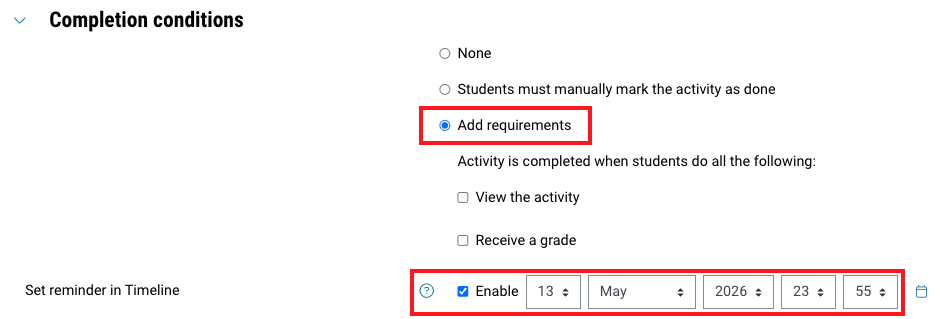
Note: If your FeedbackFruits activity has multiple deadlines, ensure that you adjust the completion reminder for each step.
- It is recommended to give your FeedbackFruits activity a small weighting to encourage student participation. For assessed FeedbackFruits activities:
- In the Monash Assessment section, select Yes.
- In the Special consideration section, select the relevant options.
- If you would like your FeedbackFruits activity to be non-assessed:
- In the Privacy settings of your FeedbackFruits activity, uncheck Accept grades from the tool. This will prevent grades from the FeedbackFruits activity from being synced to your Moodle Gradebook.
- In the Monash Assessment section, select No.
- In Special consideration, select No for Is Special consideration available/applicable? and No for Is this a graded activity that contributies to the final mark?
- Scroll down and click Save and Display.
- You will now see the FeedbackFruits activity interface.
Click the blue plus icons below to learn more
Expand the accordions below to learn about how to set up a FeedbackFruits activity
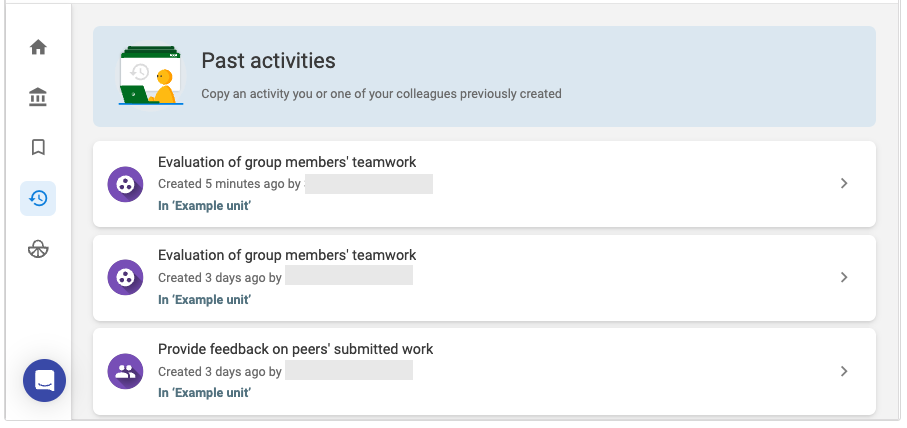
Recommendations when setting up a FeedbackFruits activity
View


NoteIt is recommended that you work with your Faculty educational designer to ensure that the feedbackFruits activity is set up to suit your purposes and aligns with other assessments, learning activities and the overall assessment regime of your unit. |
FeedbackFruits support
You can access help directly in the FeedbackFruits activity via the chat function in the bottom left hand corner of the FeedbackFruits activity. The AI chat assistant provides instant support and you can chat with human support, available 24 hours 5 days a week. Response times are typically under 5 minutes.
Learn more about the AI chat assistant.