
Gradebook
Gradebook
A place to structure the assessments for your unit, a source of truth for all grades, and to a central location where students can view their grades

How do I use the Moodle Gradebook?
Moodle Gradebook is a valuable function of the Moodle platform and should be set up prior to the commencement of a unit. Each unit has its own Gradebook and all activities within the unit (e.g. assignments, quizzes) will automatically appear in your Gradebook.
Within the Gradebook they can be organised and the assessment requirements applied. Setting up your Gradebook correctly makes life easier for students, academics, and administrators.
-
Navigate to Moodle Gradebook
Learn how to access your Moodle unit’s gradebook and about key features of the Moodle gradebook interface.
-
Set up Moodle Gradebook
Learn how to set up and organise your Gradebook and apply weightings to categories and grade items.
-
Apply Hurdles in Gradebook
Learn how to apply hurdles to assessment items in the Moodle Gradebook.
-
Use the Grader report
Learn how to add or edit grades from the grader report, which provides a high level overview of all graded activities in your Moodle unit.
-
Use Scales in Moodle
Learn how to use Scales as an alternative marking method to numerical grading. Scales can be used with the Outcomes settings.
-
Use the Outcomes setting in Moodle
Learn how to enable outcomes, link outcomes to assessments, provide feedback with outcomes and view the outcomes report.
-
Change default Letter grade display
Learn how to change the default grade display in Moodle, which will affect how students see their grades displayed in the Grader report.
-
Change default weighting aggregation
Learn about different aggregation methods and how to change the default aggregation in the Moodle Gradebook. This is not recommended unless specified by your faculty administrator.
-
Export a class list
Learn how to easily export groups of students from the Moodle Gradebook to use as class lists. Exported class lists will include students' preferred names and pronouns.
-
Import and export grades
Learn how to import grades into Moodle Gradebook for when you have a grade item not linked to a Moodle activity, for example oral presentations or musical performances.
-
Bulk insert or override grades
Learn how to add or override grades in bulk for a specific assessment activity or a specific student. You can also insert specific grade values for all empty items for an activity.
-
Calculate and apply manual late penalties
Learn how to apply manual late penalties as per University's policy and procedure, with example contextualised scenarios.
-
Exclude grades
Learn how to exclude grades for an assessment item from contributing to the final mark. This can be useful in the case of special consideration.
-
Hide or reveal grades
Learn how to hide or reveal grades and feedback for assessments via the grader report or the Moodle Gradebook page.
-
Use automated late penalties
Learn more about automated late penalties, including exemptions, recalculations and the supplementary assessment waiver.
Frequently asked questions
View

View frequently asked questions about Moodle Gradebook. You can select Expand all and then use CTRL + F (PC) or CMD + F (MAC) to search for keywords.
-
No, you can only see an encumbrance in Callista+, in Moodle the student will look the same as regular students (active status), but they may not have been active in the Moodle unit for a significant amount of time. If you suspect a student has been encumbered, contact student services to check on their Callista+ status on your behalf.
Students with an encumbrance can access their Monash email, but will not be able to access other systems like Moodle. For more information, see Encumbrances.
-
This can occur when using Marking Workflow. The final step of the workflow is Released, which is when the student can view their marks. This can be updated from the submission, or Quick Grading page.
For more information, see the Marker allocation and marking workflow.
-
Check if you have set Marker Allocation to Yes (note that this requires Marking Workflow to be set to Yes first).

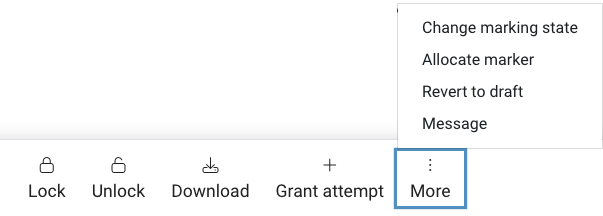
If you are using Marker Allocation, you also need to make sure markers are allocated. On the Submissions page, select the students to assign to a marker, then select Allocate marker from the options under More and add the marker.
They should now see the students they have been assigned.
For more information, see the Marker allocation and marking workflow.
-
You can try forcing the Moodle gradebook to recalculate to fix the issue.
- Navigate to your gradebook.
- Make any change to prompt the gradebook to recalculate grades (for example, open the Quiz folder Category settings and then click save or change a quiz weighting and then change it back.)
You may also want to check if any quizzes are locked for the student. If any items have been locked will not take it into account when the Gradebook recalculates.
-
This is a known issue reported by users of the Firefox browser. eSolutions are currently investigating this issue. It is recommended that you use the Google Chrome browser for the best experience of Moodle.
-
If you apply a hurdle at the category level, you will need to explicitly enter a zero for any items that the student did not attempt. While the score will be calculated correctly, the hurdle will not register for an item with a null score.
Supporting your students
View
There are a number of ways that you can support your students when it relates to Moodle gradebook. One is by being aware of what students see when they view their gradebook, also by being explicit with students on the expectations around viewing grade items and finally by sharing resources with students so that they know how to access their grades.
How to support your students
Students who are using Moodle gradebook for the first time should be provided with some additional information and guidance so that they know how to retrieve their grades, where they can find their feedback and how and when their grade will be revealed.
Here is a visual of what students see when they retrieve their grades. Here they will see a clickable list of items, the grade and any feedback, unless it has been hidden. Note that students will only see their own grades and will not have access to grades of other students.

What resources and services are available to students
An excellent resource that will help students learn how to navigate Moodle. The resource inlcludes guidance on how to set up individual preferences, submit assessments, and post in forums.
This video provides an overview on how to navigate Moodle.
Technical support
If students are experiencing technical issues, they can submit a request through the MyIT catalogue, or contact the ServiceDesk.
Related resources
View
Here are some relevant resources that will help support you in using Moodle Gradebook for grading and marking.
Relevant policies and procedures
Monash has specific policies and procedures related to Marking and grading which links to Moodle Gradebook. Take the time to review these to inform your teaching practice.
-
Marking and feedback procedure
Outlines processes and principles for marking, blind marking, second marking, double marking, provision of feedback, quality assurance, finalising results, responsibilities, and re-marking requests.
-
Assessment regime procedure
Explains requirements of developing and implementing an assessment regime for a unit, rules around scheduling, extensions, hurdles, alternative and supplementary assessments, and communicating assessment requirements.
-
Scheduled Final Assessment Procedure
Presents rules and processes relating to ‘scheduled final assessment’ (previously referred to as ‘examination’) refers to a timed major assessment task that is scheduled after the end of the teaching period.