
Student channels for assessment information
Student channels for assessment information
Multiple ways for students to access their Moodle information as part of the digital student experience strategy
The Mobile Study app and the Student Portal give students a central view of their classes, assessments and final assessments for their current unit enrolment (pulling activity information from Moodle and Allocate+).
The applications reach up to 121,000 students and drive part of Monash’s digital student experience strategy.

Moodle is the source of truth where students can view their assessments and make submissions to assessment activities.

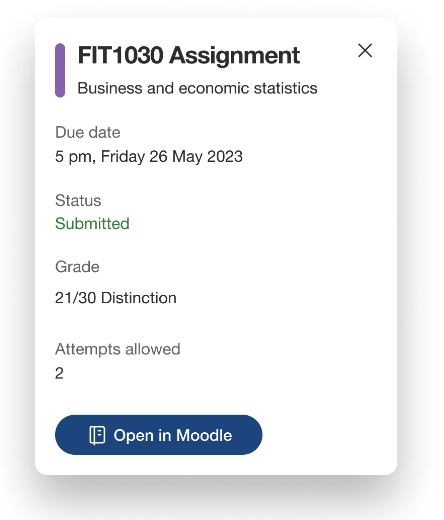
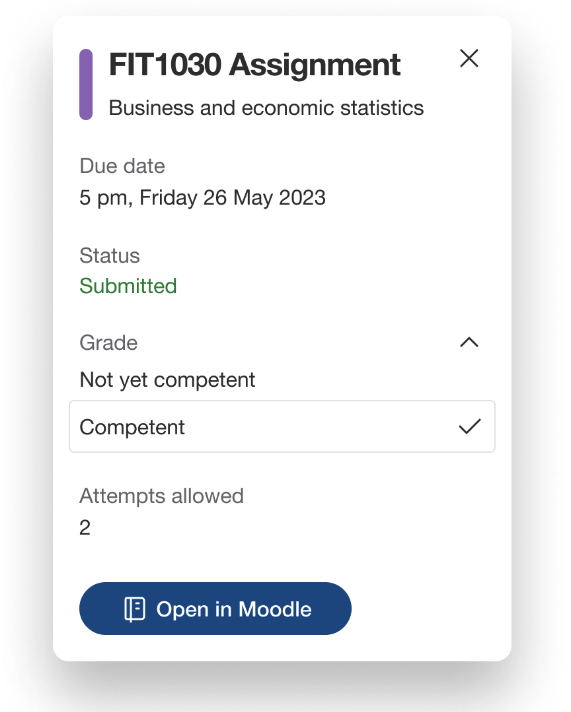
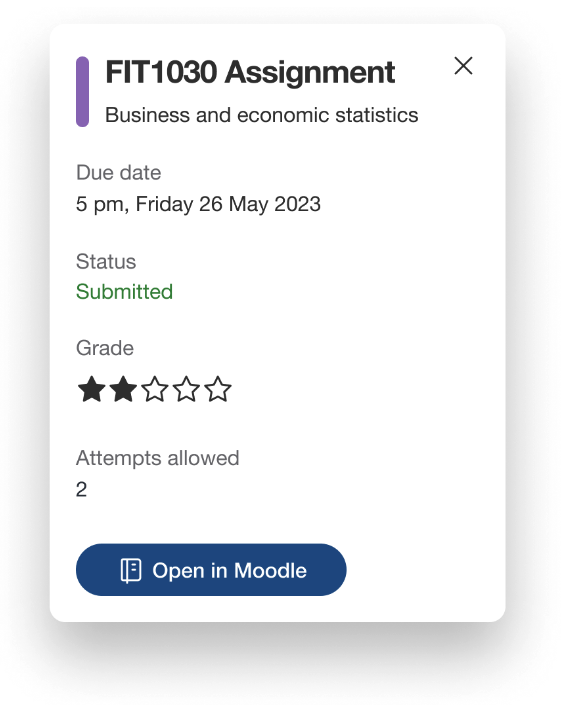
The Student Portal shows students' schedules, including their final assessments from Allocate +, and assignments, quizzes and workshops (that have a due date) from Moodle. They can also see their unweighted grade for completed assessments, check the submission status, and view their assessment details.

Similar to the Student Portal, the Monash Study app displays due dates and unweighted individual grades for assignments, quizzes and workshops, along with assessments from Allocate+. Students can also view a list of submitted (but not yet marked) assessments, and check their assessment details.
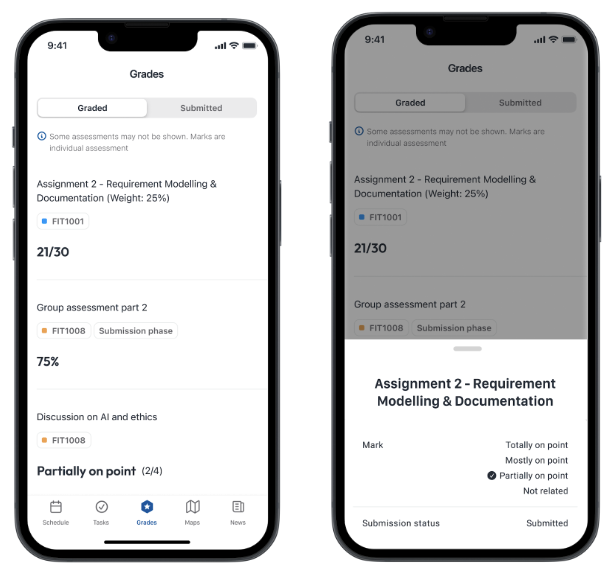
Monash university students can now view their assessment grades in the Monash Study mobile application. Their grades will be shown as additional information on top of their in-semester assessments. The app only shows raw grades for Assignments, Quizzes and Workshops, so students should also check Moodle to see their official weighted grades for their assessments.
In the Student Portal, students can see their grades and assessments in the assessment widget, and in their Upcoming and Schedule pages – each place displays the same assessment information.
Upcoming page
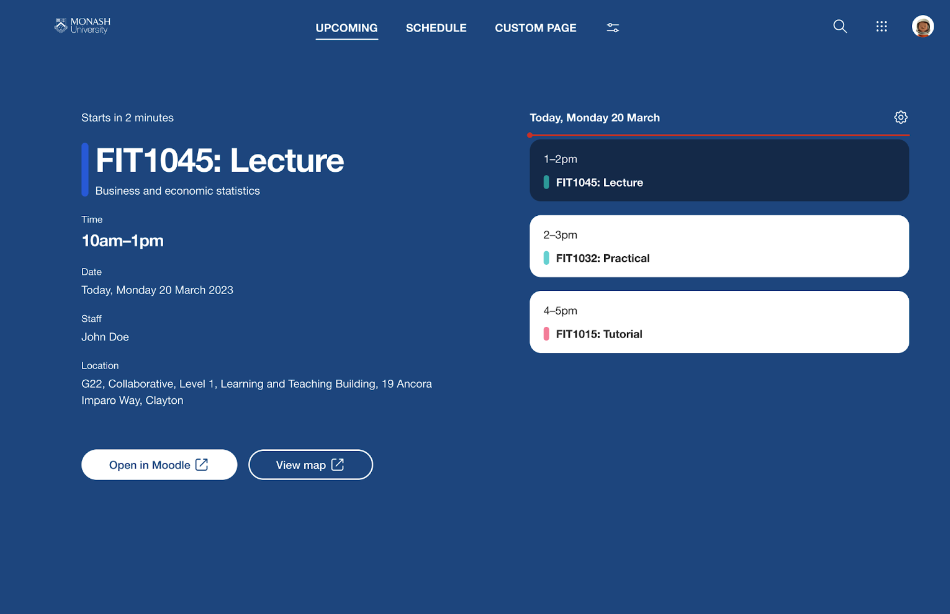
Students can see a daily view of their classes and assessments on the Upcoming page. The page displays either the student’s current day, or the next day that the student has study activities.
Activity details are displayed on the left-hand side (students can select an activity to see its details).
Schedule page
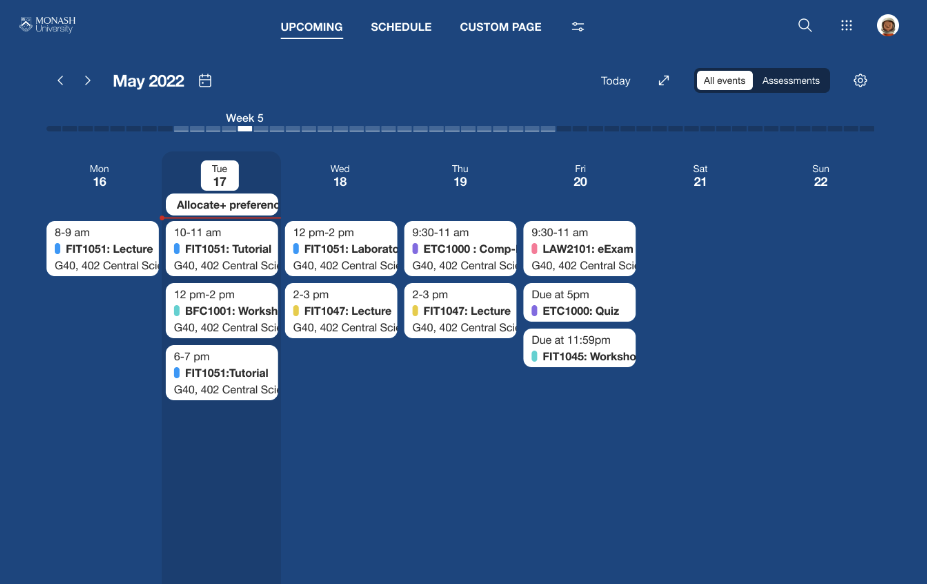
In the weekly view, students can navigate forwards and backwards in their schedule, and toggle between viewing just assessments, or all activities (which includes their classes and key dates for the teaching period). They can select an activity in their schedule to open the details in a pop-up window.
Assessment widget
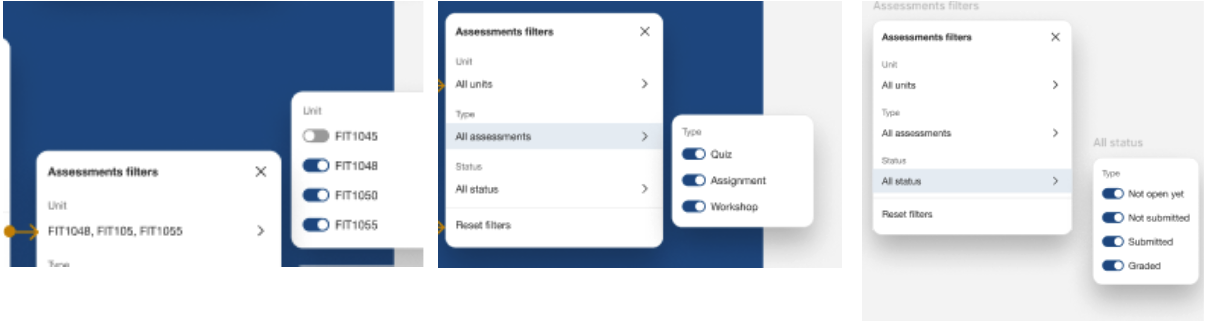
Students can add the assessment widget to their custom pages – it shows a quick list view of their quizzes, assignments and workshops in chronological order (by the activity date or due date). When the widget is opened, it shows either the current day or the next day with an assessment due, and it allows students to scroll through the list. Students can add multiple assessment widgets to their custom pages and filter by unit, assessment type or status.
Click on the blue plus icons below to learn more about the assessment widget
Schedule
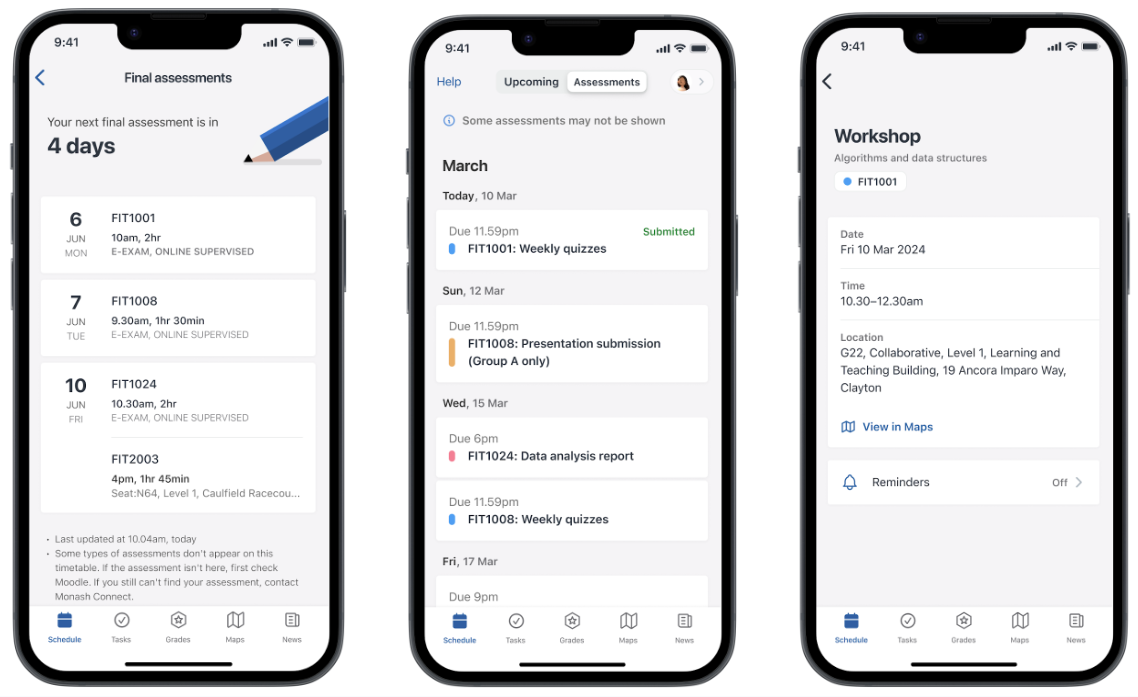
The Schedule section of the app pulls data from Allocate+ and Moodle, displaying students’ upcoming assessments and classes, including their final assessment timetable (this is called the Upcoming tab). Students can click on an activity to see its details (such as its date and location) – what’s shown depends on the type of activity.
They can view just their assessments (in the Assessments tab), and when it’s available, students can also see a dedicated screen with just their final assessment timetable.
Grades
The Grades section of the Monash Study app shows a student’s graded and submitted assessments. In the Graded tab, students will see their raw, unweighted assessment grades, and in the Submitted tab, they’ll see assessments that haven’t been marked yet. They can tap on an assessment to view more details.
Unweighted grades
The Monash Study app and Student Portal show raw, unweighted grades for assignments, quizzes and workshops with a due date. There’s a message in both the app and portal informing students that these are unweighted individual assessment grades that are not representative of their final unit result.
Frequently asked questions
Expand the accordions to view frequently asked questions about the Study app and Student Portal.


Questions
 |
|