Add Quiz questions
At a glance
Add and manage quiz questions in your Moodle unit using the Question bank, including creating new questions, adding questions from existing categories, setting up random questions, and organising questions with grade items for more detailed reporting.
Jump to these sections:
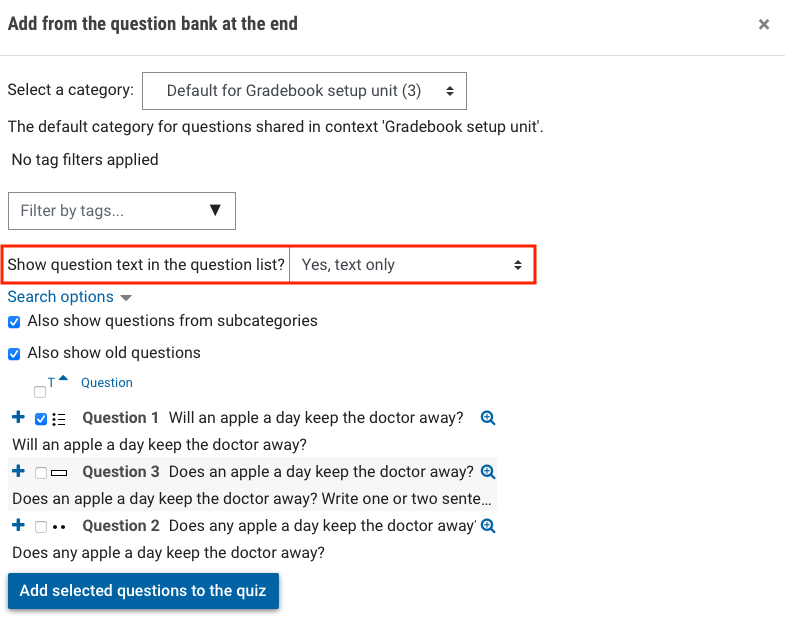
Once you have created your quiz and set up the required properties, you can create new quiz questions from scratch or choose to add existing questions to your quiz from the Question bank, a database containing previously created quiz questions or questions imported from another unit.
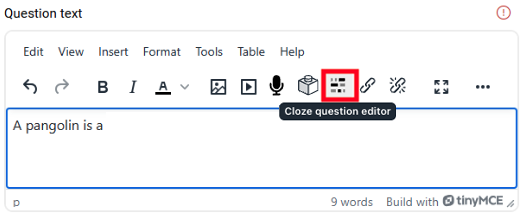
Quiz question set upFor instructions on how to set up specific quiz question types, see Question types. |
Add quiz questions
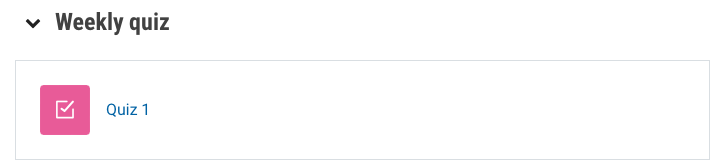
- From your unit page, click on your quiz.
- To add quiz questions, click on Questions in the top banner menu OR click on the Add question button.

- To add a question to your quiz, click the Add icon situated on the right hand side.
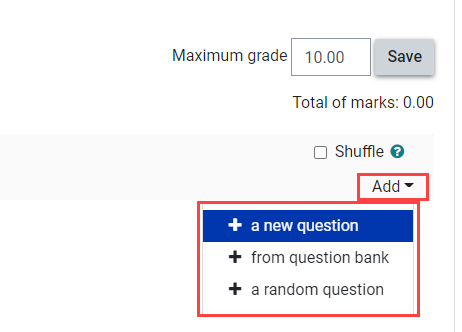
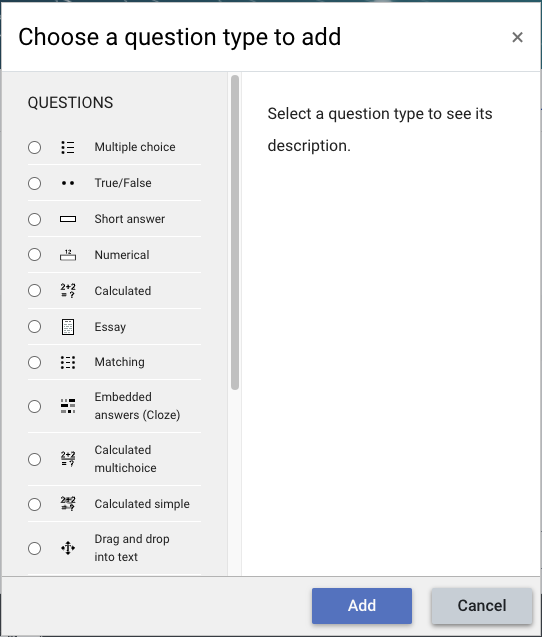
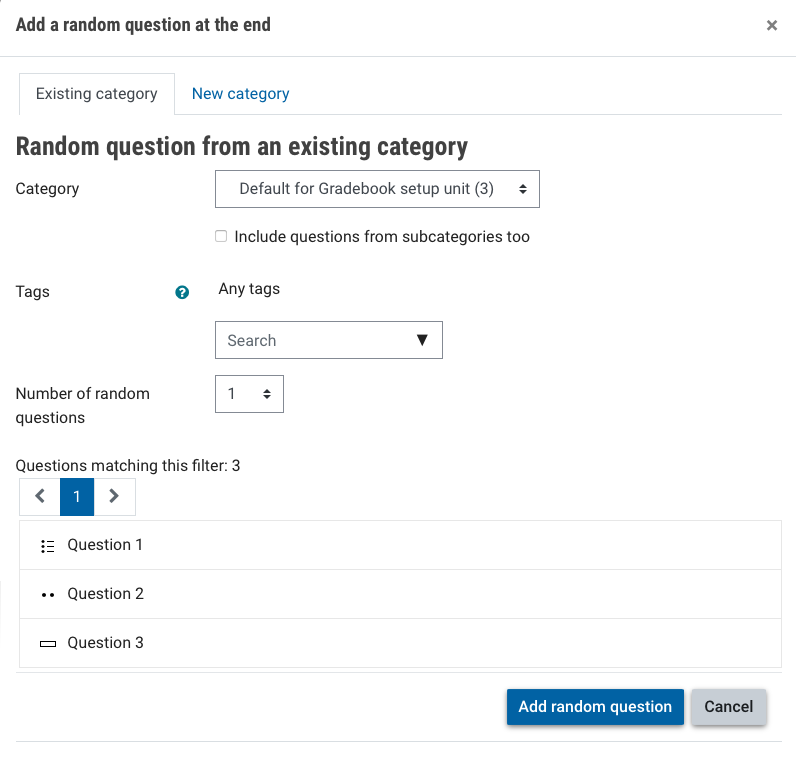
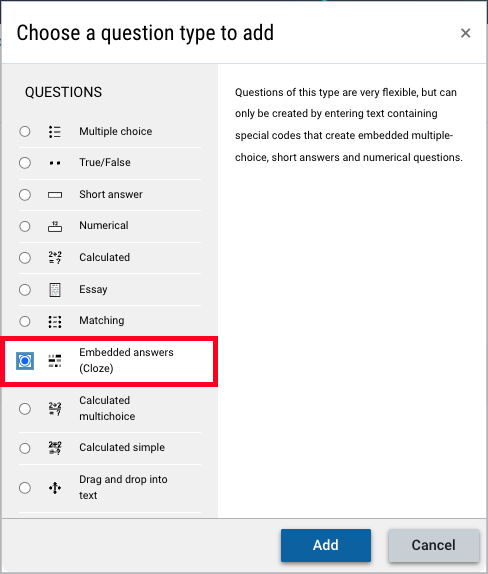
There are three ways you can add questions:
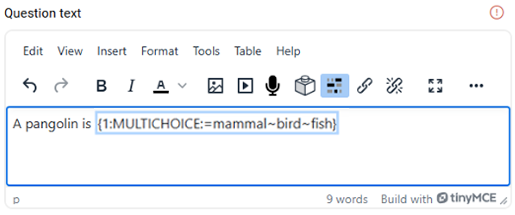
Edit quiz questions

Once added, there are a number of ways you can edit a quiz question. You can:
- Move questions by clicking and dragging the move icon (
 ) to the desired location.
 - Edit the question and answers with the settings icon (
 ).
). - Preview a question with the preview icon (
 ).
). - Delete the question with the delete icon (
 ).
). - Assign an alternate mark with the pencil icon (
 ).
). - You can choose from different versions of the question with the dropdown list. By default this is set to Always latest.
Question order is displayed beside each question. Selecting the Shuffle checkbox will randomly shuffle questions within each section so students will then have these questions presented in random order.
Grade items setup
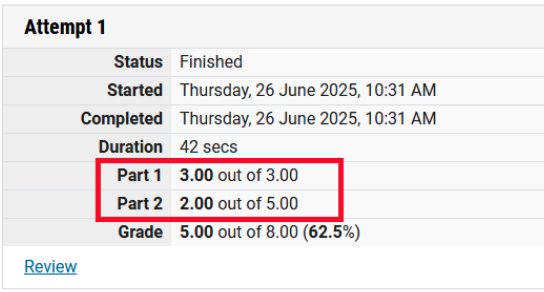
You can subdivide quiz grades by section or topic, allowing for a more refined understanding of strengths and weaknesses for both teachers and students. The overall grade is still displayed in the Grader report, but clicking on the quiz will reveal the component grade items.
- Navigate to the Questions tab of your quiz.
- Select Grade items setup from the dropdown.
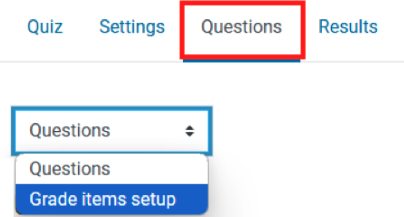
- On this page you will see your quiz questions listed with an allocation dropdown. If you have created Sections, they will also be visible.
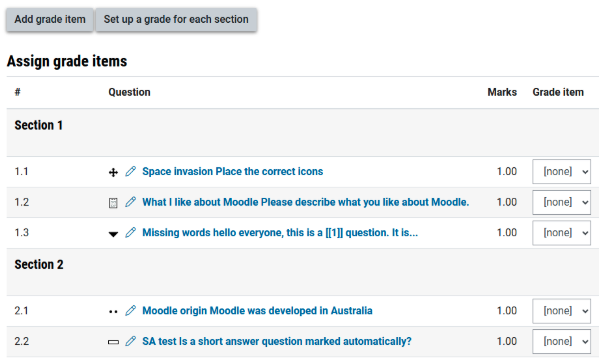
- If you click Set up a grade for each section, Moodle will automatically create a grade item for each Section, and assign all questions in that Section to the item.
- If you wish, you can also create your own grade items. Click Add grade item.
- Name your grade item appropriately, and add more as required by clicking Add grade item below the list.
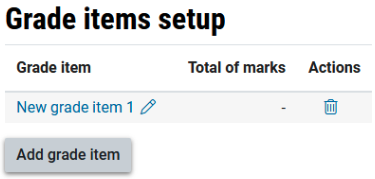
- Once you have created your grade items, assign questions to them using the dropdown next to each question.

- Once all questions are assigned, you will see an indication of the grade allocation for each grade item.
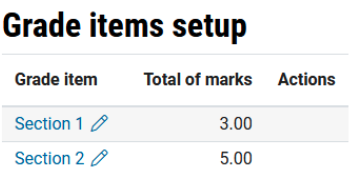
- You can add grade items or reallocate questions at any time.
- If you wish, you can reset all of the grade items by clicking Reset setup.
- Once your grade items have been created, they can be viewed by both teachers and students.
Grade items will appear on the Results tab. Grade items are listed after the full grade for the quiz. Grade items are also captured in the CSV download.
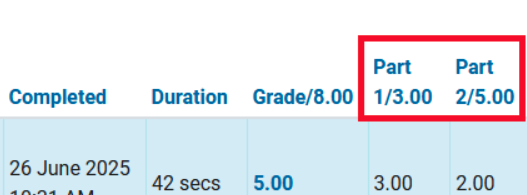
Grade items will appear on the Attempt summary page when they click on the quiz.