
Manage Results
At a glance
Manage and validate student results before submitting them to Callista at the end of a teaching period. Understand who can access the Manage Results page, the setup requirements that must be met beforehand, how to apply mark or grade overrides, and how to confirm results as validated ready for submission.
Jump to these sections:
The Manage Results page enables the ability to apply mark/grade overrides, add comments and confirm results are validated in readiness to send to Callista at the end of a teaching period. The validation step is a critical action to be completed on this page as results can only be sent to Callista once confirmed by a Unit Coordinator or Chief Examiner as validated.
Note: Select the ^ arrow to access the table of contents for the video. The video was recorded in version 3.9 of Moodle. Go to Navigate to Manage Results page for updated instructions.
User access for Manage Results
To access the Manage Results page you must be assigned the Chief Examiner or Unit Coordinator role in Moodle. The Manage Results page can also be viewed (View Only mode) by those assigned the Lecturer or Non Primary Lecturer role. View Only mode does not allow changes to student results, adding comments or confirming results are validated. For assistance with roles in Moodle, please contact your Faculty Moodle administrator.
Prior to accessing Manage Results
Before accessing the Manage Results page, ensure that the marks and grades are correct in the Grader report and that your Moodle Gradebook is set up correctly. As applicable, also ensure that any placeholders for deferred exams or supplementary assessments are set up with the correct maximum grade and configuration in the gradebook. The following requirements must be met:
- The maximum grade of the unit MUST equal 100
- The minimum grade of the unit MUST equal to 0
- The Moodle site MUST have at least one unit offering that has at least 1 active student enrolled
- The unit total MUST be unlocked
- The unit grading schema is set to Standard or PGO/NGO
- The grade recalculation button on the Gradebook Setup page must not be paused.
If one or more of the requirements are not met you will see a warning message indicating which criteria must be met before you can proceed to the Manage Results page. For more information, see Set up the Moodle Gradebook.
If the weighting total of the Gradebook Setup does not equal 100%, a blue information message will display when you navigate to the Manage Results page:
| Total weight of all items in the gradebook setup is not equal to 100. It is recommended that you verify the gradebook setup before validating the Results. |
|---|
This message can be closed and will not prevent you from validating results and submitting results to Callista.
Additionally, Moodle only supports one teaching period at any time in a single Moodle site (as per the unit offering enrolment from Callista). A combination of teaching periods (enrolments for S1-01 and S2-01) in a single Moodle site will cause errors in results submission to Callista. Please ensure that Callista enrolments added to Moodle site are all for the same teaching period and that students are only added to your Moodle site via the unit offering from Callista. For further assistance, contact your Faculty Moodle administrator.
Navigate to Manage Results page
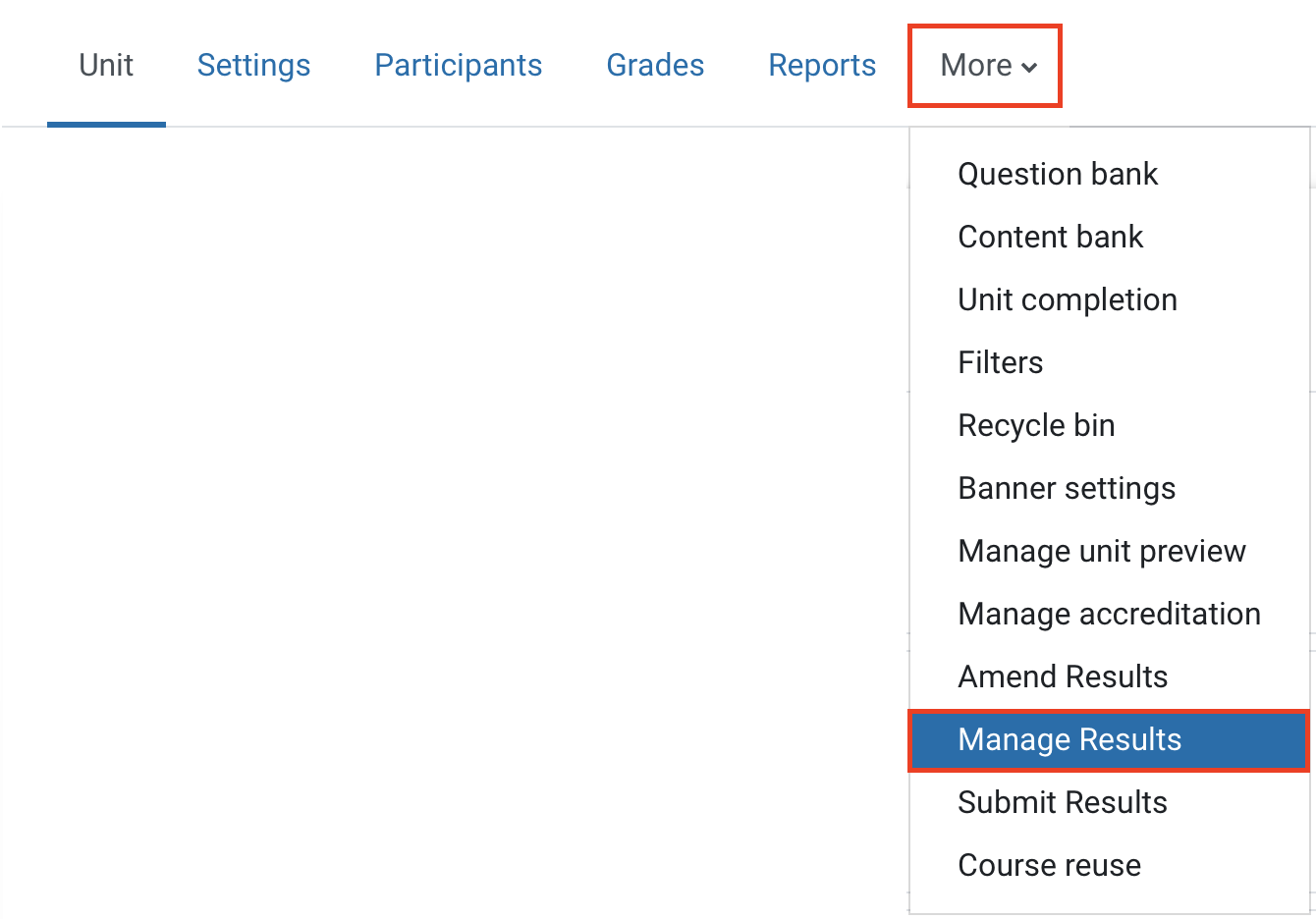
- To navigate to the Manage Results page, click on More in the top banner menu and select Manage Results from the dropdown list.
- The Manage Results interface will display results for the list of students as per the unit offerings associated with your Moodle site. Click on the plus icons to learn more about each component of the Manage Results interface or read a text version in the accordion below (left to right).
Apply a mark/grade override
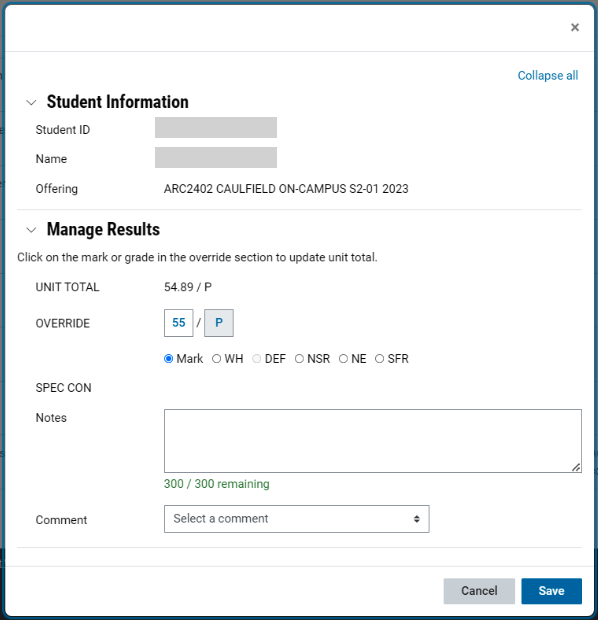
- Click on the row of the student you wish to adjust (click any location in the row).
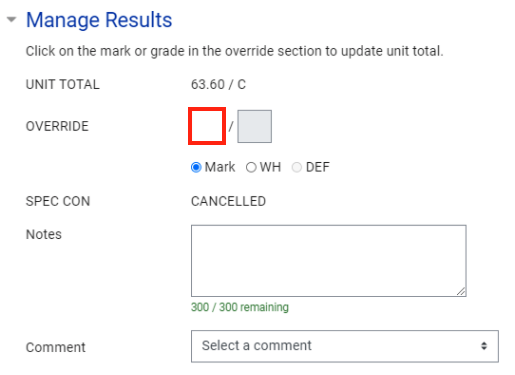
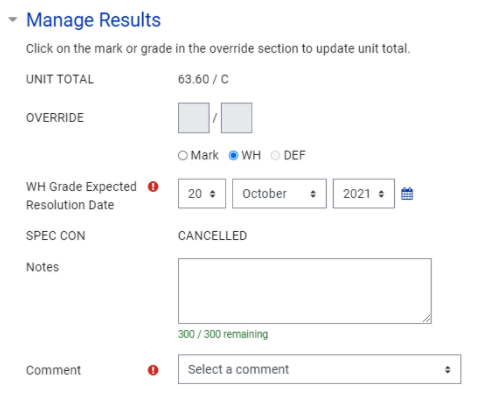
- A pop up window will appear containing a section with Student Information and a section titled Manage Results. In Student Information you will see identifying information about the student you selected including Student ID, Name and Offering to which they are enrolled.
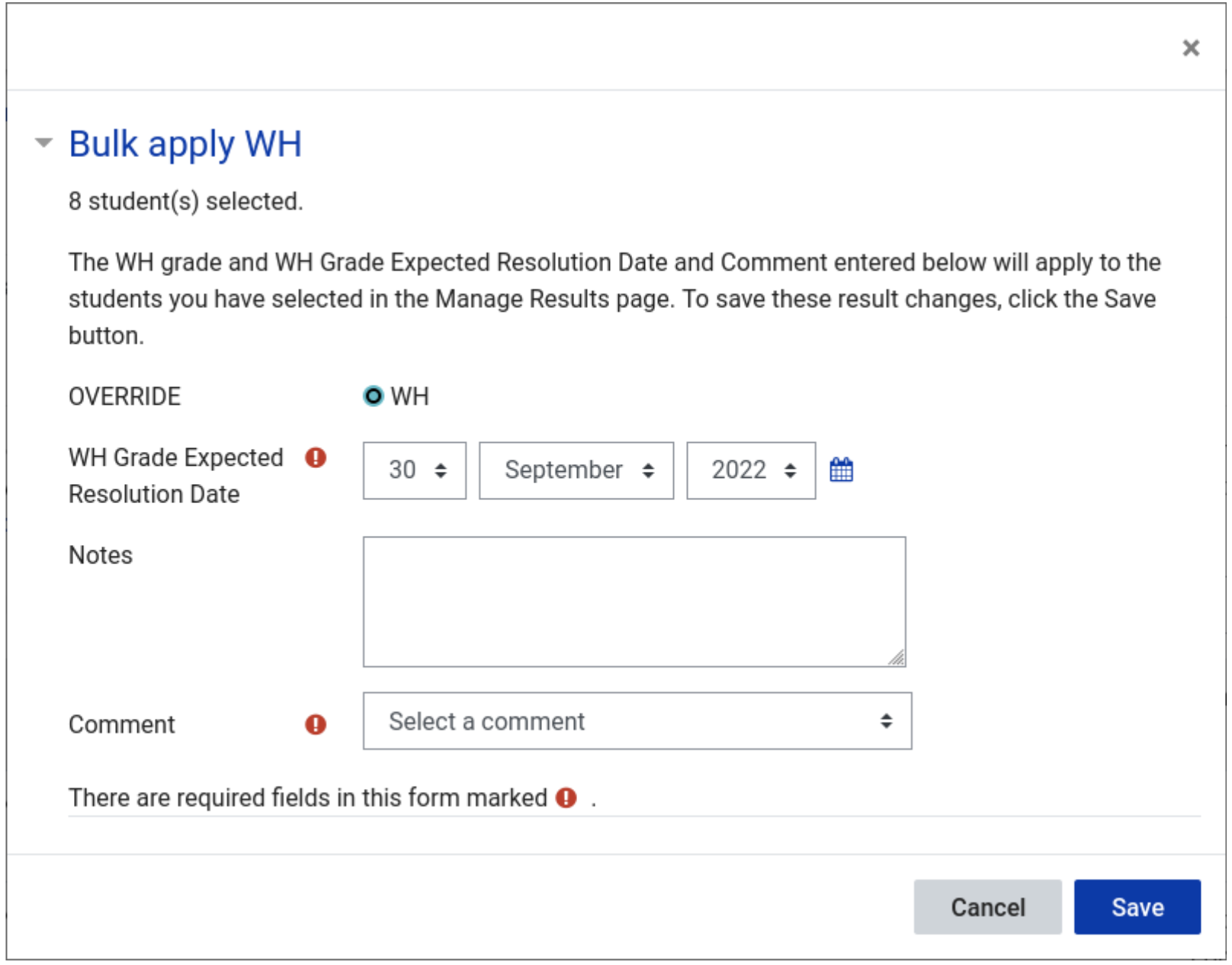
- In the Manage Results section, you can apply a mark override or WH grade override as required.

Validate Results
Once you are satisfied that student results are accurate on the Manage Results page, including any overrides, results must be confirmed as validated prior to submission to Callista.
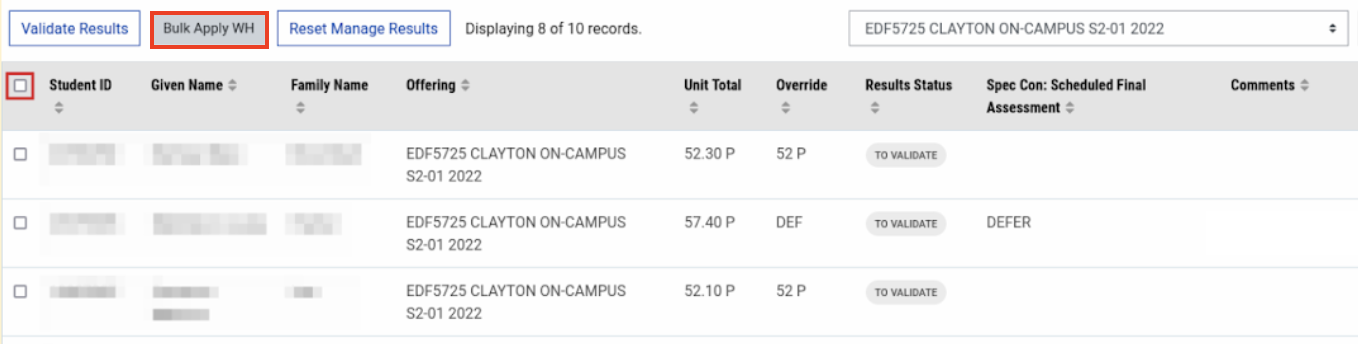
- Results can be validated for either All Offerings or by individual Unit Offering. Select the appropriate option from the offering drop down list. By default the drop down is set to All Offerings.
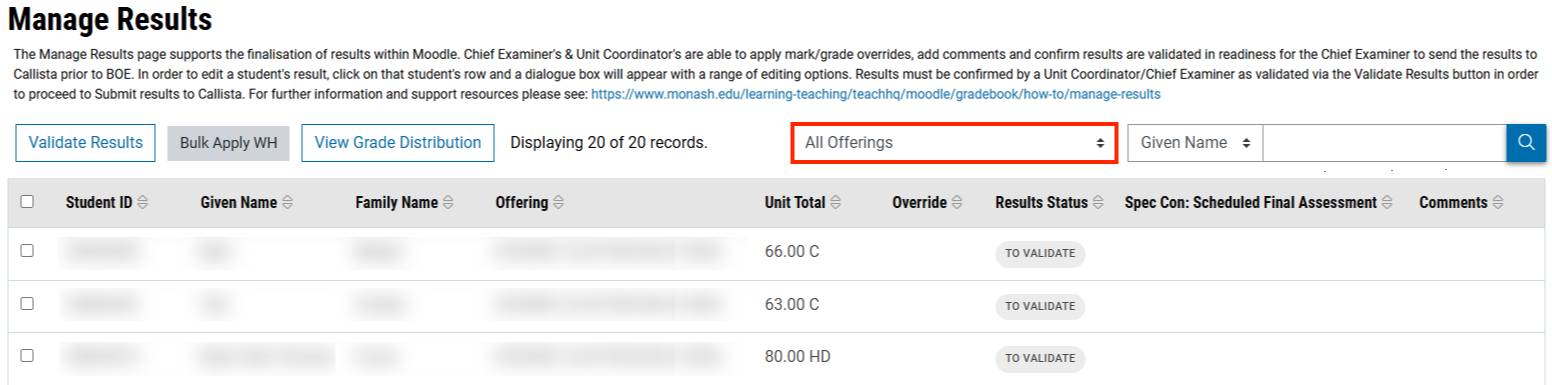
Note: In the scenario where there are multiple unit offerings and you validate results for one Unit Offering then try to validate results for All Offerings, you will be prevented from doing so and a warning message will display. In this scenario, each individual unit offering must be validated separately.
- Click the Validate Results button. Clicking on this button will trigger the following:
- A check to ensure that all students have a result recorded in the Manage Results page. A warning will appear with a list of students who do not have a result recorded (for example you may wish to award these students a 0, N). Results cannot be validated unless all students have a result in the Manage Results page.
- Unit offerings that have been validated can now proceed to be submitted to Callista via the Submit Results tab.
- Gradebook Setup will be locked down given that results were validated as per the setup configuration at that time. Changes to assessment weighting, categories, assessment structure, unit settings, hurdles, activity/grade item creation are prevented.
- Editing of Moodle activity configurations such as the Grade Type and Category are also restricted. This ensures the Gradebook Setup remains as per configuration at time of result validation.
Note
Assessments can still be graded via Moodle activity or Grader Report directly even after results have been confirmed as validated. However, if you update any grades in the Gradebook after validating results, you MUST reopen the Manage Results page before submitting in order for your changes to flow through.
- A pop up window appears identifying which offering/s are about to be validated. Click Confirm to proceed to validate results or click Cancel to return to the Manage Results page.
- After clicking Confirm, a validation success message will appear.From here an individual with Chief Examiner access can proceed to Submit Results to send results to Callista. For more information, see Submit results.