
Customise Moodle profile
At a glance
Personalise your Moodle profile settings, including editing your profile details, sending and receiving messages, and managing email and forum notification preferences. Understand how to control what information is visible to others and how you receive updates from your units.
Jump to these sections:
Moodle provides you with a personal profile that describes you in all your Moodle units. Moodle Preferences allow you to decide your preferred settings.
Edit your profile
You can edit your profile information at any time. You can choose to hide or display your email address, include a photo or an avatar, or add a link to your website.
NoteThe image you choose for your profile will be used next to your name in the Key Contacts section of your unit dashboard. |
To edit your profile open the User menu in the top right hand corner of the screen and select Profile or click on Preferences in the User menu then click on the Edit profile link under User Account.
User details
- Under User details select Edit profile
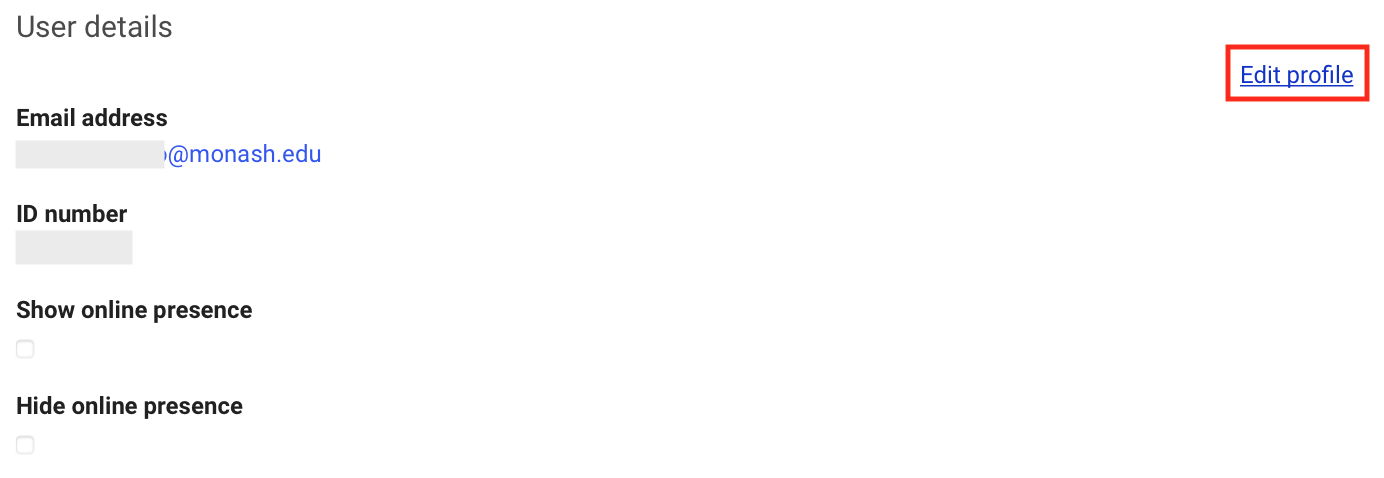
- In the User details screen you will be able to choose preferences for:
- Email display: Choose whether anyone in Moodle can see your email address in your profile, only those enrolled in the same units as you, or no one.

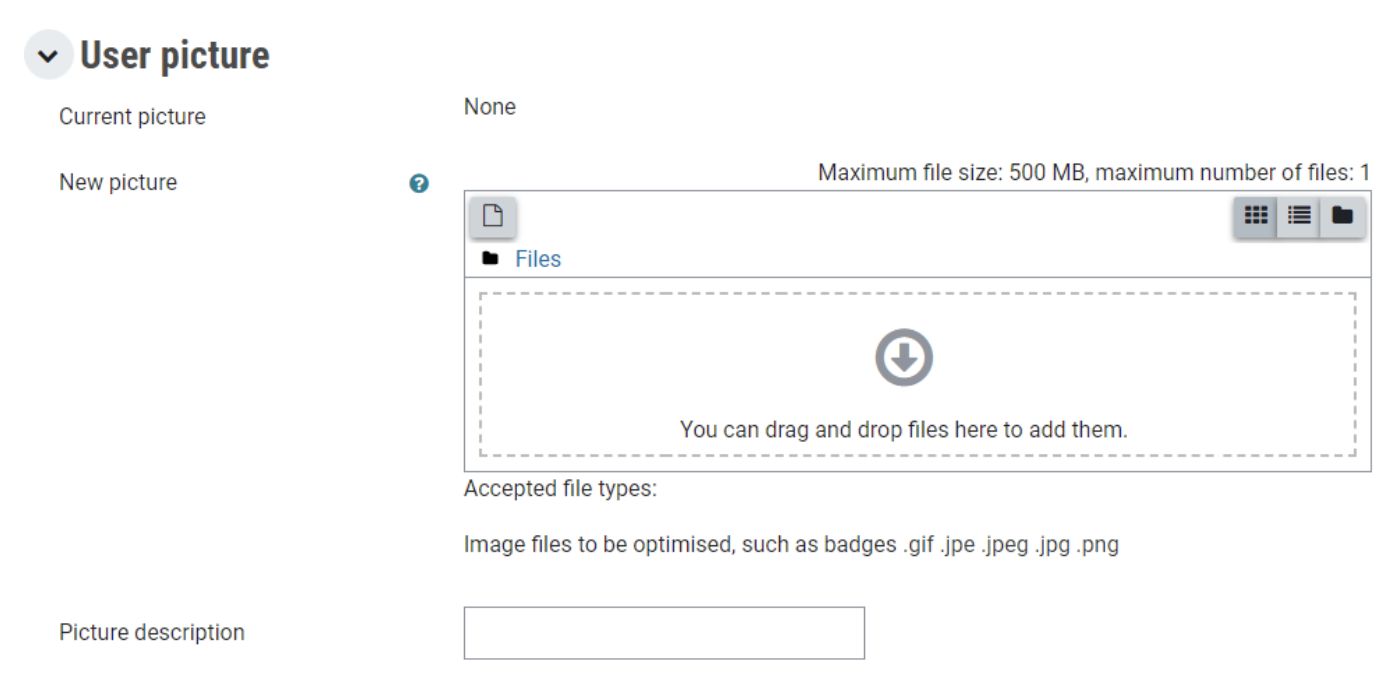
- User Picture: You can drag and drop a profile image that will be displayed in Moodle. Please add an image here, as this is the image that will be used to populate the teaching team field of the unit dashboard, and will appear alongside any forum posts you make. Images can be .gif .jpe .jpeg .jpg .png .svg .svgz formats and no larger than 500 MB.
- Other information about yourself. All of these fields are optional. You can include interests, a brief biography that can include links, and other details. Note that if your preferred name differs from your official name, changes made here will not be reflected anywhere other than this profile.
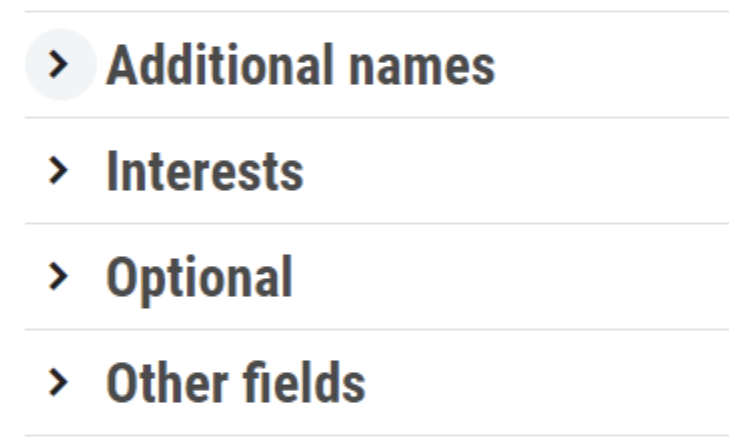
Note: Some of your profile information can be viewed by other Moodle users. This includes Country, City/Town, Email address and Interests. Do not include inappropriate or private information as your profile may be viewed by other Moodle users.
- Email display: Choose whether anyone in Moodle can see your email address in your profile, only those enrolled in the same units as you, or no one.
- Click on the Update profile button at the bottom of the screen to save your changes.