Use the Chief Examiner Report
At a glance
Complete the Chief Examiner report required for each unit offering before the faculty Board of Examiners meeting. Understand who can access the report, how to navigate its pages and grade distribution data, respond to University and faculty level questions, and submit your declaration once results are ready.
Jump to these sections:
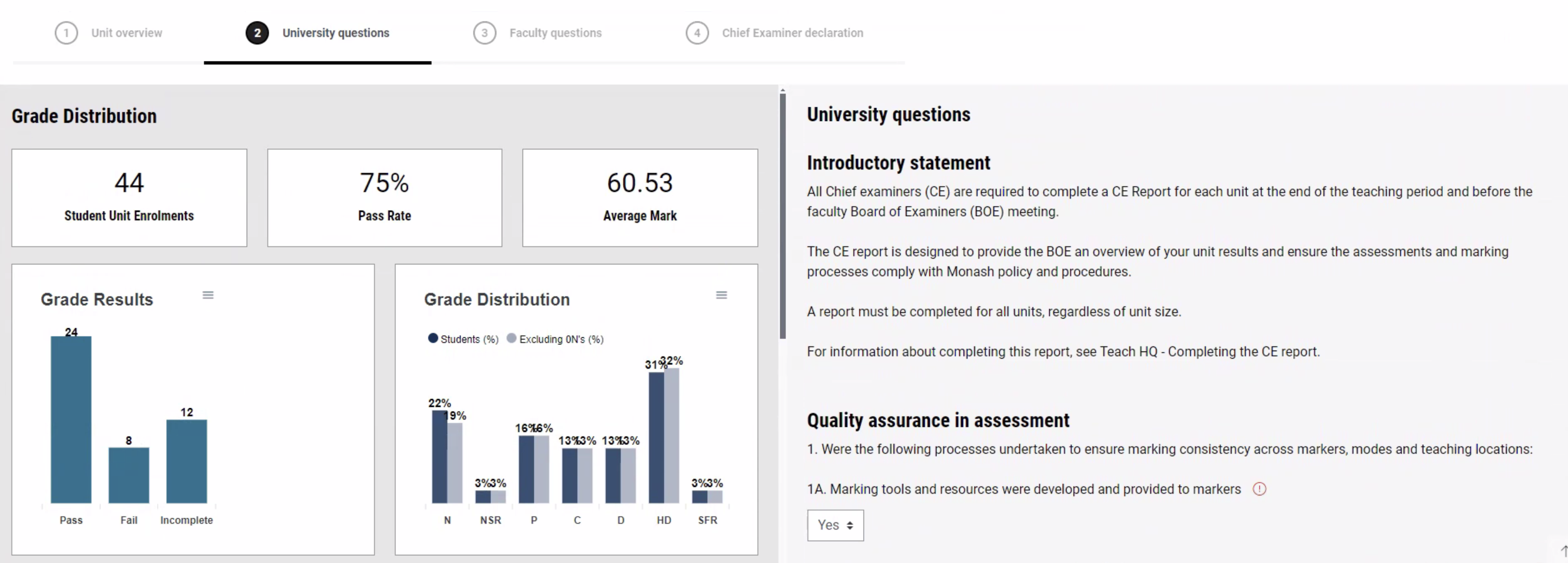
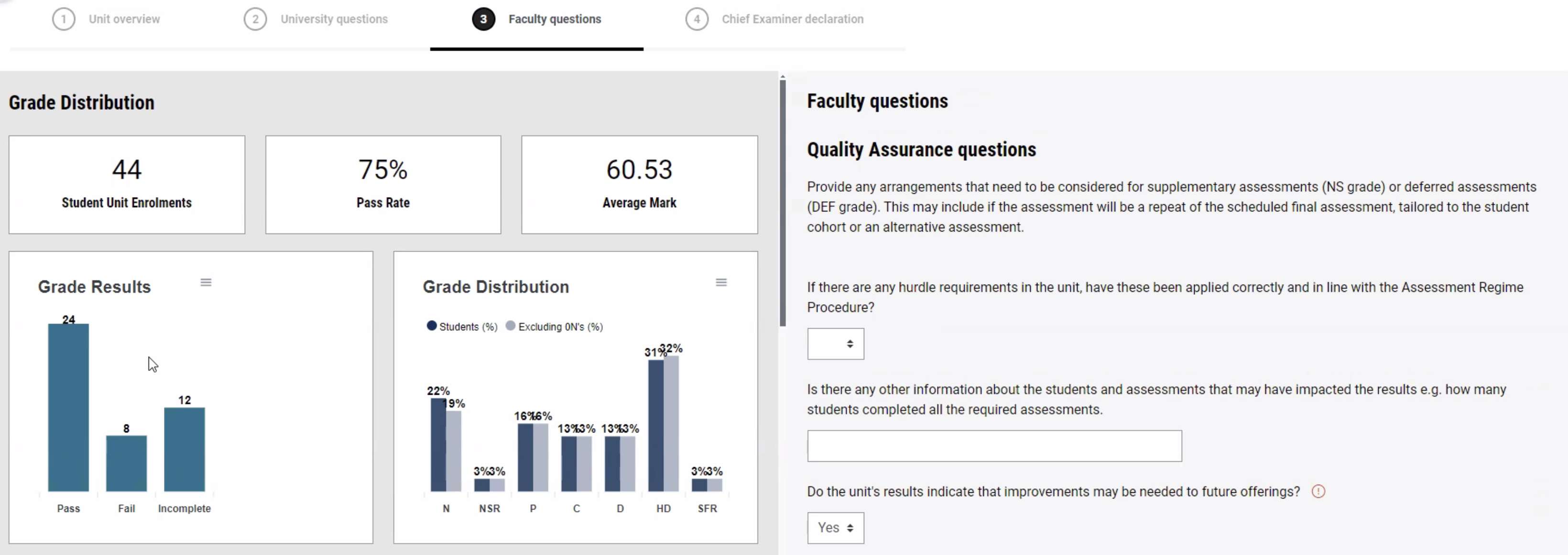
All Chief examiners (CE) are required to complete a CE Report for each unit at the end of the teaching period, in the timeline prescribed by their faculty, and before the faculty Board of Examiners (BOE) meeting. The CE report is designed to provide the BOE an overview of your unit results and ensure the assessments and marking processes comply with Monash policy and procedures. The report will include set University level questions and faculty level questions.
A report must be completed for all units, regardless of unit size. For units using multiple Moodle sites for the same unit code and different location, a CE report must be drafted and submitted using only one Moodle site.
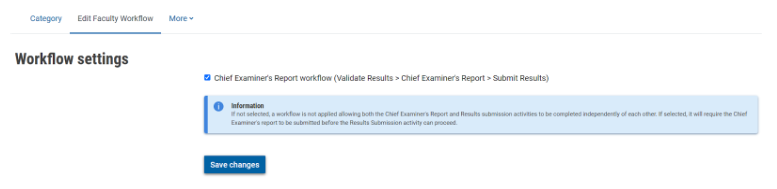
Depending on the way the workflow is set up by your faculty, you can either complete the CE report before or after you have submitted results.
New features of the report include:
- Chief Examiners will directly submit reports within Moodle, eliminating manual processes. Now, CEs will be guided by University-level reporting questions aligned to policy, and Faculty-level questions determined and managed by each faculty
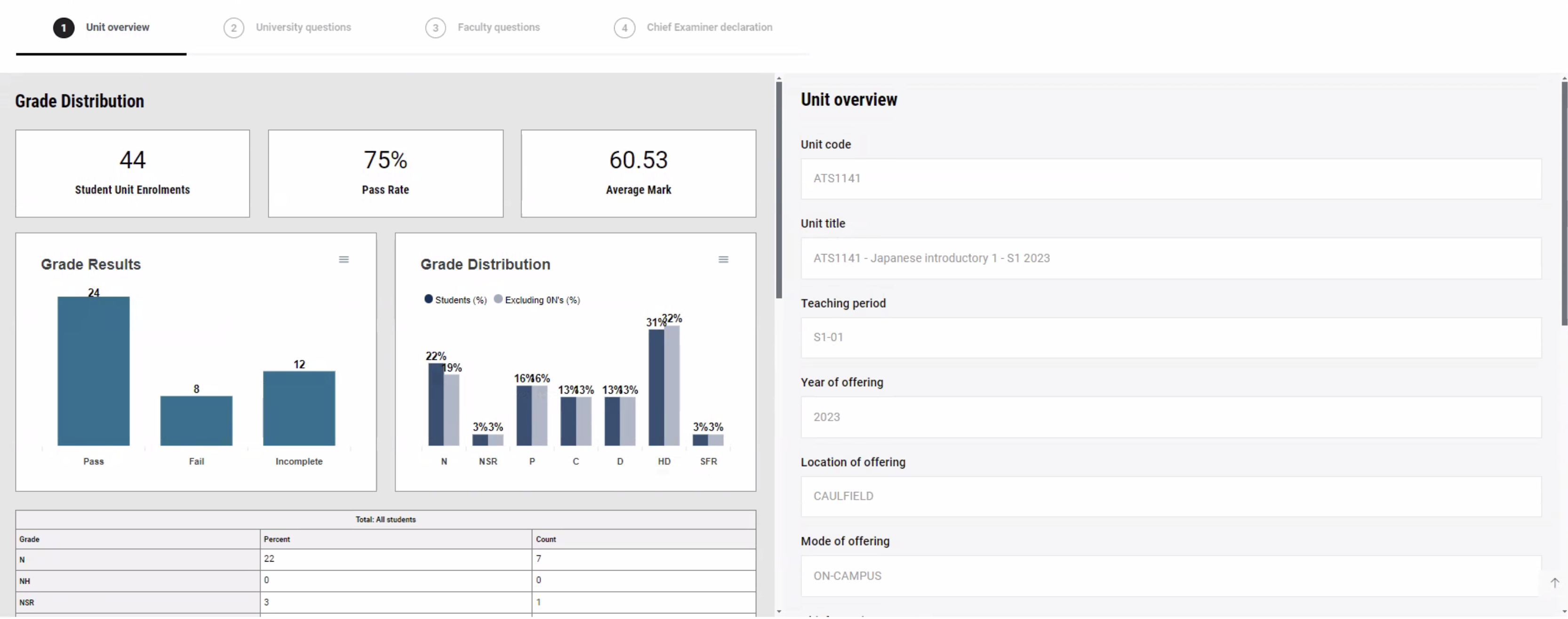
- Faculty staff can now access live unit summary data (unit code & title, location, mode, teaching period, Chief Examiner details, Unit Coordinator details). Total number of student unit enrollments, a Pass rate (%), and an Average Mark for the unit will be displayed.
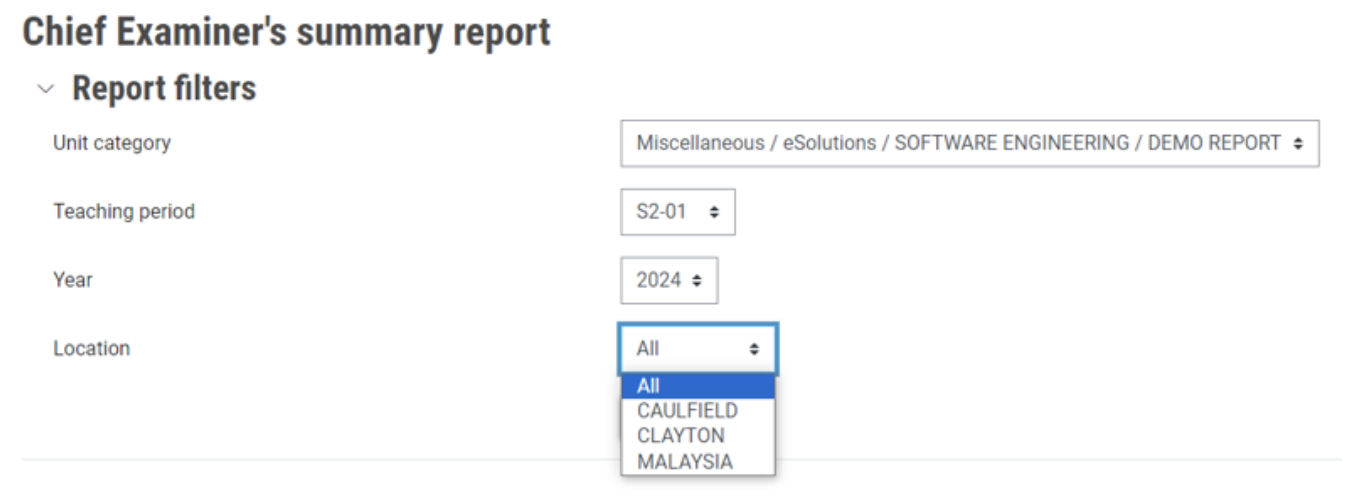
- Faculty staff can now access live grade distribution data (at unit, location, and mode level) showing a graph for Pass, Fail, and Incomplete (DEF, NS, WH) results.
- The Board of Examiners can access and review reports via individual PDFs
- The Board of Examiners can access and review reports via consolidated extract
- Results admins can download a summary of the Chief Examiner’s Report (without the grade distribution data) and share this with the Board of Examiners
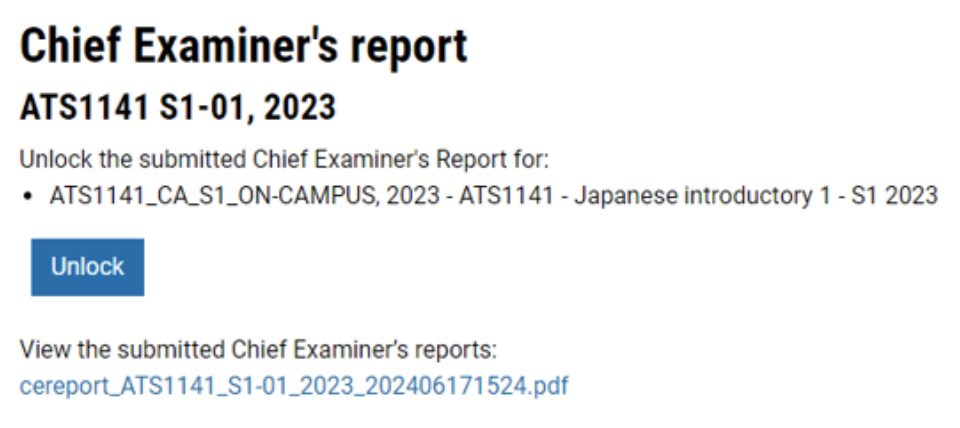
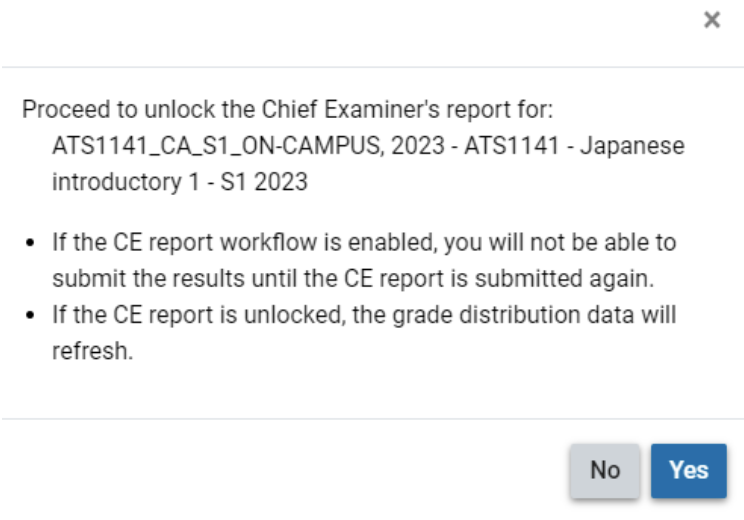
- Results admins have the ability to unlock and edit the Chief Examiner’s Report, allowing for easier amendments and resubmissions
- Seamless navigation and population of CE reports for units with multiple Moodle sites for the same unit code
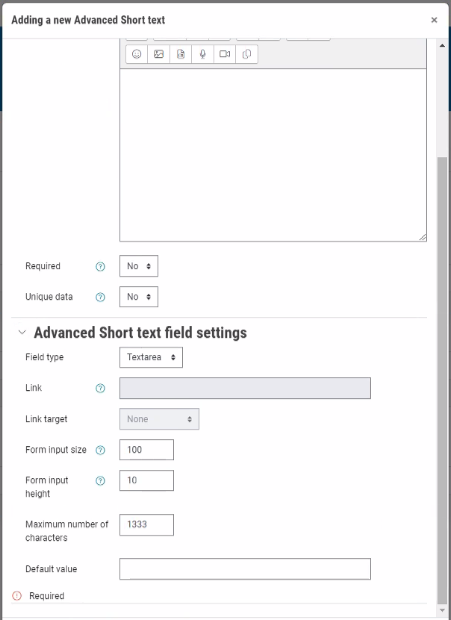
- The text response area size for the Advance short text field has increased from 1,333 characters to unlimited, allowing users to provide more comprehensive responses for faculty-level questions
Relevant Monash procedures |
User access for the Chief Examiner's Report
To access the Chief Examiner page in order to populate the Chief Examiner report you must be assigned the Chief Examiner role in Moodle. For assistance with roles in Moodle, please contact your Faculty Moodle administrator.
Navigate to the Chief Examiner's Report
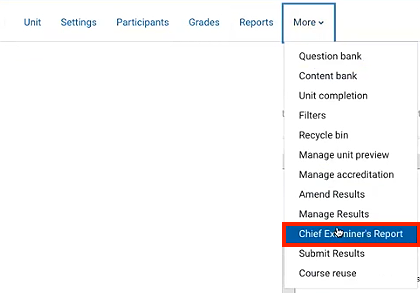
- To navigate to the Chief Examiner's Report, click on More in the top banner menu and select Chief Examiner's Report from the dropdown list.
OR
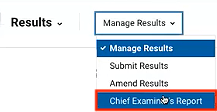
From the Manage Results page, click on Manage Results to view the drop down list, then select Chief Examiner’s Report.
- You will see a list of unit Offerings associated with your Moodle site. If you have multiple offerings, you will need to submit results for all offerings before you can proceed.
- From here you can click Proceed to continue the process, or View Grade distribution to see the grade distribution without commencing the rest of the process.

Grade distribution charts
The left hand side of the screen displays the Grade distribution. Click on the plus icons to learn more about each component of the Grade distribution. You should refer to the Grade distribution charts to assist you in answering the questions on this page.
Chief Examiner's Report pages
On the right hand side of the screen the Chief Examiner's Report has 4 sections. Expand the accordions below to learn more about each section.
① Unit overview
View

② University questions
View
③ Faculty questions
View
④ Chief Examiner declaration
View
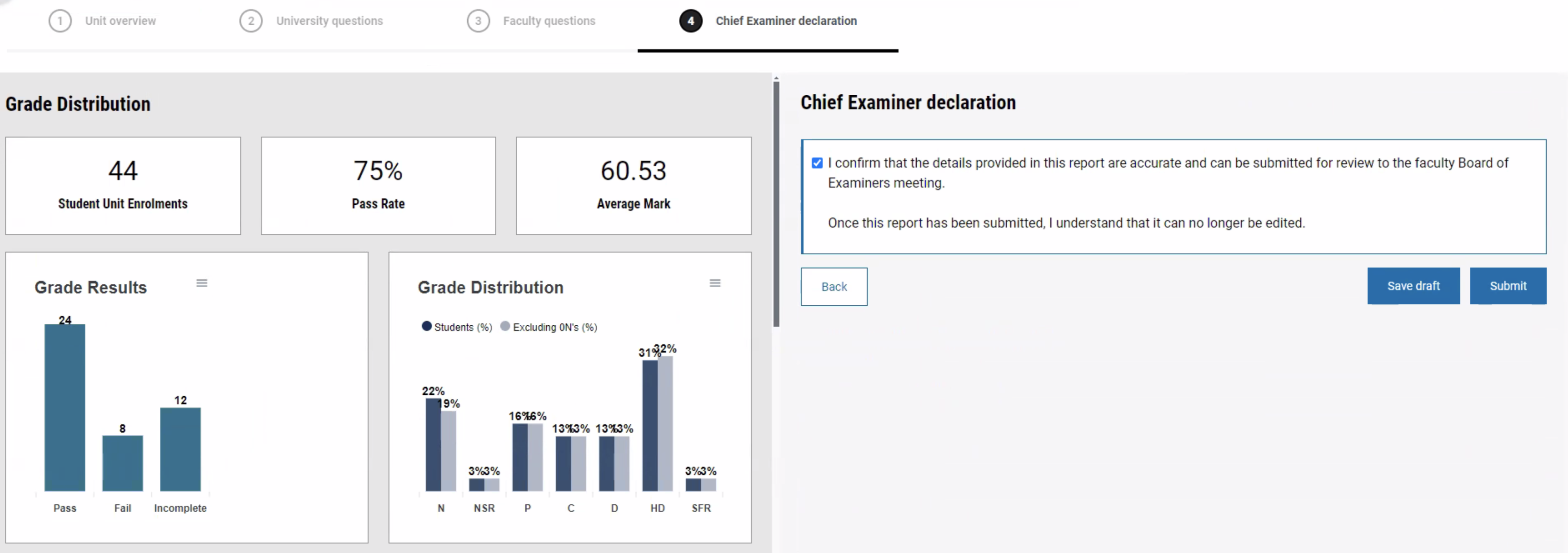
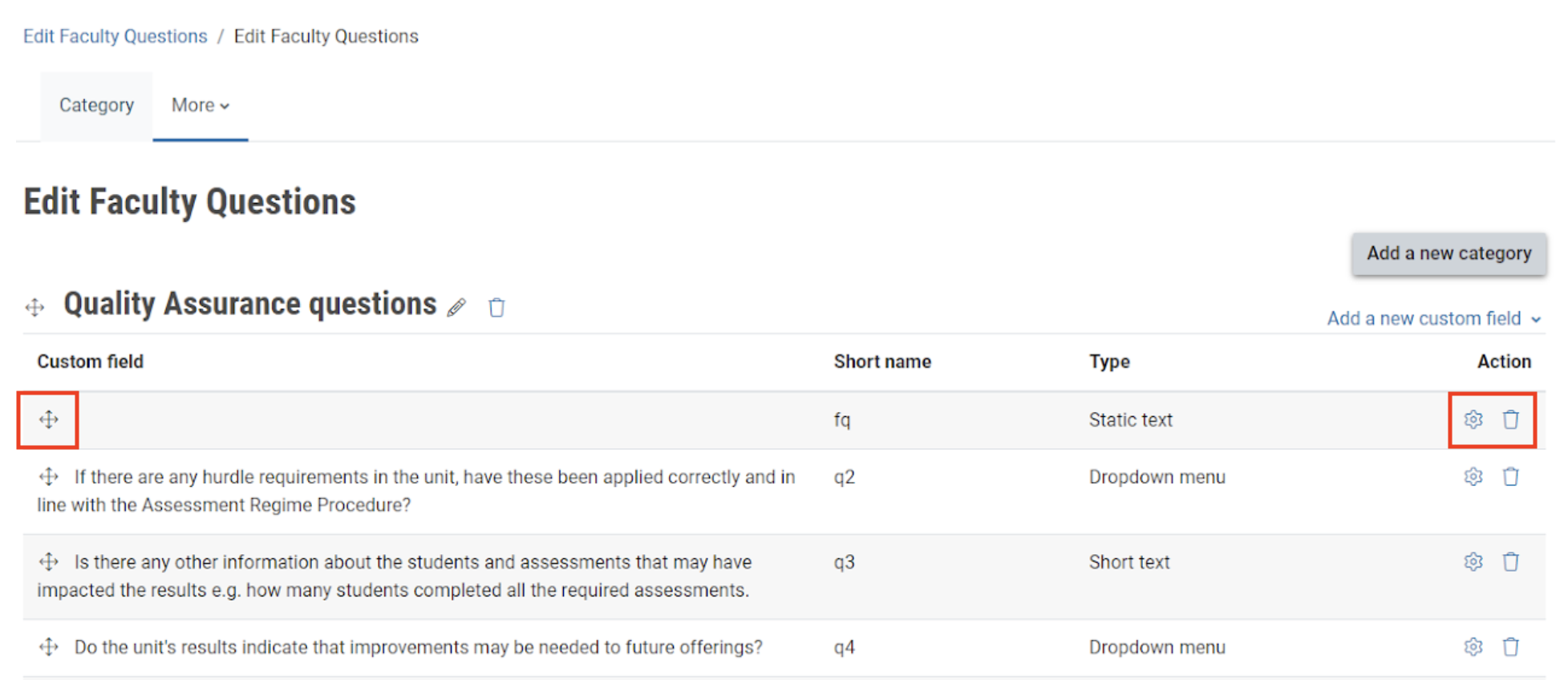
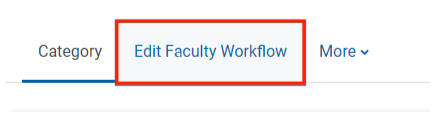
Your faculty will set up the report so that the CE report submission is either independent of the unit result submission process or that it must be submitted before result submission. The faculty administrator will set this up for each faculty.
NoteWhen completing the CE report, using the less than symbol (<) in free text fields may result in an error, instead please type "less than". |
Download the Chief Examiner’s Report
- Once you have submitted the report, you can download a PDF version of your report from the Chief Examiner’s report page.
Note: PDF generation can take up to 30 mins once the CE report is submitted. If you are unable to download the CE report 30 minutes after it’s been submitted, please reach out to eSolutions via the Service Desk.
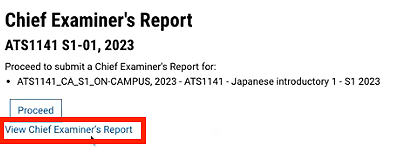
- Click View Chief Examiner’s Report to download the report.