The unit front page will be the students starting point for learning. The sections include a learning content summary (showing the outline of the learning sections), announcements from the Chief Examiner, key staff contacts, student forums and the task tracker showing activities coming up. This information is populated from other parts of the unit for example: the Overview detail in each of the learning sections will be displayed in the learning content summary. Here we make a great first impression for the students and aim to have all the information correct.
Click on the plus icons to learn more about each feature of the Unit dashboard
Current focus block
This block gives a short description of the current learning topic or week. Clicking Show more takes the student directly to the week’s content. Be sure to select an image that is both relevant and a high quality resolution for this block.
Current (highlight)
The current Focus section is based on the dates assigned to the learning section under the learning tab and will be highlighted in a range of locations. If no dates are assigned, no section will be highlighted.
This highlighting is visible in the left-hand navigation bar, in the Learning tab dropdown, and next to the section title. This will also be the focus section in the Unit dashboard.
Note about learning section dates:
If there are no dates set, students see the first viewable section with an Overview Section.
If there are dates set, but none that fall in the current week, then students will see the first viewable section with an Overview Section.
If there are dates set where multiple sections have same date range, and the current date falls in one of those configured dates, then the students see the Overview section for that section
Go to learning section
Clicking the topic will take students directly to that week’s content.
Informational sections
There are additional informational learning sections intended for resources and information. They are hidden by default, but can be unhidden and moved for use in your unit as appropriate. These sections include:
Getting started: This section can be used as a Week 0 section, or for resources that students may need to refer to at the start of the teaching period.
During the break: This section is intended for use during the mid-semester break. Move the section to the correct location for the current semester. Please note that no assessments should be scheduled during this week
Additional information and resources: This section is intended for information and supporting material beyond what will fit in the Unit resources section on the Unit Info tab.
Staff resources: This section is permanently hidden.
Task tracker block
This block gives a summary of tasks in the unit with assigned due dates or completion dates. Students can click on the names of the activities to be taken to the activity itself.
For an activity to appear on the Task Tracker
All of the following (Assignment, Choice, Database, Feedback, Group self-selection, Lesson, Questionnaire, Quiz, SCORM, Turnitin Draft Submission, Workshop) will appear on dashboard so long that the deadline is set and/or activity completion date is set. To ensure your underpinning settings are correct to make this happen, refer to the Moodle timeline webpage . Note:
For Moodle Activities either set a deadline or set 'Expected complete on' in the Activity completion.
For Moodle Resources, set 'Expected complete on' in the Activity completion.
Note: Tasks will appear in the task tracker if they have been assigned to your role, meaning that students will be able to see tasks that have been assigned to them. You can preview the task tracker as it appears to students by switching to student view by clicking on your name and then Switch role to… and selecting Student.
Announcements block
Displays the latest posts in the unit Announcements forum, with the title, a preview of text and the post creator. Users can click the title to navigate directly to the post, with options to view additional posts by clicking the forward and back icons. Students can navigate to the announcements forum
by clicking See all announcements.
Forums block
Displays the latest forum posts with the title, a preview of text and the post creator. Users can click the title to navigate directly to the post or click See all forums to navigate to the forums tab.
Key contacts block
Displays teaching team, their roles, contact details and consultation hours. Students can click on Consultation information and see all contacts to view additional information.
How-to guides
The key contacts displayed on the Unit dashboard are drawn from the Moodle Unit Preview. The following roles can access the Manage unit preview settings: VLE Administrator, Administrator, Lecturer, Non-primary lecturer, Designer or Chief Examiner.
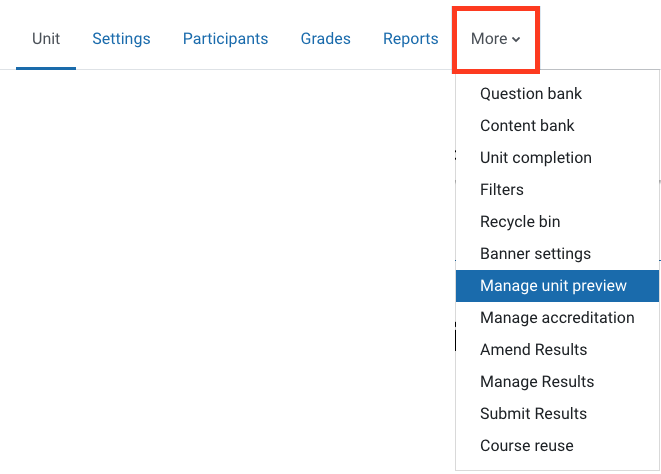
Click More in the top unit banner and select Manage unit preview. All individuals assigned the role of Lecturer for the Moodle unit site will be displayed.
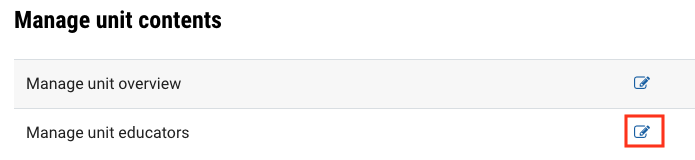
In the Manage unit educators row, click on the pencil icon to the right. The Manage educators window will appear.
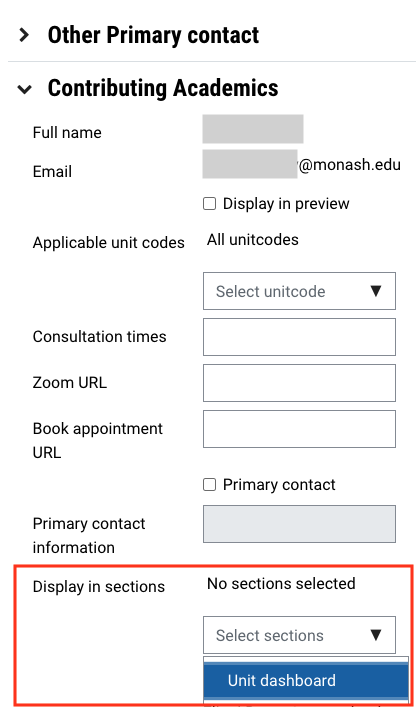
For academics you would like to be displayed as Key contacts on the Moodle unit dashboard, for Display in sections, select Unit dashboard. Enter other details as required.
Click Save changes to close the window.
You can display consultation hours for members of the teaching team who are listed in the Contacts shown on the Unit dashboard.
The following roles can add consultation hours using the Manage unit preview settings: VLE Administrator, Administrator, Lecturer, Non-primary lecturer, Designer or Chief Examiner.
Click More in the top unit banner and select Manage unit preview. All individuals assigned the role of Lecturer for the Moodle unit site will be displayed.
In the Manage unit educators row, click on the pencil icon to the right (see picture below). After that, the Manage educators window will appear.
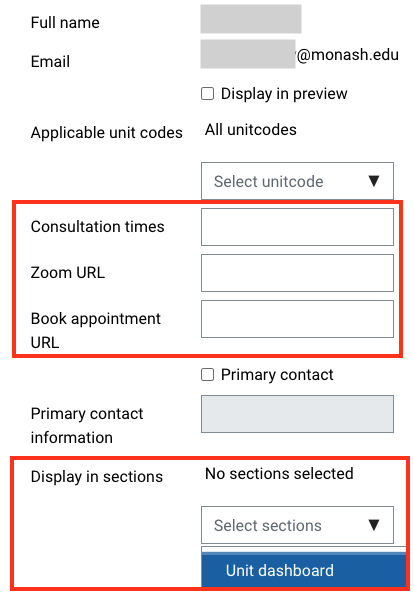
Enter details of consultation hours for relevant staff as required in the Consultation times box. Please enter consultation times using the following format:
- Mon 8am–12pm AEST on campus - Tues 3pm-4pm AEST on Zoom
Add Zoom URL and Book appointment URL as needed.
If there is an available Zoom link or calendar booking tool for consultation, please enter full URL.
Ensure that Unit dashboard is selected for Display in sections, so that the contact will be displayed on the Moodle unit dashboard.
Click Save changes to close the window.
Note
It is important that the times listed here accurately reflect your consultation hours, especially if they are contracted consultation hours.
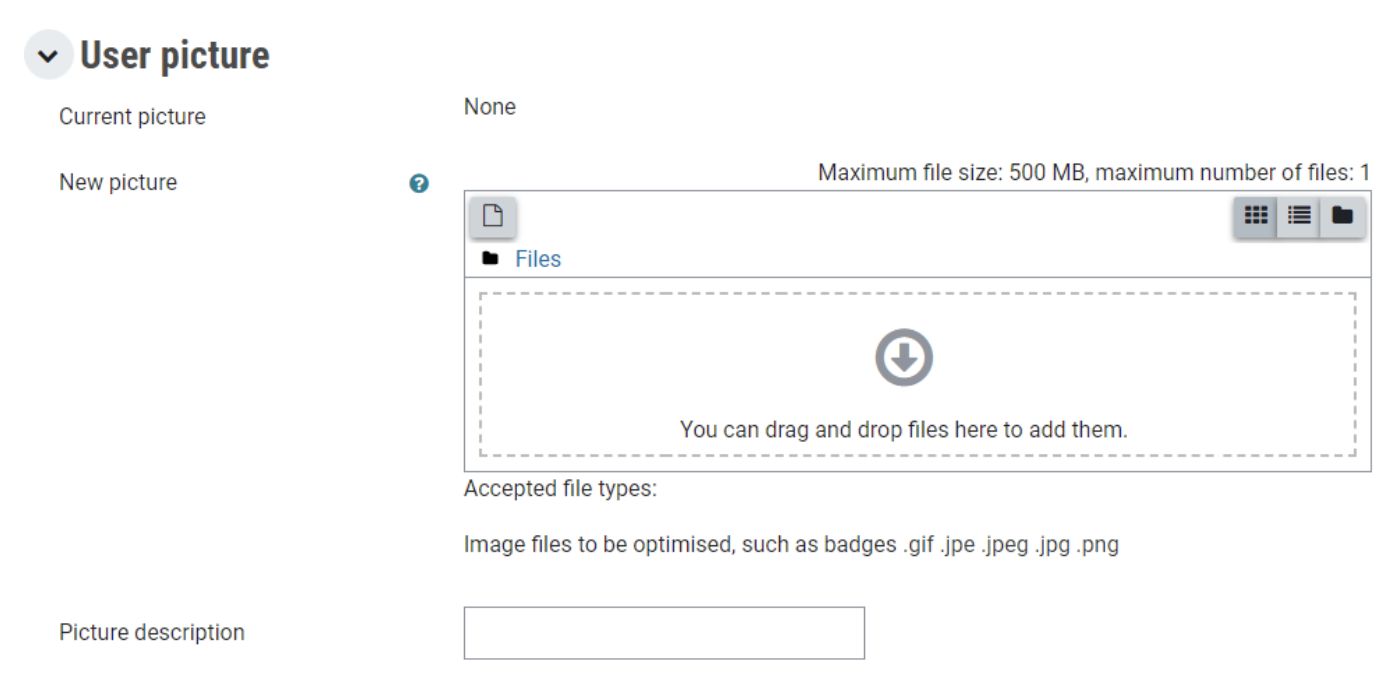
The profile picture you choose for your Moodle user profile will be displayed in the Key Contacts section of your unit dashboard and will appear alongside any forum posts you post. To edit your profile picture:
Open the User menu in the top right hand corner of the screen and select Profile.
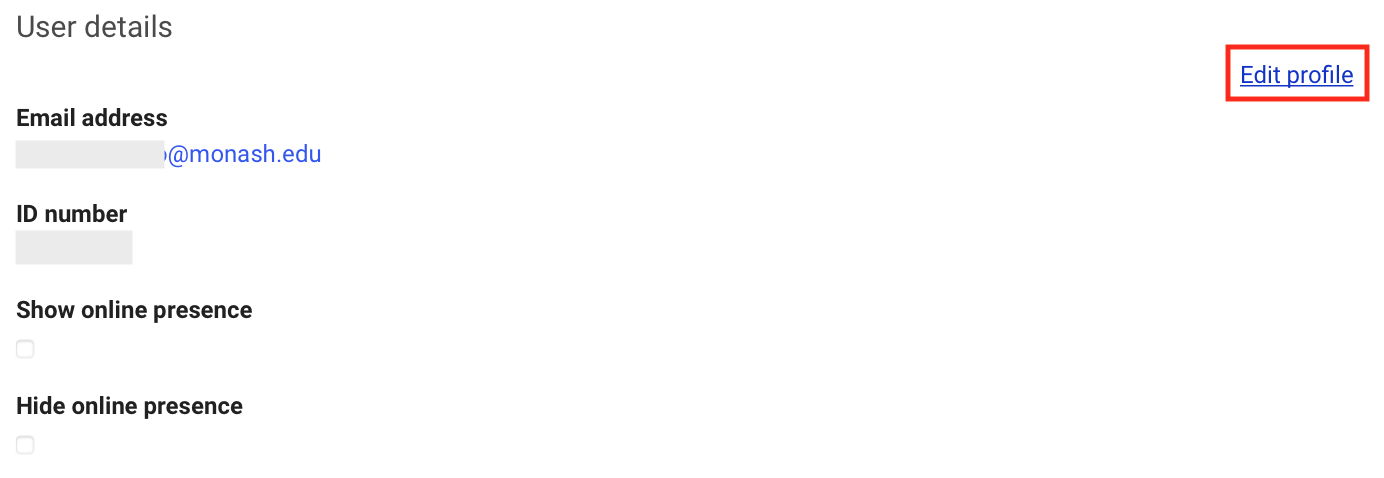
Under User details select Edit profile
Under User Picture, you can drag and drop a profile image that will be displayed in Moodle. Images can be .gif .jpe .jpeg .jpg .png .svg .svgz formats and no larger than 500 MB.
Click on the Update profile button at the bottom of the screen to save your changes.
Note: It may take up to 24 hours for your updated profile picture to display on in the Key contacts section on the Unit dashboard.
You can enable Set reminder in timeline for activities or resources which will allow them to be displayed in students task tracker and calendar. The activity or resource will also be added as a segment in the progress completion bar for the own-time/real-time/wrap-up section overview in the learning sections.
Note
The following activities (Assignment, Choice, Database, Feedback, Group self-selection, Lesson, Questionnaire, Quiz, SCORM, Workshop) will appear in the task tracker so long that a deadline is set. It is not recommended to set a deadline AND a reminder in the timeline, as the activity will appear twice in the task tracker and this may cause confusion.
Edit Activity or resource completion conditions
In the top right corner, switch Edit mode on(Blue).
Navigate to the activity or resource.
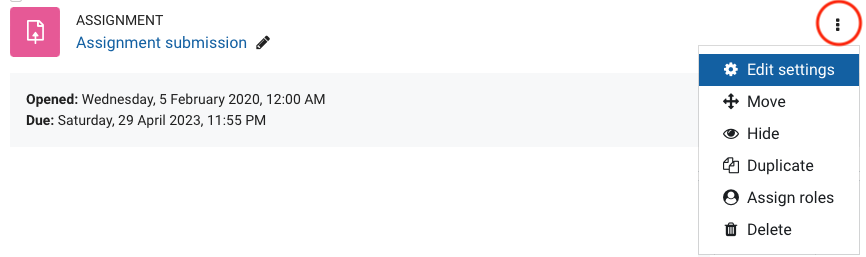
Click on options (three dots) and select Editsettings.
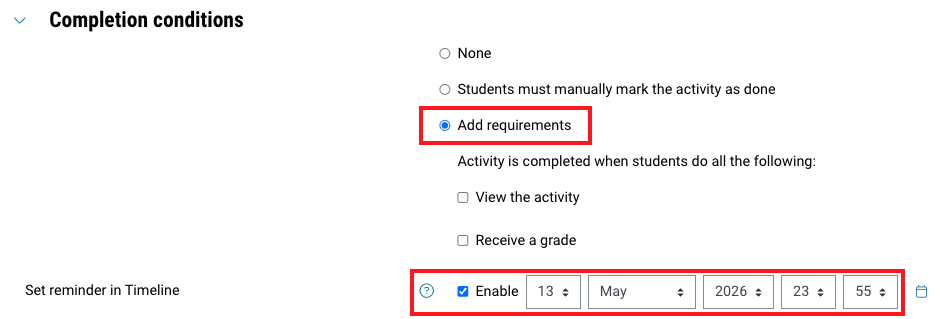
In Completion conditions, to enable Set reminder in timeline, select one of the following options:
Students can manually mark the activity as completed: Students can manually mark activity completion with the Mark as done button for each activity or resource on the unit homepage.
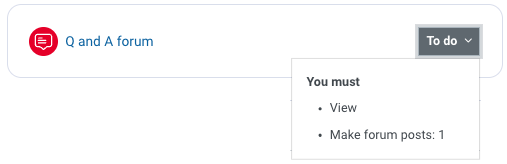
Show activity as complete when conditions are met: The activity is only marked as complete when defined conditions are met. The resource or activity will be displayed with a “To-do” button in the top right corner. When clicked, students will see the conditions required for completion. Additional options will appear and may vary depending on the resource or activity. For more information about these options, see Track activity completion.
Once selected, you can select the checkbox to enable Set reminder inTimeline and specify a date and time.
Once selected, click Save changes.
Once conditions have been met, the activity or resource will be marked as done in the learning journey own-time/real-time/wrap-up progress completion bar.
Note: You can edit the activity completion settings of multiple activities or resources at once using Bulk edit activity completion. For more information, see Set up unit complete (Bulk edit activity completion).