
Shadow link
At a glance
Understand how to use a shadow link to display an assessed activity in its weekly context on the Learning tab while keeping it visible in the Assessment tab. This page covers important setup notes, how to add a shadow link, and additional considerations such as rollover and deletion behaviour.
You can use the shadow link activity to create a link to an assessed activity in the appropriate weekly context on the Learning tab (eg. weekly quizzes), while still being displayed in the Assessment tab. Students will see the icon of the original activity type and the original activity name. When students click the shadow link, they will be taken to the original activity.
Watch the video to learn more
NoteShadow links cannot be created in the Assessment tab. If you intend to use Shadow links to display activities in the Learning tab AND the Assessment Structure table, you MUST create the original assessed activity under the Assessment tab and then add the Shadow link in the Learning section. Additional notes at end of page. |
Please note:
There is currently an issue with Shadow activities and the Mass actions block. If you select a Shadow activity and then use the Footer, the action will be applied to the original activity. This may lead to you moving, hiding or deleting the original. Selecting the Shadow link and using the Side block will result in an error. We strongly advise moving Shadow links using the Move option in the three dot menu.
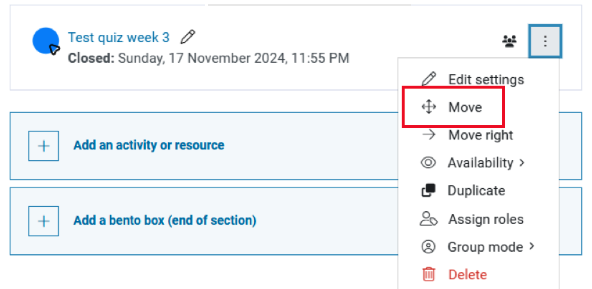
Add a Shadow link
- Navigate to the activity you wish to create a shadow link for by clicking on the name of the activity. The activity must be created first, before you add a Shadow link.
- Copy the numbers that appear after id= in the URL (web address) for the activity. This is a unique identifier (the Course Module Identifier, or CMID) for the activity.

Note: You can also shadow links for folder resources located on different Moodle pages, however they may appear slightly different in the academic view, with no change to the student view.
- Navigate to where you wish to add your Shadow link.
Note: Shadow links can only be created in the Learning sections.
- Click Add an activity or resource.

- Select Shadow.
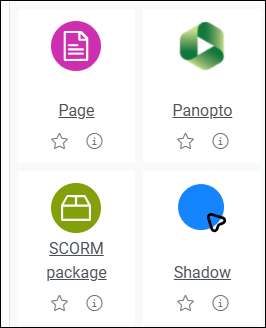
- In the field Target activity's cmid, paste the number you copied.

- Click Save and return to unit.
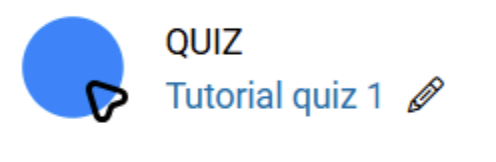
- Your new activity will have the Shadow link logo, but the name of the original activity. Clicking on the shadow link will take you to the settings of the original activity.
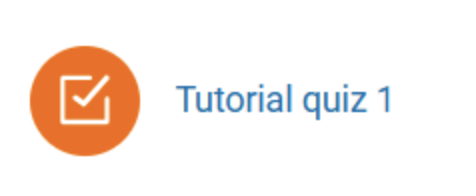
- Students will see the icon of the original activity type and the original activity name. The shadow link also inherits any access restrictions from the original activity. When students click the shadow link, they will be taken to the original activity.
Additional notes
|