
Use Components for Learning (TinyMCE)
At a glance
Add visual design components to text areas in Moodle using the Components for Learning plugin in TinyMCE, with no coding required. Explore how to insert, edit and save components, and identify which contextual, procedural, evaluative, helper and custom options suit your content.
Components for learning is a new plugin for TinyMCE that allows you to quickly and easily add visual design components to any rich text area in Moodle with no coding required. More details about the components can be found at the official website for the project: Components for Learning.
- Make sure your text editor selection is set to TinyMCE. Refer to this guide on checking and changing your text editor.
- Navigate to a text area in Moodle.
- Select the building block icon from the toolbar.
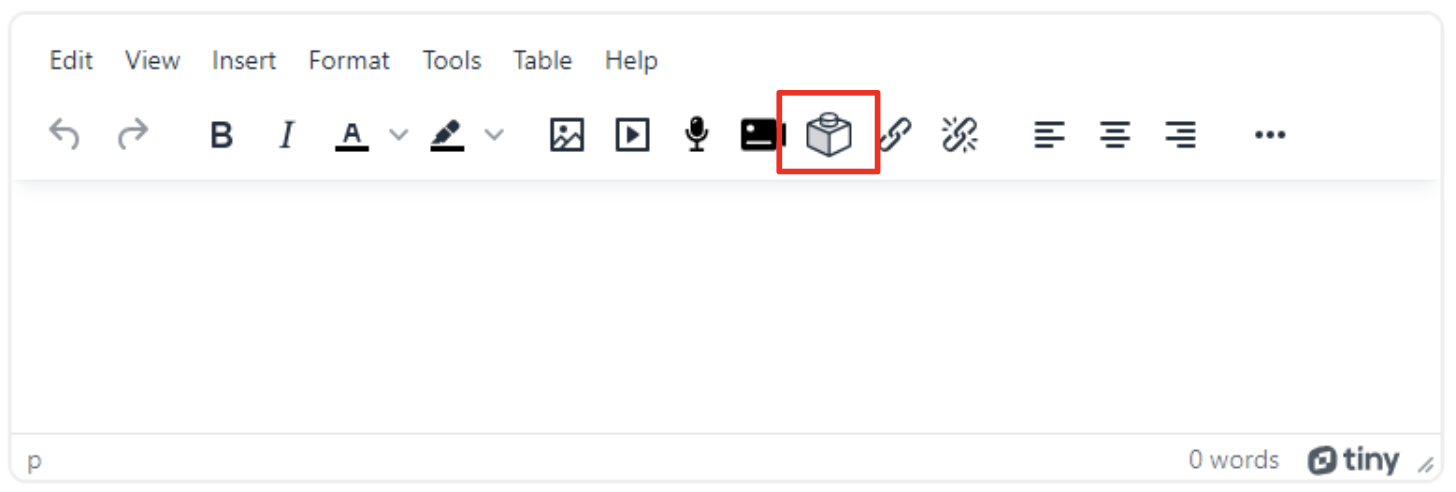
- You have two options for inserting components:
- If you wish to add a component to text you have already entered, highlight the text before selecting the component. The component will appear around the text.
- If you wish to add a component and then add text, simply select the component from the popup and enter your text by writing over the default text.
- A pop-up box displays your component options. They are themed by use. Scroll through to choose the one you wish to use. As you hover your mouse over options on the left-hand pane, the right-hand pane shows a preview. Some components have formatting options such as alignment and width, which can be selected using the icons to the right of the component card.
Click through the tabs to view an example of each component type
- Click on the item you have chosen to add it to your text box.
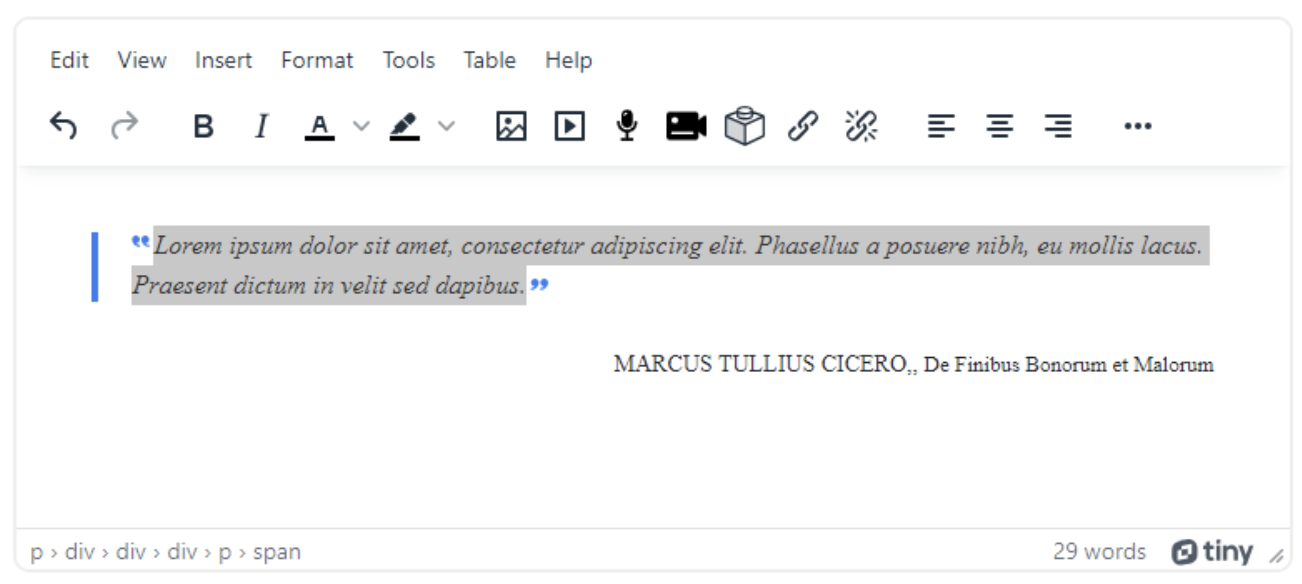
- Update the component as required. This may involve adding or editing text, adding an image, or other actions as needed. This can be done directly in the text window.
- Click Save.