Track activity completion
At a glance
Set up and monitor activity completion for Moodle activities and resources, including enabling completion tracking, choosing completion conditions and using reminders in the Timeline. Track student progress through completion reports, manually mark completion when required and use Moodle's global search to locate activities and resources across your units.
Jump to these sections:
You can define the criteria or conditions that students must meet to mark activities and resources as complete in Moodle. The Activity completion report can be used to monitor the progress of large cohorts during the teaching period. You can also monitor trends of student preferences for optional activities and resources by tracking viewing. Activity completion can also be used to trigger selective release of resources and activities.
The Activity completion report provides a better overview of patterns of student engagement than individual student activity or participation reports.
Students will be able to view completion requirements (if enabled) of activities and resources in the Own Time/Real Time/Wrap up headers of learning sections, or on the unit homepage. If you would like students to be able to track their own completion progress at unit level, you may want to enable the Completion progress block.
Activity completion settings are only available if Completion tracking has been enabled. By default, Completion tracking is enabled for all Moodle units.
Enable Completion tracking
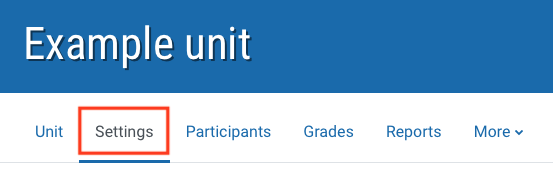
- In the top menu banner, click on Settings.
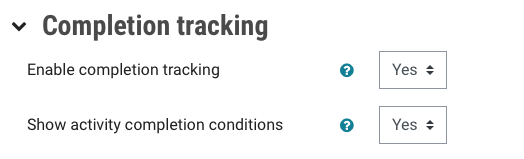
- In the Completion tracking section, check that Enable complete tracking is set to Yes.
Access the Activity completion settings
The activity completion settings can be accessed in the Completion conditions section of any activity or resource settings page.
- In the top right corner, switch Edit mode on(Blue).

- Navigate to the activity or resource.
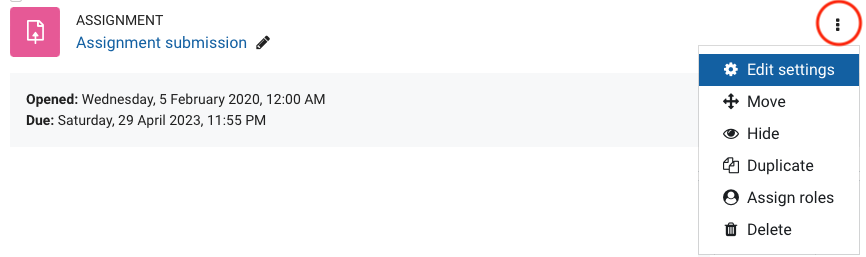
- Click on options (three dots) and select Edit settings.
- Scroll down to the Completion conditions section.
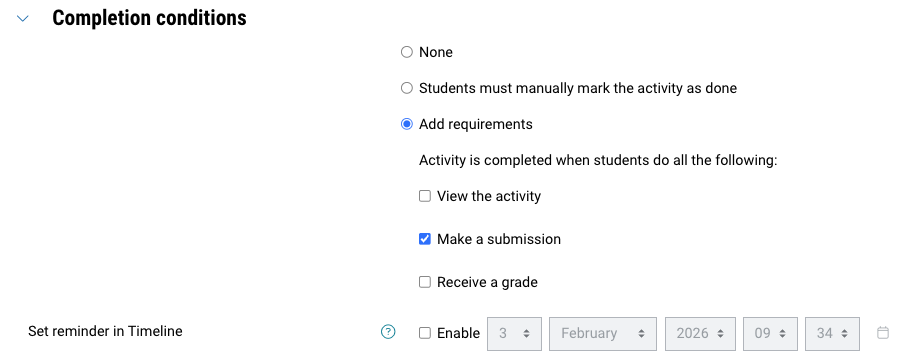
NOTE: Activity completion settings can also be edited in bulk, see Set up Unit completion.
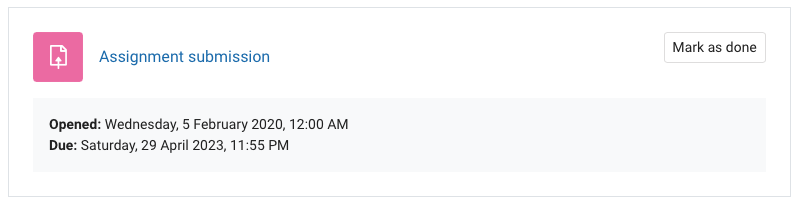
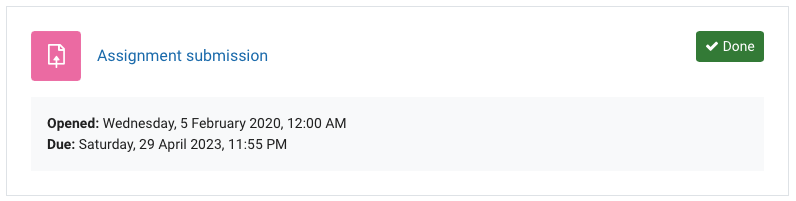
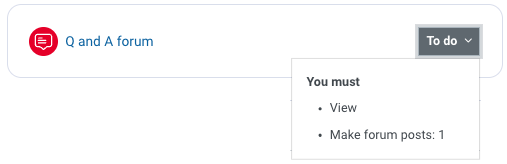
Completion conditions options

View / Download the activity completion report
To track the progress of your students through the unit, you can view the activity completion report. You can also view and export reports for activity completion.
- From the top banner menu, click on Reports.

- From the list of reports, select Activity completion.
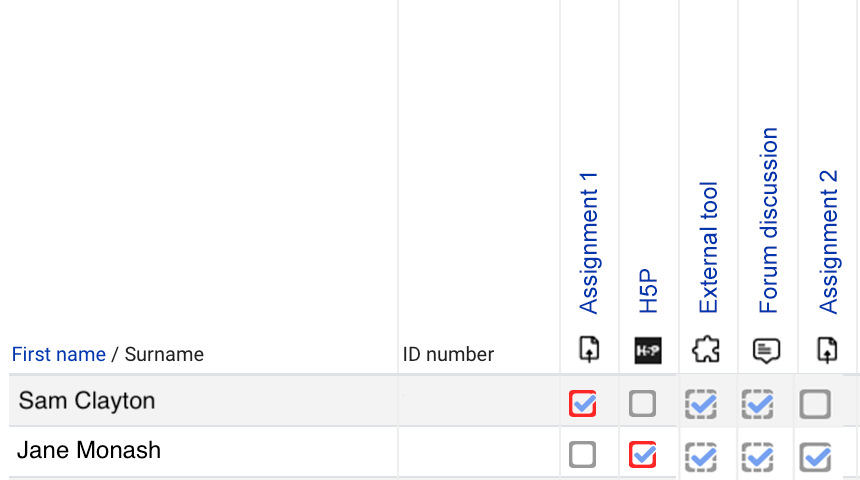
- The report will list students in rows and unit activities and resources in columns. Ticked boxes show that activity or resources have been marked complete.
- The appearance of the boxes indicate the activity completion setting for the activity or resource:
- Solid line: Students can manually mark the activity as completed
- Dotted line: Activity is marked complete when conditions are met
- Red line: An academic has manually marked the activity as completed on behalf of the student
- To download the activity completion report, scroll down to bottom of the report and click on Download in spreadsheet format( UTF-8 .csv) or Download in Excel-compatible format (.csv).
Manually mark activity completion for students
You can manually mark activities as completed for students if needed.
- Navigate to the Activity completion report (see above).
- Click on the activity box for the student you would like to mark as completed.
- Click Yes to confirm your change.
- Click Save changes.
- The overridden completion status will be indicated by a red-outlined box.