
Add a STACK quiz question
At a glance
Set up a STACK quiz question in Moodle to assess mathematical concepts using randomised, algebraic input. Understand how to define question variables, configure student input, evaluate responses with potential response trees, apply randomisation, and download an example question to import into your own quiz.
Jump to these sections:
The STACK quiz question type in Moodle allows you to set multi-part questions that address mathematical ideas and concepts. You can use STACK questions to create sophisticated, reusable formative and summative quizzes that are able to probe students’ fundamental understanding of taught concepts that involve both pure and applied mathematics.
For LaTeX mathematical notation to be rendered correctly in Moodle, you may need to adjust your Moodle filters.
 Display LaTex notation
View
Display LaTex notation
View

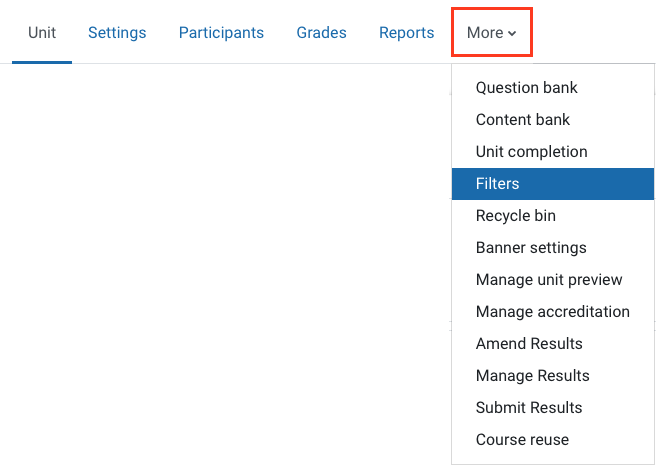
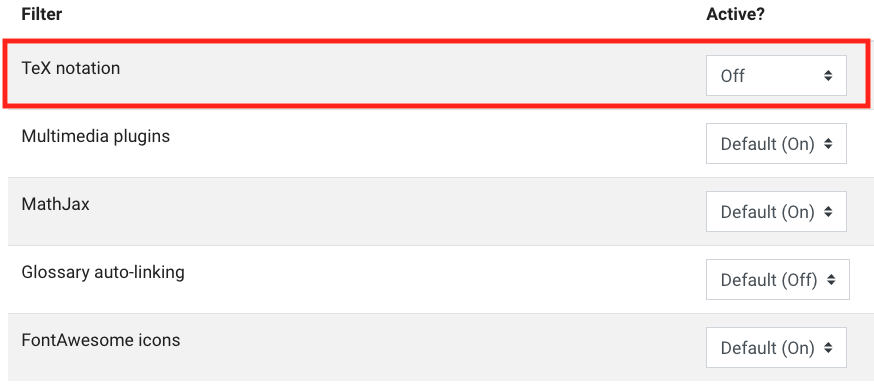


The following guide demonstrates how to add a STACK quiz question and create a simple calculated question, which allows evaluation of algebraic input from your students. While this is not the primary intent of the platform, building a repository of such questions may be a first step toward more detailed algebraic assessment. Note that STACK defaults to round numbers to integers with so-called “banker’s rounding” and special functions must be used to ensure conventional rounding and/or decimals or fractions (see here). For more detailed options and explanations for other types of STACK questions available, see the STACK guide and follow the included tutorial.
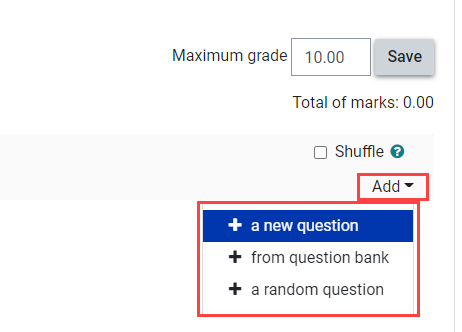
- To add a STACK question, navigate to your quiz editing page and select Add a new question.
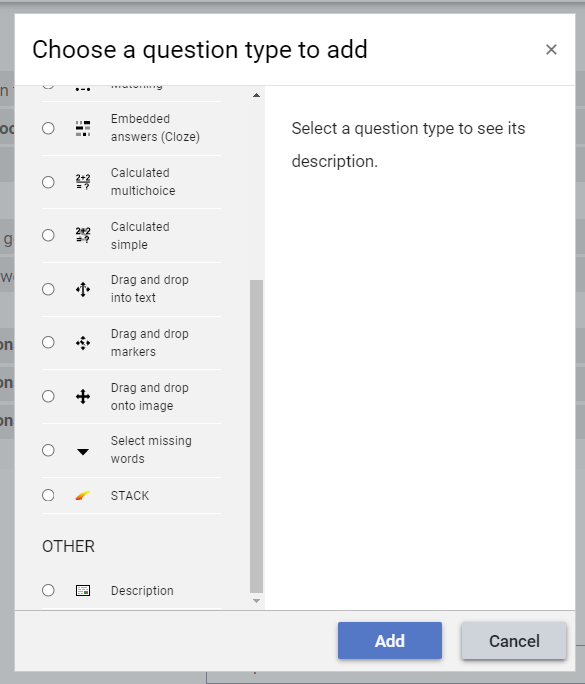
- From the question type list, select STACK then click Add.
- Give your question a name.
- In Question variables, declare the question variables, using the colon symbol (:) to assign values to the variables and terminate each line with a semicolon (;).
The example below is a simple calculated question with randomisation. Note that variables can be calculated or simply declared. The variable “ta” is shorthand for “teacher’s answer”; a declaration that may be useful later on.
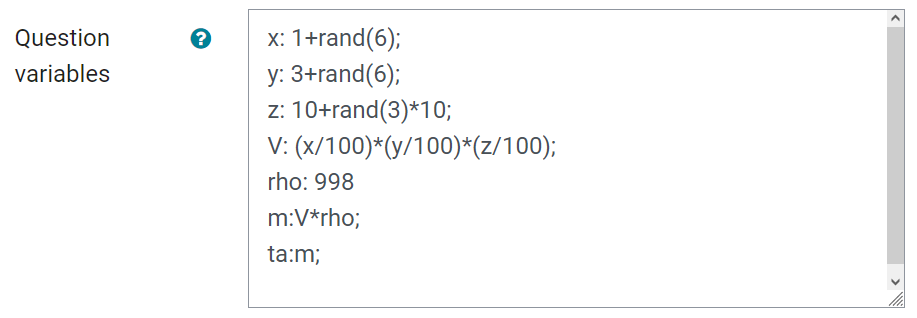
- In Question text, input the question text using the declared variables. Use the “input” command within double square brackets to take student input and assign a variable to that input. I.e., collect student entry ans1 with [[input:ans1]] and validate it (show the student how their input is interpreted by the software) using [[validation:ans1]]. For more information, see Define student input.
Note: To echo a question variable (x), use {@x@}.
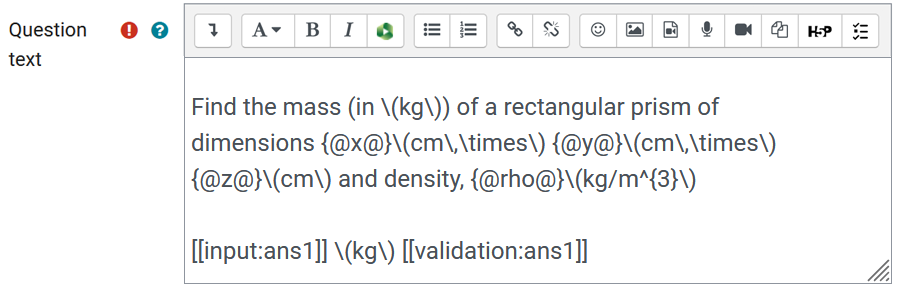
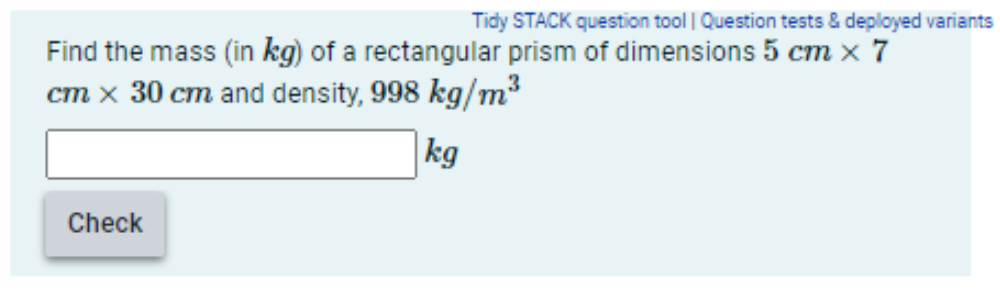
The above example question will be displayed to students as shown below.
- Enter a default mark for your STACK question. If the question behaviour is set to interactive with multiple attempts, you will also be required to specify the number of marks lost for each incorrect attempt in Penalty.
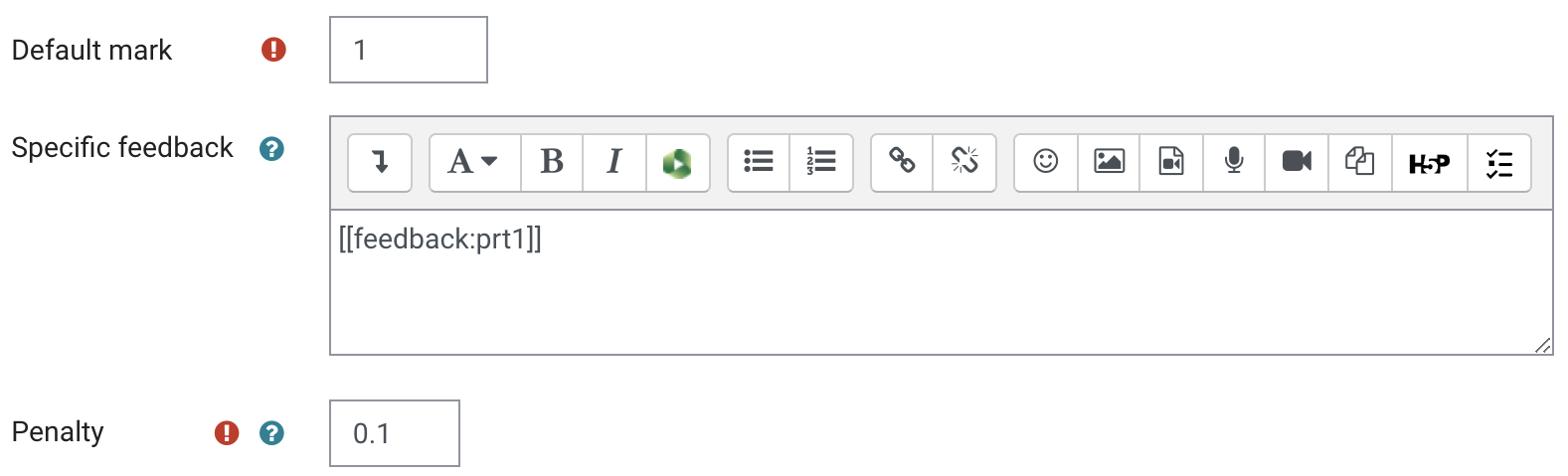
- In Specific feedback, specify any required potential response trees (the means by which student answers are assessed) using [[feedback:tree]]. The default is the tree prt1. A typical approach is to have one tree per answer collected. The feedback command can also appear in the question text. Specific feedback will depend on the response of the student. For more information, see Evaluate student input.
- General feedback is optional and can be used to display the worked solution to the student after they have attempted the question.
- If you would like to embed your STACK quiz question in Moodle, enter an ID number. Embedded quiz questions are not linked to the Moodle Gradebook.
Note: The category your STACK question exists within must also have an ID number.
Define Student input (Input: ans1)
- For Input type, select numerical input for simple calculated questions.
- For Model answer, insert calculated expression/formula using the question variables with the required precision. STACK takes integers by default, so the floating-point numbers need to be declared. For example, Decimal places(float(x*y*z*rho), 3) means the question calculates the equivalent of the product of variables x, y, z, and rho to three decimal places.
- For Forbidden words, insert a comma-separated list of text strings which are forbidden in a student's answer. Student attempts will be considered invalid without any penalties as errors will appear at the validation step.
- In Forbid float, select Yes if the expected student answer will be an integer.
- Optionally, in Show the validation select the appropriate level of validation for your question.
Evaluate student input (Potential response tree: prt1)
The potential response tree allows you to specify feedback that the student will receive based on their answer to the question. Questions contain at least one Node, however multiple nodes can allow more granular assessment.
Click on the plus icons to read more about each field and its function.
Question randomisation (optional)
| IMPORTANT NOTE: When using randomisation, ensure that you deploy question variants before formal assessment. |
|---|
In Question variables, rand() and its associated functions can be used for randomisation of numerical variables.
The Question note can be used to recall random variables provided to students later on.

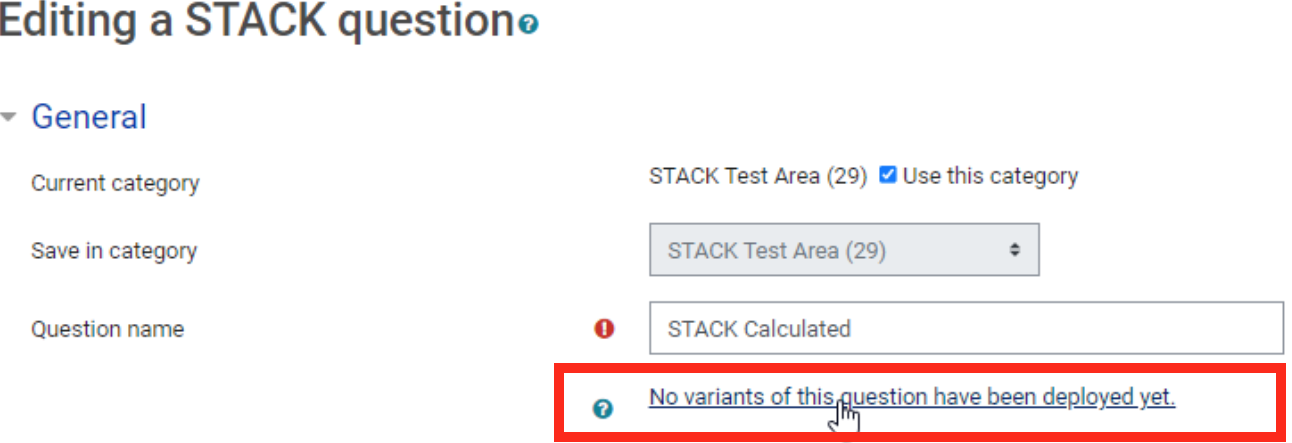
Once you have created your STACK question, ensure that you deploy question variants. This option can be found via the hypertext link located below the question name field in the editor. For more information, see deploying.
Example STACK question
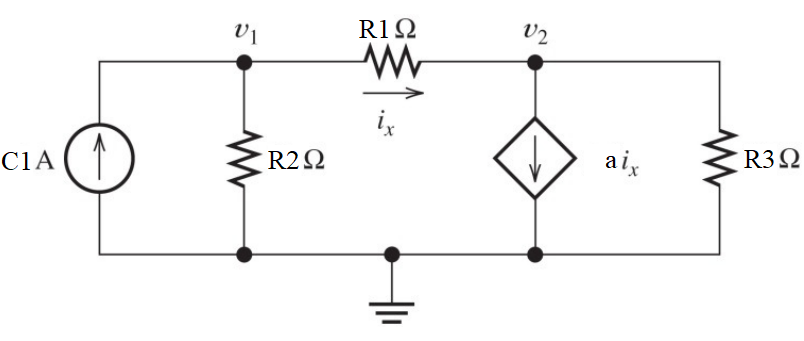
In first year engineering, students need to learn the basic principles of how to analyse electrical circuits - to find the voltages and currents for all components in the circuit. This involves the application of fundamental physical principles such as “conservation of energy” and “conservation of charge” (Kirchhoff’s Laws), as well as relationship such as “Ohm’s Law”, to construct and solve (linear) simultaneous equations to find the desired quantities. An example circuit is shown below, where C1, R1, R2, R3 and a are constants, with v1, v2 and ix are the quantities we wish to find. Students need to apply Kirchhoff’s Laws and Ohm’s Law to formulate three linearly independent equations involving these quantities.
| Using Kirchhoff’s current law for v1: | 0 = (-C1) + (v1 - v2)/R2 + (v1-v2)/R1 |
| Using Kirchhoff’s current law for v2 | 0 = (v2 - v1)/R1 + a.ix + v2/R3 |
| Using Ohm’s law for the resistor R1 | ix = (v1 - v2)/R1 |
| Solve these simultaneously to find the final answer for v1, v2 and ix. | |
There are a number of steps involved to solve an authentic problem like this. At any of these steps, students may make errors that would lead to an incorrect final answer, so it is difficult to rapidly assess where an error(s) may have occurred, and then ascertain whether subsequent steps were correct or not in order to award partial marks.
Students may also opt to simply input the circuit into a circuit simulator tool, making checking for only the final answers an inappropriate method of assessment - we need to check that the student is able to perform the crucial step of formulating the linearly independent equations.
Using STACK, we are able to automatically achieve all of the desired assessment outcomes, and provide useful feedback to students when errors in their solution process occur. In the example shown below, the parameters C1, R1, R2, R3 and a are all randomly generated within a specified range.
Click on the plus icons in the image below to view examples of question behaviours and marking for correct and partially correct answers.
You can click here to download the Moodle XML file to import into your Moodle quiz(if STACK is enabled).
Acknowledgements
Associate Professor Jonathan Li, Electrical & Computer Systems Engineering