Add an ePortfolio external tool
At a glance
Set up Monash ePortfolio as an external tool in your Moodle unit so students can navigate directly to it. Follow the steps to configure activity settings, ensure grades and special consideration are correctly excluded, and save the activity to your course.
You can add Monash ePortfolios as an external tool which allows students to navigate to ePortfolio directly from your Moodle unit. For account authentication reasons, this is the recommended way to link students to the ePortfolio. For ePortfolio assessments, students submit portfolios via the Moodle assignment activity so the external tool does not need to be set up to receive grades and will not contribute to grades.
- In the top right hand corner of the page, set Edit mode to ON(Blue).

- In the section where you would like to add an external tool, click +Add an activity or resource.
- From the add an activity or resource window, select Monash ePortfolio.
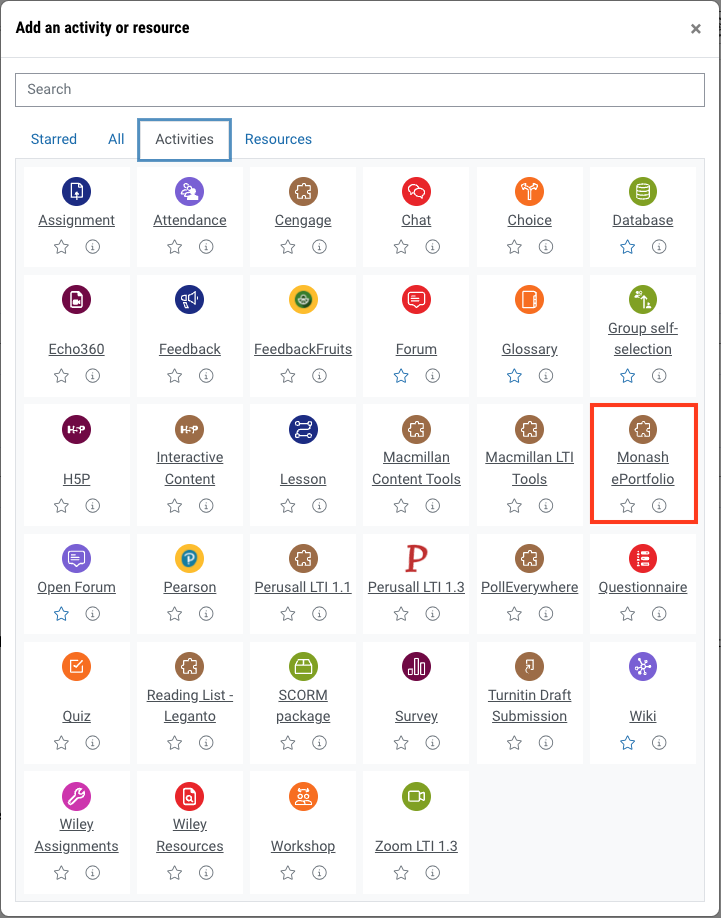
- In Activity name, give your activity a title.
- In Privacy, ensure that Accept grades from the tool is not selected.
- In the Monash Assessment section, select No for "Does this activity contribute to the final grade of the unit?"
- In the Special consideration section, select No for "Is special consideration available/applicable?" and No for "Is this a graded activity that contributes to the final mark?"
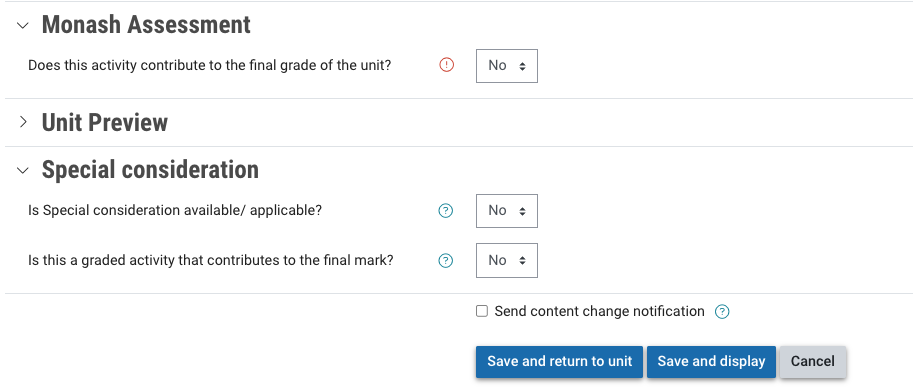
- Click the Save and return to course button to be taken back to your course page or click the Save and display button to launch into the ePortfolio immediately.