
Embed a graded H5P activity
At a glance
Embed a graded H5P interactive activity into a Moodle lesson, book or page, and control whether students can access it outside that resource. Find out how to enable the embed button, use the HTML editor to insert the embed code, and set the activity to be available but not shown on the course page.
You may want to embed a graded H5P activity in a Moodle Lesson, Book or page. If you would not like students to access your embedded activity from outside the resource it is embedded inside, you will need to set your activity to Available but not shown on the course page. To embed a non-graded H5P activity, see Embed H5P activity from the content bank.
- Create a graded H5P interactive activity. Ensure you have enabled the embed button in the H5P option settings. For more information, see Graded H5P activity.
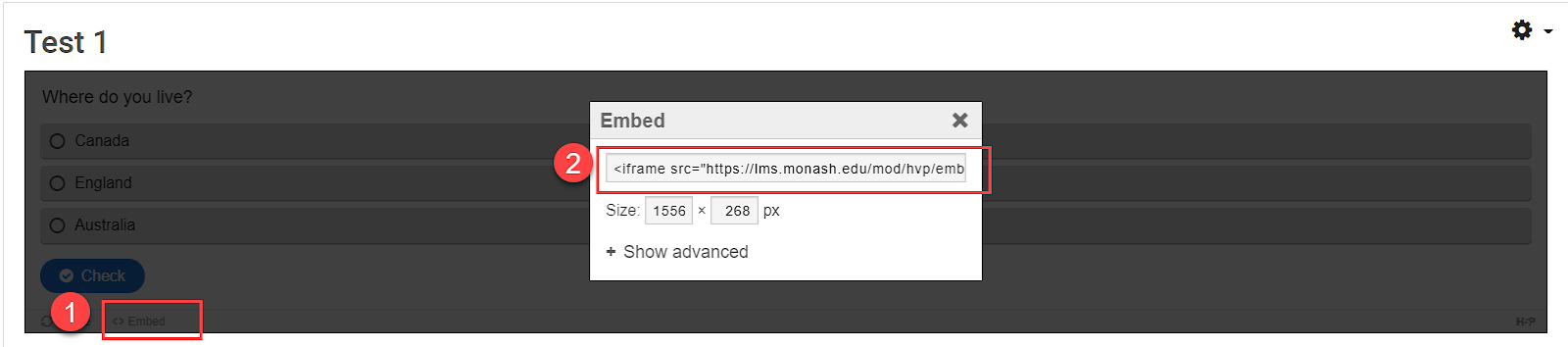
- Once created, click Embed at the bottom left of your H5P activity.
- In Moodle, navigate to where you would like to embed the H5P activity, for example a page or lesson.
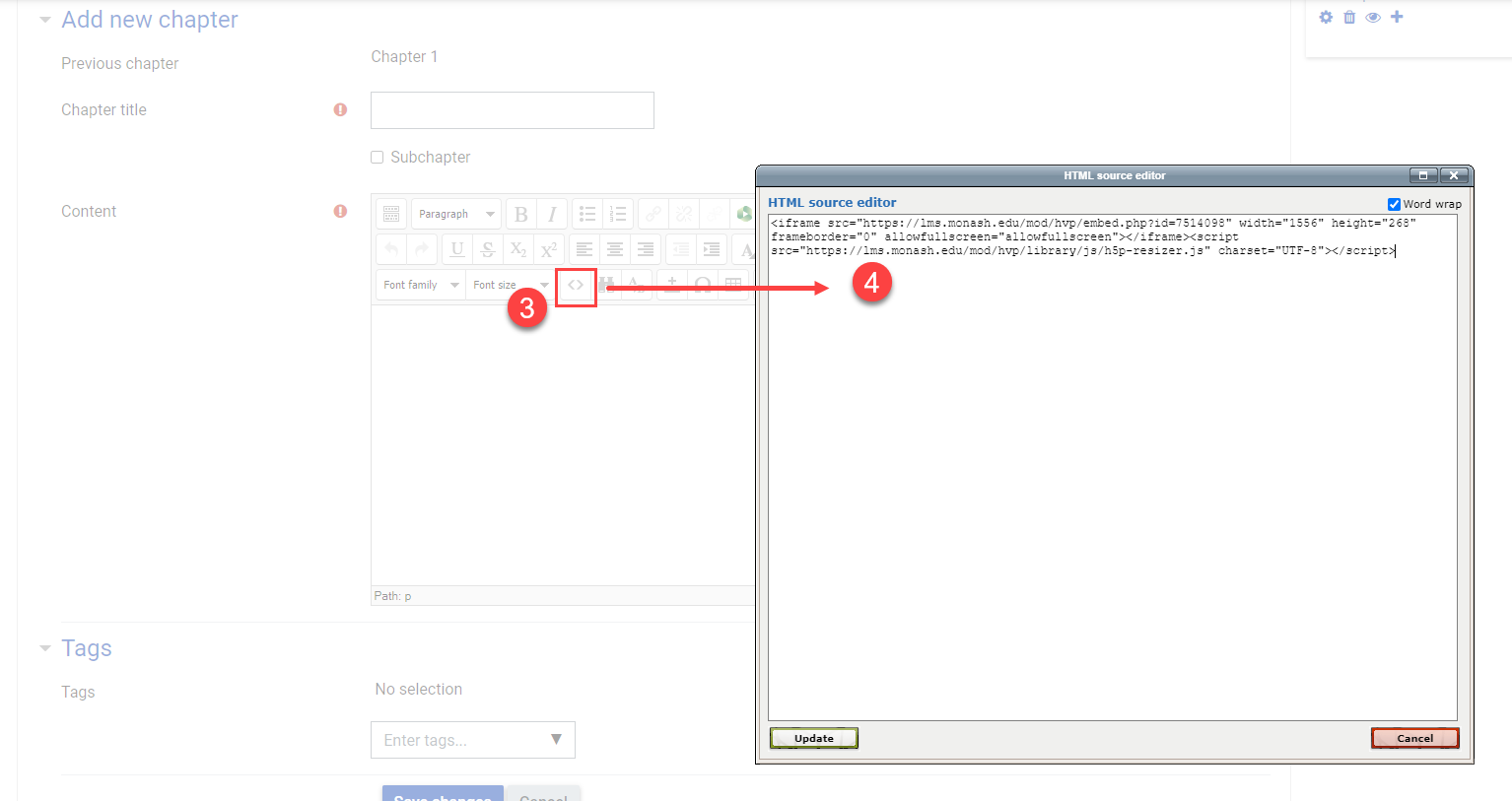
- In the text editor, Click on the Edit HTML icon.
Note: If you do not see the Edit HTML icon, click on the expand toolbar icon in the top left of the text editor. (Top: TinyMCE editor(default), Below: ATTO editor) - Paste the H5P embed code in the HTML window and click Update.
- When you are finished, click Save and return to the unit or Save and display.
- Your H5P interactive activity should now be embedded in your Moodle activity or resource.
- There are two ways to make your H5P activity 'Available but not shown on course page'.
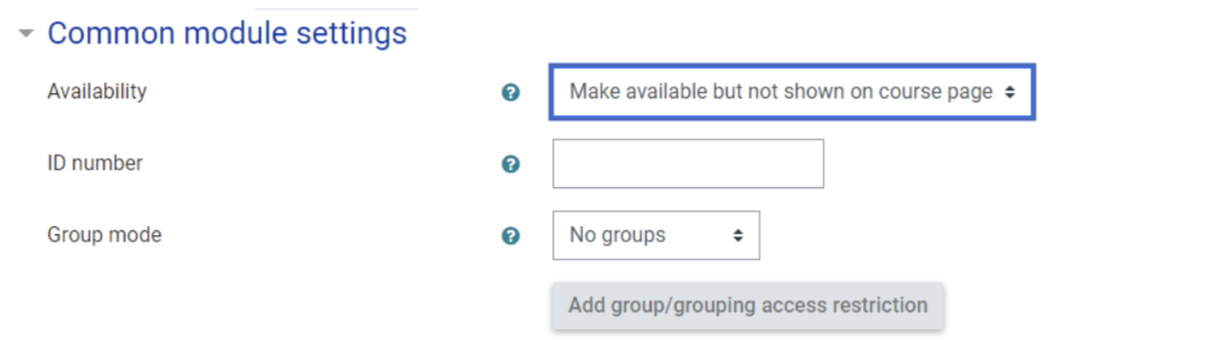

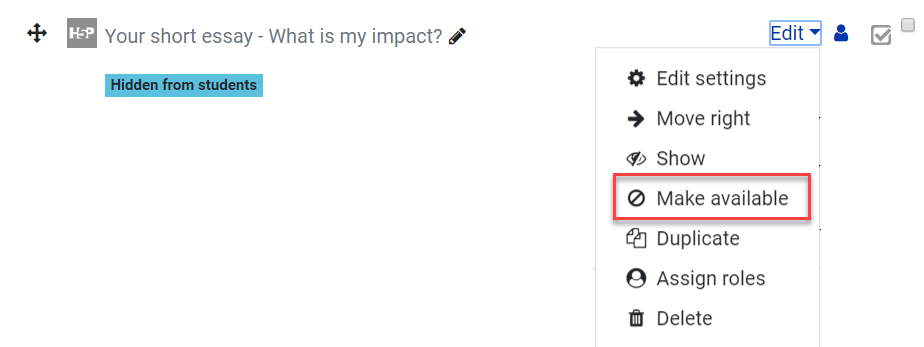
NOTE: If you have multiple embedded graded H5P activities, you may want to create a topic or section containing your H5P activities and then make a topic or section Available but not shown on course page. All activities and resources inside the topic also become available but not shown on the course page. For more information, see the Stealth activity guide.
Note
Though you can use H5P for graded activities, grading is limited. You can view details of the completed activities and view a very general completion overview report. As H5P does not have a collective database, it is also not recommended for group work or collaborative tasks. As H5P uses pre-built layouts and designs, complex visual or behavioural customisation may not be possible. You may need to consider other technologies for more control and customization.
As H5P activities rely primarily on visual information, some H5P activities will not be accessible for students with visual impairments or that require the use of screen readers. For more information, you can view an overview of the accessibility of the various H5P content types.