
Download class recordings
At a glance
Download a recorded lecture from Echo360 to keep an offline copy on your personal device, either through the desktop platform or the mobile app. Understand how to select the recording source and quality, and where to find the download option if it is not immediately visible.
You can download a recorded class to keep an offline copy on your personal device. If you would like to reuse an existing class in a different class/unit, see the Reuse existing Echo360 recordings guide.
- Click Download or Download original. If any edits have been made to the class recording, selecting Download original will download the file without any edits.
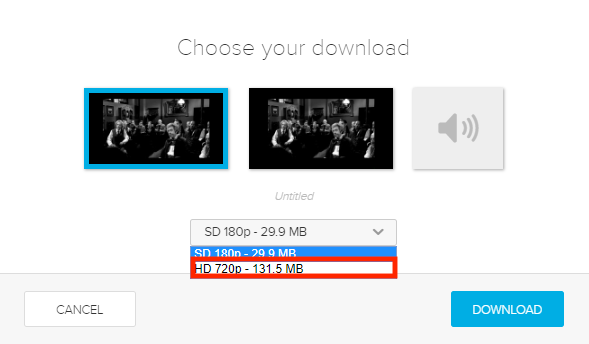
- Though the Echo360 player can playback multiple sources on dual screens, you can only download one source at a time.
- Select the thumbnail of the source you would like to download. Your selected source will be highlighted in a blue box.
Note: If you select the audio icon, you will download an Audio Only version of your recording. - Select the quality of your download.
To download recording via Mobile App:
- Log into Echo360 App using your Monash email address and the Echo360 password you’ve created in the above step.
- Select the course you want to access.
- Scroll through the class list to find the recording/s you’d like to download.
- Click on the …button in the top right corner and click download.
- If the recording has a dual-video feed, select whether to download video one or video two.
- Click Download.
- When finished, the class list will note for you that you have downloaded the video and can view it offline.
- The Echo360 Mobile App can be used to view videos offline.
Note: If you cannot see the Download button, try adjusting your screen display (CRTL -/+ or ⌘ -/+)