
Importing Moodle groups into Perusall
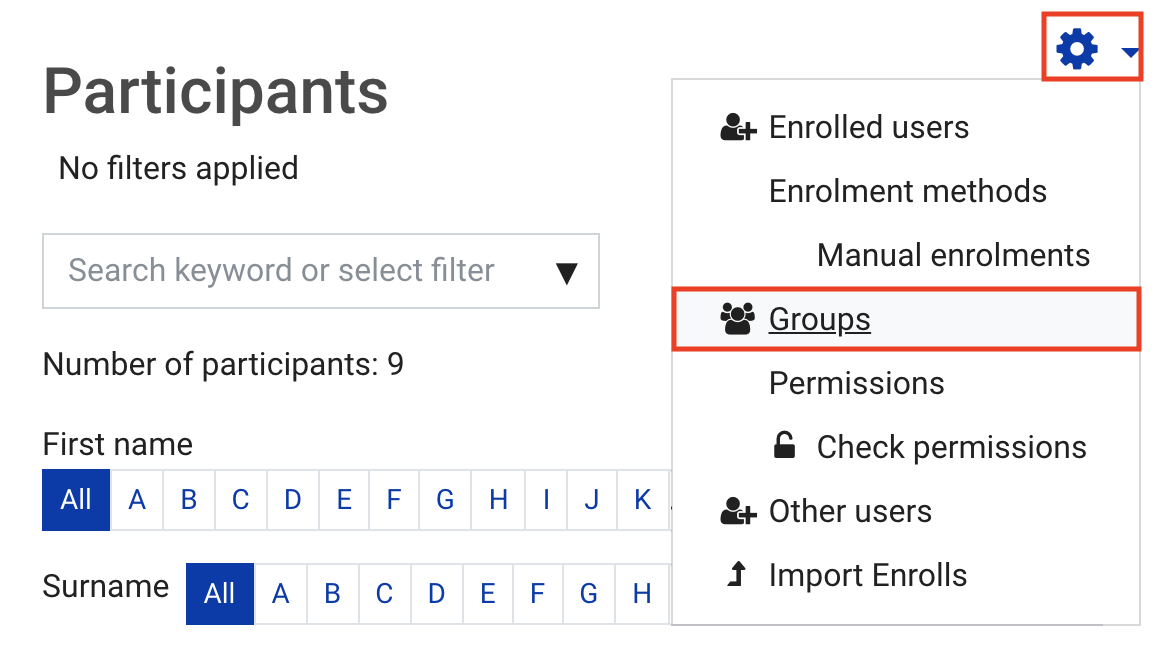
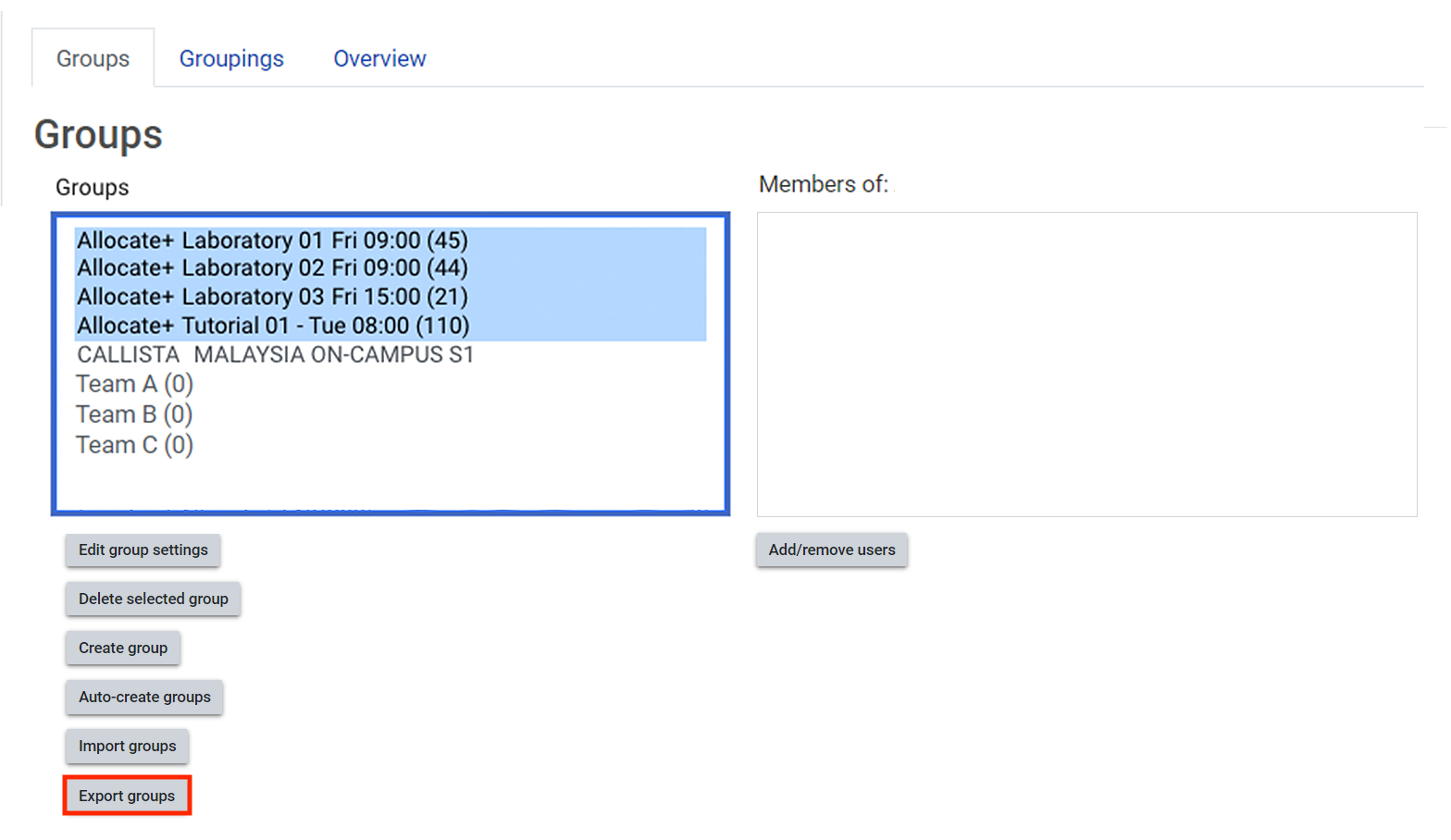
You can import groups from Moodle into Perusall. The two fields required are group number and student’s full name. You will need to download information about groups from Moodle and add it to the Perusall group import template. Please note, students can only be in one group in Perusall. If you have two students with exactly the same name, you will need to manually assign them a group number.
Note: All student information shown in the following guide has been blurred for privacy or belong to dummy student accounts. Images provided are meant as a guide only and will not reflect what your Moodle Unit’s student data should look like.



Matching student name and group number
You can use the VLOOKUP function in Excel to collate the required fields to import groups into Perusall. To do this, you will need to add two sets of information from the Moodle groups .CSV into the Perusall template .CSV: Group number and students full name.
NOTE: If you have two students with exactly the same name, you will need to manually assign them a group number
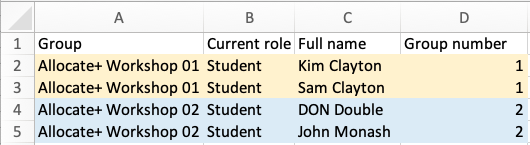
Moodle groups CSV file
- Open your Moodle group.csv file
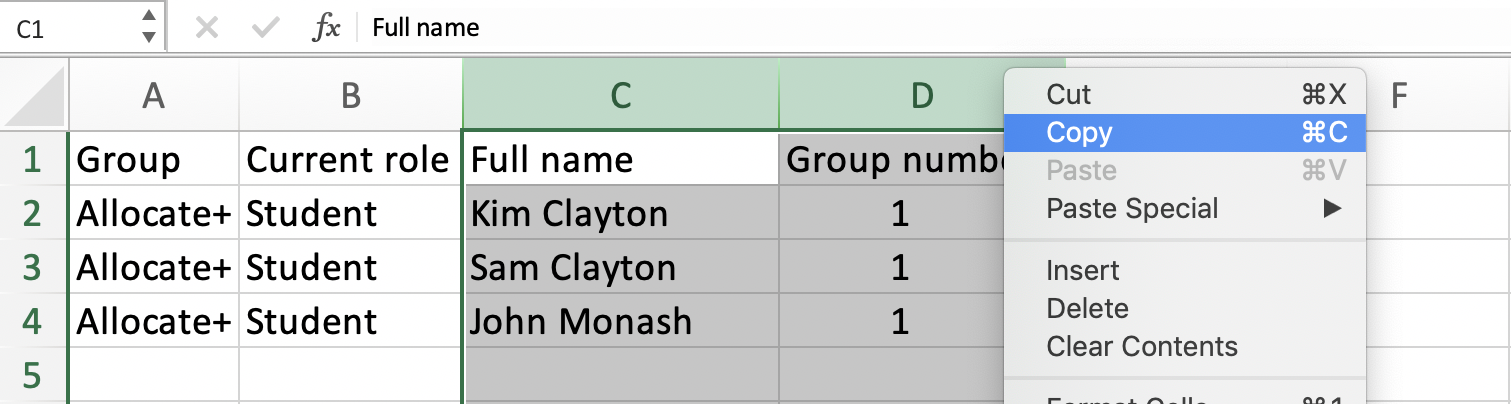
- Click and drag to highlight the columns containing the students full name and assigned group number.
- Copy the columns using CTRL+C or ⌘+C(MAC) or right click and select Copy.
Perusall import group template file
- In your Perusall template file, use CTRL+P or ⌘+P(MAC) or right click and select Paste to paste groups and student name information into two empty columns.
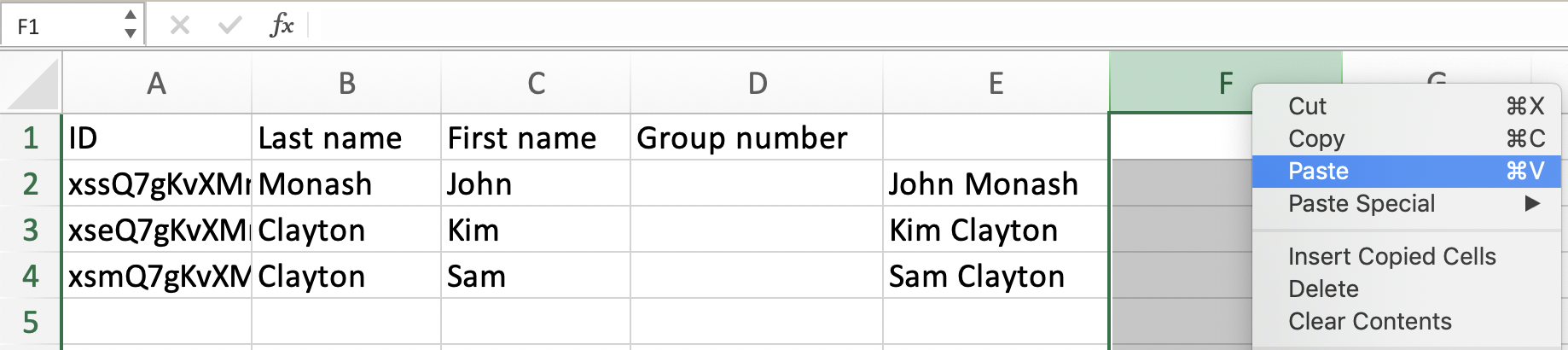
- In the empty Group number column, enter the following formula into the first cell underneath the heading: =VLOOKUP(
- Click on cell E2(contains first students full name) then type in a comma(,)
- Click and drag to select the all cells in the columns containing the students full name and group number which you pasted in(exclude the headings), type in a comma(,) then add a dollar sign($) before the letter and number values.
- Complete the formula by typing ,2,FALSE). The complete VLOOKUP formula should look similar to the following: =VLOOKUP(E2,$F$2:$G$500,2,FALSE)
Note: The value after G will vary depending on the number of students in your .csv file

- Hit Enter. The first cell(E2) will automatically populate with the group number corresponding to the student name.
- Double-click the right corner of the cell or click and drag down so that the entire column is populated.
Clean up your group import csv
- Select the Group number column and copy using CTRL+C or ⌘+C(MAC) or right click and select Copy.
- Without deselecting the column, right click and select Values, under Paste special. This will convert the values in the Group number column into regular numbers instead of the result of the VLOOKUP formula.
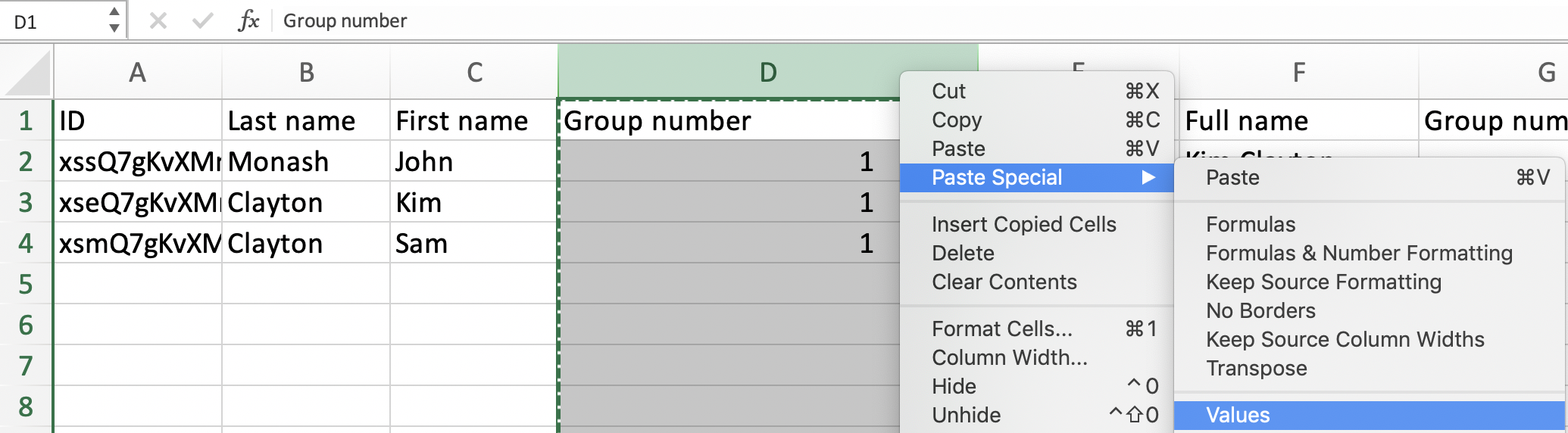
- The four fields required for the Perusall group import are student last name, student first name, ID number and Group number. Select the columns not required, then right click and select Delete.

- Make sure to Save changes, before closing your file.
Importing groups into Perusall
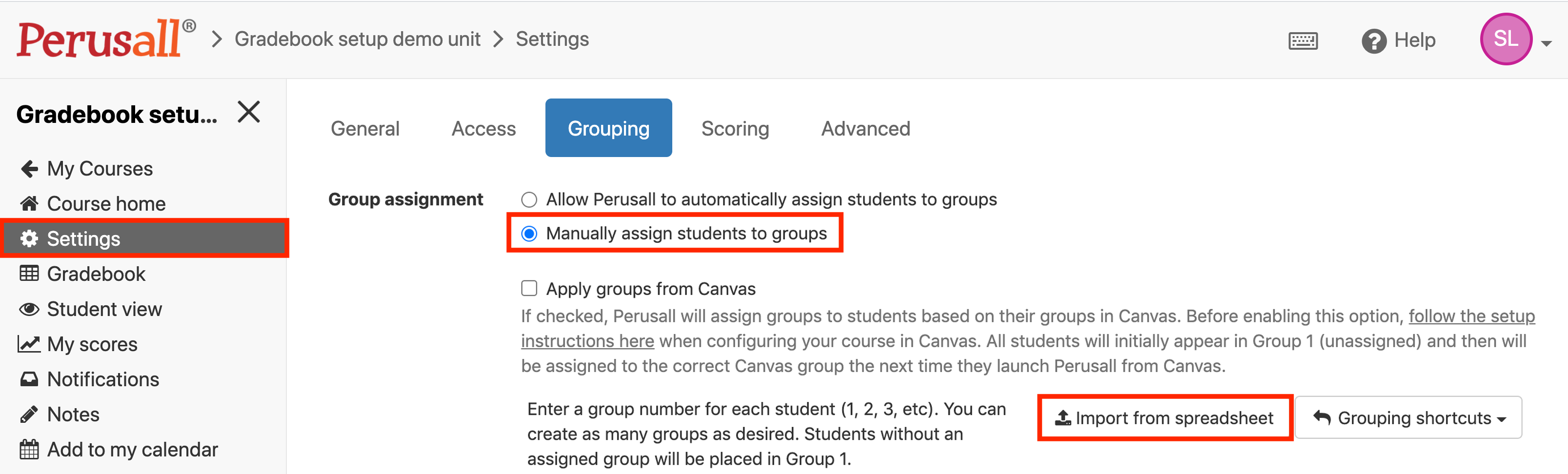
- In Perusall, navigate to Settings.
- Click on Grouping
- Select Manually assign students to groups.
- Then click Import from spreadsheet.
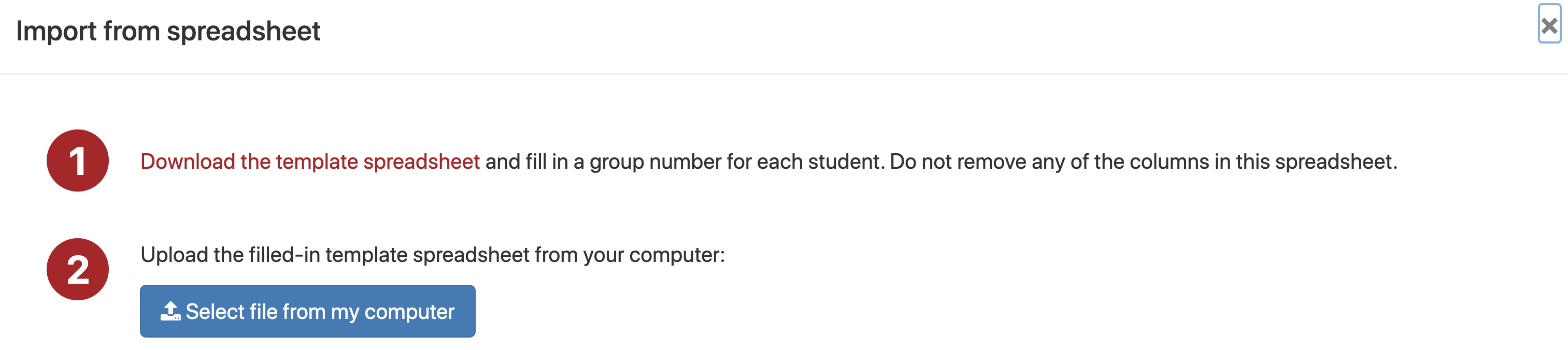
- Click Select file from my computer.
- Select your modified Perusall group.csv template file.
- Perusall will automatically assign students into groups based on the spreadsheet you have imported.
- Click Save changes. Groups have now been assigned for your Perusall activity.