
Podcasts (Panopto)
Panopto makes MP3 (audio) and MP4 (audio and video) versions of every recording available through podcasts and RSS feeds. By subscribing to the feed, the podcast from each new recording within a folder will automatically be downloaded. The downloaded content can then be listened to or viewed using any device capable of playing back MP4 files.
Enable Podcast downloads at Folder level
- Navigate to the Panopto portal.
- Locate the folder you want to enable podcast downloads.
- Click on the Settings icon.

- Click the Settings tab.
- Select the Enable podcast feed checkbox.
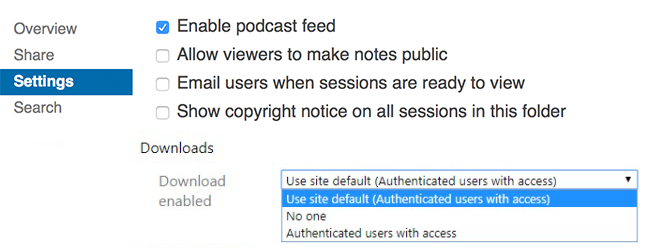
- In the Downloads section, there are three options to select who will have the ability to download sessions. There are three options:
- Use Site Default - This setting means that it will use the default site-wide setting set by the site administrators. The site default is set to Authenticated users with access.
- No One - No users will see the download button in the session viewer.
- Authenticated users with access - Only users who have access and are authenticated into Panopto will see the download button in the session viewer.
- For educators who have a RSS feed or use podcasts for their teaching, the recommended option is either A or C, 'Authenticated users with access'.
Note: Once you make your selection, the Panopto site will automatically save your changes.
Enable Podcast downloads at Session level
- Navigate to the Panopto portal.
- Locate the session you want to enable podcast downloads.
- Hover over the session and click on the Settings icon.
- A dialog box will pop up. Within the Overview tab, navigate to the Downloads field.

- There are four options to select who will have the ability to download sessions. The three options are:
- Use Site Default - This setting means that it will use the default site-wide setting set by the site administrators. The site default will appear in parentheses as shown above.
- No One - No users will see the download button in the session viewer.
- Authenticated users with access - Only users who have access and are authenticated into Panopto will see the download button in the session viewer.
- For educators who have a RSS feed or use podcasts for their teaching, the recommended option is Authenticated users with access.
Note: Once you make your selection, the Panopto site will automatically save your changes.
Download Podcasts for Academics
- Navigate to the Panopto portal.
- Locate the session you want to download podcasts for.
- Hover over the session and click on the Settings icon.
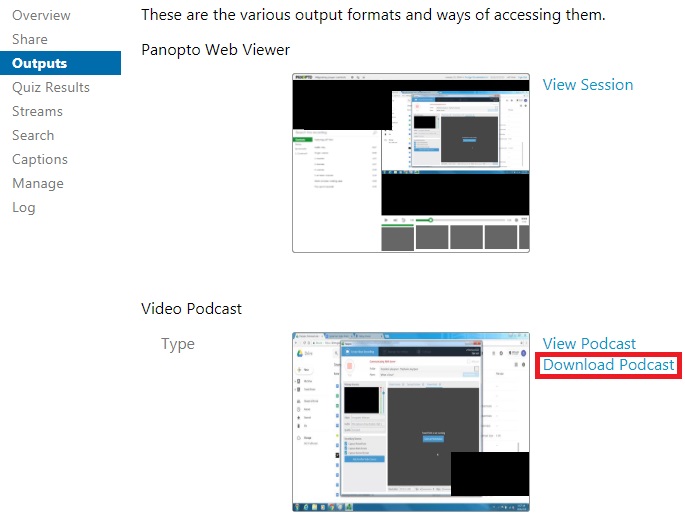
- A dialog box will pop up. Click the the Outputs tab.
- In the Video Podcast field, click Download Podcast link.
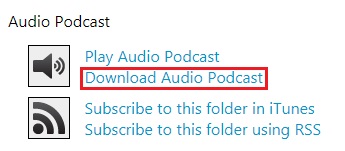
- You can download an audio version. In the Audio Podcast field, click Download Audio Podcast.
Download Podcast for Students
- Ensure that you given students authorisation access to download podcast. See ‘Enable Podcast downloads at folder/session level’.
- Students can now download video podcast by clicking the Download icon on the bottom right hand corner of the embedded video in Moodle.
- Alternatively, students can download video podcast by clicking the Download icon in the top right hand corner of the Panopto viewer.
Subscribe to Podcasts
- Navigate to the Panopto portal.
- Locate the folder you want to enable podcast subscription.
- Click the Subscribe icon, in the upper right hand corner.
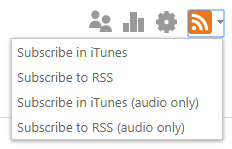
- There are 4 options to select from:
- Subscribe in iTunes - Subscribes the video files of the sessions in the folder to iTunes
- Subscribe to RSS - Subscribes the video files of the sessions in the folder to a RSS feed
- Subscribe in iTunes (audio only) - Subscribes the audio files of the sessions in the folder to iTunes
- Subscribe to RSS (audio only) - Subscribes the audio files of the sessions in the folder to a RSS feed