
Enable grading
In weighted grading, certain types of activities count more than others. You can decide that certain questions are harder than others and therefore should be worth more. You can enable the Weighted grading feature on the Features lab page under the Beta features tab.
Important noticeIf seeking to export grades by points when using Moodle, the Weighted Grading feature needs to be enabled and Moodle needs to be set up to expect points. The choice for points or percentage needs to be made in the activity ahead of time as there is no choice upon exporting using LTI Advantage. |
Enable grading
- Navigate to Poll Everywhere Features lab.
- You can also navigate to the Features lab by clicking the Profile icon at the bottom left of the page, then selecting Features lab link on the left hand side menu.
- Select the Beta features tab, enable the Weighted grading option by switching the toggle to ON.
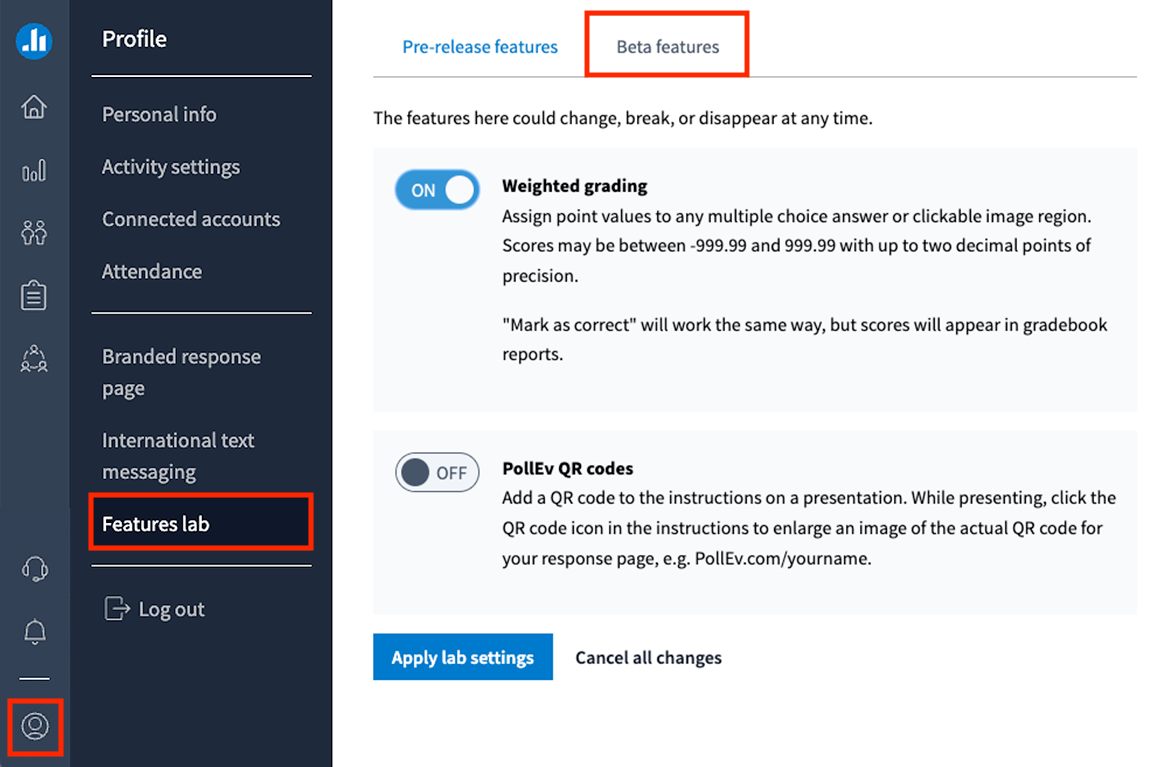
- Click Apply lab settings.
Assign points to Poll Everywhere activities (Multiple choice and Clickable image only)
- Once weighted grading has been applied, you can assign points to any Multiple choice or Clickable image activity. You can assign values between -999.99 and 999.99 (up to two decimal points).
- You can create a new Multiple choice or Clickable image activity or edit existing activities.
- Select the Assign points to different options checkbox at the bottom of the page. You can then type a value assigned to the answers for your question.
Note: Ensure that you have selected the correct answer(s) for your activity by clicking the tick so that it appears green.
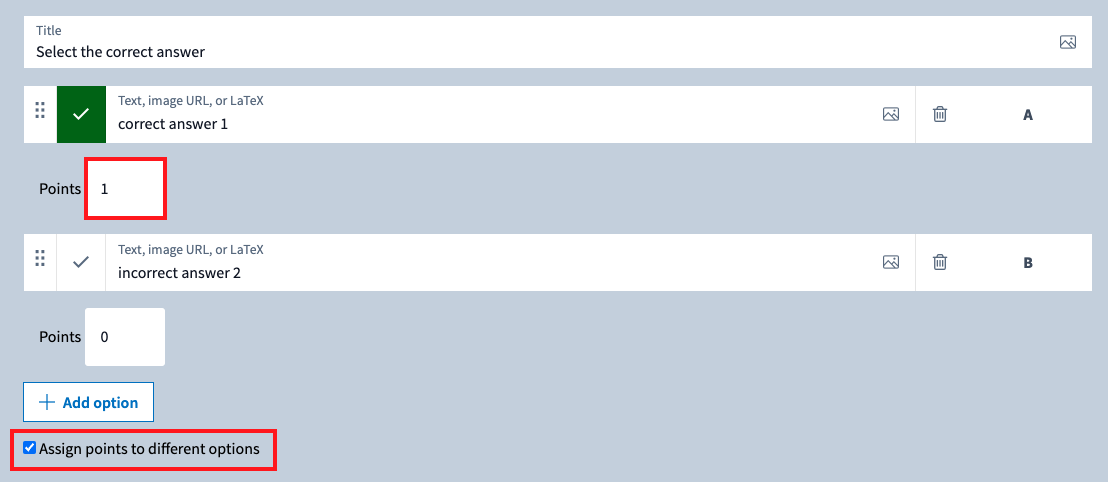
- Once finished, click Save.
These point values will now be applied to any responses and will be displayed in the Gradebook Report. They will also be calculated in the report’s CSV file download. This is seperate from your Moodle unit's gradebook report.