
Insert slides
Poll Everywhere's integration with Microsoft PowerPoint (Windows/MAC) and Google slides (Chrome/Edge) allow you to insert your Poll activities into your presentation slides. Your poll activities will automatically activate/deactivate as you go through your slides.
Note: You must present in full screen mode for the Poll Everywhere activities to activate.
Watch the video guide below to learn how to embed Poll Everywhere activities into presentation slides
Note: Click the ^ arrow at the bottom of the screen to view the table of contents. Click on a topic to skip directly to that section of the video.
Click through the tabs below for detailed instructions
- Navigate to the Poll Everywhere integrations page.
- Click Learn More for Poll Everywhere for PowerPoint (Windows).
- Click the Download for Windows button. Once downloaded, follow the prompts to install the Poll Everywhere app.
- Once the integration has successfully been installed, you should see Poll Everywhere in the top banner menu of PowerPoint.
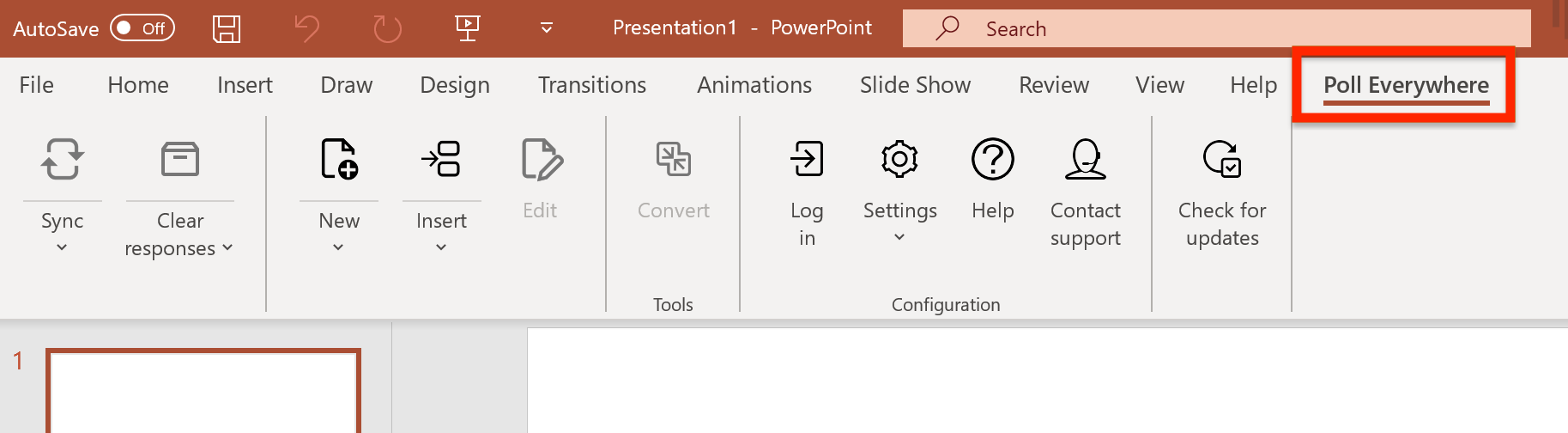
- Click on Poll Everywhere and then select Insert Activity.
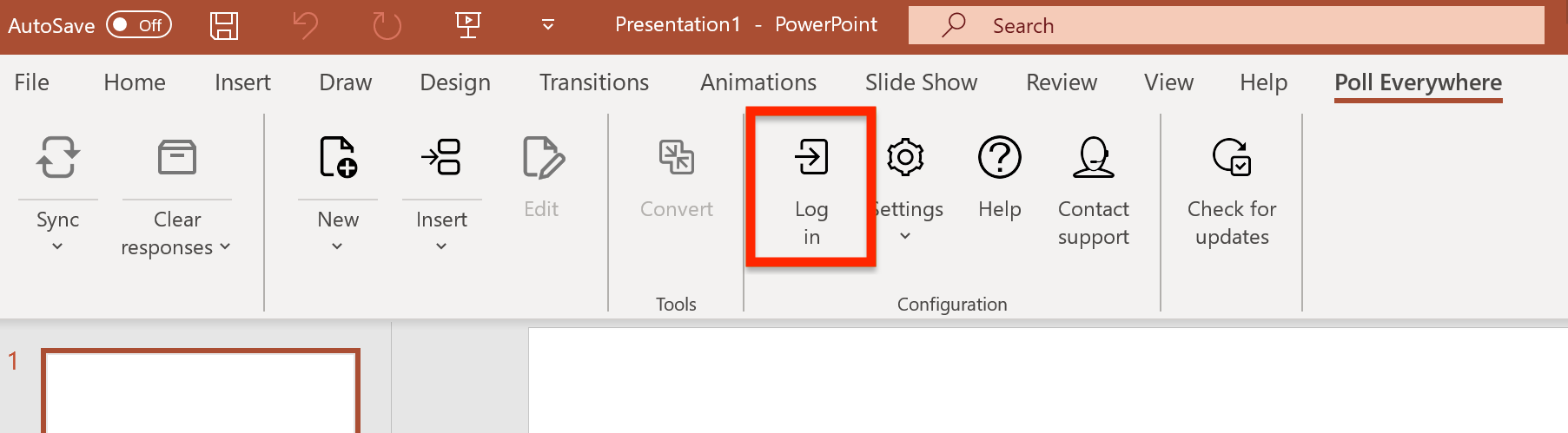
- First, click Log in to log into your Poll Everywhere account.
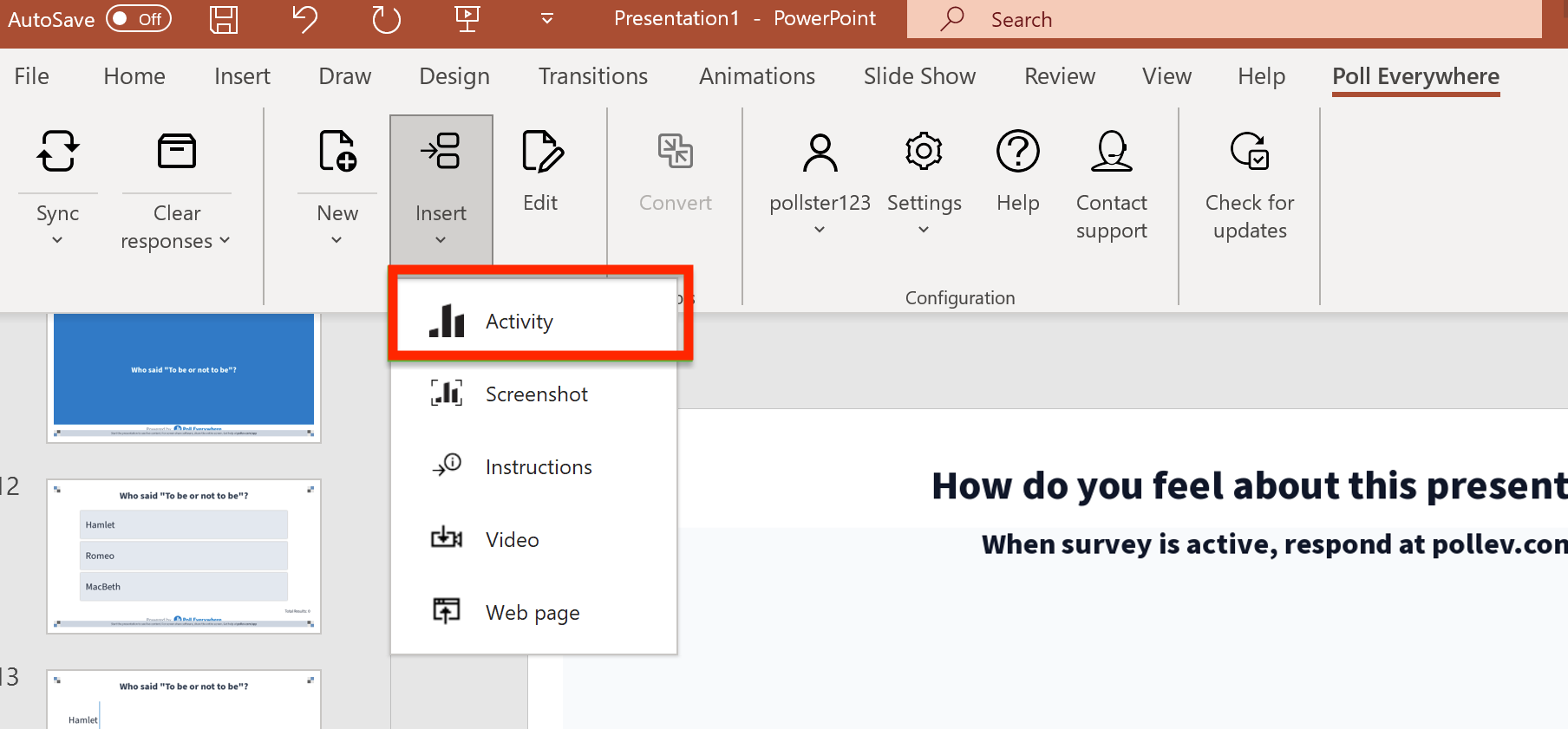
- Once logged in, click Insert and then select Activity. Your Poll everywhere activities will be displayed in a pop-up window.
- Use the checkboxes to select one or more poll activities that you would like to insert into your Powerpoint presentation.
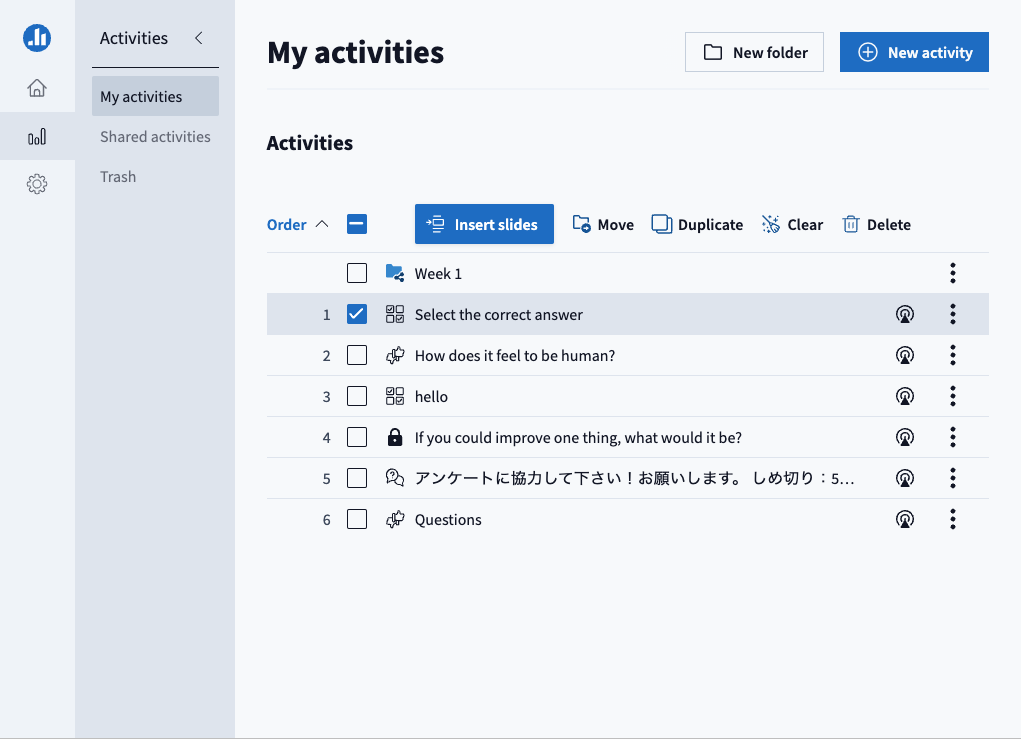
- Once selected, click Insert slides.
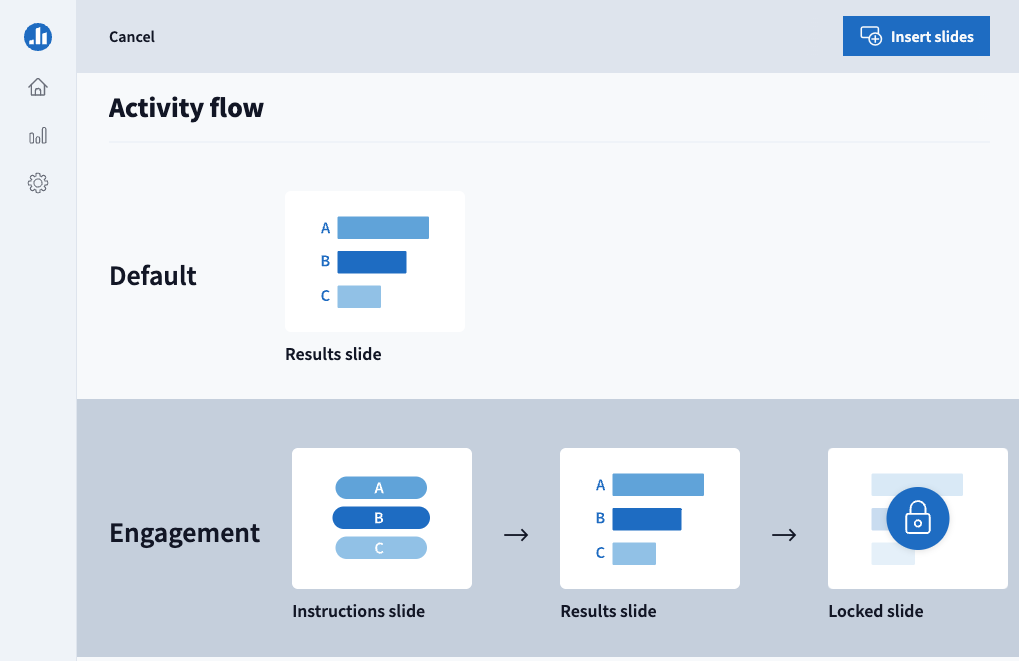
- You can choose the activity flow, then click Insert slides. The default activity flow displays the poll on a single slide, while presenting you have the option to lock and unlock the activity. The engagement flow displays the poll on three slides, which displays:
- a preview of the poll question
- the activated poll question
- the final results once the poll activity has been locked
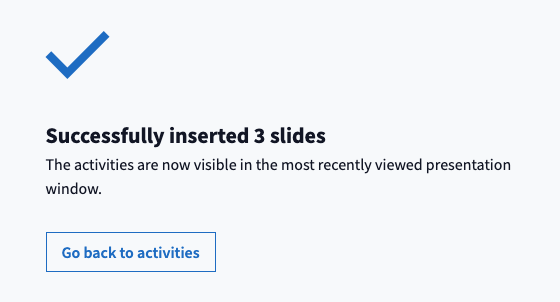
- Once inserted, you will see a successful confirmation message. You can click Go back to activities to insert additional poll activities or close the pop-up window to return to your PowerPoint presentation.
- When presenting your slides, the poll activity on the current slide will automatically activate/deactivate.
Note: You must present in full screen mode for the Poll Everywhere activities to activate.
- Navigate to the Poll Everywhere integrations page.
- Click Learn More for Poll Everywhere for PowerPoint (Mac).
- Click the Download for Mac button. Once downloaded, follow the prompts to install the Poll Everywhere app. You will need to allow permissions for the Poll Everywhere app to view your screen. This allows the integration to activate polls on your current PowerPoint slide.
- Once the integration has successfully been added to your Chrome browser, you should see Poll Everywhere in the top banner menu of Google slides.
- Open Microsoft PowerPoint and the Poll Everywhere app. You may be prompted to login into your Poll Everywhere account.
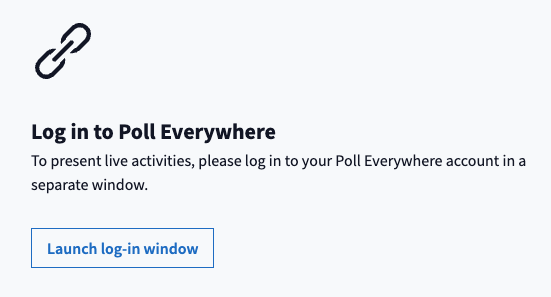
- Once logged in, your Poll everywhere activities will be displayed in the Poll everywhere app.
- Use the checkboxes to select one or more poll activities that you would like to insert into your PowerPoint slides.
- Once selected, click Insert slides.
- You can choose the activity flow, then click Insert slides. The default activity flow displays the poll on a single slide, while presenting you have the option to lock and unlock the activity. The engagement flow displays the poll on three slides, which displays:
- a preview of the poll question
- the activated poll question
- the final results once the poll activity has been locked
- Once inserted, you will see a successful confirmation message. You can click Go back to activities to insert additional poll activities or close the pop-up window to return to your Powerpoint presentation.
- When presenting your google slides, the poll activity on the current slide will automatically activate/deactivate.
Note: You must present in full screen mode for the Poll Everywhere activities to activate.
- Navigate to the Poll Everywhere integrations page.
- Click Learn More or Poll Everywhere for Google Slides (Chrome/Edge depending on your browser).
- Click the Add Chrome extension button.

- You will be redirected to the Chrome web store. Click the Add to Chrome button.
- Once the integration has successfully been added to your Chrome browser, you should see Poll Everywhere in the top banner menu of Google slides.
- Click on Poll Everywhere and then select Insert Activity.
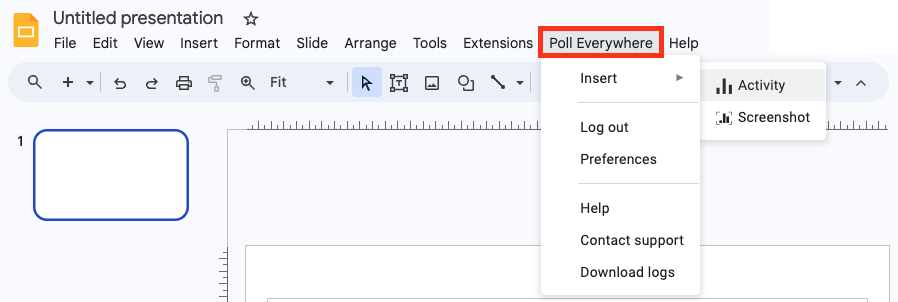
- You may be prompted to login into your Poll Everywhere account.
- Once logged in, your Poll everywhere activities will be displayed in a pop-up window.
- Use the checkboxes to select one or more poll activities that you would like to insert into your google slides.
- Once selected, click Insert slides.
- You can choose the activity flow, then click Insert slides. The default activity flow displays the poll on a single slide, while presenting you have the option to lock and unlock the activity. The engagement flow displays the poll on three slides, which displays:
- a preview of the poll question
- the activated poll question
- the final results once the poll activity has been locked
- Once inserted, you will see a successful confirmation message. You can click Go back to activities to insert additional poll activities or close the pop-up window to return to your Google slides.
- When presenting your google slides, the poll activity on the current slide will automatically activate/deactivate.
Note: You must present in full screen mode for the Poll Everywhere activities to activate.
- Navigate to the Poll Everywhere integrations page.
- Click Learn More for Poll Everywhere for PowerPoint (Windows).
- Click the Download for Windows button. Once downloaded, follow the prompts to install the Poll Everywhere app.
- Once the integration has successfully been installed, you should see Poll Everywhere in the top banner menu of PowerPoint.
- Click on Poll Everywhere and then select Insert Activity.
- First, click Log in to log into your Poll Everywhere account.
- Once logged in, click Insert and then select Activity. Your Poll everywhere activities will be displayed in a pop-up window.
- Use the checkboxes to select one or more poll activities that you would like to insert into your Powerpoint presentation.
- Once selected, click Insert slides.
- You can choose the activity flow, then click Insert slides. The default activity flow displays the poll on a single slide, while presenting you have the option to lock and unlock the activity. The engagement flow displays the poll on three slides, which displays:
- a preview of the poll question
- the activated poll question
- the final results once the poll activity has been locked
- Once inserted, you will see a successful confirmation message. You can click Go back to activities to insert additional poll activities or close the pop-up window to return to your PowerPoint presentation.
- When presenting your slides, the poll activity on the current slide will automatically activate/deactivate.
Note: You must present in full screen mode for the Poll Everywhere activities to activate.
- Navigate to the Poll Everywhere integrations page.
- Click Learn More for Poll Everywhere for PowerPoint (Mac).
- Click the Download for Mac button. Once downloaded, follow the prompts to install the Poll Everywhere app. You will need to allow permissions for the Poll Everywhere app to view your screen. This allows the integration to activate polls on your current PowerPoint slide.
- Once the integration has successfully been added to your Chrome browser, you should see Poll Everywhere in the top banner menu of Google slides.
- Open Microsoft PowerPoint and the Poll Everywhere app. You may be prompted to login into your Poll Everywhere account.
- Once logged in, your Poll everywhere activities will be displayed in the Poll everywhere app.
- Use the checkboxes to select one or more poll activities that you would like to insert into your PowerPoint slides.
- Once selected, click Insert slides.
- You can choose the activity flow, then click Insert slides. The default activity flow displays the poll on a single slide, while presenting you have the option to lock and unlock the activity. The engagement flow displays the poll on three slides, which displays:
- a preview of the poll question
- the activated poll question
- the final results once the poll activity has been locked
- Once inserted, you will see a successful confirmation message. You can click Go back to activities to insert additional poll activities or close the pop-up window to return to your Powerpoint presentation.
- When presenting your google slides, the poll activity on the current slide will automatically activate/deactivate.
Note: You must present in full screen mode for the Poll Everywhere activities to activate.