
Use PollEverywhere reports
If grading has been enabled, and you can export a report that displays a list of participants and how well they scored during your poll.
- Navigate to Poll Everywhere Reports or select the report icon from the left hand side menu. From the reports page you can see any previous reports that were generated for any Poll everywhere activities, includes the activity type and when it was generated.
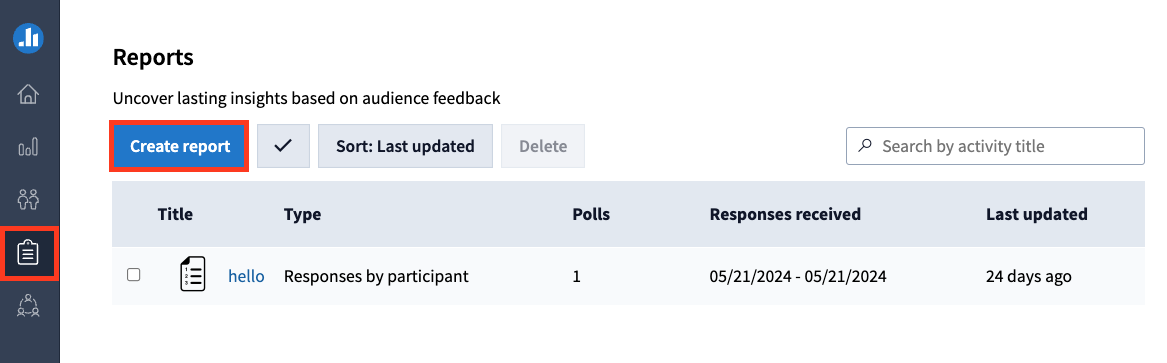
- Click Create report.
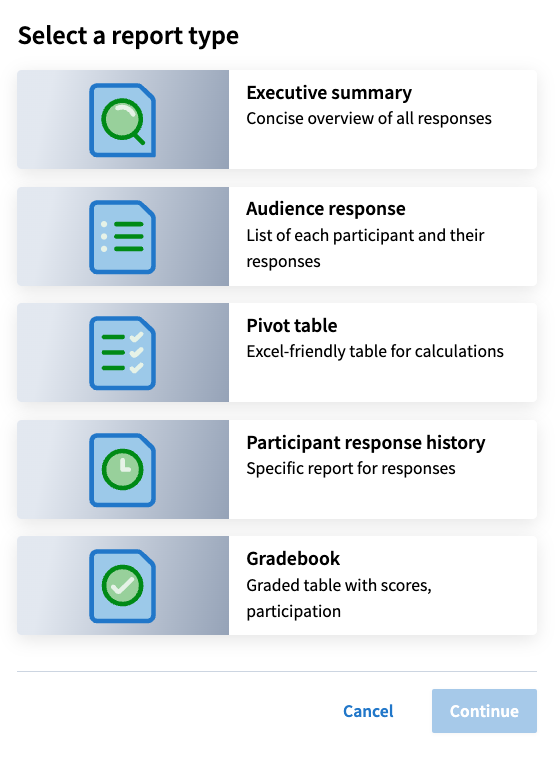
- Select Gradebook and then click Continue.
Note: If any of your questions allow anonymous responses, you will not be able to create a Gradebook report. Instead select the Executive summary report, which works with anonymous activities.
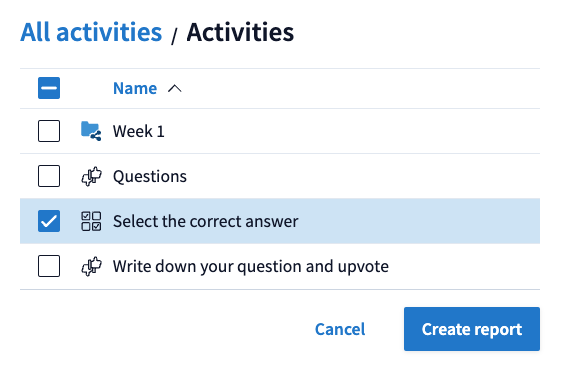
- With the checkboxes, select one of more activities that you would like to include in the report, then click Create report.
- Once generated, the report will open in a new tab and you will see a list of your generated reports in the report page. You can update the reports.
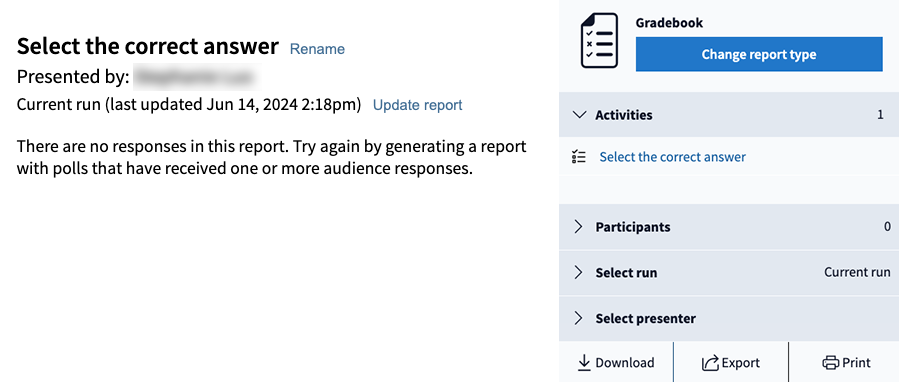
- On the left side of the screen you will see a table which displays a list of participants and how they scored during your poll. On the right side of the screen you will see different filter options including:
- Activities: Shows which activities were included in the report.
- Participants: You can sort participants by different groups.
- Select run: Choose to view results from when the activities were run at different times.
- Select presenter: Choose to view the report by the use who presented the activity.
- You can choose to download the report as a CSV file, export it to your Moodle unit's Gradebook and print out the table.