
Gradebook interface
There are a number of key features in the Moodle Gradebook interface. The image below with associated numbering explains the different elements and their functionality. Take a moment to review this if you are not familiar with the Gradebook interface.
Click on each of the icons to learn more about the Moodle Gradebook interface. You can click the icon in the top right corner to view in fullscreen. Click esc at any time to exit full screen.
When you select an item in the Gradebook Setup, you will see a toolbar, as shown below, which has two buttons, a calculator icon and a trash bin .
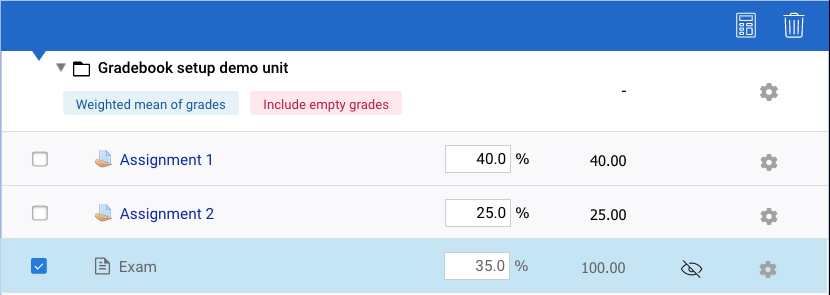
You can then do either of the following:
- Delete a grade item or category
Click the trash bin in the toolbar. Items inside the category will be moved to the unit level.
Note: You cannot delete Moodle activities from the Gradebook set up page.
- Apply a calculation
Click the calculator icon in the toolbar. You can only apply calculations to category or unit totals.
Note: If using hurdles, you will not be able to apply calculations to the unit total, as this causes conflicting calculations within the Gradebook.