
Echo360
Echo360
Class recordings and live-streaming play an important role in supporting student learning, revision and accessibility. They complement active and engaging teaching approaches and help ensure a consistent learning experience across units for students.

What are the benefits of live-streaming and recording classes?
Live-streaming offers students greater flexibility, allowing them to join the class anywhere from their own device. Class recordings support students revision of content, with captions, transcripts and the ability to slow-down or rewind sections.
Echo360 is integrated with Moodle and the timetabling application Syllabus+, meaning scheduled teaching activities are recorded automatically and easily accessed by students directly from your Moodle unit.
-
Prepare for live-streaming
Learn how to make the most out of live-streaming, including what to do before, during and after your session.
-
Link to Moodle
Learn how to link the learning capture link that is automatically added to the Unit Information section of your unit to your Echo360 class list.
-
Access class recordings
Learn about the Echo360 class list, which displays all lecture scheduled recordings for your Moodle unit.
-
Edit settings for class recordings
Learn how to make a copy, edit, make available/unavailable, download or remove a recording from the Echo360 class list.
-
Download class recordings
Learn how to download an Echo360 recording to keep an offline copy on your personal device.
-
Monitor Q&A and discussions
Learn more about the discussions panel, which allows you to monitor and respond to student questions and comments during the Echo360 livestream.
-
Add slides and interactivity to a presentation
Learn how to add PowerPoint slides and multiemedia such as YouTube videos or interactive activities to your presentation.
-
Reuse an existing Echo360 recording
Learn how to access and reuse past Echo360 lecture recordings from a previous teaching period, if you would like to share them with your current students.
-
View Echo360 Statistics and analytics
Learn more about Echo360’s analytics, which provides aggregated statistics about student’s online engagement and participation for each recorded lecture in your unit.
-
Use captions and transcripts in Echo360
Learn more about how to view, edit, download, upload or delete transcripts and captions in Echo360.
Check if your timetabled activity is recorded (Echo360 enabled)
View

Echo360 is only available in select venues. For a list of all Echo360 enabled venues at Monash University, click here.
Soon after the session finishes, the recording, also known as a learning capture, is made available to students in Moodle.
Timetabled activities (except Exams) that have been scheduled in an Echo360 enabled venue are recorded automatically. You would need to look at the codes found in the timetable to determine whether it is also live-streamed (see example below).
This information can be seen by staff and students web timetable class timetable.monash.edu. The information can also be found in Allocate+.
See below for details on the meaning of the different codes in the timetable:
Short codes | Description |
|---|---|
OnlineRealTime | No on-campus attendance required. Students can access the session live either via a zoom link or the Echo360 link in Moodle. |
OnlineOwnTime | No on-campus attendance required. No live-stream will be available. Where available the recordings will be made shared via the Echo360 link and posted to Moodle along with any other relevant materials. |
FL (Flexible Learning) | Flexible class with on and off-campus learning. May not have any Echo360 recording or live-streaming access. |
Record teaching activities
View
Class recordings play an important role in supporting student learning, revision and accessibility. They complement active and engaging teaching approaches and help ensure a consistent learning experience across units for students.
Expand the accordions to learn more
-
Educators are responsible for ensuring students clearly understand:
- Which activities are recorded
- Who can access the recording
- How and where recordings can be accessed in Moodle as part of a clear weekly routine
- Remind students when recording is about to commence at each class.
This information should be communicated to students at the start of the teaching period and reinforced throughout the unit. Consistent application of these expectations enhances clarity for students, strengthens continuity of learning and supports alignment with unit delivery best practices.
-
- All scheduled lectures and seminars must be recorded and made available on Moodle within 24 hours of being recorded (or by Monday morning where a recording occurs on a Friday). Confirm this timeline to students at the start of the teaching period so that the routine is clear.
- Where a class is delivered more than once, only one class is recorded.
- If your class is recorded automatically via Echo360, normally the first class is recorded. If you would prefer a later activity to be recorded, you can request this by contacting the Timetabling team.
- If your class is recorded manually via other platforms, you can make the decision on which instance to record. The recording must be uploaded to Moodle within 24 hours of the class and students must be informed of when it will be available.
- Other activities, including tutorials, workshops, applied or other learning activities, may also be recorded, as determined by the faculty or unit teaching team.
- If the platform supports it, you should enable automated captions and transcripts for all recorded and live-streamed classes and other video and audio learning resources that are available on the Learning Management System.
-
- Students must be made aware before class recordings are taking place.
- Where teaching is delivered online, participants may choose not to use their webcam if they prefer.
- Where Zoom sessions are recorded, participants are normally notified through Zoom's recording notification.
- Guest speakers who are not Monash staff should be asked to sign a release form before the activity is recorded and/or live streamed.
-
Where an activity is not recorded due to special circumstances or where a recording cannot be uploaded within the expected timeframe, educators must:
- Inform students in advance, and
- Provide
- An updated timeframe for when recording resources will be available, and
- Alternative ways for students to engage with the class content.
-
Monash staff and students can now opt in to Zoom AI Companion to generate meeting summaries, transcripts, action items and live captions. It captures both meeting audio and chat history to produce AI-generated outputs.
Zoom AI Companion must be enabled by the meeting host. Participants can request that the host turn it on, and the host can accept or decline the request.
Currently, Zoom AI Companion can be used for:
- staff meetings with colleagues and external stakeholders
- student meetings with other students.
It’s not yet approved for:
- educator–student meetings
- research activities.
Before using Zoom AI Companion, you should:
- Ensure it’s used only for appropriate activities and avoid sessions involving sensitive, personal or confidential discussions.
- Inform participants before enabling Zoom AI Companion and displaying the introductory slide.
- Ensure participants are comfortable with Zoom AI Companion being enabled and provide opportunities to raise concerns.
During your meeting:
- Participants will receive an in-meeting disclaimer from Zoom when AI Companion is enabled and can ask for it to be turned off at any time.
After your meeting:
- Always review AI-generated outputs for content sensitivity and accuracy before sharing. Do not treat these resources as authoritative.
- Share reviewed outputs only through appropriate Monash-managed channels.
- Manage AI-generated records in accordance with the University's privacy, recordkeeping and data governance requirements.
Learn more about Zoom AI Companion on the eSolutions page.
-
All recordings, including Echo360 class recordings, Zoom recordings and Zoom AI-generated content must be managed in accordance with University privacy and recordkeeping requirements.
- By default, Zoom AI Companion data is retained for 30 days and accessible only to the meeting owner, meeting hosts and co-hosts. For Monash users, Zoom AI data is saved within Australia and will not be shared to train Zoom's or third-party AI models.
Educators should ensure that:
- Access to recordings must be restricted to students enrolled in the relevant unit or teaching activity.
- Recordings, including Zoom AI-generated content, should be retained for as long as needed to support their intended educational purpose. Monash’s video capture platforms currently retain all recordings unless they’re actively removed.
Class recording requirements at a glance
| Class recordings (Echo360 and Zoom) | Zoom AI companion | Student initiated recordings | |
|---|---|---|---|
| Inform students before recordings take place | Y | Y | Not applicable |
| Manage recordings in line with Monash’s privacy and record keeping requirements | Y | Y | Y |
| Inform students when recording will be accessible in Moodle | Y | Y | Not applicable |
| Ask students to not share class recordings broadly | Y | Y | Y |
Frequently Asked Questions
View
View frequently asked questions about Echo360. You can select Expand all and then use CTRL + F (PC) or CMD + F (MAC) to search for keywords.
-
This is a known issue with Echo 360 videos in Safari and iOS. Echo 360 are actively developing solutions and consider this a very high priority. They hope to have a fix soon.
-
If a class that is scheduled to be recorded (via Echo360) is cancelled, moved, or rescheduled, every effort should be made to cancel the recording before the class scheduled time. If this is not possible and an unintended recording is published on Moodle, it must be deleted as soon as possible.
-
No, recordings start 2 minutes before the hour and terminate 7 minutes before the hour at the end of the session. So if your class runs from 10:00am - 12:00pm, the recording runs from 9:58am - 11:53am. Make sure not to leave all the important information at the end and ensure the activity doesn’t exceed the planned time as the recording may end and students listening to the recording may miss out on details at the end.
-
By default, captions are enabled for Echo360 livestreams and recordings. You can check that subtitles/captions are turned on in the Echo360 settings.
Supporting your students
View
How to support your students
Here are some ways that you can support your students when using Echo360.
Before the lecture or seminar:
- Provide instructions on how to access the recorded lectures in Moodle
- Provide clear instructions in Moodle on when and how to access the live-stream lecture session in Echo360
- Provide a link to how to navigate the platform and ask questions in the discussion panel
During the lecture or seminar:
- Engage students by asking them questions via the Echo360 interactive question types.
- If your room has a video camera, turn it on to encourage teacher presence for online students when live-streaming
- Have a moderator support you with managing the online discussion and questions. View the Online Moderation resource for more information on how to implement this.
After the lecture or seminar:
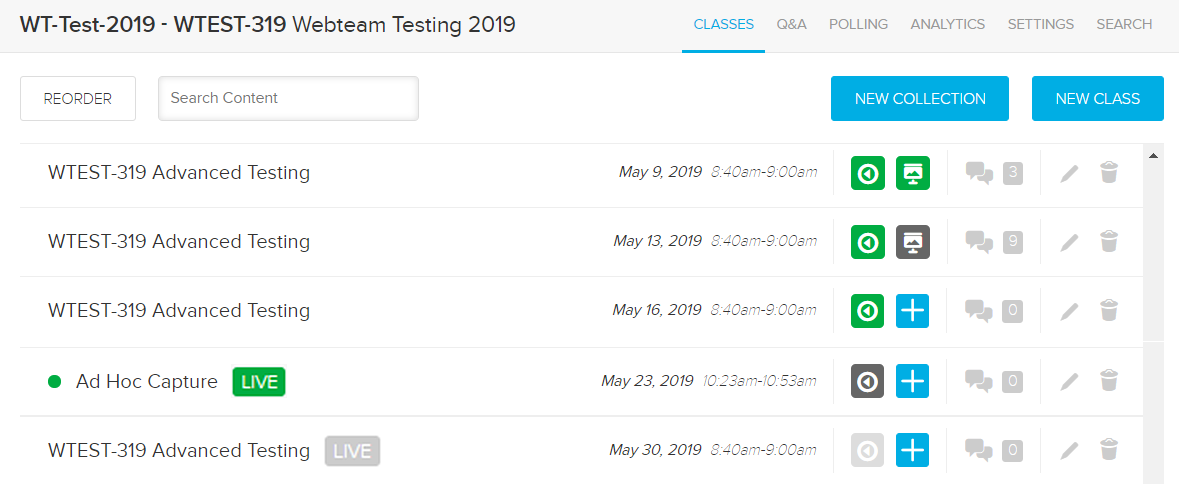
- Let students know when and how to access the lecture recordings. Students access the live stream using the same Echo link that is used to access recorded lectures. In the Echo360 class list, a currently live streaming lecture is indicated by the Green LIVE badge. A future lecture that is scheduled to live stream will have a grey LIVE badge beside it.
- Let students know they can view recordings this via the Echo360 mobile app
- Let students know that Echo360 Learning Capture does not provide student access to past years' recordings unless requested by academic staff. Students who wish to access recordings from the previous semester should contact the current unit lecturer/coordinator for approval. If granted then the Lecturer/coordinator will need to request access via Service Desk Online.
What resources and services are available to students
Share the following links with your students. These can be added to your Moodle page under the appropriate sections.
Live-streaming @ Monash
Resource that teaches students how to get the most out of livestreaming during your online lectures, orientation, and information sessions. Know how to prepare, how to engage actively during the session, and how to consolidate and revise after the stream..
What is live streaming?
This Monash Connect resource answers a series of questions around live-streaming and using Echo360. Here students can get an answer on what live-streaming is about.
What happens if I'm late for my live streaming session?
This Monash Connect resource answers what happens if students are late to the live-stream session and how they can access the section they missed.
Related resources
View
Here are some relevant resources that can support you in using Echo360 and gain strategies for online and hybrid teaching.
Teach and engage through video conferencing, virtual classroom and collaboration tools. You can use this tool as an alternative to Echo360.
eSolution resources
Video conferencing and video teaching
Learn more about broadcasting a lecture to one or more rooms, across multiple campuses or partner institutions.
Learning spaces with video conferencing
Access resources and room specific guides for both Cisco and web conferencing systems.
Lectures at Monash are recorded using the Echo360 Learning Capture platform, which is integrated with Moodle and Syllabus+. This resource provides technical guidance on how to use the Echo360 spaces and platform.
Training from Echo360
Inserting an interactive activity into your Echo360 presentation
This webpage provides you a list of guides to support you in creating slides and presentations in Echo360. Here you can learn how to add polling questions and add media.
Uploading a presentation to Echo360
This Echo360 resource shows you how to upload, import, and create a presentation in the platform.
Inserting media into your Echo360 presentation
A media slide contains content from a web page or image. You can create a media slide by simply specifying a URL. Echo360 then auto-embeds the content of that web page into the media slide. This guide shows you the steps to add media to your presentation.
Definitions of Course Analytics Metrics
This Echo360 guide provides you detailed information on how the analytic metrics work in the platform. You will learn more on the attendance percentage, total engagement, weighted engagement percentage, video view, slide views and much more.