
Screen share troubleshooting
macOS only
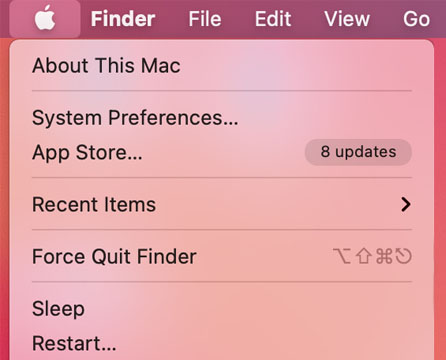
- Click the Apple logo on the top left of your screen and select System Preferences.
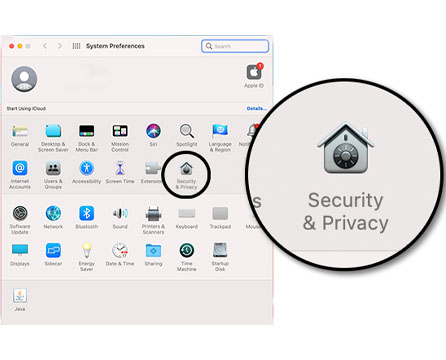
- Click Security & Privacy.
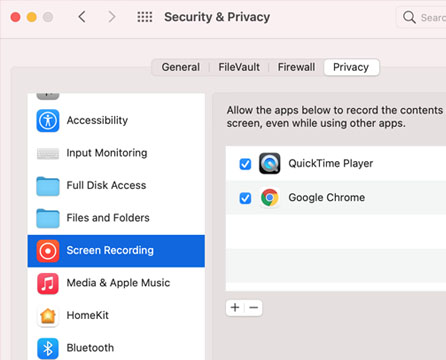
- Select the Privacy tab.
- Click Screen Recording and select Google Chrome.
- Click the blue Select screen button.
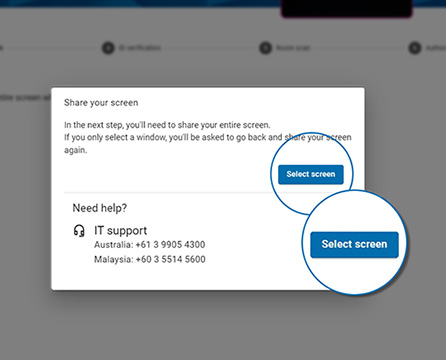
- Click Entire Screen.

- Click on the image of your screen, then click Share.
(You should only have one monitor connected.)
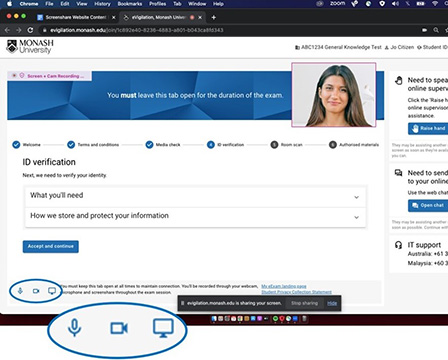
- In the bottom left-hand side of your screen, check that all three icons (microphone, video and screen) are blue. If they are, this means you're ready to continue with the check-in process.
Got a question? Message Monash Connect
Try MoVA, Monash's virtual assistant
MoVA has answers to most common questions. If it can't find an answer, it can connect you with a real person using messaging or help you make an online enquiry.