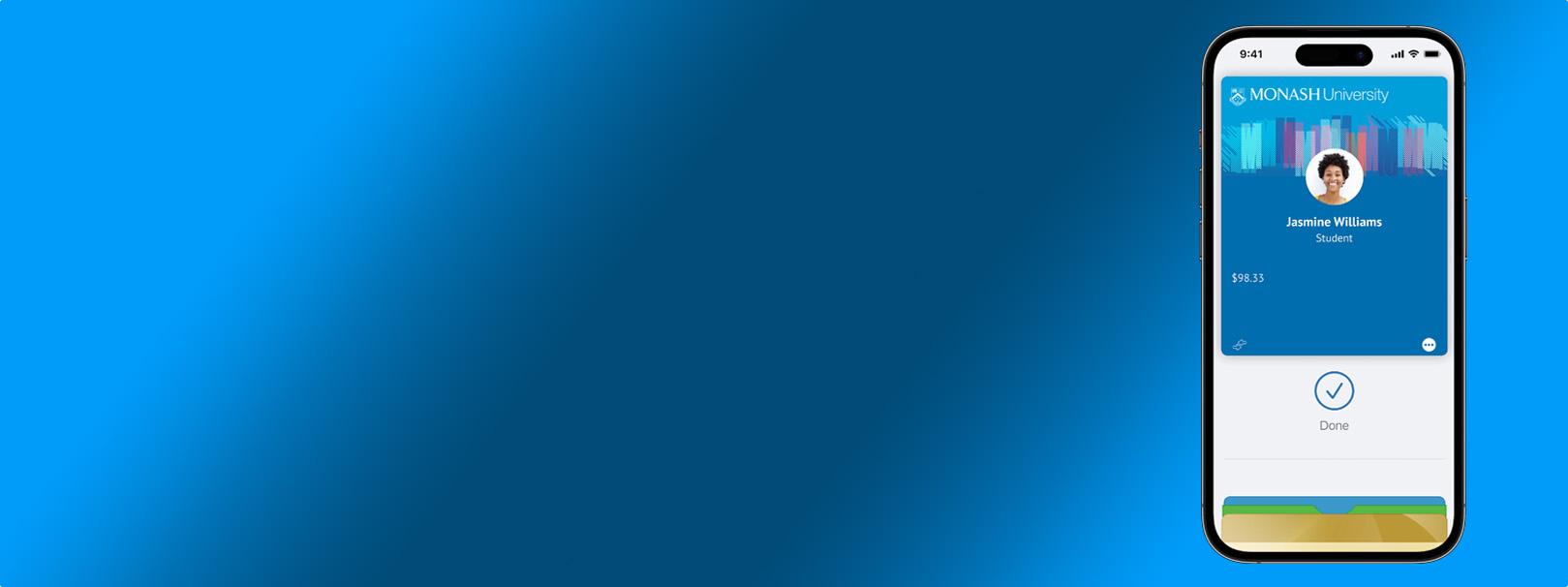
Your digital M-Pass is available in Apple Wallet on iPhone and Apple Watch as well as Google Wallet on Android phones.
Just follow the steps to set up your M-Pass on your device.
Your iPhone or Apple Watch must be turned on to use your digital M-Pass, but it doesn't have to be connected to a network.
If you have an iPhone, Express Mode lets you use your M-Pass without unlocking your phone or watch – just tap your device on the reader.
To display your M-Pass, open Apple Wallet and select your M-Pass from your saved passes.
You can also find contact information for Monash Connect on the M-Pass menu in the Apple Wallet.
You don’t need to unlock your phone or have your digital M-Pass open in Google Wallet to use it (but on some devices the screen must be turned on).
The antenna is often in the middle of the phone, but it may vary by device, so you might have to adjust the orientation of your phone against the reader to have your digital M-Pass recognised.
To display your digital M-Pass, just open the Google Wallet.
You can also find contact information for Monash Connect on the M-Pass menu in Google Wallet.
Make sure your device meets the following requirements before you set up your M-Pass:
You can only have either one iPhone and one Apple Watch, or one Android phone on your account at a time. To set up your digital M-Pass on a new device, you’ll first have to remove it from your old devices.
Once you’ve done so, just follow the steps on setting up your digital M-Pass to add your M-Pass to your new device.
You can add your digital M-Pass back at any time (as long as you haven’t exceeded your card limit).
If you no longer have your old device, you can remove your digital M-Pass using the Transact eAccounts app on your new device:
If you’ve lost your device with your digital M-Pass on it, or suspect it's been stolen, you should immediately:
When you deactivate your M-Pass:
If you find your phone or watch, you can reactivate your M-Pass by submitting an enquiry through MoVA.
If you’re struggling to scan your digital M-Pass, it could be because:
If you’ve already set up your digital M-Pass, your card will still work for now (except for printing – you’ll need to use your digital M-Pass for that).
If you need an M-Pass card to access a secure lab (e.g. PC2, PC3 lab), you’ll first need to get a digital M-Pass before requesting an M-Pass card.
Only one student or staff ID can be created as a digital M-Pass, so you’ll have to keep your physical card for the other one.
If you’re both a student and staff member and organising your M-Pass for the first time, you need to:
If you're studying a diploma at Monash University or any course at College, please make your enquiry through Monash College.