
Setting up your digital M-Pass
You can set up a digital M-Pass if you're a student or staff member at Monash University Australia. You’ll need to have completed the steps to approve your photo before you set up your digital M-Pass.
Device requirements
- iPhone: iPhone 11 or later, iPhone XS, iPhone SE (iOS 17 or later)
- Apple Watch: Apple Watch Series 1 or later (Watch OS 5 or later)
Make sure you have accepted the latest iCloud/Apple ID terms and conditions if prompted in your iPhone's settings (under your Apple ID).
Setting up
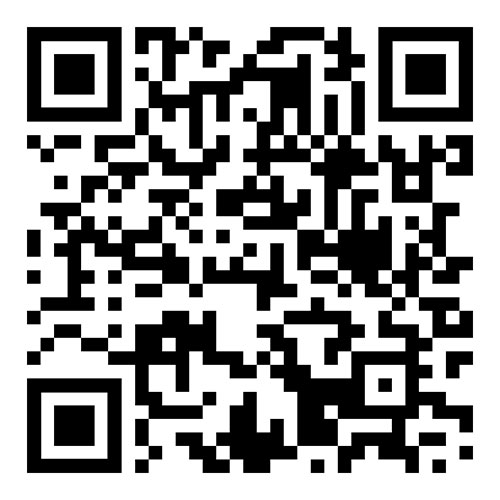
- Scan the App Clip code below with your iPhone
- Log in with your Monash account
- Press Add to Apple Wallet:
- Click iPhone and follow the prompts: tap Next and Agree to the Terms & Conditions. You'll get a notification confirming your digital M-Pass has been added to your Wallet.
- Tap Done to return to the home screen.
Once you've added your M-Pass to your iPhone's Wallet, you can add your M-Pass to your Apple Watch using the same process or by tapping the eAccounts App Clip icon (below) on your iPhone.
Device requirements
- Android Phone: Version 10 or later (your device has to be NFC-enabled and capable of supporting Google Wallet).
Android Wear OS is not currently eligible for digital M-Pass.
Setting up
- Enable near-field communication (NFC) on your phone in your Settings menu.
NFC settings can be found in different areas of the Settings menu depending on your device. A common location is Connected Devices → Connection Settings (if it's not there, use the Search option on the top right). - Open Google Wallet (make sure you’re logged in with your personal email – not your Monash account) and make sure it's enabled as the default payment application. If the app prompts you to add a credit card, you can bypass that screen and return to the Google Wallet home screen.
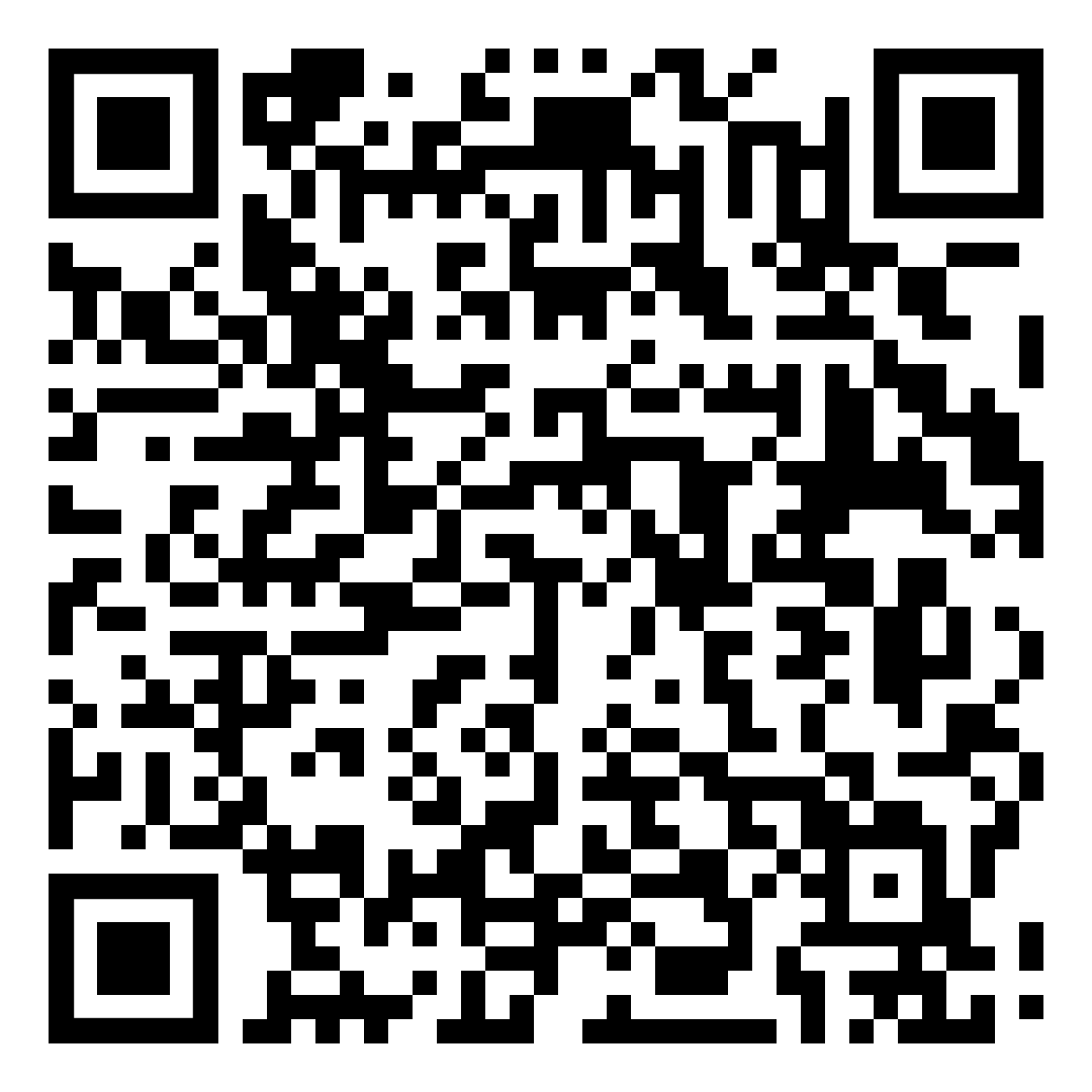
- Download the Transact eAccounts Mobile app from the Google Play Store to your phone.
- Search for Monash University (including if you’re a Monash College student).
- Login with Okta.
- Click Add to Google Wallet and continue through the prompts (you’ll need to Accept the terms and conditions).
It’ll take about two hours for your digital M-Pass to activate.
Got a question? Message Monash Connect
Try MoVA, Monash's virtual assistant
MoVA has answers to most common questions. If it can't find an answer, it can connect you with a real person using messaging or help you make an online enquiry.