
Webcam troubleshooting
Google Chrome
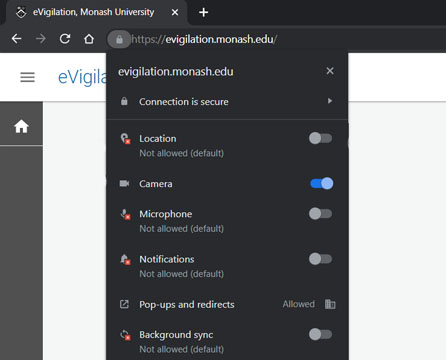
- Click the padlock icon in the URL bar
- Change Camera permissions to Allowed (if not already)
macOS
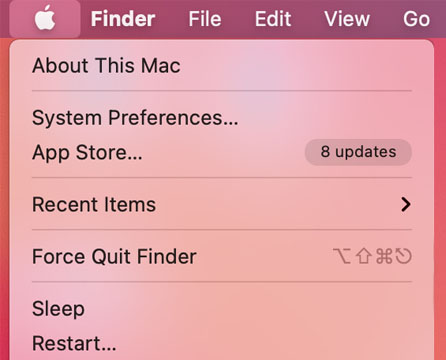
- Click the Apple logo at the top left and select System Preferences
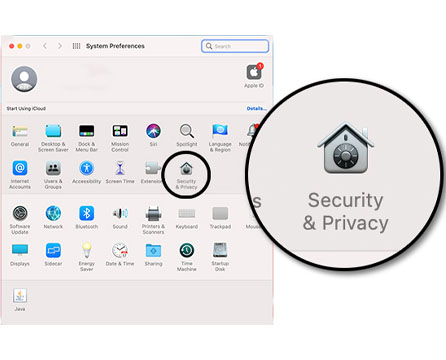
- Click Security & Privacy
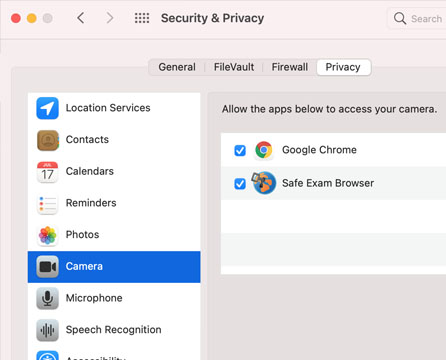
- Select the Privacy tab
- Click Camera and select Google Chrome
Windows
- Click the Windows logo and then Settings
- Select Privacy
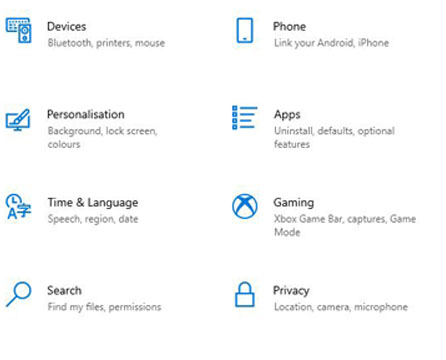
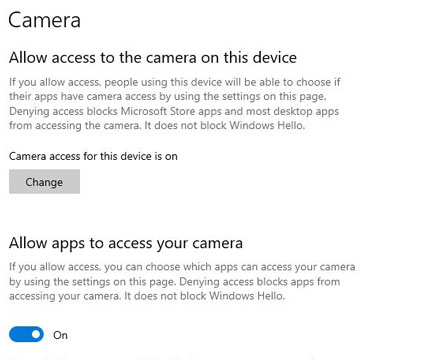
- Under App permissions, select Camera
- Click Change, then Allow (if not already on)
- Change status to On for Allow apps to access your camera
Got a question? Message Monash Connect
Try MoVA, Monash's virtual assistant
MoVA has answers to most common questions. If it can't find an answer, it can connect you with a real person using messaging or help you make an online enquiry.