Allocate+ must be in preference entry mode
Check Allocate+ access dates.
Choose your preferred times for activities with repeat sessions. Activities include lectures, tutorials and lab work.
At this stage, it doesn't matter who enters preferences first. This system will sort all preferences to minimise clashes.
| Instructions | Details | Sample screens (pop-ups) |
|---|---|---|
| Login to Allocate+ | Use your Authcate username and password. Contact the service desk if you have forgotten your password or need help. Tip: Hold Shift while clicking the link to open Allocate+ in a new window. |
|
| Your units are listed on the left side of the screen. Select an activity link (eg. lecture, tutorial...) |
See abbreviations used in unit codes If the list is incorrect, check your enrolment in WES If an activity is run only once, your allocation will often be automatic. |
Select a unit activity![]() |
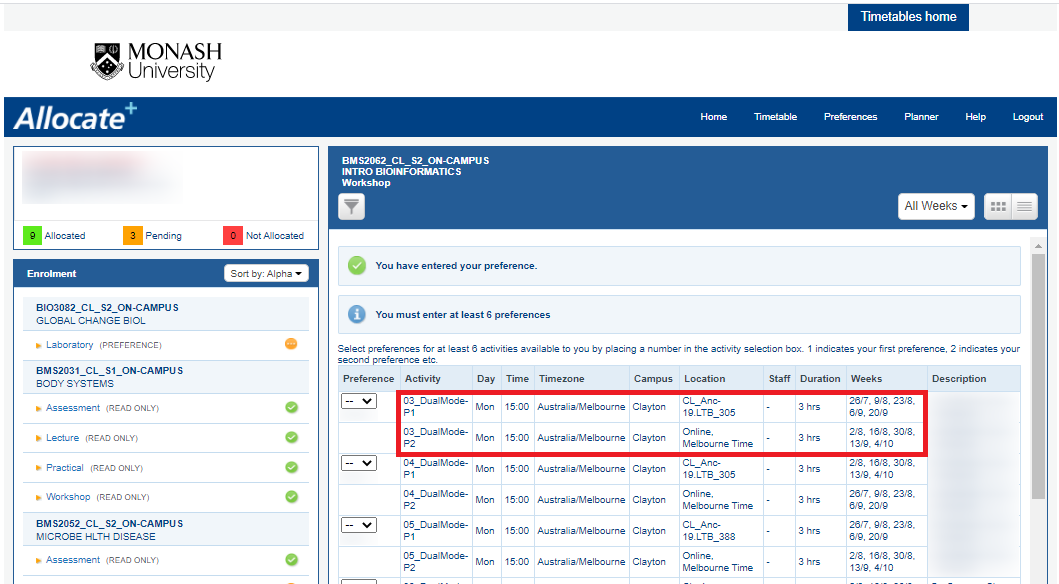
| Activity times and checkboxes display. Number your preferences including any time slots with flags. When finished click Submit Preferences |
Use 1 for your first preference. If less than 6 time slots, fill all time slots. If more than 6, any more than 6 are optional. Include all flagged time slots (if any appear) in your preferences. The % indicates the popularity of the activity. Once this exceeds 100%, more students have chosen this as their first preference than there are places available. |
Number your preferences![]() Popularity percentages ![]() |
| A message shows preferences are recorded | Your preferences are stored and will be used in the sort. You are not yet allocated a place - it's just a preference. |
Preferences recorded![]() |
| Repeat until all activities are done | Select and add preferences for each activity link. | |
| Click My Preferences near the top right. |
Ensure you have selected preferences for all unit activities (where permitted). |
Check my preferences![]() |
| To amend your preferences, click an activity link again | You can amend your preferences anytime before the sort. | Amend your preferences![]() |
| Click Logout | ||
| Before the sort, check Allocate+ each week | We don't notify you of cancelled or amended activities during preference entry. Keep checking the system as you may need to select a replacement. Percentage popularity changes over time. You can assess this and decide if you want to change your preferences. |
Popularity changes![]() |
| Next step: After the sort, check and adjust your allocations | After you have been allocated to activities, your timetable will appear in the: 1) My Timetable tab in Allocate+ (shows all weeks) 2) my.monash portal (shows current week only). You need to check messages in these systems in case you have any unallocated activities. Some labs and support classes start in week 2 and will not show during week 1 in the portal. |