
Allocate+ glossary
Allocation methods
The allocation method appears next to the activities.
Class activity types
There are nine different activity types in Allocate+.
Class delivery modes
Repeated activities
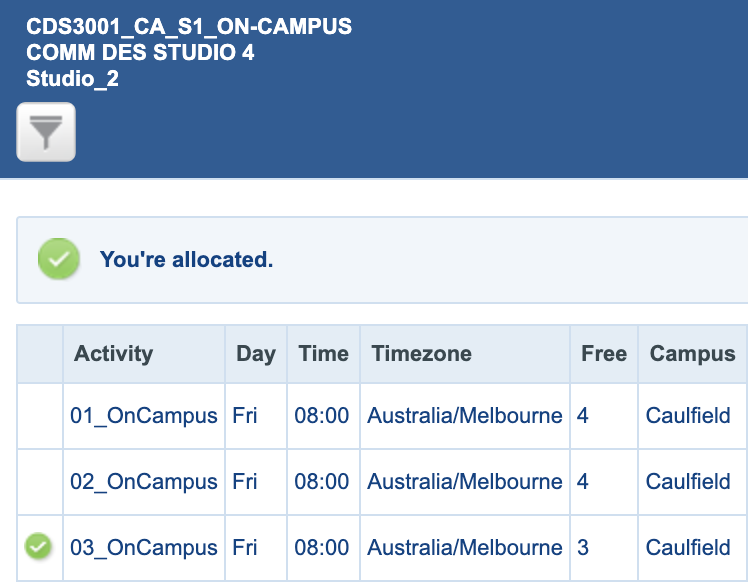
In this example, the same activity occurs three times in the same week.
You need to select one of the tutorials (e.g. Tutorial/03) and attend it for the entire semester – you cannot switch between activities once you’re allocated and your timetable is finalised.
Multiple part activities
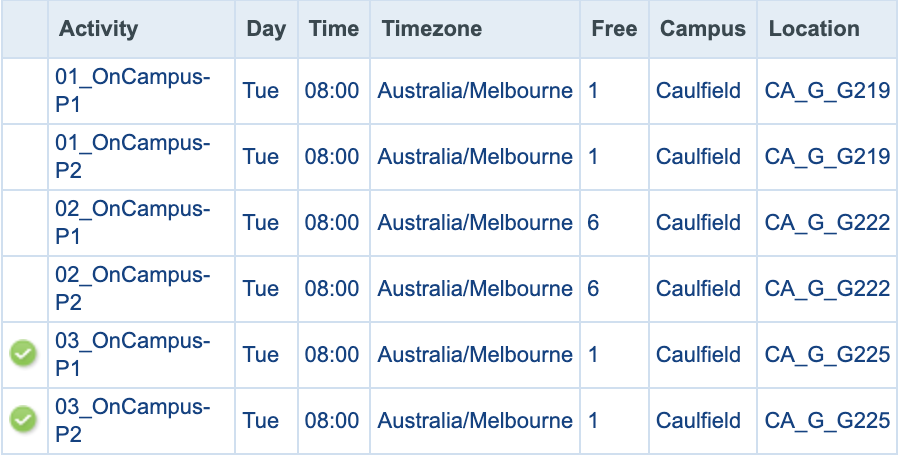
Sometimes, activities are divided into multiple parts, and you need to attend each part.
In this example, there are three activity options with two parts – Part 1 and Part 2. You can choose either 01, 02, or 03. Activity 03 has been selected and both P1 and P2 would need to be attended.
Activity status icons
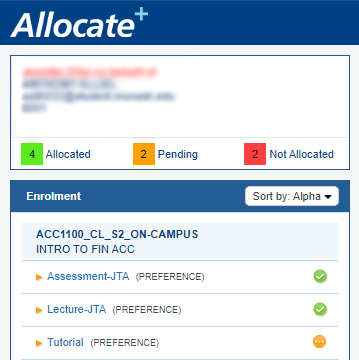
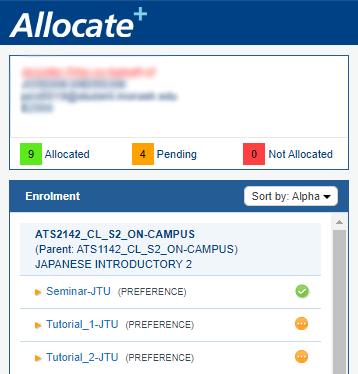
The icons appear to the right of the allocation method, indicating that:
- you’ve allocated a timeslot for the activity
- you've entered your preference but your timetable isn't finalised yet, or
- you still need to select a timeslot for the activity.
 This activity has been allocated a timeslot.
 You’ve entered a preferred timeslot but the final timetable hasn’t been sorted yet.
 There’s no timeslot selected for this activity yet. You need to enter a preferred time.
Buttons
When you click on an activity, buttons appear next to the scheduled activity times.
 You can select the timeslot.
 You’re allocated into a timeslot. You can change your allocation to any timeslot with a SELECT button.
 There are currently no places available in this class. If you're allocated to another class that doesn't suit you, you can request to swap into this class by clicking on the heart icon.
 The class for this activity clashes with your allocation for another activity. To allocate into this timeslot, you'll need to change your allocation for the other activity.
 You’ve selected an activity that conflicts with a timetable rule or requirement. This may include class clashes, full activities or policies that limit the number of hours you can attend in a day or consecutively. When you click this button, you’ll see a description of the issue. In many cases, you can resolve it by adjusting your other class selections.
Deallocate 
If you’re allocated into an activity and you want to deallocate (remove yourself) from that activity, simply click on the bin icon.
Grid (calendar) view
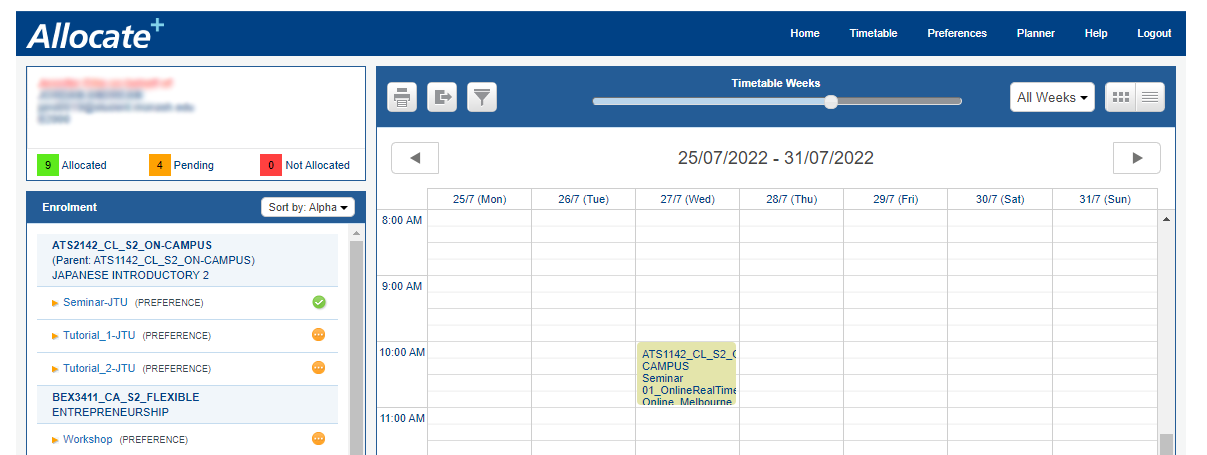
 Near the top of the screen on the right-hand side, you can switch to a calendar view of your timetable.

List view
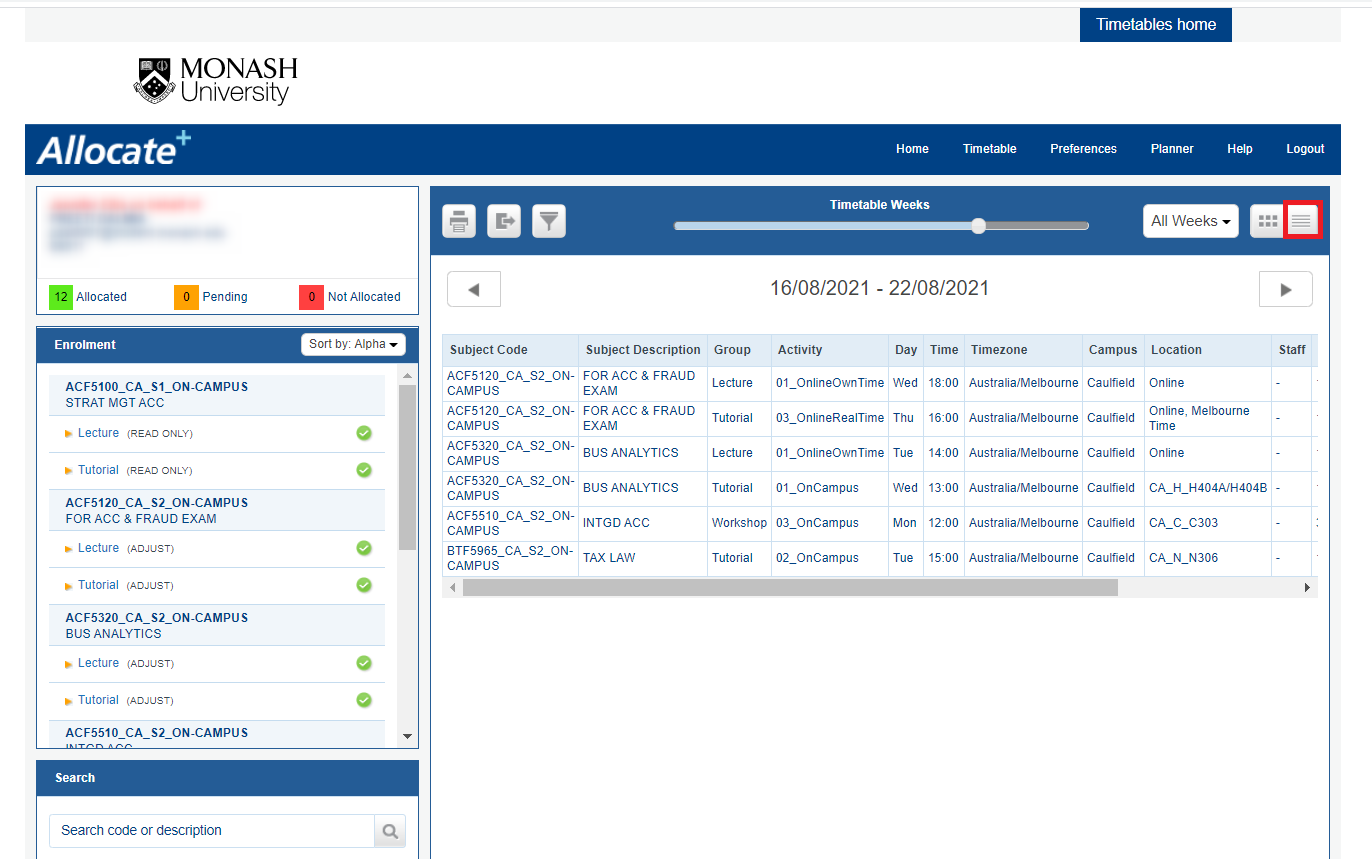
 Near the top of the screen on the right-hand side, you can click the list view button to view your timetable in table format.
Percentage %
The percentage in the preference column shows the popularity of the time slot, so you can see what percentage of students picked this time slot out of the total number of students who can attend it. Entering a preference in a time slot with a low popularity may increase your chance of getting into it.


Got a question? Message Monash Connect
Try MoVA, Monash's virtual assistant
MoVA has answers to most common questions. If it can't find an answer, it can connect you with a real person using messaging or help you make an online enquiry.