Restrict access to a resource or activity: Conditional restrictions
You can set up access restrictions for activities and resources, based on Activity completion, Date, Grade, Group or Grouping or a combination of these. For example, you might like to create a make-up quiz for students who scored below a certain grade on a task.
Note: For Moodle group assignments, ensure you enable Group submission settings in the Moodle assignment settings. This enables students to submit to the assignment as groups, which is separate from group access/visibility of the activity.
Note
If a student has a restriction applied to their visibility of an assignment activity, it will not be selectable in the Special Consideration and Extension form by that student. If you would like to restrict the date students can submit to the assignment, it is recommended that instead you specify a date using the Allow submissions from in the Moodle assignment settings (guide).
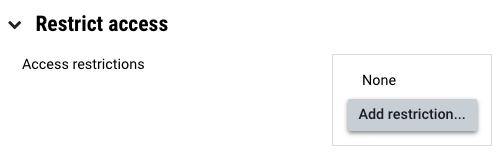
In the activity/resource settings, scroll down to Restrict access section. You can also navigate to the activity/resource settings by clicking the three dots and then selecting Edit settings.
In the Restrict access section and click on Add restrictions...
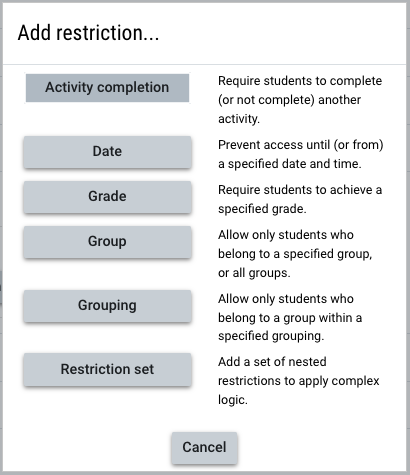
You will see a list of restriction types.
Note: You can use restriction sets to apply more than one restriction at a time, for example, only students at the Clayton Campus (grouping) who have completed the quiz with a mark of 50 (grade or activity completion) can access a resource.
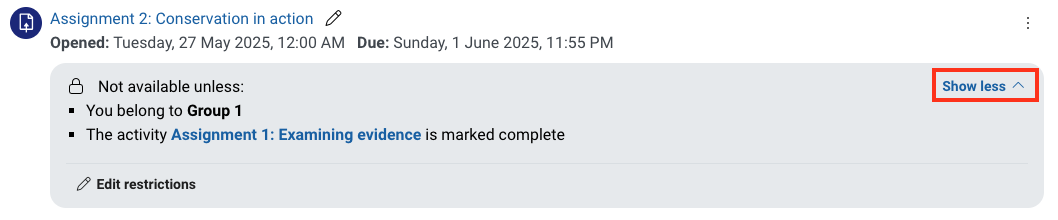
Once a restriction has been applied, you will see the access conditions displayed below the activity/resource. By default only one restriction will be displayed. Click Show more to expand the box and view all restrictions that have been applied.
Note: You click Edit restrictions to quickly navigate to the activity/resource restrictions.
Expand the accordions below for examples use cases for each type of restriction
Select Activity completion from the list.
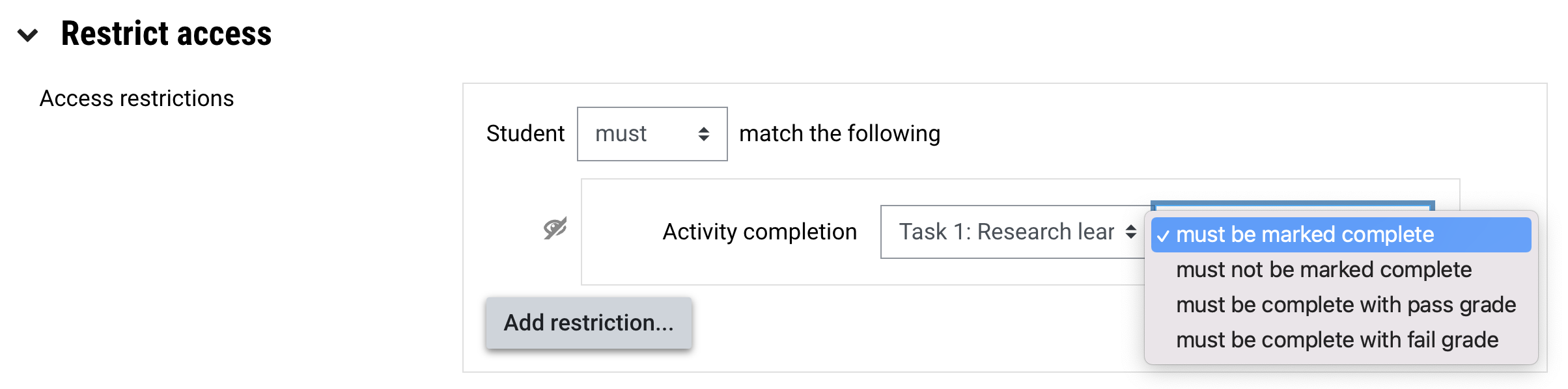
In the Activity completion field, select the Moodle activity that students must completed before accessing the activity/resource. In the second drop down list, select whether the activity:
Click on the eye icon so that is is displayed with a strikethrough. This means the activity/resource will ONLY be viewable to students that meet the specified requirements.
When finished, click Save changes.
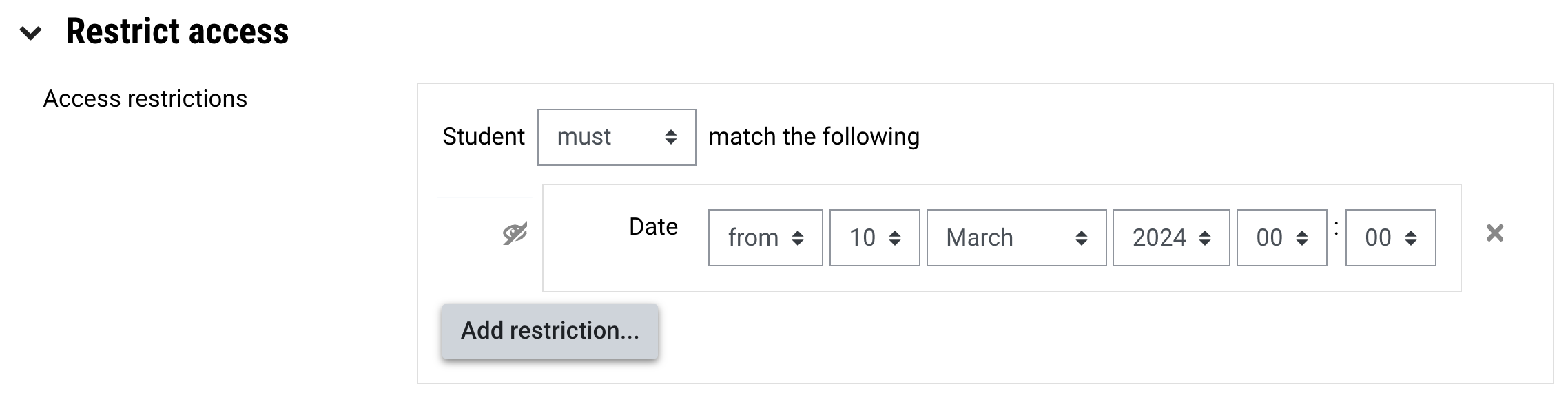
Select Date from the list.
In the Date field, specify the date when the activity/resource can be accessed from.
Click on the eye icon so that is is displayed with a strikethrough. This means the activity/resource will ONLY be viewable to students after the specified date.
When finished, click Save changes.
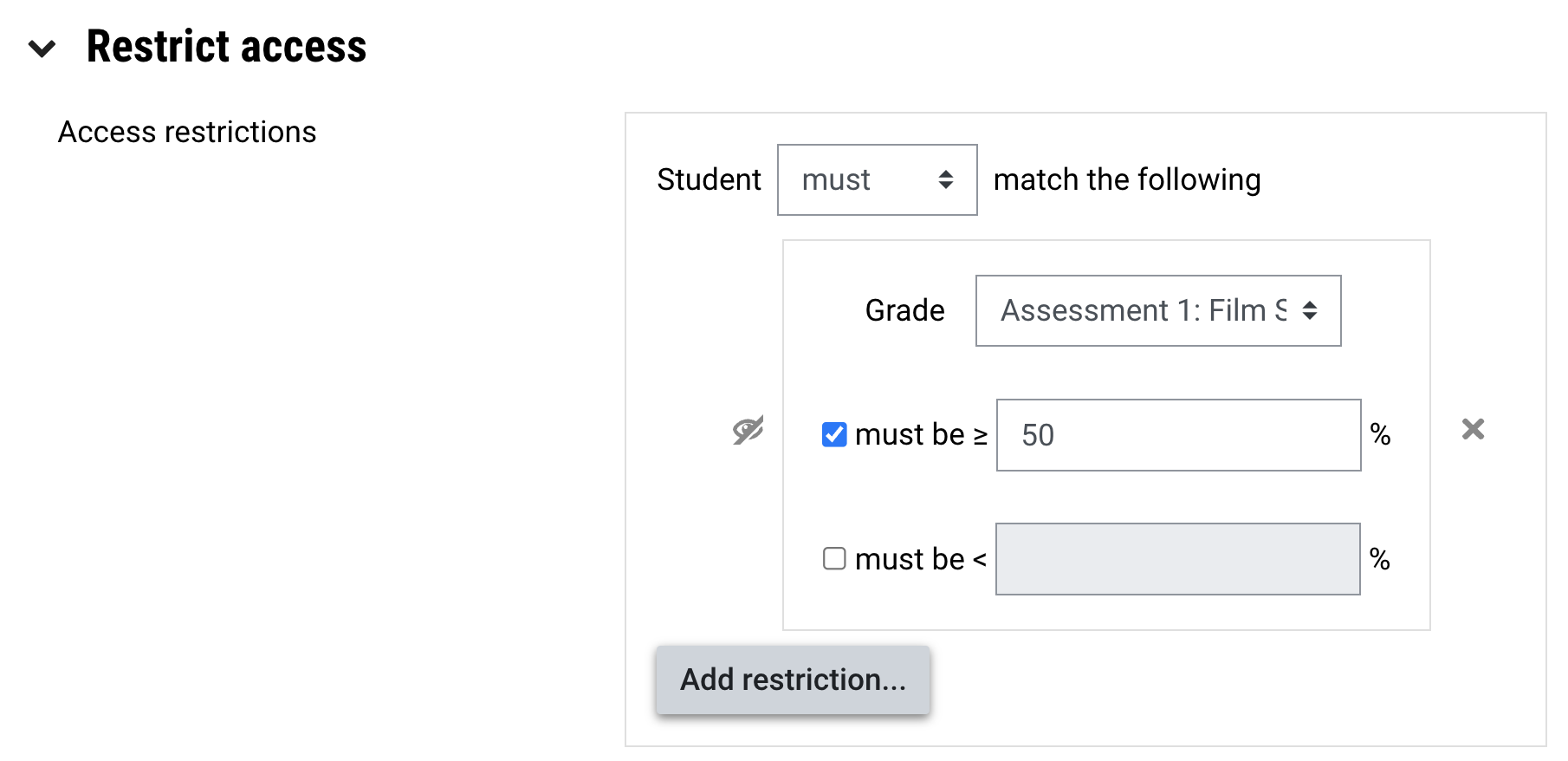
Select Grade from the list.
From the Grade drop down list, select the graded Moodle activity that students must receive a grade for before accessing the supplementary quiz.
Select the checkboxes below to select the type of threshold (must be greater than or less than), and then specify the numerical grade in the text field.
Click on the eye icon so that is is displayed with a strikethrough. This means the quiz will ONLY be viewable to students that match the specified requirements.
When finished, click Save changes.
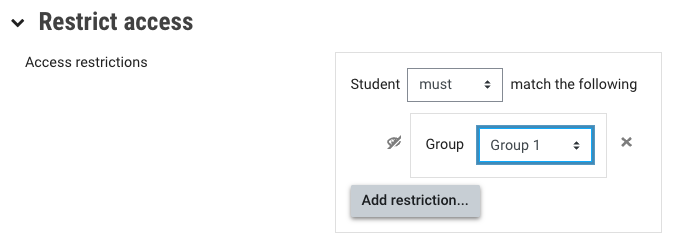
Select Group from the list.
From the group drop down list, select a group from the list. For example, this could be an Allocate+ tutorial group. For more information, see Groups and groupings.
Click on the eye icon so that is is displayed with a strikethrough. This means the forum will ONLY be viewable to the selected group.
When finished, click Save changes.
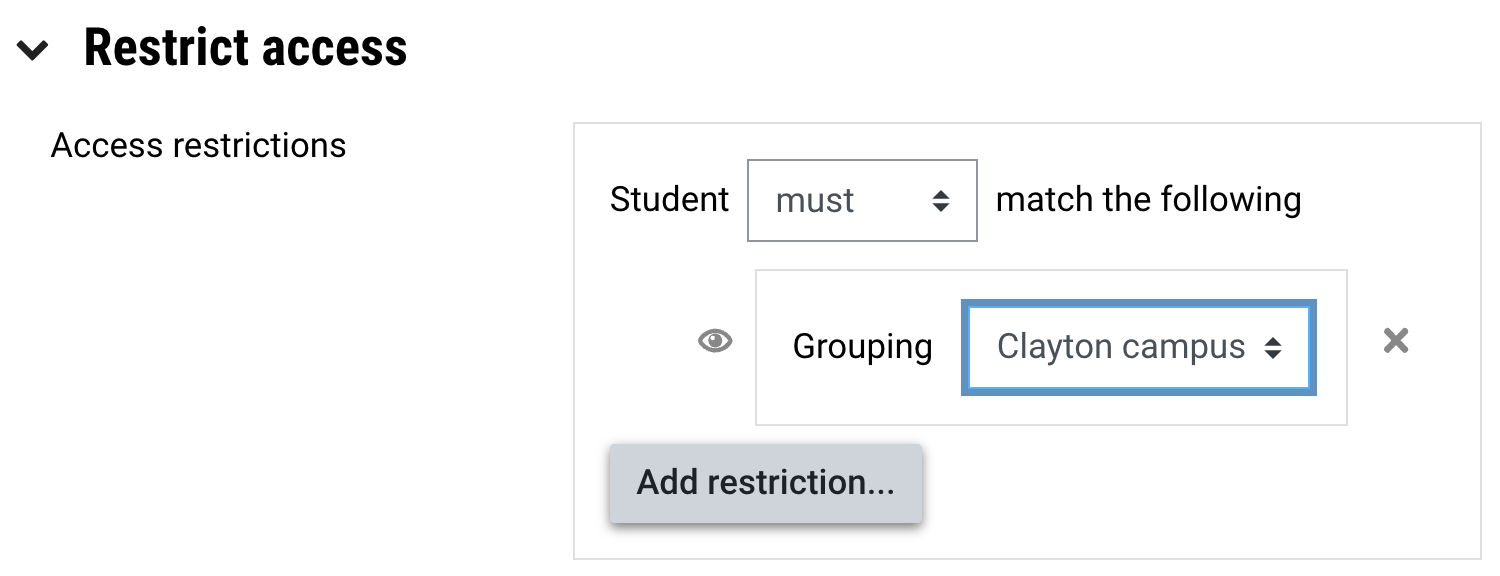
Select Grouping from the list.
From the grouping drop down list, select a grouping from the list. For example, this could be all Clayton campus based students. For more information, see Groups and groupings.
Click on the eye icon so that is is displayed with a strikethrough. This means the activity or resource will ONLY be viewable to the selected grouping.
When finished, click Save changes.
Note
Please note that restricting a learning section will NOT restrict the contents (e.g. files within). The contents of the learning section will still be accessible to students from on the left hand side menu. It is recommended that you apply any restrictions to individual resources and activities.