
Film in the Lightboard Studio (Faculty of Science)
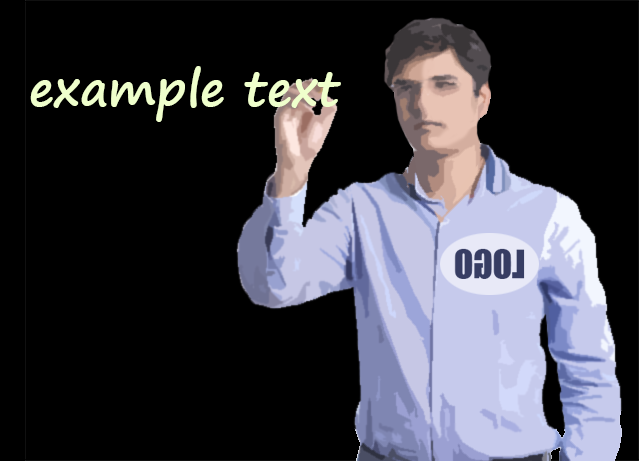
The Lightboard is a pane of ultra clear glass lit from the sides. A presenter is filmed through a glass pane, on top of which written annotations can be made with liquid chalk, which appear fluorescent on the glass. Animations, diagrams and videos can also be overlaid on the Lightboard. You can create visually engaging videos working through problems, make annotations over diagrams and point, gesture and interact with your content.
Lincoln Turner provide a demonstration in the video below of using the Lightboard in your teaching
The Lightboard Studio is located in Building 27, 10 College walk, Rm 203 and is managed by the School of Physics and Astronomy. Staff from Physics and Astronomy can access the Lightboard with their Monash Staff ID. If you are within the Science faculty but not in the school of Physics and Astronomy swipe access can also be arranged. For bookings and access to the Lightboard calendar, contact Tomas Zahora (Tomas.Zahora@monash.edu).
Currently, due to high demand Lightboard bookings are limited to staff within the Faculty of Science.
Support and booking for Business School staff is managed by Cameron.nichol@monash.edu
Prepare for your recording session
Important Notice: Due to the current COVID-19 situation, changes have been made to lower hand contact with surfaces in the Lightboard studio. It is now possible to record in the Lightboard without touching any surfaces with your hands. Please read the following procedures and recommendations below:
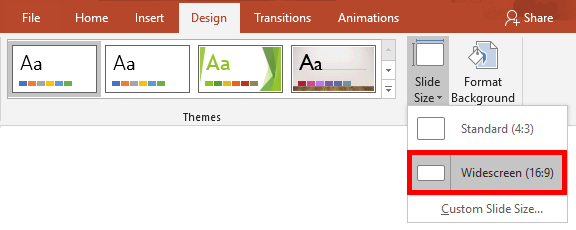
- Bring your own laptop if you wish to present slides, use the red slides HDMI cord to connect.
Note: If your laptop does not have a full-sized HDMI output, please bring a video adapter as there are none provided in the studio.
- The portable lapel microphones have been replaced by a microphone at the top-centre of the board. It is automatically switched on. Please do not touch or bump it. Stand where you would normally stand and present as usual. As always, check the audio level meter on TV1, you should aim to speak at a volume in the green or yellow range. If the meter is reaching the red range, reduce your volume.
- Bring your own markers and microfibre cloths. If you do not have one, on your next visit to the studio, please take one pack of pens, and two cloths from the box provided. Please bring your own set with you every time you record.
- Bring your own remote presenter ('clicker') if needed.
- Use the Hand sanitiser provided before and after filming. Please leave this in the studio for everyone’s use.
- Use the foot pedals to record/stop(red) and replay(Green) instead of the buttons attached to the board.

Finishing up
- Clean the Lightboard with your personal microfibre cloth.
- Use the ethanol(70%+H2O) in the squeeze bottle by the door to clean any other surfaces, such as your laptop and the HDMI cables.
- Check you have not left anything behind, such as your laptop, pens, cloths, video adapter or remote presenter.
- Swipe your staff ID on the reader on the right side of the Lightboard to log off and turn off the room systems.
- Use the hand sanitiser before exiting. Please leave this in the studio for everyone’s use.
- If desired, wash your hands with soap and water in the bathroom down the level 2 corridor on the right.
Where to find your recording
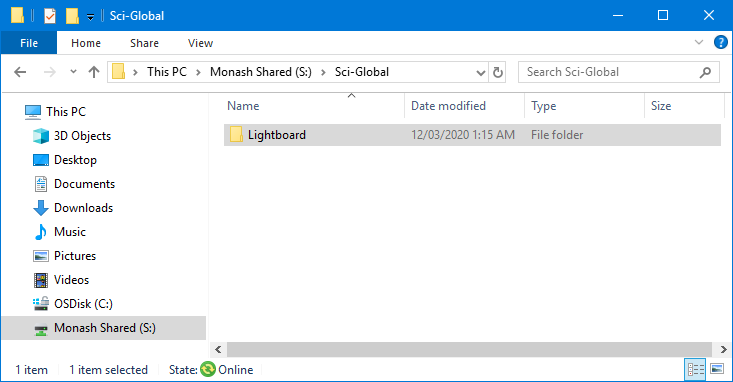
When you have finished, your recording will be saved to the Monash Shared drive(S:) under Sci-Global folder in the Lightboard folder. Once you have been added to the Lightboard users group, you can access the Lightboard folder under This PC > Monash Shared (S:) > Sci-Global > Lightboard.
Intellectual Property and Copyright
When using content that you haven't produced yourself, remember that copyright restrictions cover what you are allowed to include in a video, and these rules are different to the rules for print. If you are in doubt, check with Monash Copyright.
Some options for finding free-to-use content include:
Further tips for making engaging videos
Monash Bytes feature advice for video editing, uploading, and more. You can find it here:Learning Bytes - Audiovisual tools