
View summary
You can access a Chief Examiner’s summary report and download it as an Excel or CSV file. The report will show a summary of all unit offerings that are required to complete the Chief Examiner's report, including the report submission status, the responses to the questions, and excluding the grade distribution data.
User access for the Edit Faculty Questions pageTo access the Chief Examiner’s summary report page you must be assigned the Results Administrator role in Moodle. |
Navigate to Chief Examiner’s summary report page
- To navigate to the Chief Examiner’s summary report page, click on the My units tab on the dashboard and select All Units from the right hand side.
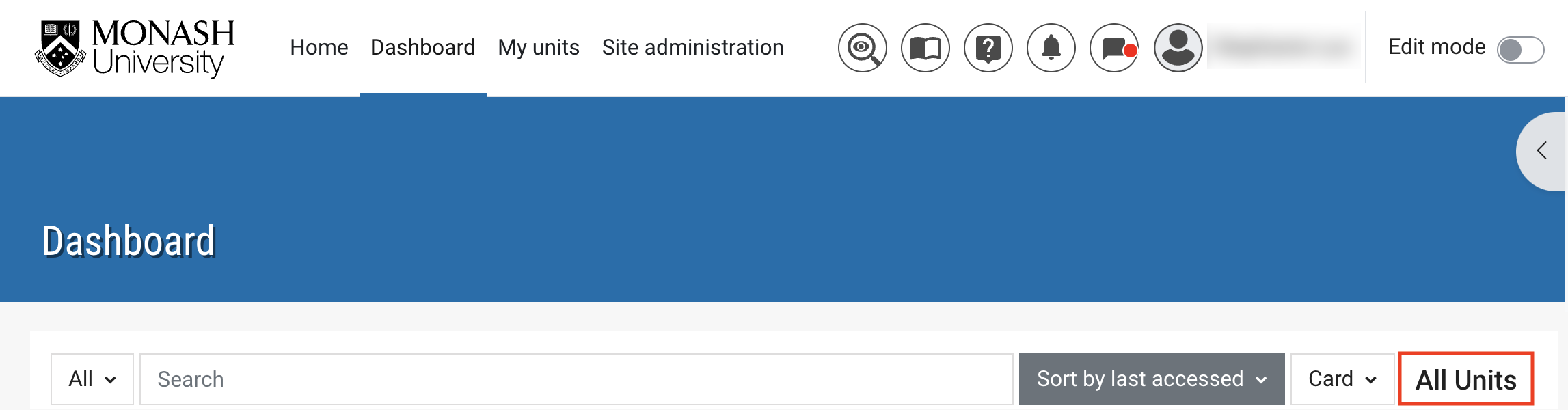
- From the unit category page, select your faculty category from the dropdown list.

- Click on Chief Examiner’s summary report in the top banner menu to navigate to Report filters.

- The Report Filters page will enable you to select report filters in order to generate a Chief Examiner’s summary report.
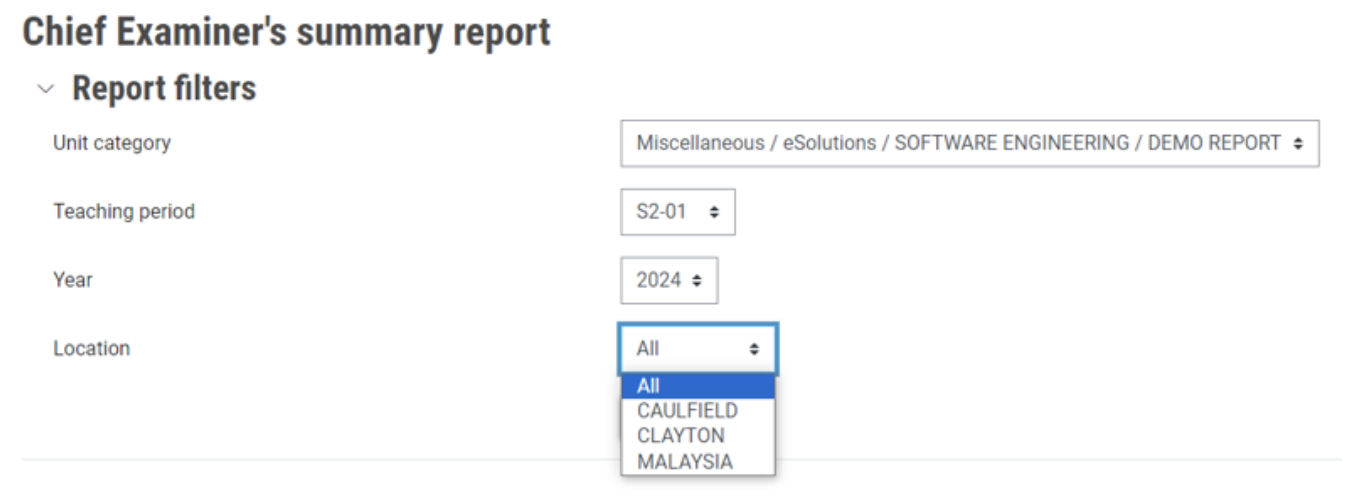
- Select your faculty category from the Unit category dropdown list.
- Select your teaching period from the Teaching period dropdown menu.
- Select year of teaching from the Year dropdown menu.
- Select your location from the Location dropdown menu to view a Chief Examiner’s summary report for a location of offering.
- Click Filter.
Chief Examiner’s summary report
The Chief Examiner’s summary report will display a summary of responses for all submitted CE reports based on filters selected in a table format.
- To access an individual CE report PDF, click on the link to CE report PDF.
- The CE report status column displays submission status for each CE report.
Download the Chief Examiner’s summary report
You can download the Chief Examiner’s summary report as a CSV or Microsoft Excel file.
- Select a file type from from the dropdown list: CSV or Microsoft Excel.

- Click Download to download the report.