
Moodle Unit Preview
The Moodle Unit Preview enables Monash students to search and view unit and assessment information in a clear, simple and consistent way. The Unit Preview is generated when at least one unit offering is linked to a Moodle site via the Callista block, and when the Unit Preview has been enabled for the unit from the Manage Unit Preview page.
The Unit Preview draws from the existing Moodle site and unit Handbook in a dynamic way, so that the unit preview information displayed will always be up-to-date. Academics can choose what information is displayed from the Manage unit preview page, such as weekly section headings, content warnings, assessment tasks and accreditation specific information. All assessment tasks should be represented in the Moodle Unit Preview. Formative tasks and resources are not required.
Moodle Unit Preview Checklist
|
The Moodle Unit preview can be accessed by clicking on the magnifying glass icon on the navigation bar. This will display the Unit preview search page.
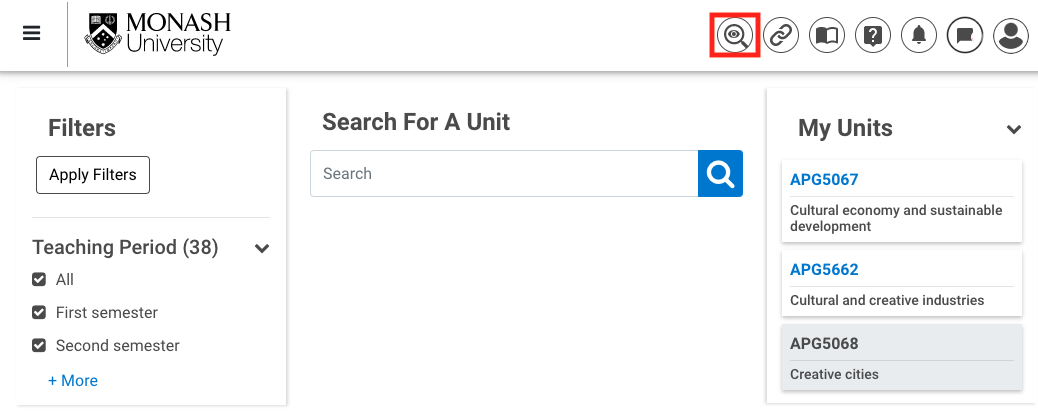
- You can search for a unit by typing the Unit code or Unit Title into the search bar, then clicking the magnifying glass icon.
- On the right hand side, search results can also be filtered by teaching period and faculty using the checkboxes. Click Apply Filters to apply search filters.
- On the left hand side, students will see a list of units in which they are currently enrolled. Clicking on the Unit code will display the Moodle unit preview for their unit.
Moodle Unit Preview interface
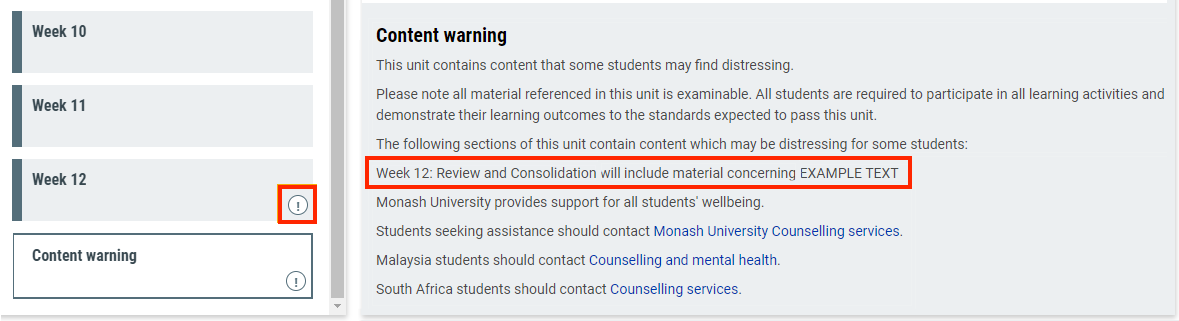
The Moodle Unit Preview draws from the existing Moodle site layout in a dynamic way, so the unit preview information displayed will always be up-to-date. Academics can choose what information is displayed with the ‘Manage unit preview’ page, such as unit lecturers, weekly sections heading, content warnings and assessment tasks. All assessment tasks should be represented in the Moodle Unit Preview. Formative tasks and resources are not required.
Assessment details
Information about major assessment tasks should be included in the Moodle Unit preview. Formative tasks and resources are not required. Assessment details must be entered in the Moodle activity settings. This can be done for existing activities or newly created activities.
- Navigate to the activity settings by clicking Edit and then Edit settings.
- The Name and Due date(if applicable) set for the activity will automatically be displayed in the assessment information in the Moodle Unit preview.
- Scroll down and click on Preview to expand the Preview section.
Note: For the eExams(eAssessment grade sync activity) or paper-based final Exams(Final Grade item), an additional field for Examination Material or Equipment will appear. For more information about these unique activity types, see Adding an eExam or paper-based Final Exam activity to Moodle or see the eAssessment Grade sync activity guide.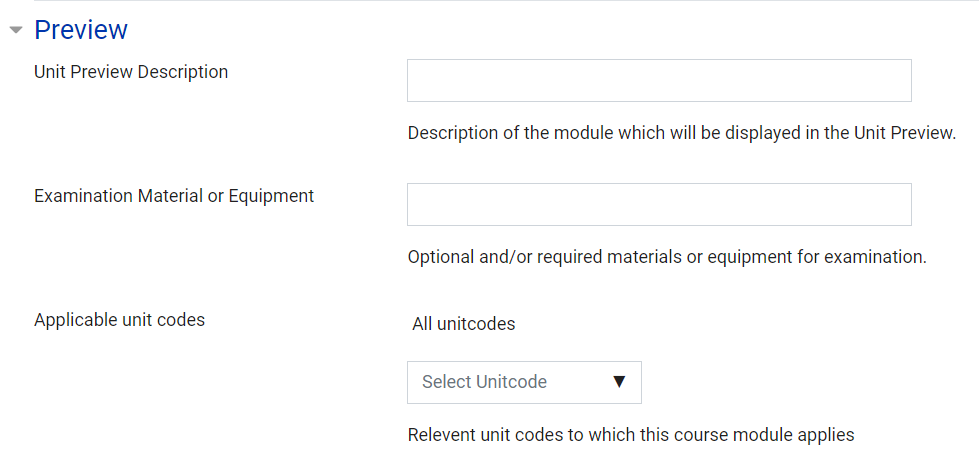
- If your unit is used for multiple different unit codes, select Applicable unit codes from the Select Unit code dropdown box. The assessment task will appear in Moodle Unit Previews for the selected unit code. By default this is set to All unit codes, which means that if the Moodle site includes multiple units(e.g. 101,102), the assessment task will appear in all connected Moodle unit previews.
- Enter text (up to 500 characters) in the Unit Preview Description box. The assessment description should contain the following information:
- Format
- Purpose
- Value (for example, 20% weighting)
- Group or individual assignment
- Assessment conditions (online, open book, invigilated, etc.)
- Assessment parameters (word count, duration, video submission, etc.)
- Activities with due dates, deadlines or closing times will be automatically displayed as set in the activity settings. For more information about which Moodle activity types these include, see the Moodle Activities Guide.
- Enter text (up to 500 characters) about Exam material or Equipment in the text box.
- Click Save and return to unit button.
Manage the Moodle Unit preview
From the Manage Unit Preview page, you can turn on and off ‘active’ Unit Previews from the search or decide which sections will be displayed in the Moodle Unit Preview. The following roles can access the Manage unit preview settings: VLE Administrator, Administrator, Lecturer, Non-primary lecturer, Designer or Chief Examiner.
- Click on More in the top unit banner and select Manage unit preview.
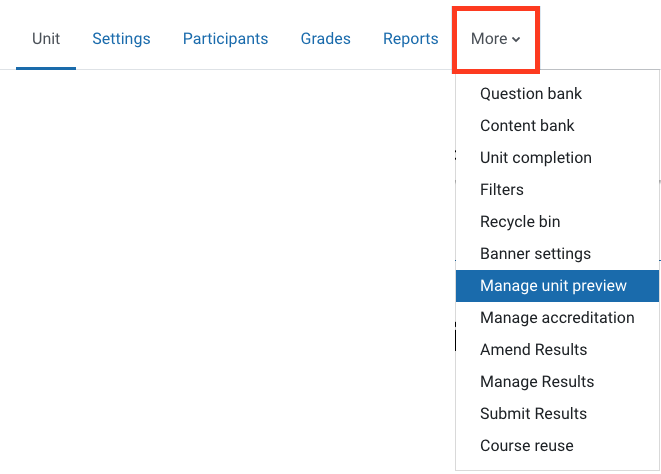
- In the Unit section column, all of your unit’s section headings will be displayed. By default, they will be set to Hidden. You should add descriptions, content warning, and assessment tasks details before making the section preview visible to students by changing the include in preview status to Shown. Once set to Shown the section information will be displayed in the Moodle Unit Preview.
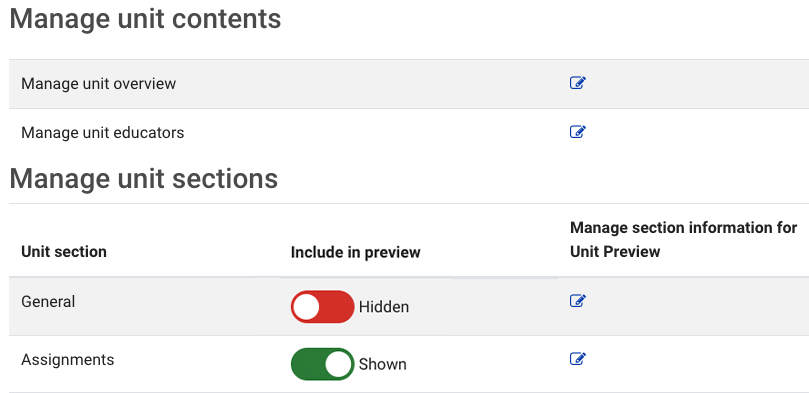
Under Manage unit contents, you can:
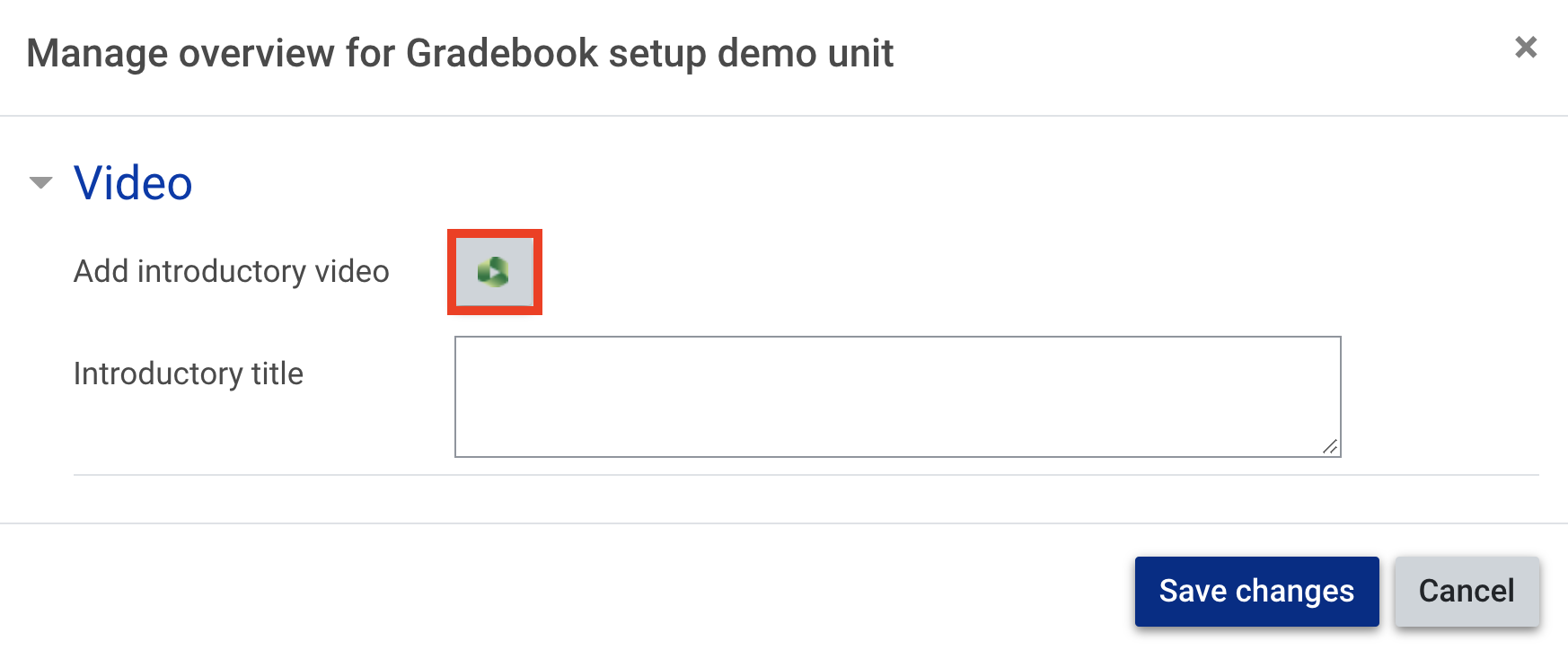
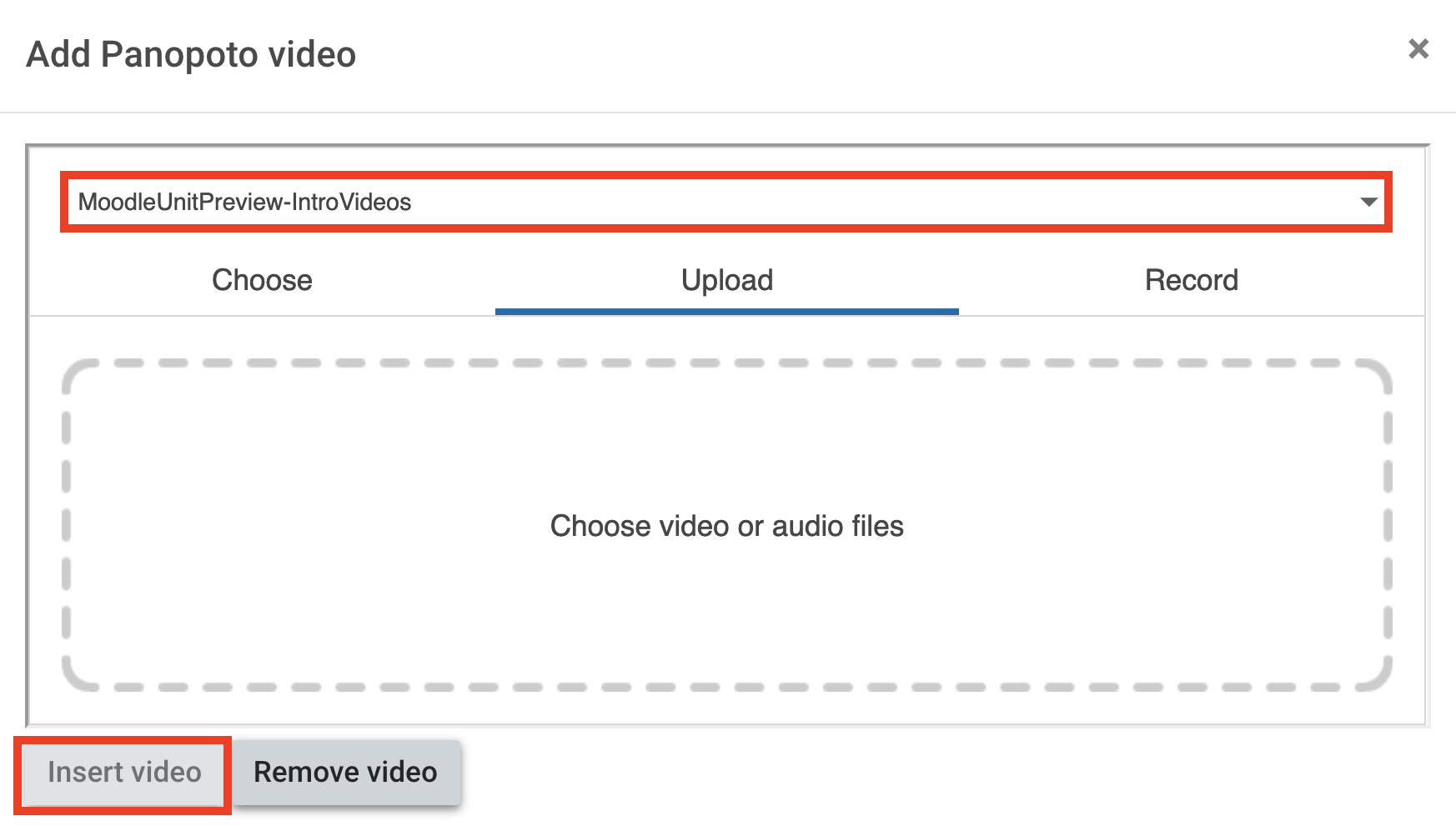
Under Manage unit sections, you can:

Accreditation
From the Manage accreditation page, you can create one or more accreditation entries to be included in the Moodle Unit Preview. The following roles can access the Manage accreditation page.
| Accreditation administrator | Can view, add, edit and delete accreditation content from the new ‘Manage Accreditation’ page without any restriction |
|---|---|
| Accreditation manager | Can manage accreditation contents until the content is made visible in the Unit Preview. |
These roles are assigned by your Moodle faculty administrator. If you require this role, please contact your Faculty Moodle administrator.
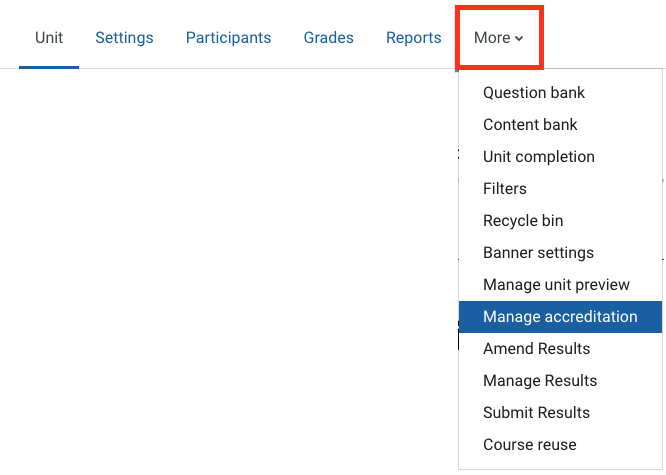
- Click on More in the top unit banner and select Manage accreditation.
- Click Create new accreditation.

- Enter a heading (250 character limit) and contents for the accreditation, which can contain, links, tables and more.
- If the Moodle site has multiple Callista Unit codes enrolled, the applicable Unit Code(s) can be selected. The accreditation heading and content will only display in the selected Unit Code(s).
- When the accreditation entry has been created, make sure to toggle the display to Shown(green) under ‘Include in preview’, in order for the accreditation to be displayed in the Moodle Unit Preview.
Note: Once the accreditation entry is visible (i.e. toggled to Shown) only the Accreditation Administrator can hide or edit the entry.
Preview the Moodle Unit Preview
On the right hand side of the page, under View your Unit Preview(s), click on the unit code you would like to preview. This will open the Moodle Unit Preview for your unit in a new tab.
Moodle Unit Preview Rollover
When a unit is rolled over, the Moodle Unit Preview, accreditation information and all sections in the Moodle Unit Preview will be hidden by default. Rolled over assessment activities will no longer be linked to the Moodle Unit Preview. To enable the Moodle Unit Preview after a Moodle site has been rolled over, ensure that you:
| In the assessment activity settings |
|---|
|
| From the Manage Accreditation page |
|
| From the Manage Unit Preview page |
|
Note: If you uploaded an Introductory Video for the unit, it will automatically be included in the Moodle Unit preview for your rolled over unit.